Permissions and access control
SRVZr uses account-scoped access control. A person signs in as a global user, then accesses one or more SRVZr business accounts. The permissions assigned to that person can be different for each account.
This means “the user has permission” is incomplete. The useful question is: does this user have this permission for the active SRVZr account?
Switching the active SRVZr account can change which settings, records, and actions are available to the same signed-in person.
How access works
When someone opens a page or tries an action, SRVZr considers:
- Sign-in , the person must be signed in.
- Account membership , the person must belong to the active SRVZr account.
- Ownership or administration , the account owner has full account-management access.
- Granted permissions , other members receive the specific access granted to them.
- Feature access , the page or action checks the permission it needs.
Membership alone does not imply unrestricted access. Likewise, one permission on one SRVZr account does not grant that permission on every account the person can access.
Administrators and delegated managers
Profile administrator
The profile administrator is the owner or administrator of the active SRVZr account.
Administrators can:
- Edit SRVZr profile details.
- Change the account owner.
- Add and remove team members.
- Open and edit the permission set for a team member.
- Save permission changes.
- Manage the full account-access surface.
Account Manager permission
An Account Manager has broad administrative access to the active business, including its feature and financial permissions. The app derives these permissions from the role, including for existing memberships. Grant this role only to someone trusted to administer the business.
Edit SRVZr Details permission
Edit SRVZr Details allows a delegated user to edit the business profile without making them the account owner or administrator. This is useful for an operations lead who maintains the business name, contact details, logo, theme color, or public visibility but should not manage the team.
Permission catalog
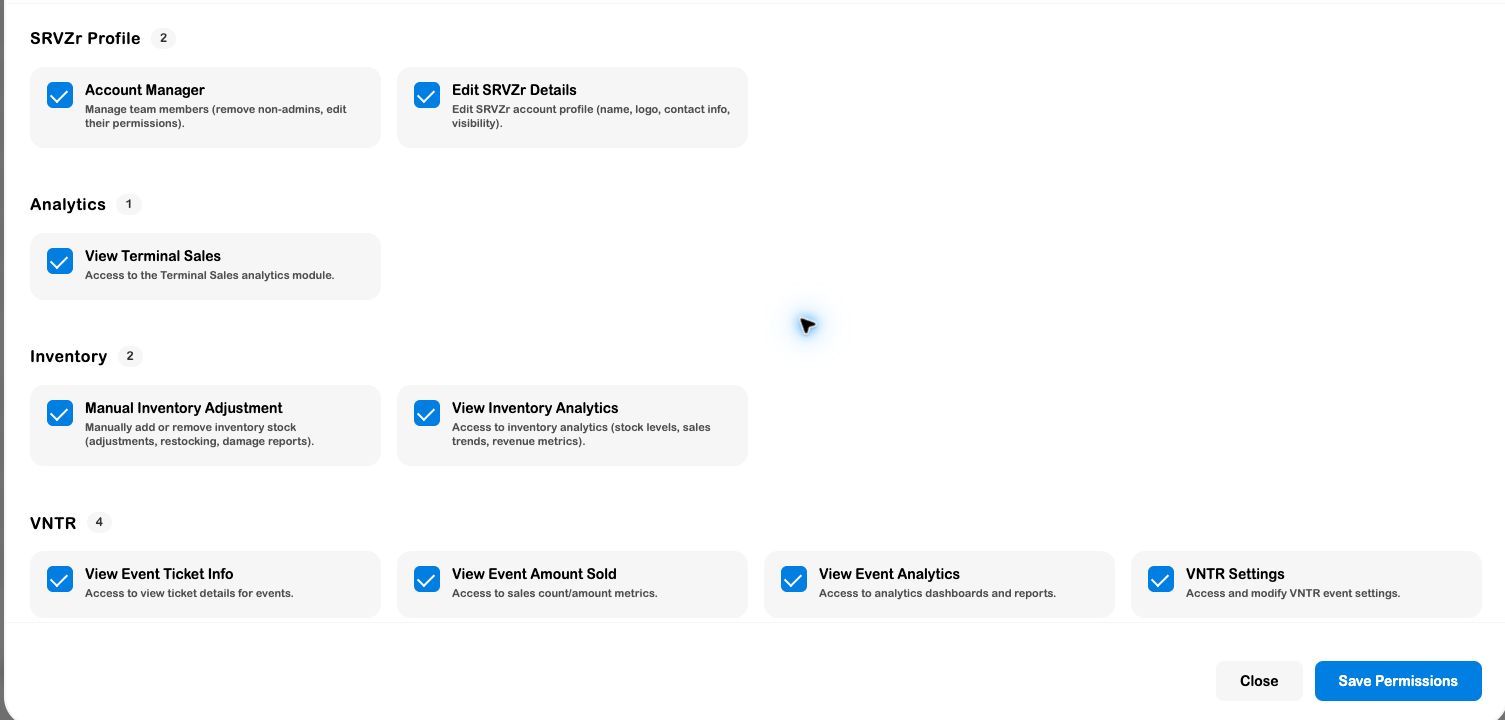
The current permission editor groups permissions by domain.
SRVZr Profile
| Permission | Allows |
|---|---|
| Account Manager | Manage team members, remove non-admin members, and edit their permissions. |
| Edit SRVZr Details | Edit the SRVZr account profile: name, logo, contact information, and visibility. |
| VNTR Settings | Access and modify VNTR event settings. |
Analytics
| Permission | Allows |
|---|---|
| View Terminal Sales | Access the Terminal Sales analytics module. |
Inventory
| Permission | Allows |
|---|---|
| Manual Inventory Adjustment | Add or remove stock manually for restocking, damage, corrections, or other adjustments. |
| View Inventory Analytics | View inventory analytics such as stock levels, sales trends, and revenue metrics. |
VNTR event viewing and analytics
| Permission | Allows |
|---|---|
| View Event Ticket Info | View event ticket details. |
| View Event Amount Sold | View ticket sales counts and amount-sold metrics. |
| View Event Analytics | Access event analytics dashboards and reports. |
Financial
| Permission | Allows |
|---|---|
| Manage Payouts | View payout history and create payouts to linked bank accounts. |
| View Payments | Access the business-wide Payments page and transaction details. |
| Refund Payments | Issue full or partial refunds for Stripe card payments. |
Edit a member’s permissions
- Open Settings.
- Select the SRVZr tab.
- Confirm the correct active account in the header.
- Find the person under Current Team Members.
- Select the edit/permissions action on their member tile.
- Review the categories and permission descriptions.
- Select only the capabilities required for the person’s job.
- Select Save Permissions.
The member tile shows a permission count, which is a quick signal that a custom set exists. It does not describe the sensitivity of those permissions; open the editor when auditing access.
The account owner or an Account Manager can edit and save permissions for the active business. Check permission-preview mode when evaluating the access a member will actually see.
After a permission change
After selecting Save Permissions, the new access applies to the selected team member for the active SRVZr account. Ask the member to refresh their page or sign in again if a page still looks unchanged.
Permissions do not automatically carry over to another SRVZr account. Review access separately whenever a person works across multiple businesses.
Least-privilege patterns
Use a permission set that matches the person’s responsibility:
| Job pattern | Suggested access |
|---|---|
| Business profile maintainer | Edit SRVZr Details only. |
| Business administrator | Account Manager only when broad business and financial administration is intended. |
| Inventory operator | Manual Inventory Adjustment; add View Inventory Analytics if they review stock metrics. |
| Finance operator | View Payments; add Refund Payments only for people authorized to move money. |
| Finance administrator | Manage Payouts plus the specific payment permissions required by the workflow. |
| Event analyst | The minimum VNTR viewing or analytics permissions needed for the report. |
Use individual permissions for a limited role. Account Manager grants broad business access, rather than a limited team-coordinator permission.
Auditing and troubleshooting
When someone cannot see or change a feature:
- Confirm they are signed in with the expected user account.
- Confirm they are viewing the intended SRVZr account.
- Confirm they are listed under Current Team Members.
- Check whether they are the owner/profile administrator.
- Open their permission editor and verify the exact permission label.
- Ask them to refresh their session if the permission was just changed.
- If the user still sees stale access, sign out and back in, then retry.
When someone has too much access, remove the unnecessary permission from the active account’s entry rather than removing unrelated accounts or deleting the global User record.
Security notes
- Do not share invitation QR codes or links beyond the intended team.
- Revoke unused invitations.
- Treat Refund Payments and Manage Payouts as financial controls.
- Review Account Manager assignments because they grant broad business access and can affect other users’ access.
- Test permission-sensitive workflows using a real account with the same delegated permissions as the intended operator.
- Document why elevated permissions were granted and who owns the review.