Menus
A menu brings reusable inventory items together with selling prices for a counter, venue, or event. Recipes belong to the underlying item, so the same instructions can serve every menu that uses it.
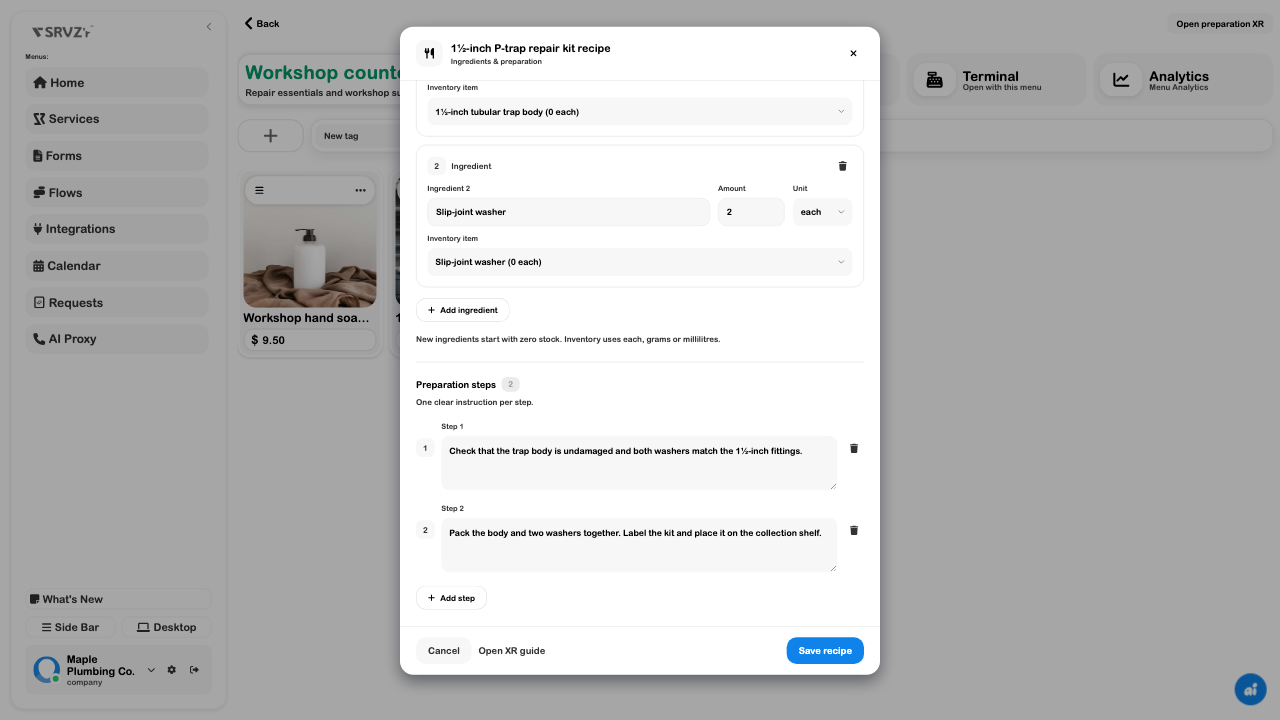
Our workshop example sells hand soap for CAD $9.50 and a repair kit for CAD $24.95. The kit has a saved assembly recipe: one trap body, two washers, and two inspection and packing steps. The menu and recipe were reopened after saving; no customer order or payment was completed.
Digital menus
Use separate menus when the same catalog needs different prices or a different selection. Menu prices are separate from the stock quantity on the inventory item.
- Open Menus and review Your Items. Create an item first if the product does not exist.
- Choose Create Menu. Enter its name, subtitle, bank-statement description, currency, and accent color. Select at least one initial item and create the menu.
- Open Manage and set every selling price explicitly. Do not treat a copied initial amount as a verified price: review all prices before using a new menu.
- Use an item's actions menu to edit its name, image, tags, tax category, or menu price. Add menu and item tags for filtering. Drag items to reorder them.
- Choose Save Changes to save the arrangement as a new menu version. Reopen it and verify the prices.
- Choose Terminal → Open with this menu to check the cashier's view.
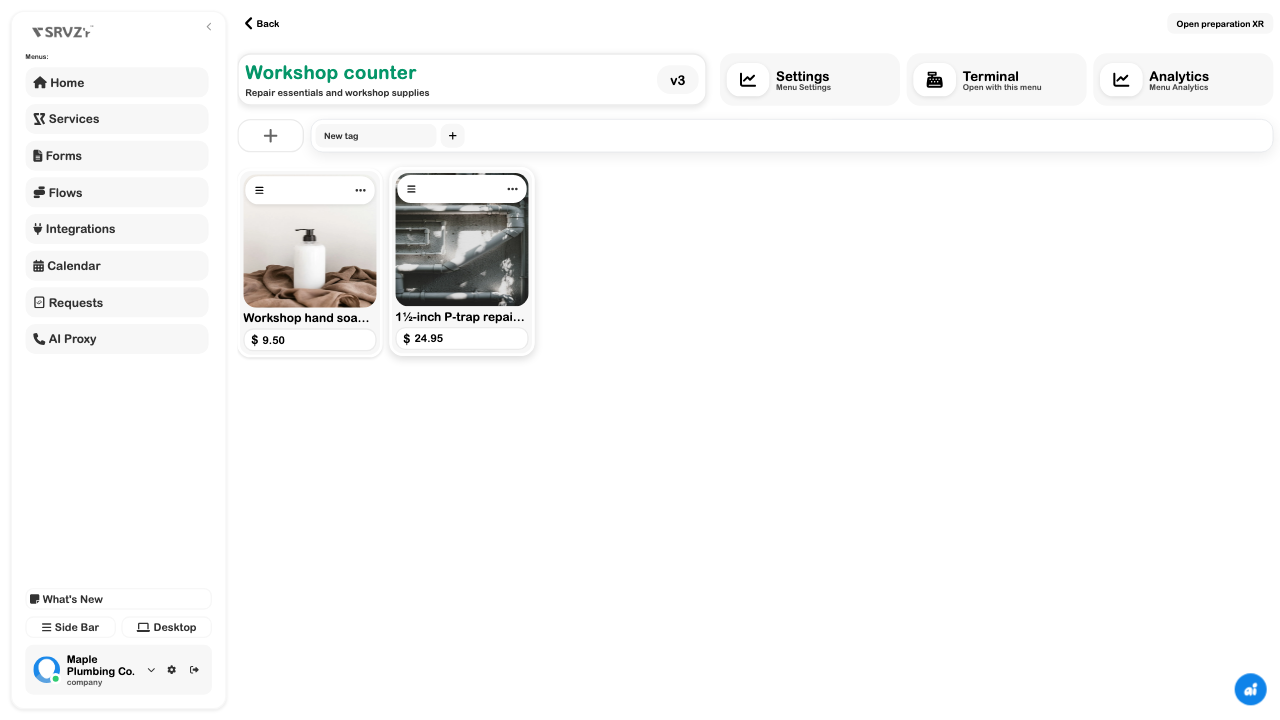
There are different save boundaries. Payment switches in Settings save immediately; name, subtitle, statement description, currency, and accent use Save details. An item dialog uses Apply changes, followed by the menu's Save Changes. A realtime refresh should not erase a detail field you are still editing.
For customer ordering, review Menus → Online Ordering for business-wide fulfillment locations, acceptance time, and table-layout rules. Then review Online ordering in this menu's settings. Each enabled menu has its own customer link; creating the menu alone does not enable it. Leave ordering off until prices, locations, tenders, and the staff acceptance process are ready.
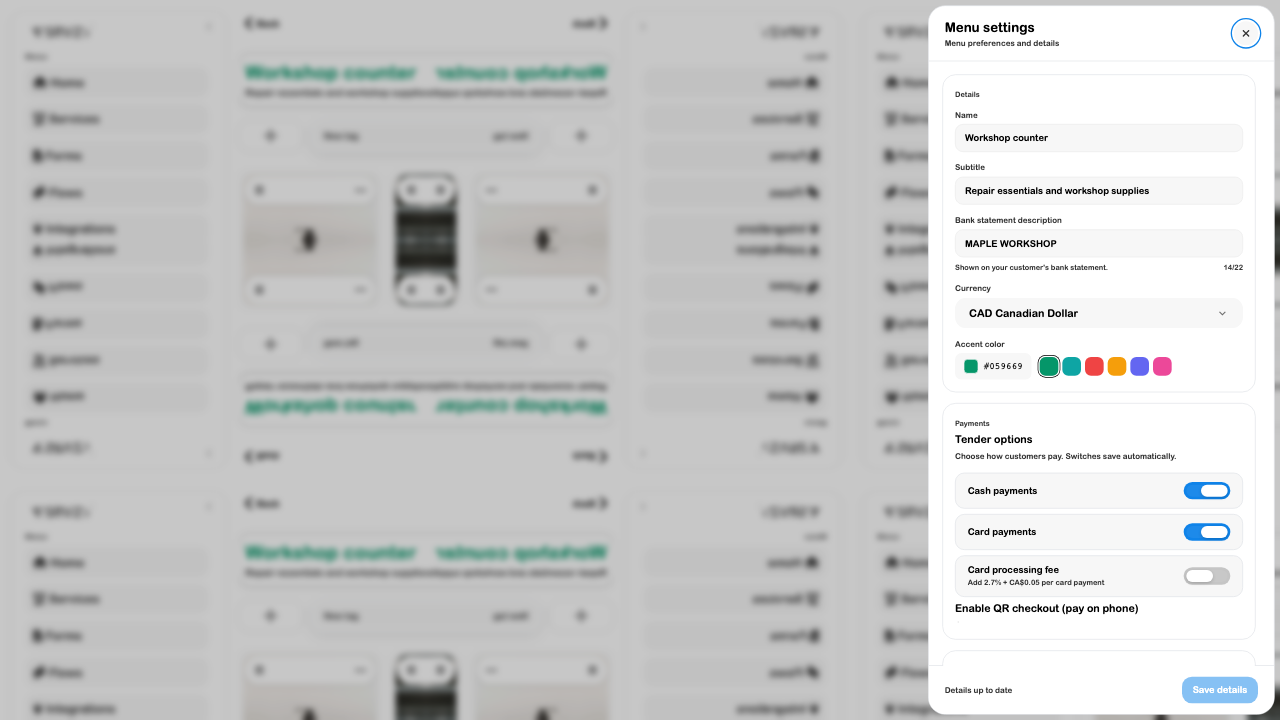
Settings also offers a printable Menu PDF, analytics date range, and default location. Review an exported PDF before sharing it. Version history handles saved item arrangements; it is separate from the live settings switches.
Item modifiers
The current menu editor represents item choices through variants. It does not expose a separate builder for nested modifier groups such as “choose two toppings” or “required extras.” Plan those requirements separately.
- Open the underlying item in Inventory and choose Types / Variants → New Type. Define the choices and save the item.
- Add that item to the menu, or review its existing menu entry. An item with variants offers a Variants button instead of a single price field.
- Set and save each variant's price for this menu, then save the menu version.
- Check the choices and selected price in Terminal before taking an order.
Recipe settings can add a portion multiplier and extra instructions for an existing variant. A double portion can use twice the base ingredients. This affects ingredient calculations; it is not a general surcharge or modifier-group rule. The workshop example has no variants and demonstrates the base recipe only.
If a choice is missing, check the catalog item, menu entry, and saved version. Tags categorize items; they do not change a price.
Recipe builder
A recipe connects ingredient quantities with the steps needed to prepare an item. It can describe food or quantity-based assembly, such as packing a repair kit. Begin with a complete single-portion specification before scaling up.
- Open the menu item's actions, choose Edit item, then Recipe & preparation.
- Choose Create a recipe, a relevant suggested template, or an existing recipe as a starting point.
- Set Portions this recipe makes. Ingredient amounts describe that whole batch.
- Add ingredients, positive quantities, and units. Link matching inventory records, or let saving match or create appropriate ingredient records.
- Write a clear instruction in every step. Review variant multipliers and notes if present.
- Choose Save recipe. Reopen it to confirm the saved ingredients and instructions.
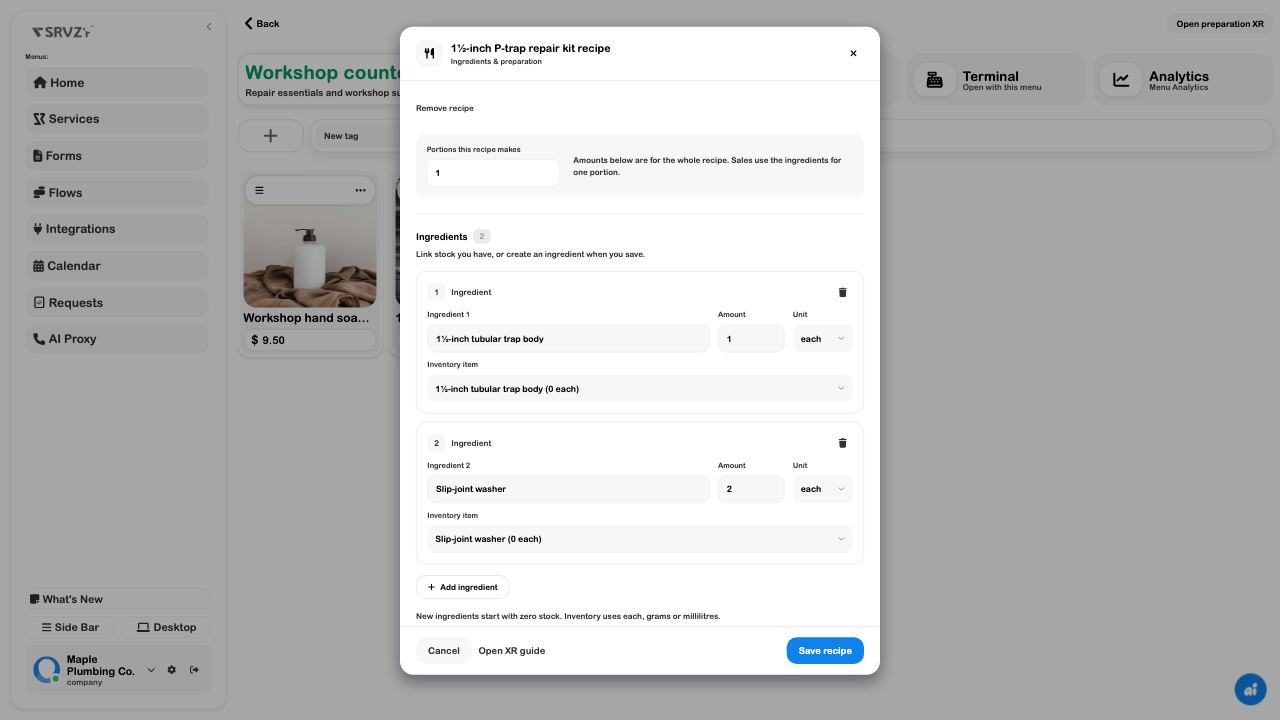
Saving can create ingredient inventory records. Review names and units first to avoid duplicates. A recipe requires an ingredient, positive batch yield, and nonempty steps. Linked ingredients must belong to the business and have compatible quantity tracking and stock units.
The recipe was saved and reopened here. Ingredient consumption was not recorded and no recipe-item sale was completed.
Ingredient lists
An ingredient list answers what is needed for this batch, rather than what the item sells for. Preparation scales the saved recipe by requested portions and any variant multiplier.
For the one-kit recipe, three kits need three trap bodies and six washers. A recipe making ten portions divides its whole-batch quantities by ten when calculating one portion.
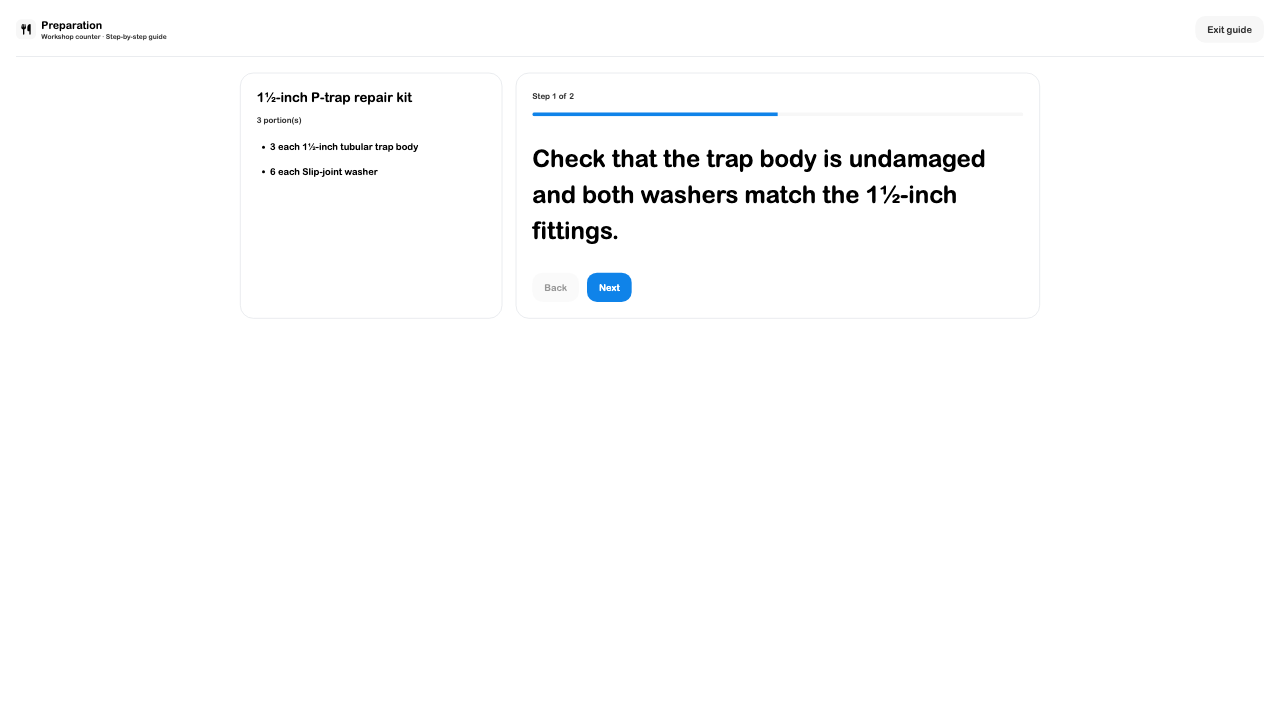
Recipe units are each, g, kg, ml, and l. Inventory uses each, grams, or millilitres; kilograms and litres are converted for linked stock use. Select an inventory link with the matching stock unit, and combine duplicate ingredients into one row.
Zero stock means the record exists, not that supplies are available. Receive or adjust actual ingredients through Inventory before recording preparation or selling a recipe item. Ingredient-use recording checks that enough stock exists.
Preparation instructions
Write one action per step and include a check that tells staff it is done. “Prepare kit” is vague; checking the body for damage and the washer size gives the next person something they can verify.
- Save the recipe, then open the preparation page for the menu or Open XR guide from the saved recipe.
- Choose the item, portions, and variant if relevant. Select Start preparation.
- Use Next and Back through the steps. Ingredients remain beside the current instruction.
- Choose Finish to reach the completion review. This does not itself record stock use.
- Use Record standalone ingredient use only for preparation that has not already been counted by a Terminal sale. It requires inventory-adjustment permission and sufficient ingredients.
A Terminal sale already deducts linked ingredients. Recording the same batch again as standalone preparation would count consumption twice. Decide which event represents stock use in your workflow.
The browser guide was checked through Preparation complete, without recording consumption. The XR option was not checked on a headset.
Troubleshooting
| Symptom | Check |
|---|---|
| Create Menu is disabled | Enter a name and select an existing item. |
| An initial menu price looks wrong | Set its selling price explicitly; an inventory amount is not a verified price. |
| Applied item edits disappear | Apply the dialog, then save the menu version. |
| No recipe in Preparation | Save a valid recipe, select the correct menu, and refresh recipes. |
| Recipe cannot be saved | Check positive amounts, portions, units, duplicates, and blank steps. If setup is unavailable, ask the administrator to update the server. |
| Ingredient use fails | Check stock, units, inventory-adjustment permission, and whether the recipe changed. |
| Customer ordering is unavailable | Review business-wide ordering rules and this menu's own switch. |
Continue with Terminal, Inventory, or prepare a counter menu.