Your SRVZr AI assistant
Describe what you need in everyday language. Your SRVZr AI assistant can find business information, build forms and flows, edit your content, and carry out supported tasks across your workspace. You can start with a question, a specific change, or a larger goal and work through it together.
For example: “Build a cleaning inquiry form that asks about the property, preferred dates, and any special requirements.” You can then ask it to add a question, connect the form to a flow, or explain what still needs setting up.
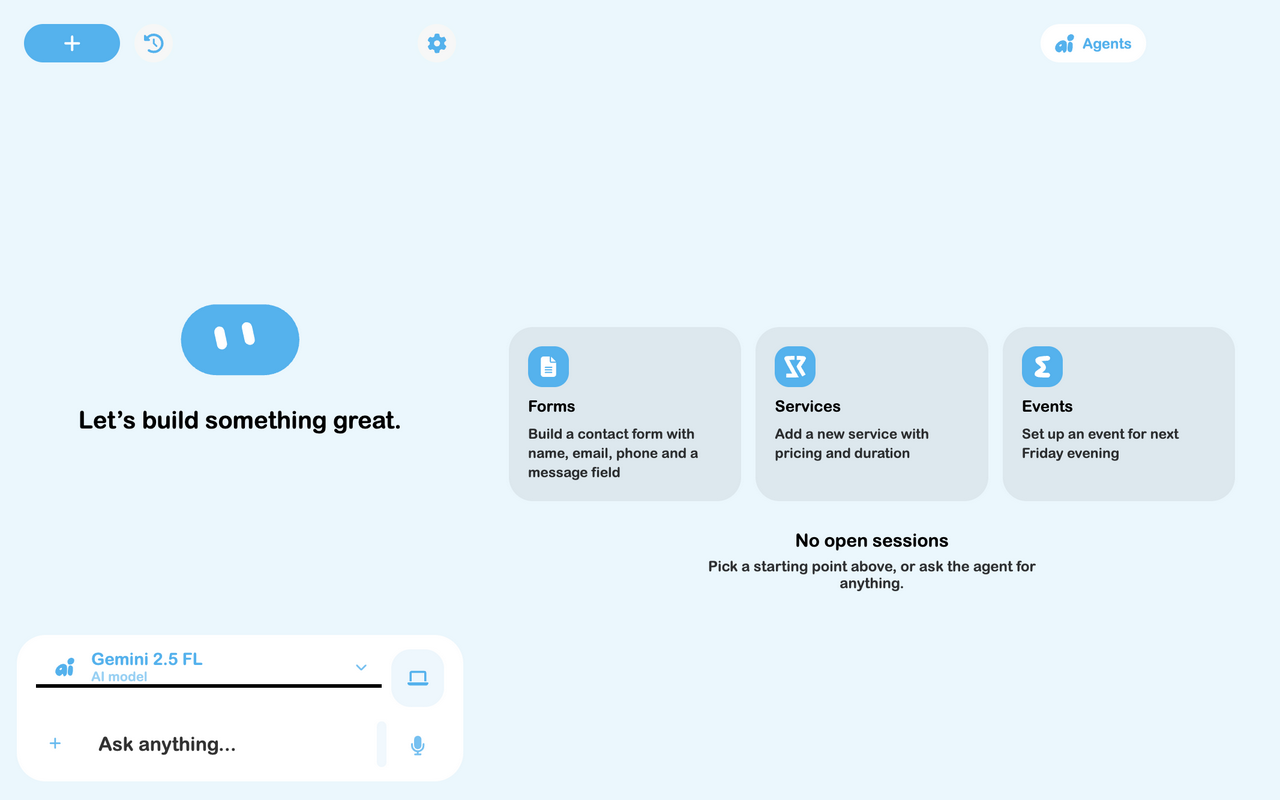
Start a conversation
- Select the AI assistant button in the app, or open the AI workspace.
- Check which business account is active.
- Type what you want into Ask anything. Describe the result, the records or page to use, and any important limits.
- Review the answer, progress, and any changes shown in the workspace. Keep talking to refine the result.
You do not need to choose a specialist first. The assistant can bring in the relevant skills and use separate helpers for parts of a larger task. Open sessions let you follow the work in the AI workspace.
If a detail matters, give it explicitly: “Use Canadian dollars, leave this as a draft, and ask me before publishing.” If you are still deciding, say “Help me work out the options” or “Ask me the questions you need first.”
What you can ask it to do
Available actions depend on your account access, the open editor, and connected services. Here are useful starting points.
| Work area | Ask the assistant to… |
|---|---|
| Customers and work orders | Find a customer, read their job history, search form answers and notes, add a note, or propose a status or assignment change. |
| Forms and business flows | Create intake questions, add conditional fields, connect flow nodes, inspect settings, and check a flow for issues. |
| Invoices and operations | Edit an open invoice's details and line items, review expenses, summarize sales, or help plan team shifts. |
| Events and layouts | Prepare an event draft, work on ticket pricing and a poster, or arrange tables and seating on a floor plan. |
| Menus and inventory | Develop recipes, inspect stock and item history, or stage changes to menus and inventory for review. |
| Canvas and documents | Arrange text, shapes, images, and frames; write or format documents; generate an image or video when requested. |
| Websites and apps | Build or edit a business website, work on its content, or create an app or dashboard for a specific job. |
| Research and planning | Research a topic, compare options, make a planning board, or present findings in an interactive chart or widget. |
| Calendar and maps | Find or add calendar events, open a map, mark locations, or organize field visits. |
| Connected mail | Search the inboxes you can access and read relevant messages to answer a business question. |
Try the example requests for complete briefs you can adapt to your business.
Work from the page you have open
Open the relevant customer, work order, invoice, flow, or editor before asking for a change. The assistant can use supported page context to understand requests such as “Add a note to this job” or “Make this poster easier to read.”
For an ambiguous request, name the record or describe which one you mean. Some tools edit the open page, while others find records across your account. Ask the assistant to show the record it found before changing it when you want to check the match.
Give it business context
Tell the assistant lasting facts that help it work with you: your service area, opening hours, pricing rules, or how you like a job handled. For example: “Remember that our business is closed on Sundays.”
Business context is shared with the business team and can be reviewed in Settings → AI Assistant → Business Context. Personal preferences and business facts have different scopes. Say which you mean when it could be unclear, and update saved context when the business changes.
The assistant can look for patterns in completed work orders and suggest better intake questions or additional offerings. Ask it to show the jobs that support a suggestion before deciding to use it. Suggestions still need your judgment and the relevant edits.
Talk, attach, and keep working
Use the microphone to speak instead of typing, and use the attachment control to add reference images. A floor-plan image, design reference, or photo can make a request more specific. Voice needs microphone permission; availability varies by device and selected mode.
The agent can work beside the app in a side panel, float over it, use a bottom input, or use a voice presentation. You can also work in Web App, Desktop, Table, or Multitask views. See Working with AI for cloud tasks, history, model selection, and review controls.
Turn a useful task into an automation
For work you want repeated, ask the assistant to create an agent: “Every weekday at 8:00 AM, summarize today's jobs and flag missing information for my review.” Check the proposed instructions, schedule, and timezone before confirming.
Agents documents scheduled and event-triggered tasks. AI Proxy covers the business phone assistant. Both work alongside the conversational AI you use directly.
Stay in control
Some supported actions request a preview and confirmation, including customer changes, work-order status or assignment changes, scheduled-agent creation, and publishing an event. Other actions, such as editing a form or adding a note, can apply directly when requested. Explain whether you want a plan, an edit, or something published.
Review the actual page or record after an action. A draft, proposed change, and completed task are different outcomes. If information is missing or a connection is unavailable, clarify it in the conversation and check the result before relying on it.