Agents
Agents run business tasks for the active SRVZr account. Start from a template or write your own instructions, choose when the task runs, and review its results and proposed changes.
To work with AI directly, start with Your SRVZr AI assistant. You can ask questions, build and edit in the app, or ask it to create a recurring agent from a task you already tried.
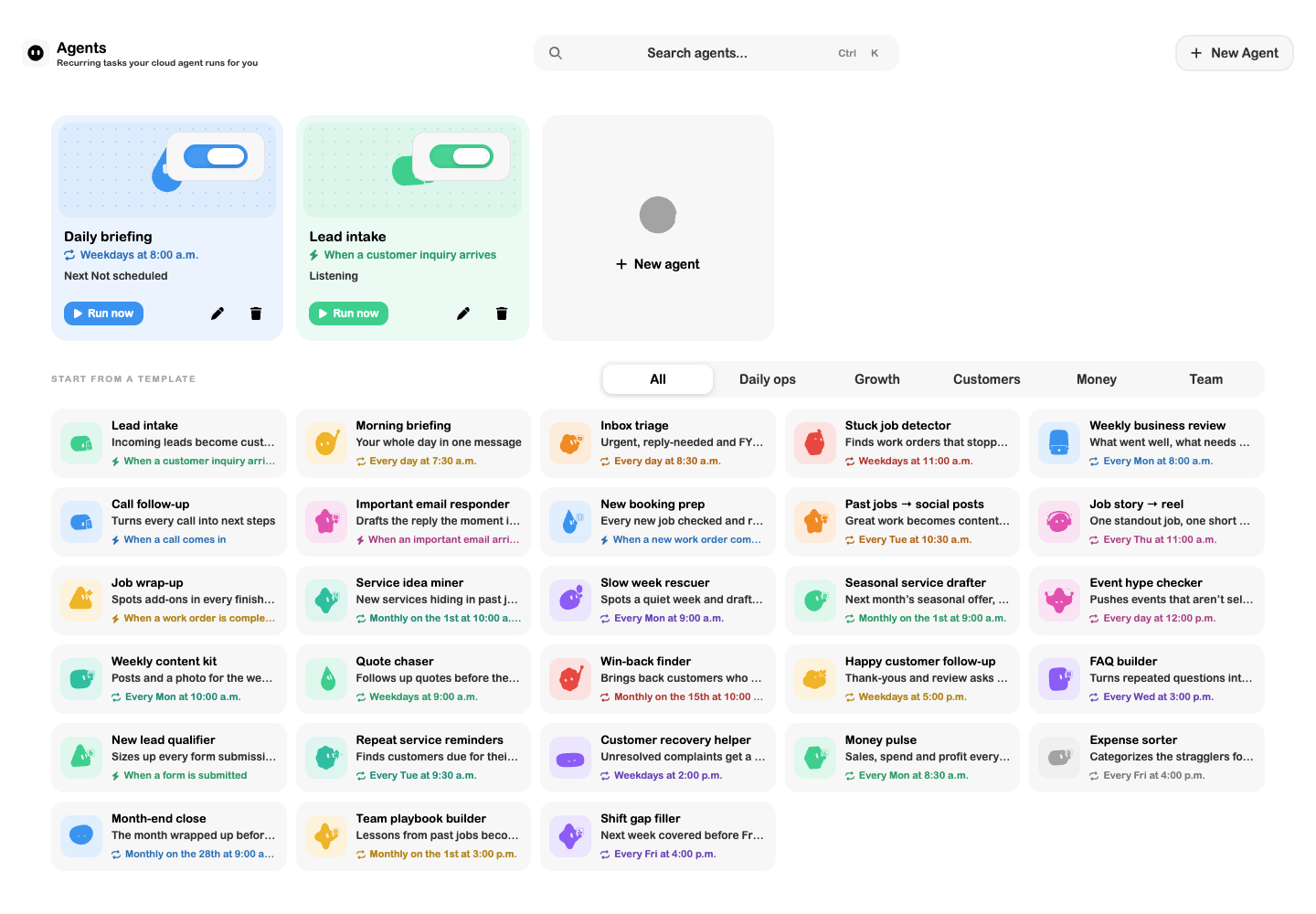
Create an agent
- Open Agents and confirm the active business account.
- Choose New agent, or select a template. Templates are grouped into Daily ops, Growth, Customers, Money, and Team.
- Give the agent a recognizable name and describe the result you want. Include the records to use, what to leave for your review, and what to do when information is missing.
- Choose a schedule or an event trigger.
- Check whether the agent is Active or Paused, then save it.
A useful brief is specific: “Every weekday at 8:00 AM, summarize today's booked work, flag missing information, and propose follow-ups for my review.”
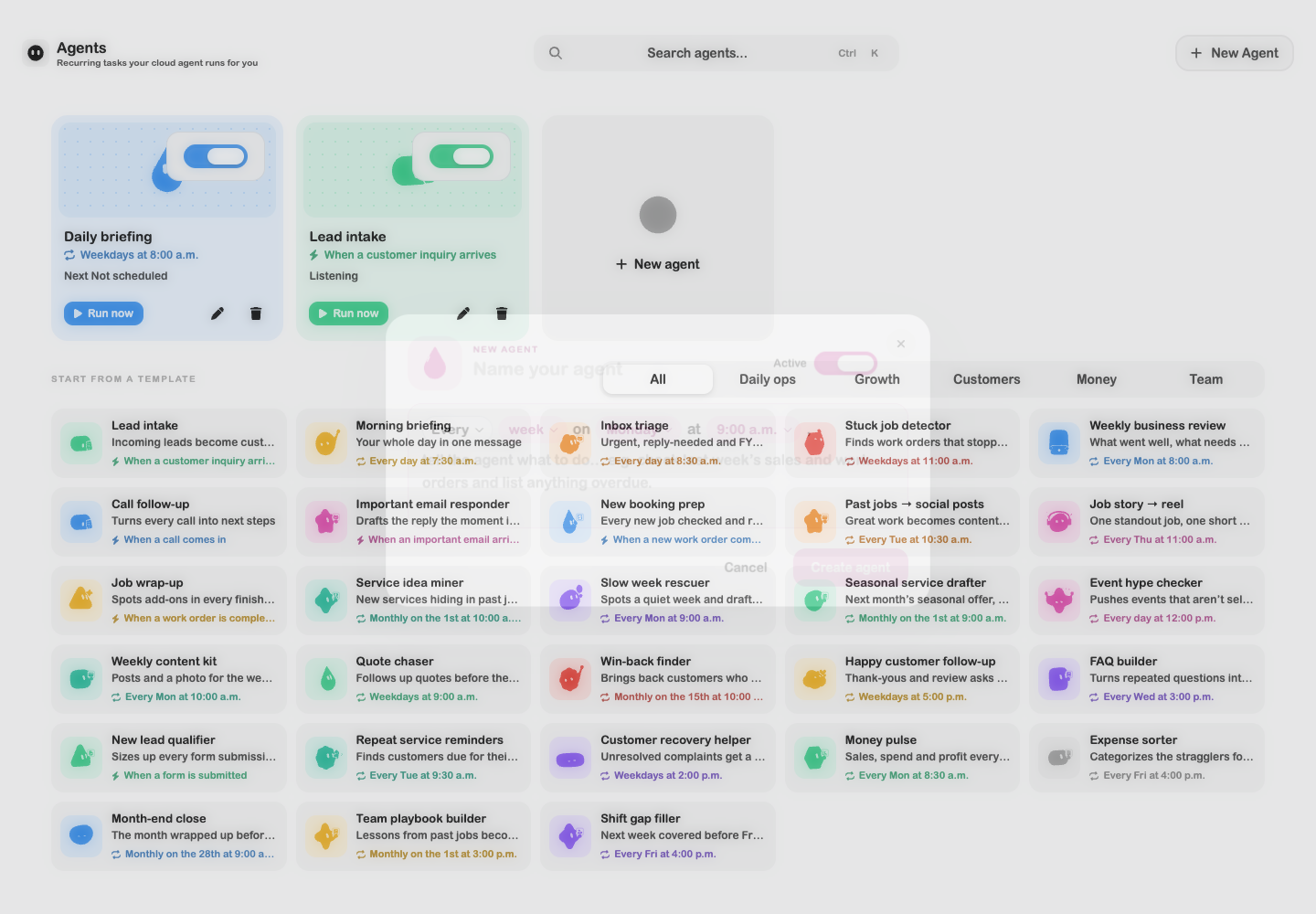
Choose when it runs
| Trigger | Settings |
|---|---|
| Scheduled | Daily, weekdays, weekly, or monthly, with the time and relevant days. Check the schedule's timezone. |
| Customer inquiry | Select the connected email, chat, or phone channels available to your account. |
| Important email or any email, according to the available event options. | |
| Call | Run after a business call ends, using its available context. |
| Form | Run when a form is submitted. |
| Work order | Run when a work order is created or completed. |
Event options require the corresponding channel or feature to be connected. Choosing a trigger does not connect an inbox or phone line by itself.
Templates and lead intake
Templates provide a starting brief for tasks such as daily preparation, expense review, customer follow-up, and team planning. Read and adjust the brief before saving it.
Lead intake is a specific automation for incoming customer inquiries. For a recognized new lead, it can create the linked customer and work order; a follow-up can stay with the existing job. When a reply channel is available, the customer can receive tracking information. Review the actual run result to see whether a record was created and whether a reply was delivered.
Review “Needs you”
The Needs you area appears when a run has proposed changes, drafts to review, or a credit-related pause.
- Approve applies the displayed proposed change; Skip rejects it.
- Review opens a draft or a run with several decisions so you can inspect them.
- Later dismisses a draft reminder without publishing the draft.
- Resume retries a paused run after you resolve the credit issue.
Read the affected records and proposed values before approving. A completed run does not automatically mean a draft was published or a message was delivered.
Run, pause, and inspect
Use Run now to start a saved task immediately. Select its last run to open the conversation and review the output. Run states include Starting, Working, Done, Failed, Stopped, and Paused · credits.
Use the agent's toggle to pause future triggers. Pausing the schedule and stopping an already running task are separate actions. Edit the agent to change its instructions or timing. Deleting an agent removes its schedule; past runs remain in History.
Troubleshooting
If a task does not run, check that it is active, the correct account is selected, its connected channel is available, and the schedule and timezone are correct. If it pauses for credits, check your account's balance before resuming. If the output is incomplete, open the run, review the explanation, and clarify the brief before starting another run.
Related guides: Customers, Mail, Forms, Permissions, and Calendar.