Command Menu
The command menu is the fastest way to search the SRVZr workspace and jump to a tool or page. It provides a searchable index of capabilities instead of requiring you to remember where each feature lives in the sidebar.
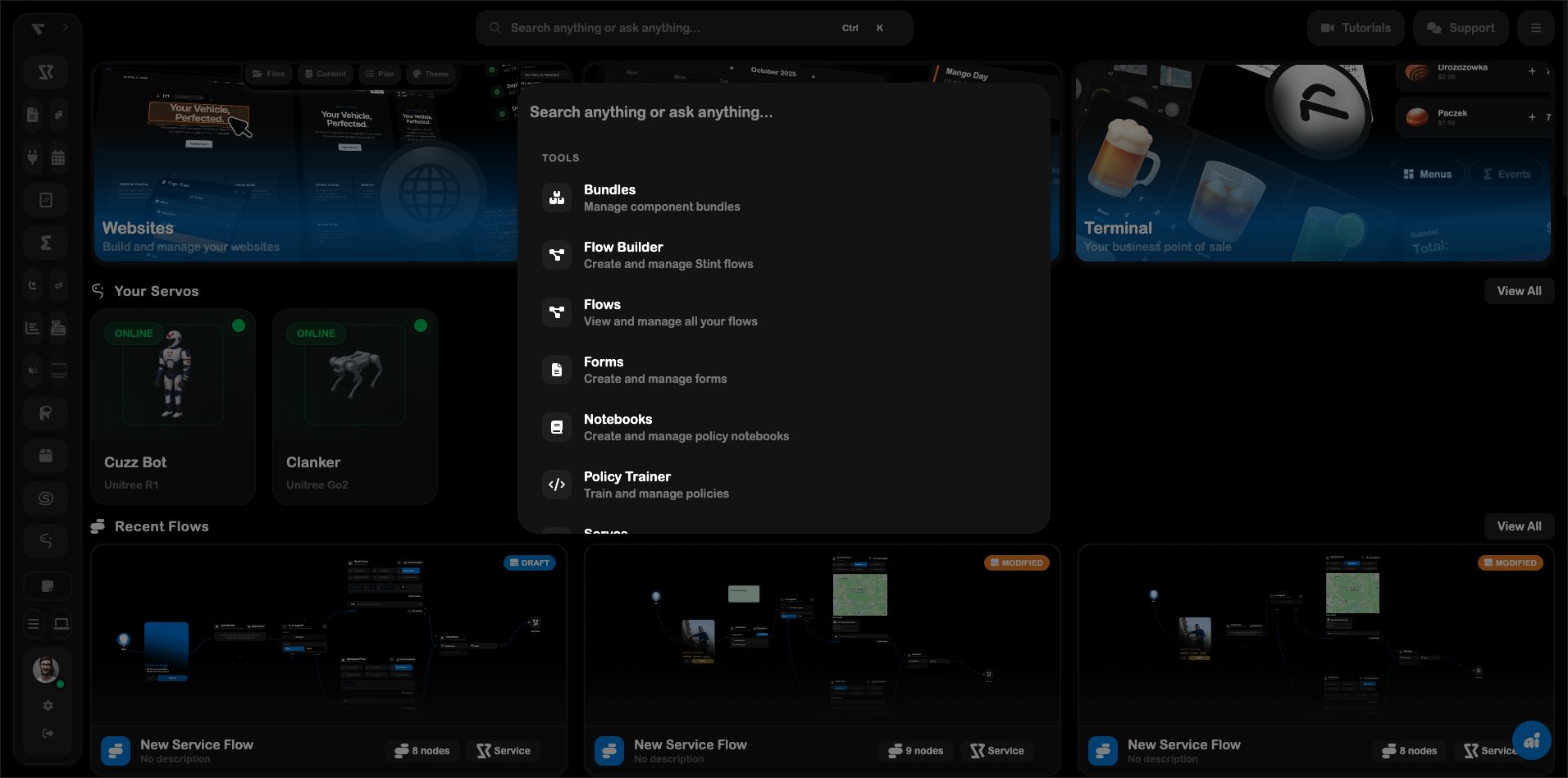
Open it
Press Ctrl K to open the command menu in the current web build. The dashboard also exposes the same search entry point in the top bar as Search anything or ask anything….
On macOS, your browser or app shell may present the shortcut as ⌘ K; use the shortcut shown beside the search field in your build.
Search and choose a destination
- Open the command menu.
- Type a tool, page, or capability name.
- Review the matching result and its short description.
- Select the result to open it.
The menu groups results into broad areas such as Tools and Pages. Examples visible in the app include Flow Builder, Flows, Forms, Notebooks, Policy Trainer, Servos, Analytics, Calendar, Canvas, Customers, Events, Inventory, Menus, Projects, Rentals, Services, and Website.
Why use it?
Use the command menu when:
- you know the destination but not its sidebar location;
- you want to move between tools without changing your navigation context first;
- you need to discover capabilities available in the current workspace;
- the sidebar is collapsed.