Custom apps and snippets
Build a small tool around a task your team repeats. A snippet can be a working app with its own interface and source files: for example, a visit estimator that combines labour, equipment, tax, and discount before you prepare a formal quote.
The Snippets library holds the apps you own. A saved draft, a running development preview, and a published app are separate stages. The walkthrough below uses a private draft and a real browser preview; it does not publish an app or issue a customer quote.
Custom snippets
Open Snippets in SRVZr, then select Create Snippet. The New app sheet asks for a name and what the app should do.
- Give the app a task-specific name, such as Plumbing visit estimator.
- Describe the inputs and result: “Estimate a drain-camera visit from labour and equipment lines, apply tax, and show a clear total before arranging the job.”
- If useful, choose a starter: Job checklist, Stock count, or Quote calculator. A starter supplies an existing working interface for the builder to adapt.
- Review App icon. Automatic icon generation and Preview now use credits; turn generation off if a letter icon is sufficient.
- Review the accent colour.
- Check the final action: Build app starts building from a supplied goal. Create app is available when you provide a name without a goal.
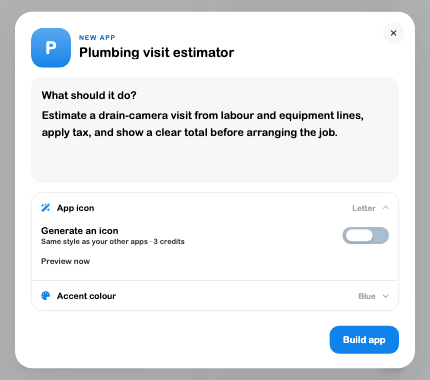
For this walkthrough, the app was created from the Quote calculator starter without starting an agent build. Its source files were then edited in the app editor. The saved app appeared in the Snippets library with a Draft badge.
Custom apps
Use App Builder to inspect the working app and its files. Files opens the project tree; selecting a file opens Code Editor. Source edits can save automatically: watch for Unsaved changes, Saving, errors, or All changes saved before leaving. Use Save when available to flush pending changes.
Test a useful result
- Open the draft and choose Browser for the preview runtime.
- Wait for Browser · Live preview. Starting or installing is not a ready state.
- Enter two labour hours at $95 and one inspection-camera line at $60.
- Set the illustrative tax rate to 13% and discount to $10.
- Verify the calculation: $250 subtotal, $31.20 tax on the discounted $240, and $271.20 total.
- Change an input and check the result again before relying on the tool.
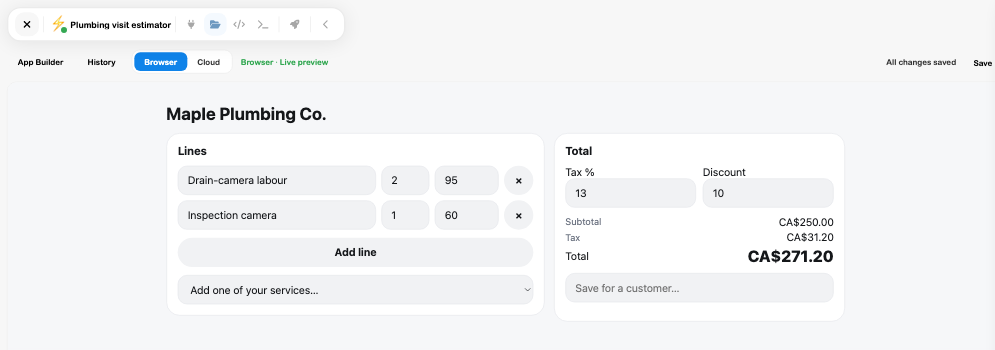
The example’s source layout was widened in Code Editor so line descriptions remain readable. That source edit was saved, reopened after a full reload, and included in a later ZIP download. The estimate inputs reset on reload: saving an app’s source does not automatically persist every value someone types into its running interface.
Review connectors before using business records
A starter can request access to the data it uses. Connectors lets you review each area, with Off, Read, or Read & write where supported. The estimator requested read access to Services, rentals & events to populate its service selector; other data areas stayed off during the walkthrough.
Use read access when the app only needs to look up information. Review Changes, outside services, and who can use the app separately. A customer-note action requires the appropriate customer access and any approval the app requests. The reviewed example did not save a quote to a customer, change a work order, or send anything.
The starter choices do different work:
| Starter | Intended task | Check before using it |
|---|---|---|
| Job checklist | Tick preparation items for jobs and complete the job workflow | Its Done action can write notes and change job status. |
| Stock count | Compare entered counts with recorded items and export a CSV | Confirm which inventory records it reads and whether your adaptation changes stock. |
| Quote calculator | Combine lines, tax, and discount; optionally save a customer note | A note is separate from the formal Quotes and Invoices workflow. |
Preview and publication
Browser and Cloud are separate preview runtime choices. This walkthrough verified Browser only. If a runtime reports an error, inspect the message and use its available retry or runtime-switch control; a blank frame is not evidence of a successful app.
A live development preview does not create a published version. Publish is a separate action. Test the finished app, its connectors, calculations, and record changes before choosing to publish it. Cloud execution, publication, shared-user access, and Marketplace review were not completed in this walkthrough.
Snippet ZIP export
Download source when you need a local copy for review or further development.
- Open the owned app in editing mode.
- Wait for its saved files to finish loading and confirm All changes saved. Avoid exporting during initial loading or an incomplete save.
- Open Files from the toolbar.
- Select the download control labelled Download repository as ZIP in the Files header.
- Check the resulting ZIP. The example downloaded as plumbing-visit-estimator.zip, with application source, styles, and project configuration.
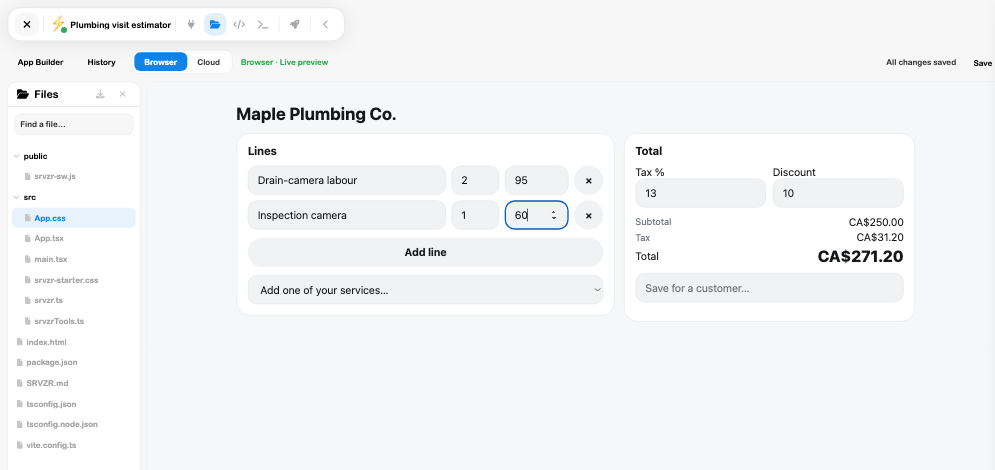
This exports the loaded source files. It does not export the temporary estimate inputs, grant another person connector access, or deploy the app. In the walkthrough, a download taken too early during reload contained the older source; after loading settled, a fresh ZIP included the saved edit. Reopen the relevant file and export again if you need to confirm a recent change.
Troubleshooting
| Problem | What to check |
|---|---|
| The new app has a Draft badge | The draft exists, but it has not been published. Open it to continue editing. |
| Creation reports missing files or fails | Do not treat a library card alone as proof that the project was fully provisioned. Retry loading and inspect the error. |
| The app asks to use business data | Review its Connectors request and grant the access needed for the task. |
| An edit appears in preview but not after reload | Check save errors and pending changes before leaving the editor. |
| Export lacks a recent edit | Wait for file loading and saves, reopen that file to verify it, then download a fresh ZIP. |
| A calculation disappeared after reload | The app must implement saving that operational data; source autosave alone does not save runtime form values. |
For customer-facing quotes, continue in Quotes and Invoices. Use Desktop, Multitask, or Table to keep an app beside supporting tools. For a reusable operational checklist without a custom app, use Documents.
Build with AI and open the app full screen
Ask the assistant on /ai for a focused app and describe its inputs, result and allowed data access. App-building tasks can show a live preview and app icon on their task card. Use Full screen to inspect the app; the back control and app menu let you return to other work.
The current app-building workflow supplies the SRVZr UI kit and supports a cloud builder. Review its result against your actual task before sharing. Published snippets can use a dedicated address under snippets.srvzr.app. A working preview, saved source and a successfully published address remain separate milestones.
Review each connected bank's app access before exposing business data. An app-owned bank is distinct from an existing shared bank; creating an app does not authorize unrestricted access to every table. See Banks.