Documents and operating checklists
Use Docs for instructions that need more structure than a short job note: a preparation checklist, handover, operating procedure, or meeting record. The library lists available documents; opening a card takes you to its editor.
The example is Drain-camera visit checklist. It organizes preparation, access, and closeout tasks without adding private customer information. It was saved and reopened from the library, including its headings, checkboxes, document name, and page settings.
Documents
Create a useful document
- Select the intended business/profile and open Docs.
- Choose New Doc and wait for the editor. This creates an initially untitled record.
- Open Page setup and enter Document name. Choose OK to apply it.
- Write the document's heading and content in the page editor. The document name used by the library and a heading inside the body are separate things to edit.
- Choose Save, wait for Saved, then return to Docs and reopen its card.
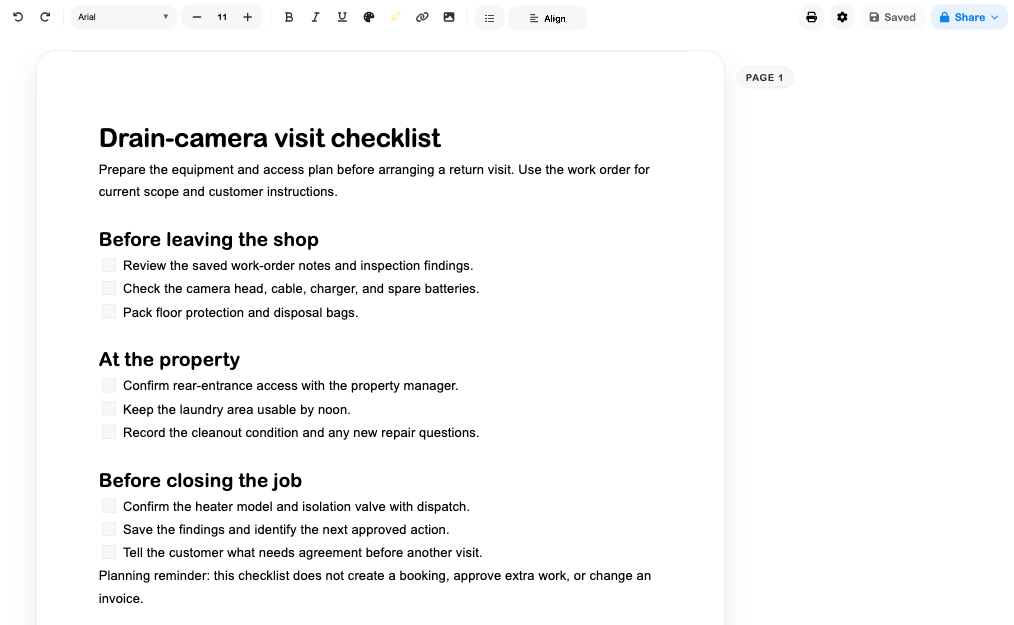
Start with the result the reader needs. Here, the checklist covers camera equipment, access, laundry availability, and the next approved action. It does not book a customer, authorize extra work, or change an invoice.
The library can include documents associated with the available business or account. Confirm the record before editing, particularly when switching profiles or businesses.
Format steps and checklists
Use headings for phases, a list for parallel items, and checkboxes for actions that can be verified. The editor supports markdown shortcuts and a / block menu. Pasting multiline Markdown also converts supported headings and checklists into editable blocks; that is how this example's initial structure was entered.
The toolbar includes font, size, bold, italic, underline, alignment, list type, text color, highlight, links, and images. Cmd/Ctrl+B applies bold, Cmd/Ctrl+I italic, and Cmd/Ctrl+E inline code. Inspect the result in the document rather than assuming a toolbar selection has affected the intended text.
Checkboxes are editable document content. The walkthrough checked the first task, saved, and confirmed the checked state after reloading. It then restored and saved the unchecked template shown above. A tick in an internal checklist is not proof that a physical inspection, customer approval, or payment occurred.
Set the page and viewing scale
Open Page setup to choose Pages or Pageless, orientation, paper size, and margins. Available paper sizes include A4, Letter, and Legal. OK applies the settings in the editor; save the document to retain the web version.
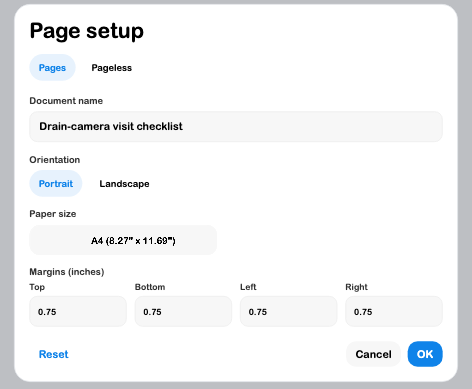
Use the zoom controls to read or inspect the page. Viewing scale does not change the paper dimensions. If you plan to distribute a printed or PDF copy, inspect the output separately: an editor screenshot is not a print-layout check.
Print opens a document preparation/output workflow. It was inspected in the implementation but not executed in this walkthrough; PDF pagination, tables, image output, and physical printing were not verified here.
Resolve a local and web version difference
Edits can exist in this browser before they are saved to the web version. Save and Saved refer to that web-save step; a local draft is not evidence that another device can open the change.
When the local copy differs from the web record, Choose a version shows both titles, layout summaries, timestamps, and content excerpts.
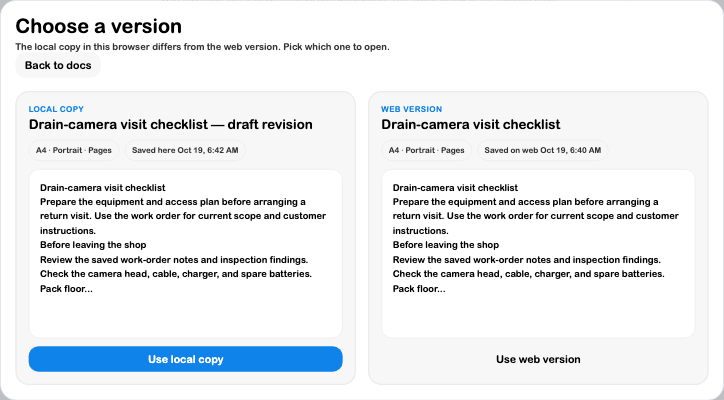
- Use local copy keeps the local content and attempts to sync it to the web record. Inspect the save result; the action can replace the web version.
- Use web version opens the saved web content and replaces the conflicting local draft for that document.
- Back to docs returns to the library when you need to stop and investigate before choosing.
Compare the content as well as the timestamps. In the example, the local title ended with draft revision, while the saved title did not. The walkthrough chose Use web version, confirmed the original title returned, and left the saved checklist intact. It did not exercise replacing the web record through Use local copy or simulate a failed cloud save.
Reopen and share with care
Return to Docs and choose the saved card to reopen the document. In this build, Search docs… did not return the example as a selectable search result even though its saved library card was present. Close the search popup and check the library before treating the document as missing.
Share currently copies a link; it does not select recipients or grant new access. In the inspected build, the route used for that link opened the document library rather than the selected editor. That route was checked without copying to the clipboard or sending a message. If a link opens the library, select the document's saved card. Verify the intended recipient's access and destination before distributing a link.
The Docs tab within a project displays linked media-workflow notes and reports. A normal document is not automatically attached there because its name mentions the project.
Troubleshooting
- The library still shows Untitled document: set Document name in Page setup, apply it, save, and reopen the library.
- An edit is missing on another device: check that Save completed; a local copy belongs to this browser.
- The editor briefly shows starter content while opening: wait for the requested record to finish loading before editing. Confirm the document name and actual content.
- Choose a version appears: compare both copies before selecting. Use local copy can replace the web version.
- A saved record is absent from search: close the popup and inspect the library card; this limitation occurred in the walkthrough.
- A shared link opens the library: choose the saved document there and verify the recipient's access.
- The editor looks right but a printed copy differs: review the actual output, paper size, margins, and pagination.
Follow Prepare a job follow-up for the connected example.
Continue with Projects, Work-order notes, and Files.