🔀 Flow Builder
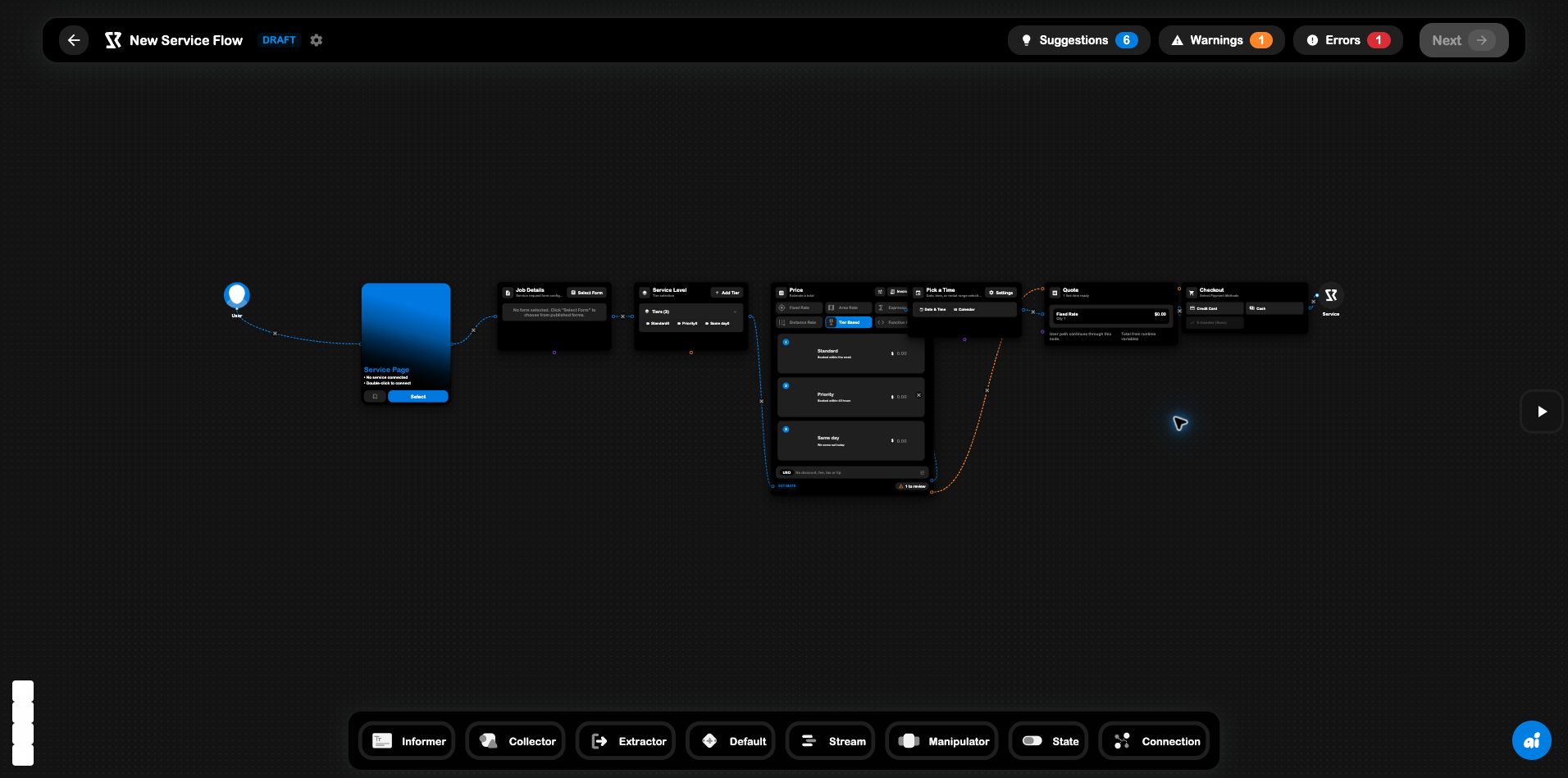
The Flow Builder is SRVZr’s visual workspace for assembling a service experience from connected nodes. Each node represents one piece of the customer or operator path, collecting details, choosing a service level, calculating a price, selecting a time, preparing a quote, or checking out.
The mental model
Think of a flow as a directed graph:
Entry → Service → Details → Options → Price → Time → Quote → Checkout
- A node owns one responsibility.
- A connection passes the user path and runtime values to the next node.
- A flow type determines the kind of business object the flow is meant to serve.
- A template gives you a working starting graph that you can configure and extend.
The canvas is intentionally spatial. Move through the graph from the entry node toward the final outcome, and use the connections to understand where the path can branch or continue.
Start with a flow type
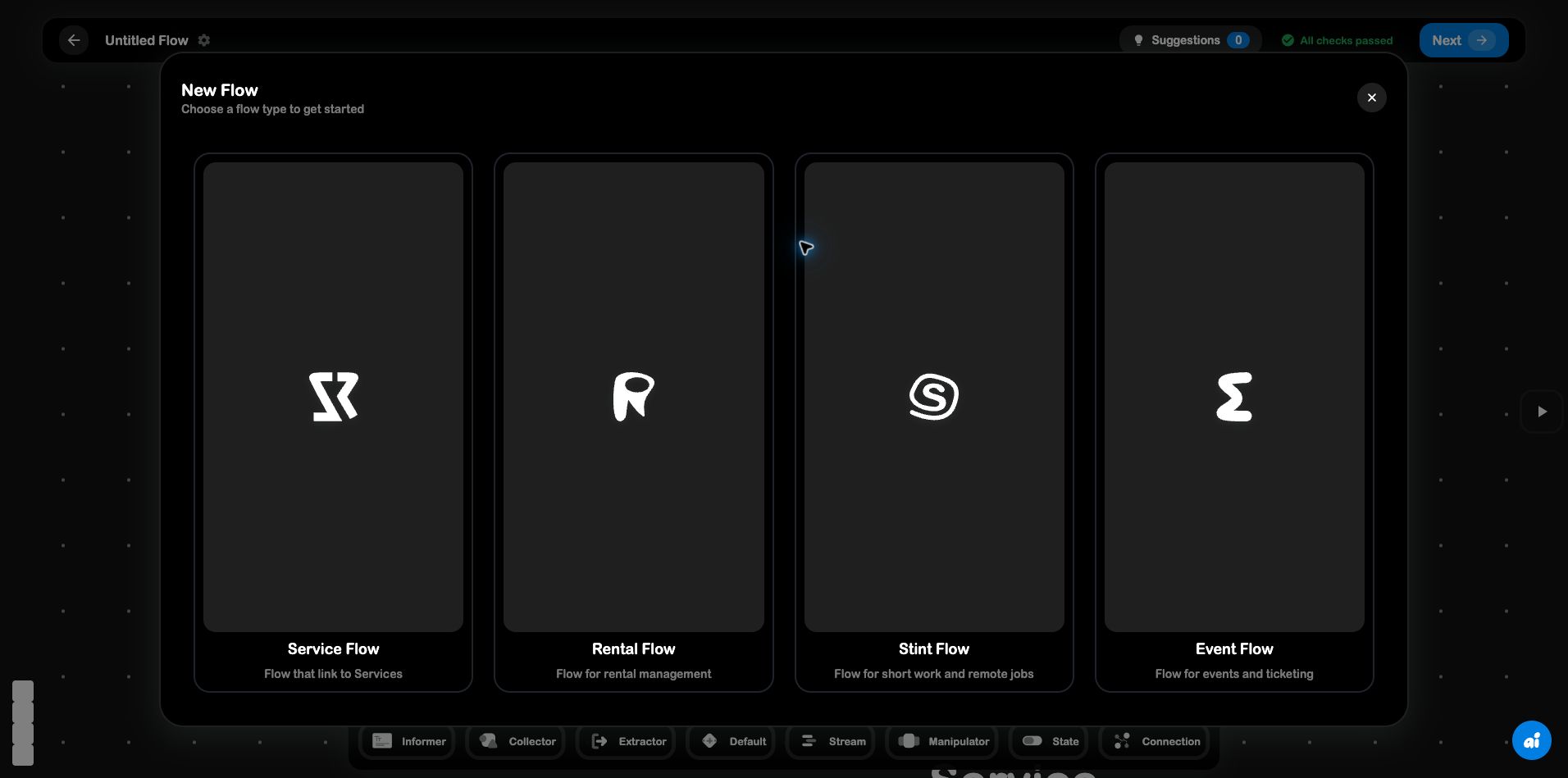
Selecting New Flow opens the flow-type picker. The current UI offers:
- Service Flow , a flow that links to Services.
- Rental Flow , a flow for rental management.
- Stint Flow , a flow for short work and remote jobs.
- Event Flow , a flow for events and ticketing.
The type is more than a label: it establishes what the graph is expected to represent and which kind of record the entry node should connect to.
Use a template
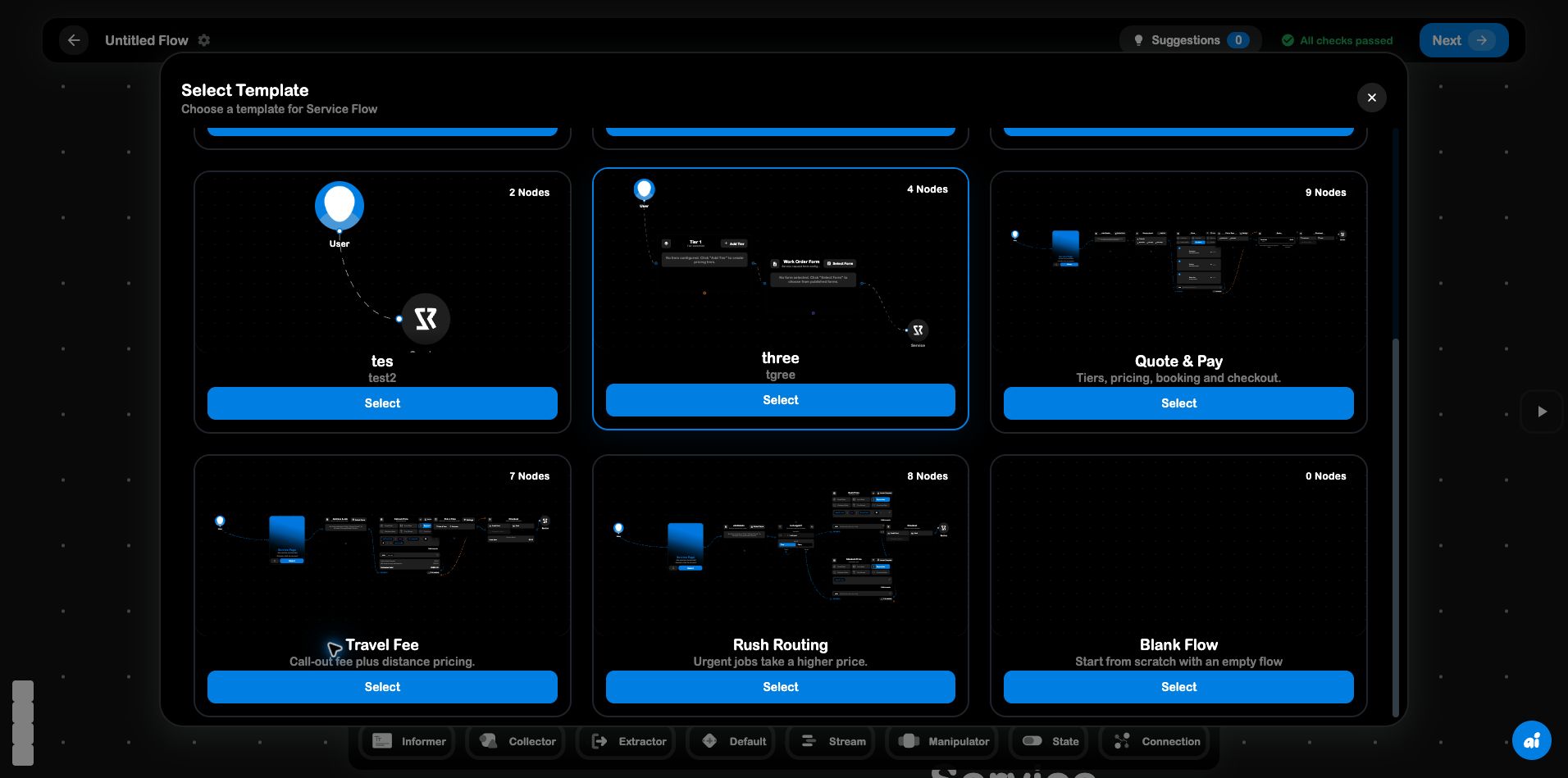
After choosing a type, SRVZr shows templates for that type. Templates are prebuilt node graphs, not locked workflows. They help you skip repetitive canvas setup while keeping the nodes editable.
For a Service Flow, the templates shown in the current app include patterns such as:
- Tier and Work order , collect a work-order form and offer service tiers.
- Quote & Pay , combine tiers, pricing, booking, and checkout.
The template preview shows its node count and a miniature graph. Select a template to place that graph on the canvas.
Node elements
The bottom palette groups the building blocks available on the canvas:
| Palette item | Role in a flow |
|---|---|
| Informer | Presents information or context to the person moving through the flow. |
| Collector | Collects input such as form values, choices, or customer details. |
| Extractor | Pulls a value out of existing data so later nodes can use it. |
| Default | Provides a standard/general-purpose node for the current flow model. |
| Stream | Represents a continuing or sequential path through the graph. |
| Manipulator | Changes, calculates, or transforms values. |
| State | Stores or evaluates a state used by later steps. |
| Connection | Represents a link or relationship between parts of the graph. |
Templates use these building blocks to create more recognizable domain nodes. In the Service Flow template captured above, those include:
- Service Page , the entry point for the offered service.
- Job Details / Work Order Form , collects the request details.
- Service Level / Tier 1 , presents selectable service tiers.
- Price , calculates an estimate using fixed, tiered, area, distance, expression, or custom-function pricing.
- Pick a Time , collects a date, time, or booking range.
- Quote , summarizes the line item and runtime total.
- Checkout , exposes the supported payment methods.
How nodes connect
Nodes connect through their handles on the canvas. A connection defines the path the user follows and makes the output of one node available to the next node.
When reading a graph:
- Start at the leftmost entry node.
- Follow each connection to the next node.
- Treat branches as decisions or alternate paths.
- Look for the final node that produces the outcome, such as a quote, checkout, or completed action.
The canvas control panel provides Zoom In, Zoom Out, Fit View, and Toggle Interactivity. Use Fit View after adding or rearranging nodes to see the complete graph.
Connect a flow to a Service
For a Service Flow, the Service Page node is the bridge between the visual graph and an actual offered service.
- Create a Service Flow.
- Choose a template, or start from the template that best matches the intended experience.
- Select the Service Page node.
- Use Select or double-click the node to connect an offered service.
- Configure the downstream nodes, form, tiers, pricing, time, quote, and checkout.
- Resolve the warnings and errors shown in the top bar before continuing.
The unconfigured node explicitly reports No service connected. This is why a visually complete template can still show validation issues: the graph structure exists, but it has not yet been bound to a specific Service record and its supporting configuration.
Validate before continuing
The top bar reports Suggestions, Warnings, and Errors. All checks passed means the current graph has passed validation; warnings or errors identify work that still needs attention. The Next button remains unavailable while blocking issues are present.
Common configuration gaps include:
- no Service connected to the Service Page node;
- no published form selected for a Work Order Form node;
- tiers created but not priced;
- a calculator or checkout node missing required configuration.
Use a template for the first version of a flow, then edit the graph to match the exact service experience. This keeps the canvas understandable while you learn how each node contributes to the path.