Locations
Locations gives a business named place records it can recognize and reuse. An operational name helps staff distinguish a workshop, venue or meeting point without relying on the street address alone.
Location Management
For a rehearsal, we created Waterfront rehearsal meeting point at a public Toronto landmark. The name and address were saved, reloaded and opened in the details dialog. The record remains Unverified; it is an illustrative meeting place, not a claim that the business owns or operates the property.
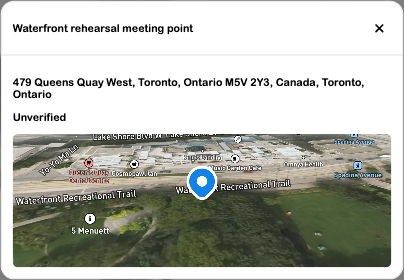
Add and verify the saved result
- Open Locations and check the active business.
- Choose Add Location.
- Search for the intended address and review the suggestion. Selecting it can fill address fields and coordinates; typing text alone does not establish the correct map position.
- Replace the suggested name with an operational name, such as Main workshop. Review street address, city, region, postal code and country before saving.
- Choose Add Location, then reload the library.
- Open the saved card and check the full name, address, verification state and loaded map. Card labels can be truncated; use details for the full record.
The reviewed search correctly filled the public address and coordinates. Its automatic parcel lookup returned No parcel data found, and saving still succeeded. Do not treat that warning as a verified parcel, or assume parcel data is required for every ordinary location record.
Search and access
Use the top-bar Search locations control to find a saved record by its name or address. Clear the query and check the selected business if a place seems to be missing. Different profiles can have different location lists.
The current desktop page includes verification-filter logic in its implementation, but its Verified Only and Unverified Only controls were hidden in the reviewed layout. This guide does not instruct you to click an unavailable filter or claim that filtering was tested.
What the record means
A saved address, coordinates, parcel information and verification are separate pieces of information. Creating a record does not verify ownership, grant site access, transfer a property or establish a service booking.
A Locations record is also different from a Maps pin or polygon. The rehearsal created them separately through their respective tools; no automatic cross-tool synchronization was verified. Reuse the correct record in a related picker where that workflow supports it, and check the actual saved connection.
The reviewed details dialog shows the saved information rather than a complete location-management editor. Do not assume that seeing a record provides actions to verify it, transfer it or change every field. Those actions were not exercised here.
Troubleshooting
| Symptom | What to check |
|---|---|
| Add Location is rejected | A name and address are required; confirm sign-in and the active business. |
| The map is absent or incorrect | Review the selected search suggestion and coordinates. A manual address string is not a geocoding result. |
| Parcel data is unavailable | Review provider coverage; an ordinary location can still save without parcel information. |
| A card name is cut off | Open the card for its full details. |
| A saved place is not in another tool | Check that tool's picker and saved association. A location, map pin and event venue are not proven to sync automatically. |
Continue with Maps and field work, Layouts and Events.