Complete product manual
This is the end-to-end map of SRVZr. The sidebar is organized around a simple operating loop:
discover → qualify → configure → schedule → deliver → bill → learn
Use the focused pages for field-by-field detail. Use this manual when you need to understand which tool comes next in a real workflow.
Start at Home
Home is the workspace launchpad. It combines the global search (Ctrl/K), recent flows, shortcuts, service and event surfaces, and the current Servo roster. Search is the fastest way to jump to a record or ask for a destination; the sidebar is the best way to understand ownership and navigation.
The complete workspace
Intake and communication
Requests is the triage queue for incoming needs. Review the request, connect it to a customer or service, assign an owner, and turn it into scheduled work. Chats keeps conversational context close to the work it creates. Mail provides Inbox, Starred, Sent, and Compose for workspace communication. AI Proxy is the phone-assistant surface for routing inbound calls and is currently a beta experience.
Customers is the durable identity record behind requests, bookings, deals, and communication. Keep the customer record clean before building a flow: the more reliable the identity and contact data, the less cleanup is needed downstream.
Catalog and commerce
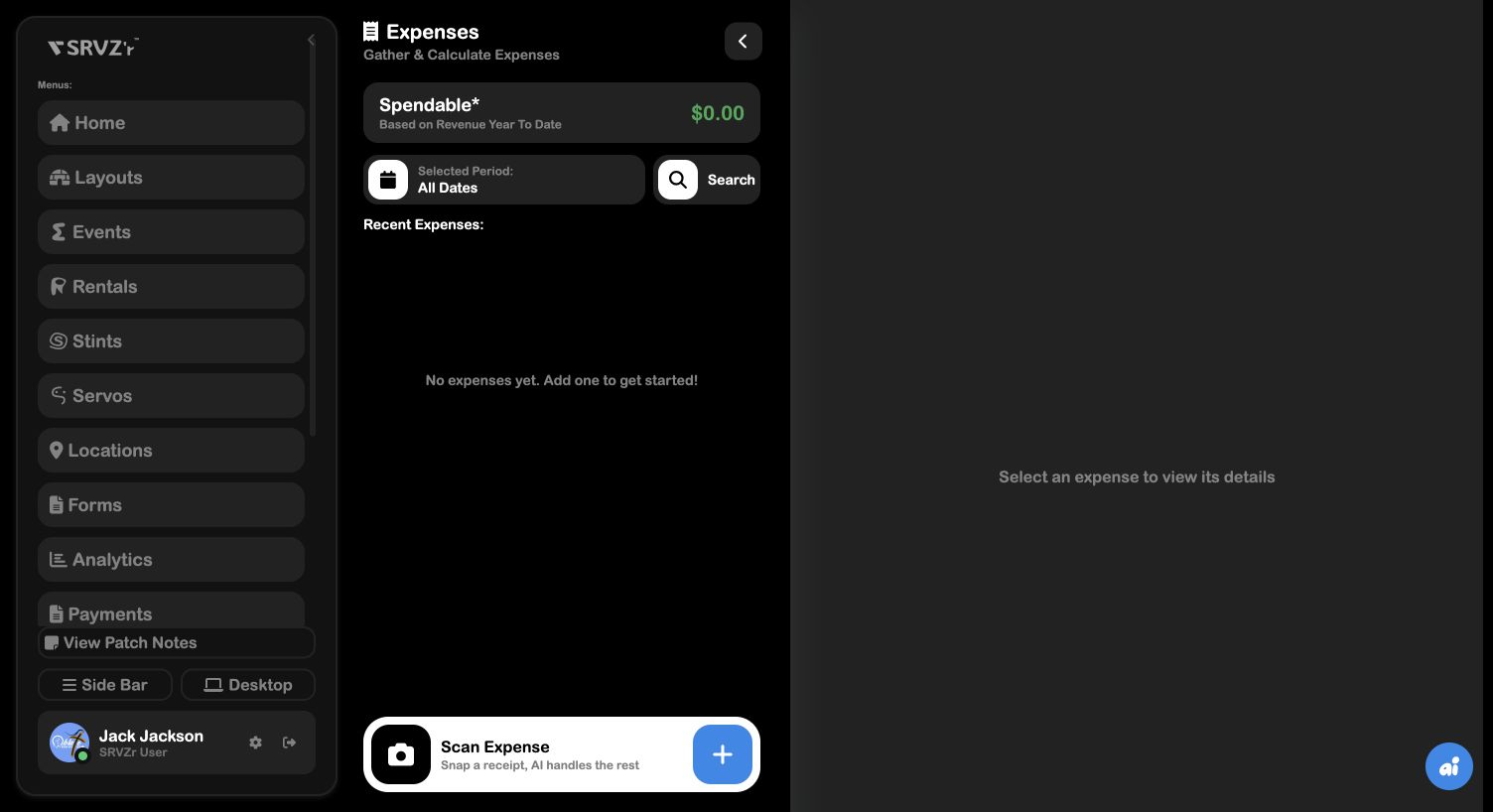
Services are offerings fulfilled by a Service Flow. Rentals represent shareable items or spaces with timing and pickup rules. Inventory tracks availability. Menus and Displays shape the in-person or event experience. Invoices and Payments close the commercial loop. Expenses captures the outgoing side of the same operation; use Scan Expense for receipt capture or Add expense manually when the source is already structured.
Delivery and event operations
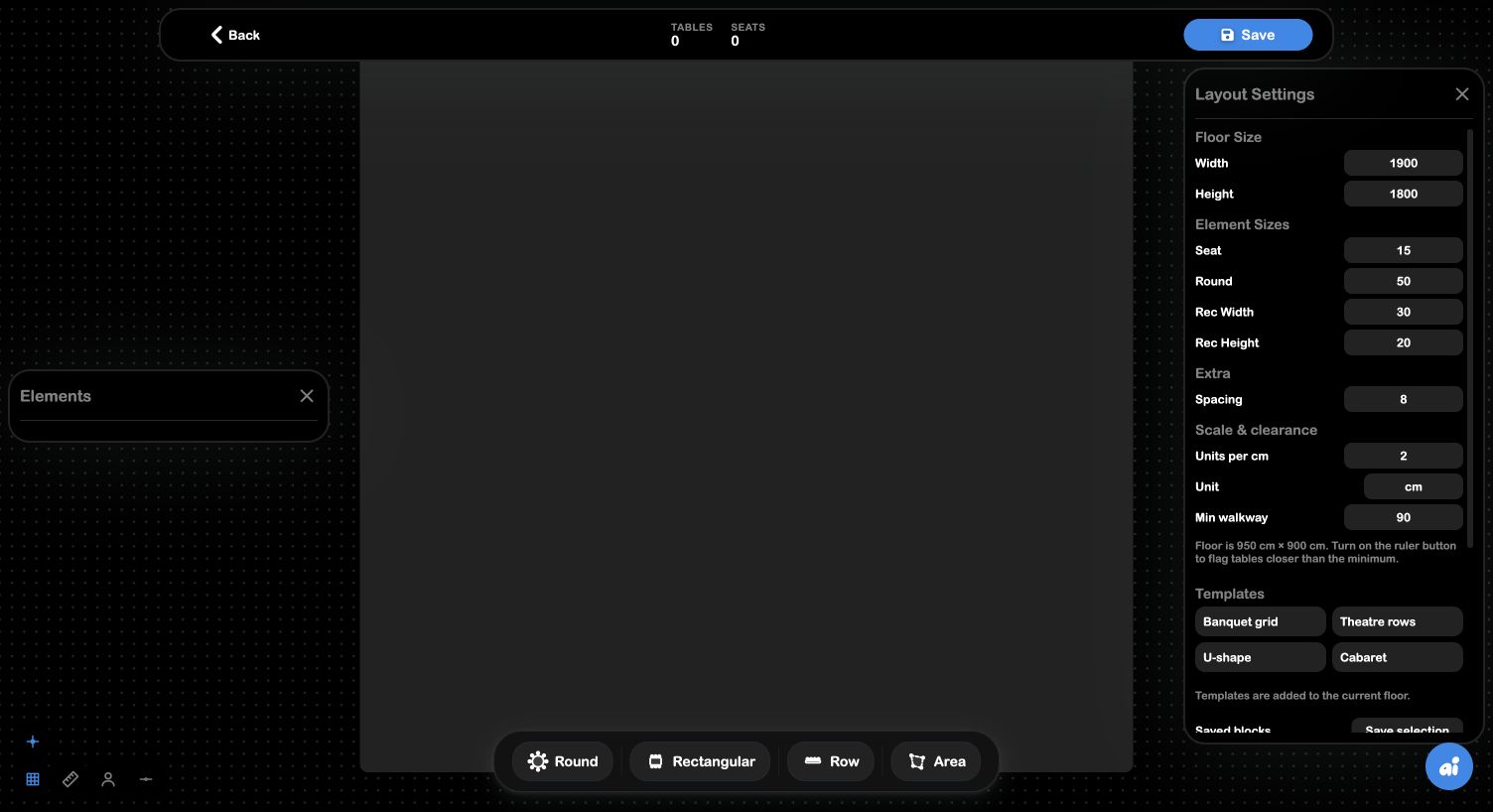
Events holds the event record. Calendar provides the time-based operating view and separates Events from Work Orders. Layouts and the Layout Builder define the physical arrangement. Event Drawing handles snapping, grids, clearance, seat assignment, and gaps. Menus and Displays connect the physical plan to what guests and staff see.
Automation and data
Projects organize multi-step initiatives. Flows are reusable processes, and Forms are structured input surfaces. The Flow Builder connects those pieces into executable paths. Analytics is the reporting surface for understanding volume, conversion, performance, and trends. Banks, Assets, Files, Snippets, and Integrations provide reusable data, connected resources, and extension points.
Robotics
Servos are the connected robot records. Stints describe remote or robotic work. Policies and Notebooks organize policy work. The Flow Builder Simulator previews a business flow; it does not certify physical robot safety. Use the controls available for the selected robot; an editable resource is separate from a live operating session.
A complete service recipe
- Create or confirm a Customer.
- Define the offering in Services.
- Create a published Form for the information the job requires.
- Build the flow: Service Page → Work Order Form → options → Calculator → Scheduling → Quote → Checkout → Service.
- Use Diagnostics to resolve errors and warnings.
- Use Simulator to execute the path with test data.
- Publish the service page and monitor requests, calendar work, invoices, payments, and analytics.
- Record costs in Expenses and review the result in Analytics.
A complete event recipe
- Create the event and its location.
- Build the floor plan in Layouts or Event Drawing.
- Configure guest-facing Menus and staff/guest Displays.
- Add event and work-order dates to Calendar.
- Connect services, rentals, inventory, and payments as needed.
- Use requests and chats for intake, then keep the event record as the source of truth.
- Review invoices, payments, expenses, and analytics after delivery.
A Servo operating checklist
- Confirm the robot and business in Servos.
- Review the reported connection and available controls.
- Review the Stint's task, location, timing, and access requirements.
- Use Steer only for an authorized session in a suitable operating area.
- Review stops or reported issues before another session.
Keep editable policy and notebook work separate from a live robot session. Flow Builder simulation tests the business flow; it does not certify physical robot behavior.
Settings and collaboration
Settings is where account, personalization, rooms, WiFi, and other workspace behavior belongs. Before inviting collaborators, establish the workspace defaults and decide which surfaces are shared sources of truth. Keep production flows, policies, layouts, and templates named consistently so a teammate can find and safely reuse them.

When you are unsure where to work, follow the durable record: customer for identity, request for intake, service/rental/event for the offering, flow for automation, calendar for time, invoice/payment for money, and analytics for learning.