Canvas
Canvas creates editable compositions from text, shapes, images and other supported objects. Keep the editable document when you need to revise it; export a frame when you need an image for another destination.
Visual Canvas
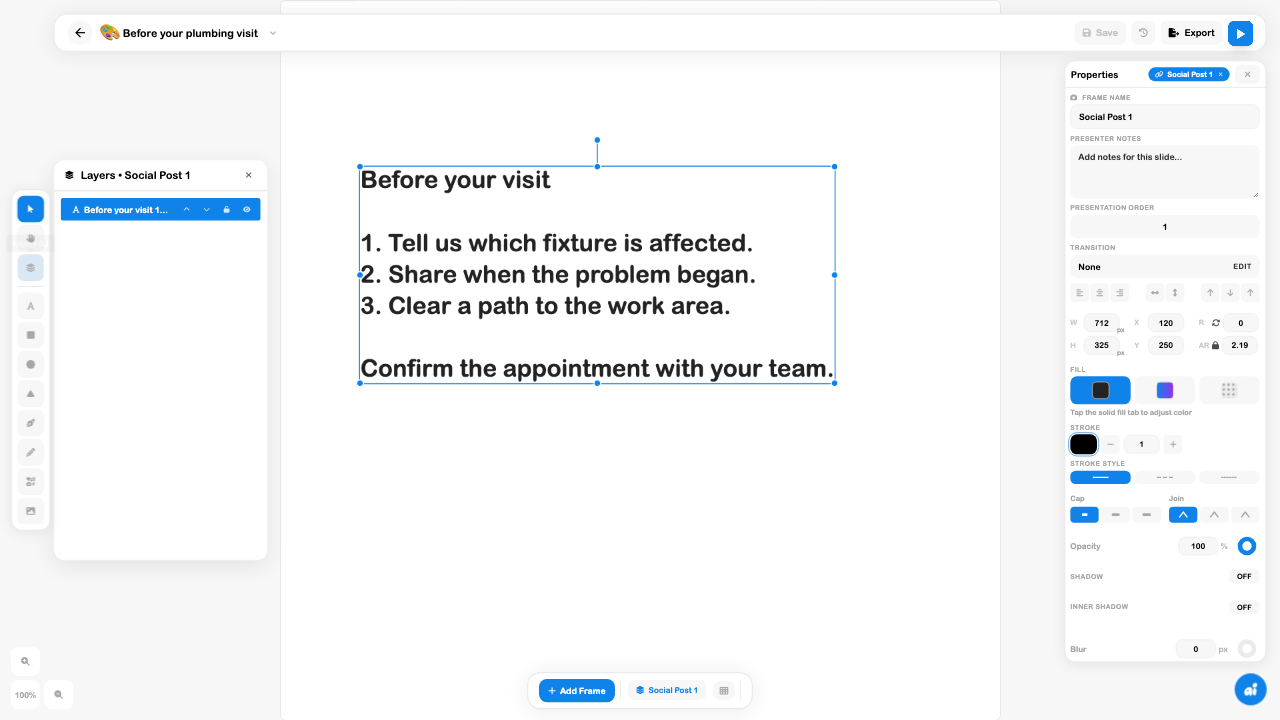
A plumbing business can make a clear visit-preparation graphic: identify the affected fixture, explain when the problem began and leave access to the work area. A simple readable composition is more useful than a busy graphic whose instructions disappear at phone size.
- Open Canvases → New Canvas. Give the document a recognizable name.
- Choose a starting frame. The inspected creation dialog offers Social Post, Mobile, Tablet, Desktop, Story, Custom and None. A frame defines an output area; the surrounding workspace can be larger.
- Use Add Text and double-click the text to edit it. Use deliberate line breaks and short instructions.
- Select the object and use Properties to change its position, size, font or appearance. Confirm whether the object or frame is selected before changing a value.
- Open Layers to inspect stacking and visibility. Add images and shapes only when they help the message. Keep important content inside the frame.
- Choose Save and wait for saving to finish. Reopen the document to inspect the actual saved composition.
Export the intended frame
Open Export and choose the target deliberately: the current selection, the whole canvas or a named frame. Then choose PNG, JPEG or PDF where offered and export. Review the downloaded file rather than assuming that its name or frame label proves the final dimensions.
In the inspected example, selecting the 1080 × 1080 Social Post frame produced a 2160 × 2160 PNG. The downloaded image was opened and its text, margins and dimensions checked. The resulting name used the frame name despite a filename being entered, so check the actual downloaded filename too.
Saving and exporting do different jobs. Save retains editable objects; an exported image is a deliverable. Neither action publishes a website, sends a post or updates a physical display by itself.
Present and reuse a design
For slide-style material, arrange frames and inspect presentation order, transitions and notes in the editor. Test the actual presentation before relying on automatic advancement or looping. The reviewed example was one static frame; multi-frame playback was not exercised.
Use the full Canvas manual for detailed tools, frames, object styling, libraries, presentation, history and export. See Displays for player configuration and Content for publishing workflows.
Recover a version conflict
If Version Conflict Detected appears, compare the Local and Cloud previews. Choose the version that contains the intended work, rather than automatically accepting the recommended label. Preserve any separate edits before replacing them.
The example reopened with an older local position and the latest cloud position. Choosing Use Cloud Version restored the saved layout. That verifies this recovery path; it does not establish that local and cloud versions will always agree automatically.
Check your result
Confirm the document name, the selected frame, readable text at its destination size and a complete export without clipping. If a property changes the wrong item, recheck selection and Layers. If a save is still running or a conflict is unresolved, do not treat the editor state as a finished deliverable.