Banking
Use Banking to connect bank activity to the records already in your books. Import a statement or review a supported feed, check suggested matches and categories, then reconcile against the statement. This helps prevent a payout or invoice payment from being recorded as a second sale.
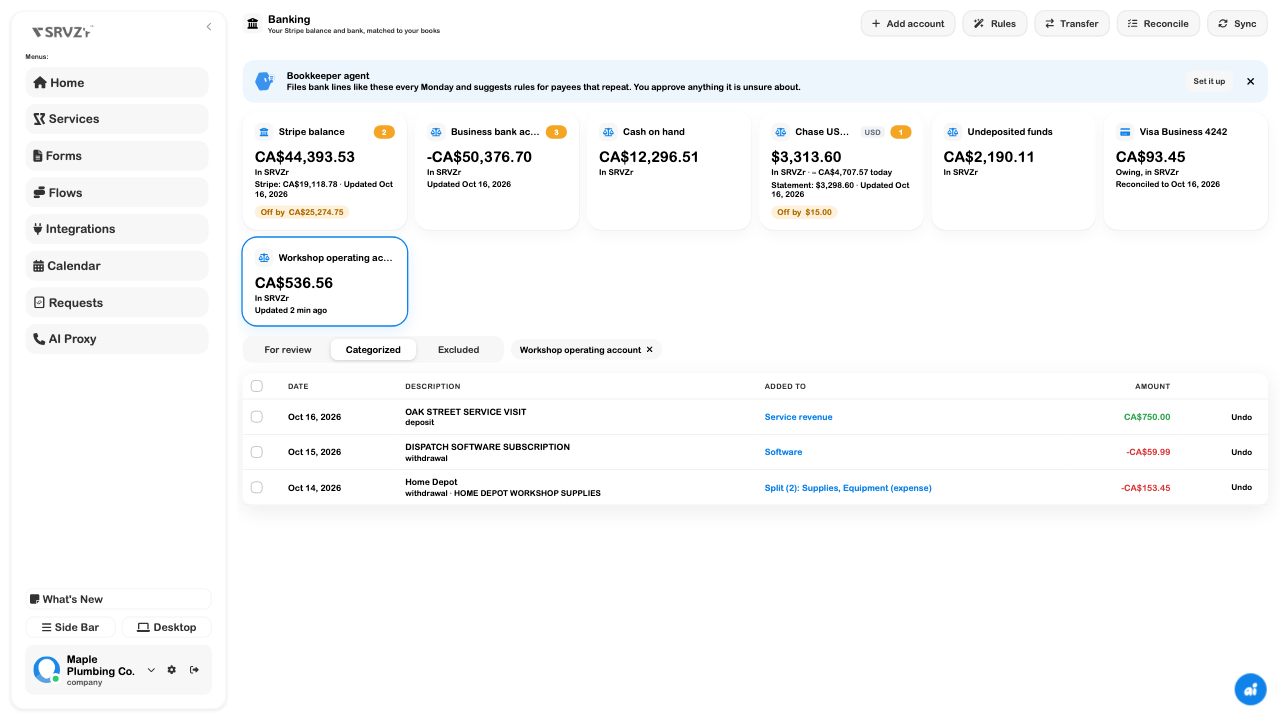
The walkthrough uses a fictional workshop account with three statement lines: a CA$750 service visit, CA$153.45 of supplies and tools, and a CA$59.99 software subscription. They leave CA$536.56 after categorization. These are demo bookkeeping records, not transactions from a real bank.
Bank Feeds
The account cards show recorded balances, available feed information, review counts, and the last update or reconciliation. Select a card to filter transactions to that account; select it again, or remove the filter chip, to return to all accounts.
- Open Accounting → Banking for the correct business.
- Select the account you want to review.
- Read the balance labels and update date. In SRVZr, a provider balance, and a statement balance describe different sources.
- Review For review before accepting anything into the books.
- Use Categorized to inspect accepted or matched activity and Excluded for lines left out of the books.
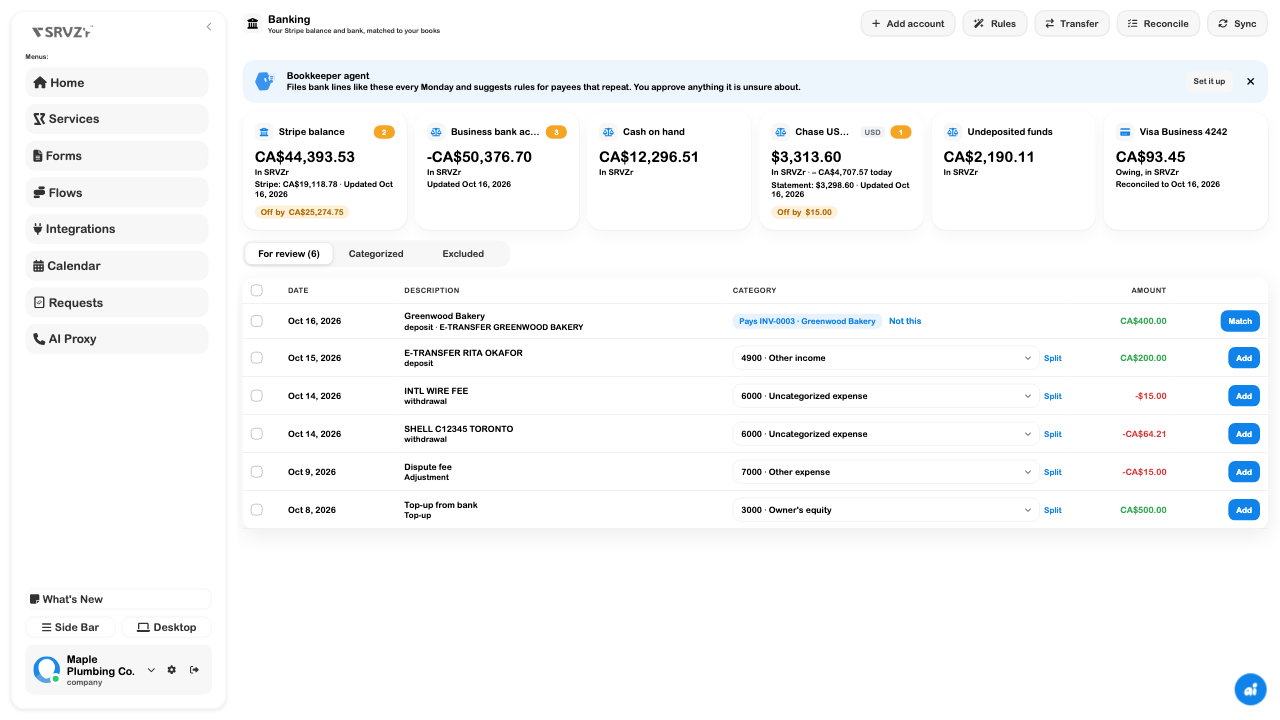
The Stripe balance feed can match sales and refunds that SRVZr has already recorded, while fees, payouts, and other activity have their own treatment. Sync requests fresh feed activity; it does not reconcile the account. A stale feed may also refresh when the page opens.
For another supported live account, choose Add account → Link it live → Link with Stripe and complete the provider's sign-in and consent flow. The current interface supports US banks and cards. A business whose home currency is not USD needs multiple currencies enabled for the resulting USD account. Use a statement upload for other accounts.
The screenshots demonstrate populated demo feed/review records. No new live bank connection or bank sign-in was completed for this guide. An Off by badge is a prompt to investigate timing, missing records, and reconciliation; it is not a reason to enter a made-up adjustment.
Bank Statement Imports
Import a bank's CSV, OFX, or QFX export through Add account → Upload a statement. Choose the existing account when importing another period; create a new account only when it represents a separate bank or card account.
- Download the transaction export from the bank.
- Choose Add account, then Upload a statement.
- Select the destination account. For New account…, enter the name, bank/card kind, and currency when offered.
- Pick or drop the file.
- Read the preview: dates, description, amount signs, detected columns, and any warnings.
- Choose Import … lines only when the preview is correct.
- Select the account and review the imported lines. Importing and accepting a category are separate steps.
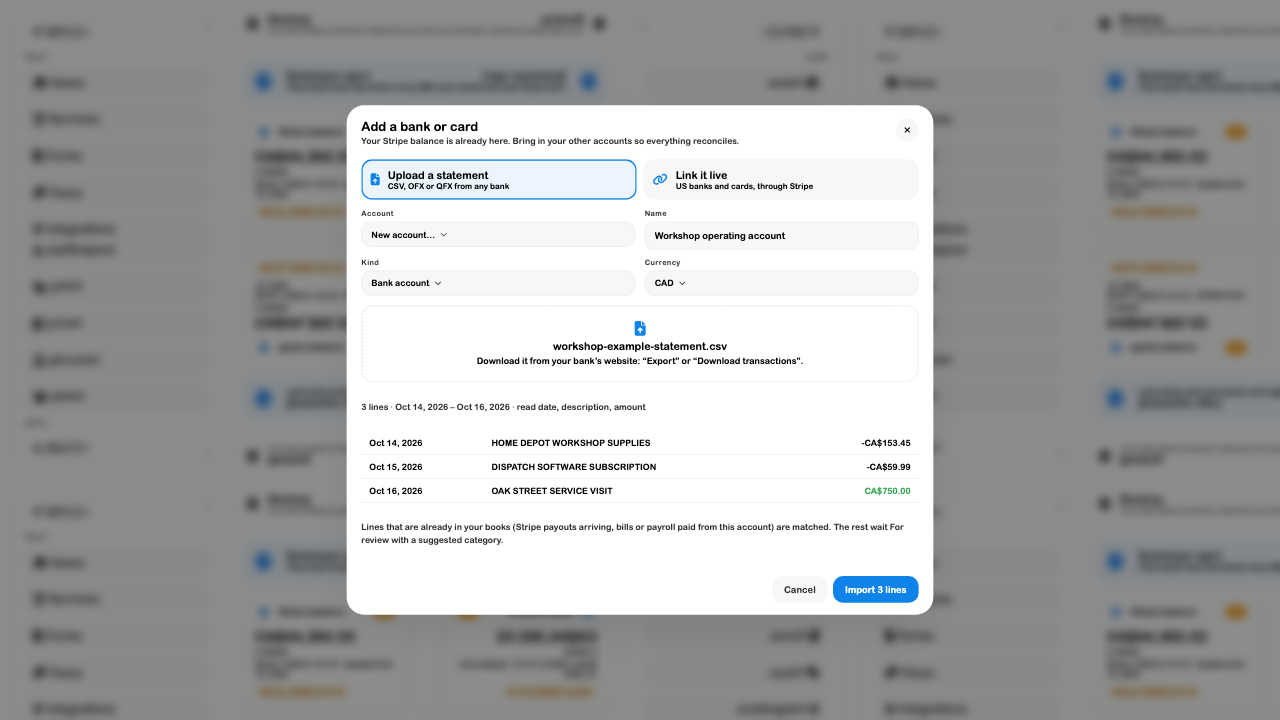
CSV exports can use one signed amount column or separate withdrawal/deposit columns. A simple shape is:
Date,Description,Amount
2026-10-14,HOME DEPOT WORKSHOP SUPPLIES,-153.45
2026-10-15,DISPATCH SOFTWARE SUBSCRIPTION,-59.99
2026-10-16,OAK STREET SERVICE VISIT,750.00
ISO dates make the example unambiguous. Read warnings when a file uses dates such as 04/05/2026, where day and month could be interpreted differently. Do not import this example into real books; use the bank's actual export for operational work.
Reimporting this same file into the same demo account left three transactions, with no extra rows. Still check the result when a bank changes descriptions, dates, or file format; duplicate handling should not replace a review of overlapping statements.
Review each imported line
- Match: check the suggested invoice or bill reference first. Use Not this when the candidate is wrong, then review the alternative category.
- Add: select the accounting category, then accept the line into the books.
- Exclude: select a line and use the bulk action when it should not be added. Excluding it does not remove it from the bank statement.
- Undo: returns an eligible categorized/excluded line to For review. Recheck its effect before accepting it again.
Bank Rules
Rules make a consistent category suggestion for recurring descriptions. Start with narrow conditions and leave automatic posting off while checking the results.
- Choose Rules → New rule.
- Give it a clear name.
- Choose money in, money out, or either direction.
- Set the description text and optional minimum/maximum amount.
- Pick a category and optional payee.
- Review Add to my books automatically. When off, matching lines wait in For review with a suggestion.
- Choose Save rule, then inspect an actual matching line.
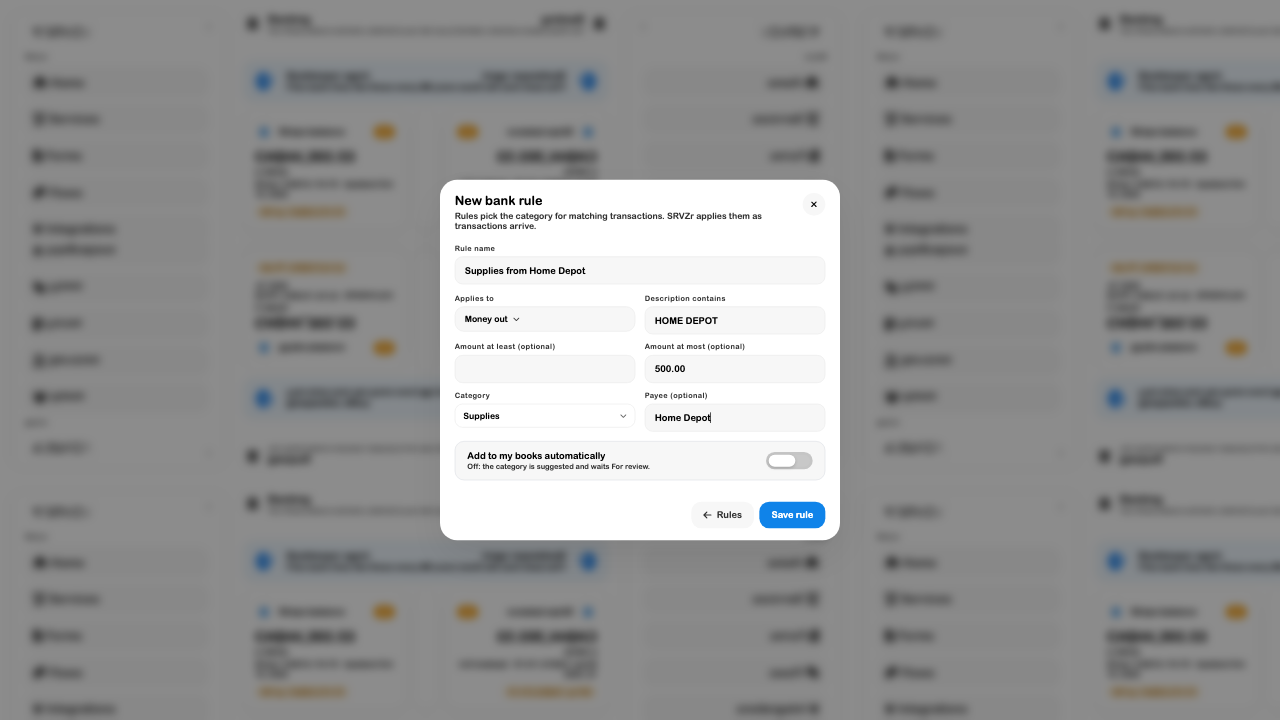
A merchant can sell several kinds of goods. A Home Depot rule may be a good starting point, but a mixed purchase can still need a split. Deleting a rule stops future sorting by that rule; transactions it already sorted retain their treatment.
Split Transactions
Use Split when one bank line belongs in several categories. The parts must equal the original amount; a split is not an extra charge or a second bank transaction.
- Open Split on the line in For review.
- Choose a category for each part.
- Enter each part's amount and a short note.
- Add more parts if necessary.
- Check Left to split is zero, then choose Save split.
- Inspect the result in Categorized.
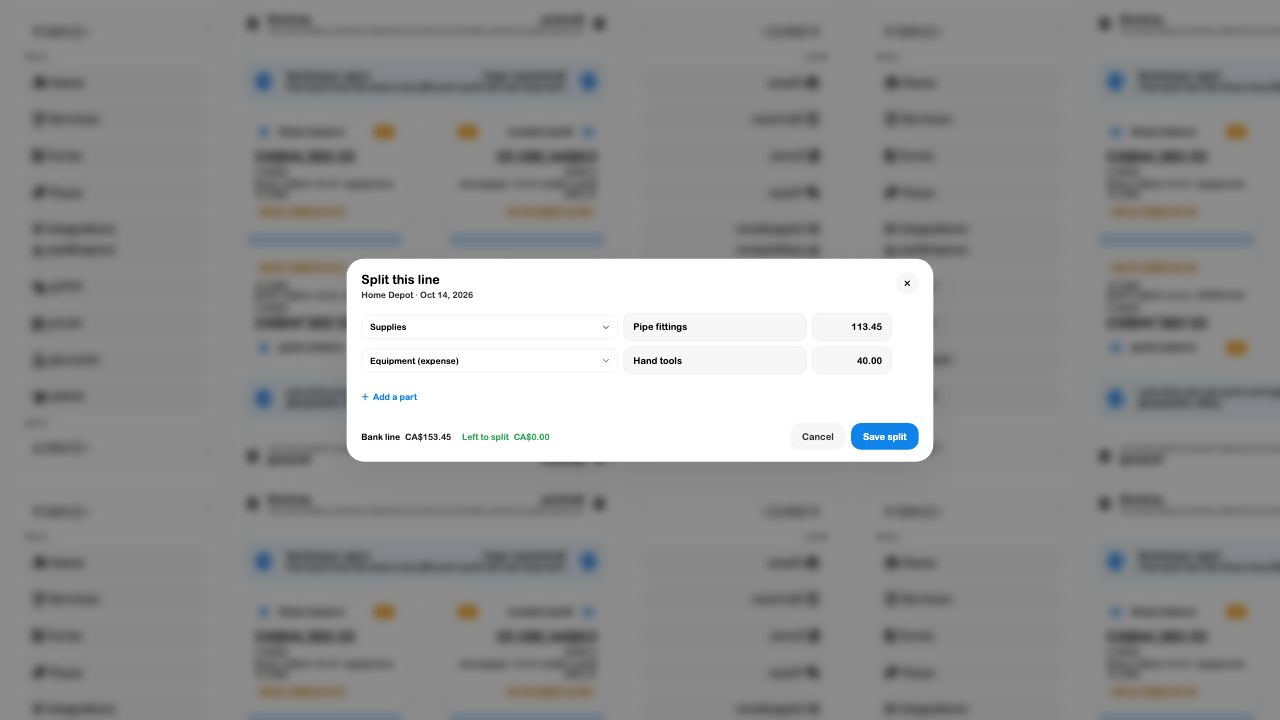
The first amount adjusts to the remaining balance until you edit it yourself. After that, check all amounts explicitly. Every positive part needs a category, and there must be at least two populated parts.
Bank Reconciliation
Reconciliation compares the books with a statement for one account and date. Complete the review queue first, then use the actual statement balance and clear only the entries that appear on it.
- Select the account and choose Reconcile.
- Check the account, statement ending date, and ending balance. For a credit card, enter the statement's amount owing as requested by the form.
- Choose Start.
- Compare the listed entries with the statement. The initial selection includes the available lines, so untick anything that has not cleared.
- Compare Statement, Cleared, and Difference.
- Choose Finish only when the difference is zero and the selected entries are correct.
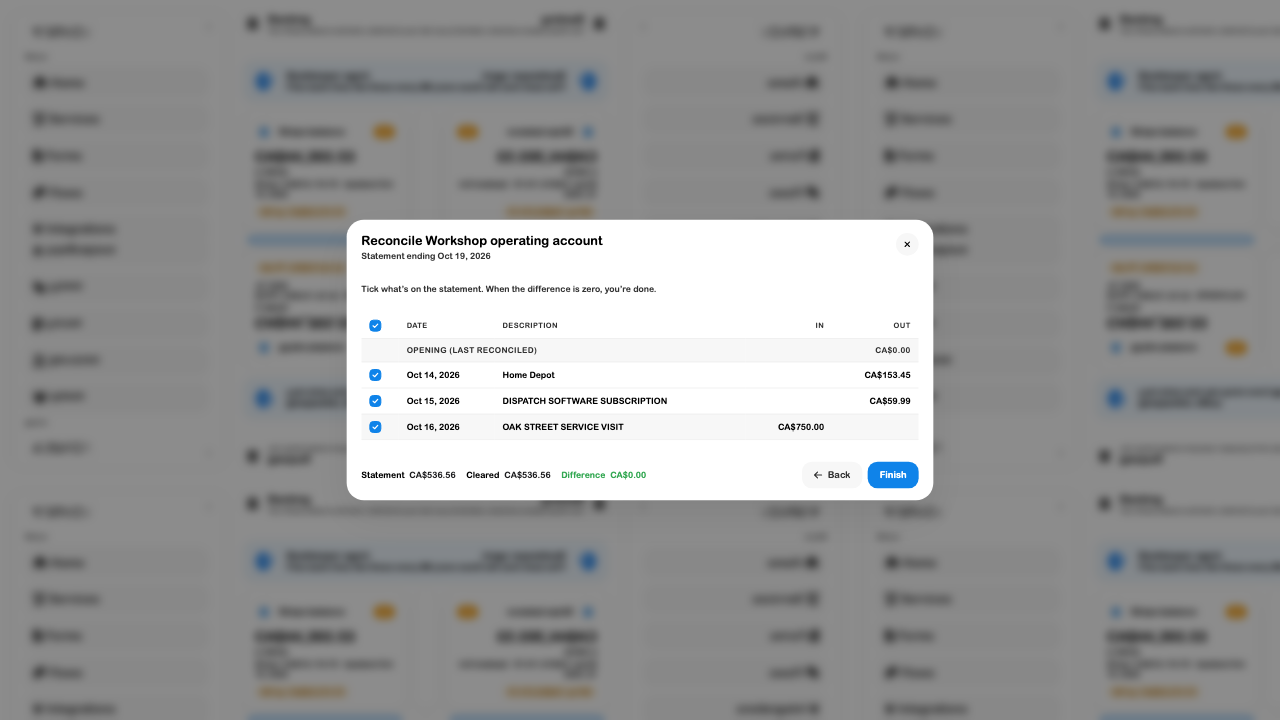
If the difference remains, check missing or duplicated transactions, amounts, dates, and uncleared entries. Do not change the statement balance simply to enable Finish. Past reconciliations are listed when starting another one; Undo is available for the latest reconciliation and asks for confirmation.
Transfer Tracking
Choose Transfer to record money that moved between your own accounts, such as depositing cash into a business bank account. This is bookkeeping for a transfer made elsewhere; Record transfer does not send a bank payment.
- Choose different From and To accounts.
- Enter the amount and date of the actual movement.
- If currencies differ, enter both Amount sent and Amount received, using the bank's confirmation.
- Add a memo and review the account directions.
- Choose Record transfer when ready to record it, or Cancel to discard the draft.
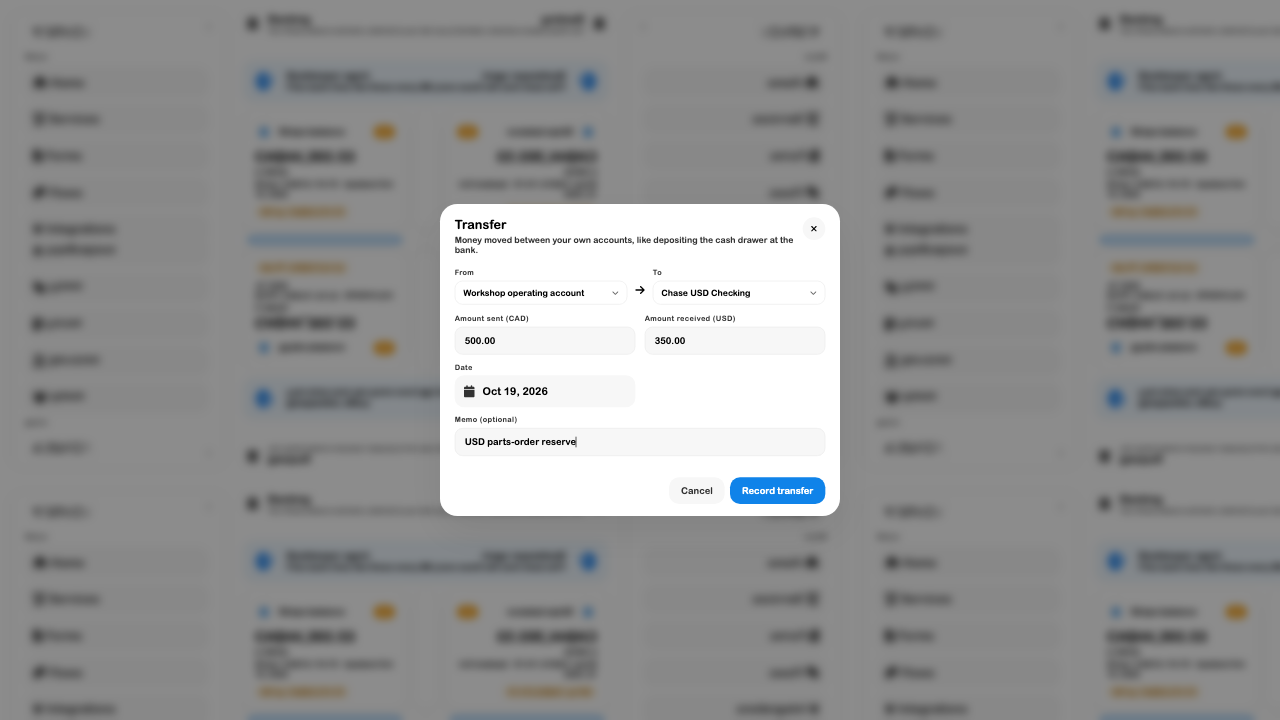
Do not categorize both sides as income and expense just because the money appears in two statements. Review matches to the transfer when the bank lines arrive.
Multiple Currencies
Enable Multiple currencies in Accounting settings after checking the home currency. Reports remain in the home currency; foreign bank accounts, vendor bills, and receivables can retain their own currency.
- Review the home currency before enabling the setting; it is fixed while multiple currencies are on.
- Choose the correct currency when creating an account or vendor. A vendor's currency cannot change after it has bills.
- Read the currency badge and labels on foreign account cards rather than treating a USD amount as CAD.
- Open Accounts → Close books → Currencies to compare foreign balances, booked home values, and values at the displayed rates.
- Check the rate update date. Use Rates to request a refresh when appropriate.
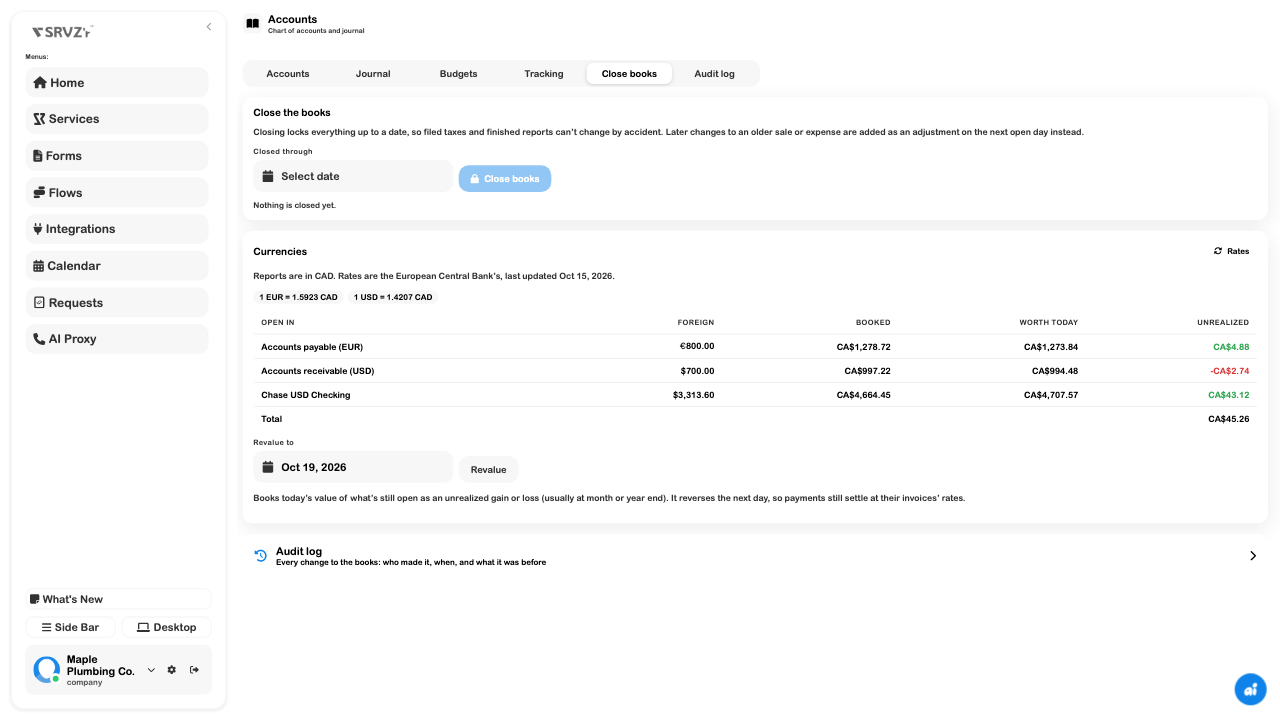
Managers can use Revalue for an unrealized gain/loss at a selected date. The interface describes reversing it the next day, while payments settle against their recorded document rates. This guide inspected that control without posting a revaluation; review the accounting decision before using it.
Troubleshoot banking
| Problem | Check |
|---|---|
| An imported amount has the wrong sign | Stop at the preview and check whether the file uses signed amounts or separate debit/credit columns. |
| A line looks like a duplicate sale | Inspect the suggested source match and original record before choosing Add. |
| A supplier rule gives a poor category | Narrow its conditions or leave automatic posting off; split mixed purchases as needed. |
| A card shows Off by | Compare update dates, recorded transactions, pending activity, and the statement. |
| Finish is disabled | Check the reconciliation difference and which entries are ticked. |
| A live link is unavailable | Review supported US-bank/USD requirements, permissions, and multiple-currency settings; use a statement export when needed. |
| The wrong account received an import | Stop reviewing it and investigate the destination before importing more periods. |
Related guides: Accounting, Accounts and journal, Financial reports, and Bills and suppliers.