Content and social publishing
Content keeps an idea, its media, review notes and outgoing posts together. Work toward a useful message first, then review the exact cut, caption, account and release time before sending it to customers.
The private Prepare for a smoother plumbing visit example has two saved ideas and a saved caption draft. A separate existing Fewer follow-up questions cut supplied the actual review example. No social account was connected, no AI build was started, and no post was approved, scheduled or published during this review.
Social Media Management
Open Content to move between Projects, Calendar, Review and Accounts. These views answer different questions: what you are making, where dates are planned, what needs a decision and which destinations you may use.
Start in Accounts when preparing a real release. The reviewed interface offers Facebook, Instagram, YouTube, TikTok and X connections, with platform-specific capabilities and setup requirements. A visible Connect button does not prove the account is authorized or the provider can publish successfully.
Business owners and account managers manage connections and publishing access. Per-account roles distinguish publishers from drafters. Review access for the exact destination; being a team member does not imply permission to release content on every channel.
- Choose the intended business and project.
- Confirm the connected destination and its current access/state.
- Prepare the project, media and caption.
- Review the current cut and channel settings.
- Complete the appropriate approval/release action only when authorized.
- Inspect each destination's result and actual live link afterward.
All five platform connection controls were inspected without starting OAuth or changing account access. This test business had no connected account, so live social delivery and provider permissions were not verified.
Content Projects
A project groups the concept, source footage, cut exports, covers, publishing settings and earlier releases. Give it a task-oriented name, such as Prepare for a smoother plumbing visit, so the team can find it later.
- Choose New project and enter its name.
- Describe the idea, audience and constraints. Keep unverified claims out of the brief.
- Choose Create project and confirm the actual project opens.
- Add concepts to its idea board and open Publishing settings for the post draft.
- Attach authorized source material when available. Review each file's purpose, type and aspect ratio before submitting the upload.
- Reopen the project after a reload to confirm saved content.
The demonstrated project and two ideas survived a full reload. Its caption and hashtags also reopened in Publishing settings after Save draft.
Keep source material separate from releases
Attached media distinguishes Source footage, Cut export and Cover. A reference image belongs with inputs; it does not become a finished video merely because it was uploaded. For video exports, check the actual dimensions, duration and aspect ratio.
The available actions include direct Upload and Import from Files. Direct upload of a website reference image failed here with Failed to create upload url; no attached asset was saved to this project. Do not use the screenshot of the populated idea board as evidence that media upload or AI production succeeded.
Build with AI opens a review of the chosen idea, requested formats and source files. The implementation runs a cloud task within the configured credit limit and returns drafts; it does not itself publish or schedule the result. If the task needs input or pauses, inspect its question, status and checklist before continuing. No content build, credit consumption or returned cut was tested for this project.
Choose music for an Instagram Reel
For a video Reel, Reel music lets you search by song or artist, browse Trending, switch to Original sounds, and preview available tracks. Select a track, set Music volume and Original video volume from 1–100%, then save the draft or follow the usual approval process. Remove music clears the track selection.
This option requires Connect Instagram with music in Integrations → Social. It uses Facebook Login with a professional Instagram account linked to a Facebook Page. Existing Instagram connections may need this connection method before music search is available. Track availability depends on the account and Meta's eligible catalog.
A track preview plays the track alone; Instagram combines it with the video when publishing. Preview links expire. Choosing music does not approve or publish the post, and the selection applies only to that Instagram destination. To use music in videos for other platforms, provide a source file licensed for those uses; an Instagram preview link does not supply that permission.
The music controls and request handling are source-confirmed and locally tested. A connected-account publish with music has not yet been verified.
Content Idea Boards
Use an idea board to save alternate hooks and rough scripts before committing to a production task. Each project can retain multiple ideas; they are not automatically outgoing posts.
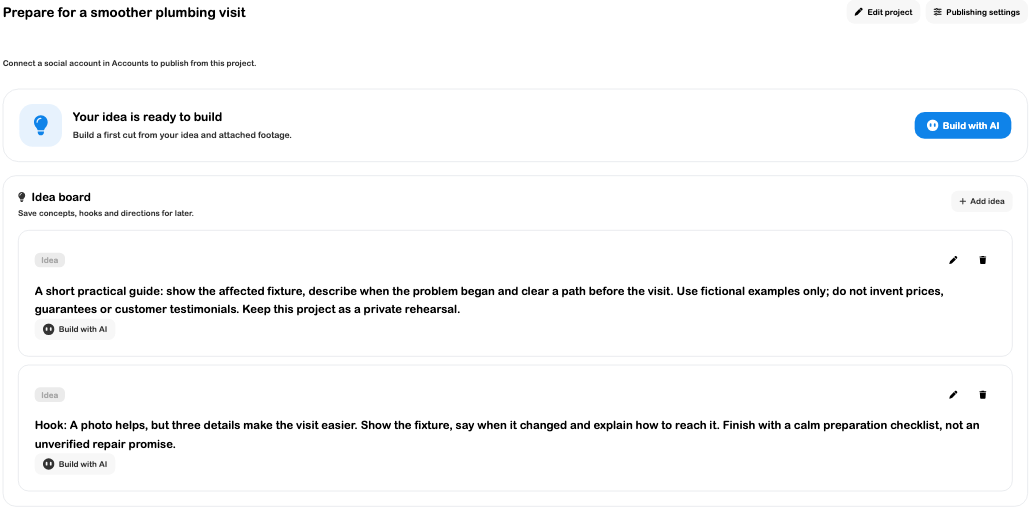
Choose Add idea, write the concept and use Save idea. Reopen it with the edit icon to revise the wording. In the example, the second hook focuses on three useful details: show the fixture, describe when the issue began and explain access.
Use Build with AI beside a specific idea when you intend that concept to become the production brief. Review the build dialog before starting. The current implementation limits a board to 100 ideas and prevents edits on archived projects.
If another edit changes the board while your dialog is open, the app can require Refresh board before saving. Preserve your text and review the newer board instead of overwriting an unseen change. Concurrent-edit handling was inspected in source, not exercised with two people.
Post Templates
Each current project cut has a project post draft exposed through Publishing settings. This template holds the outgoing title, caption, hashtags, selected destinations, media choices and optional release time for that cut. It is not a verified general library of reusable post designs.
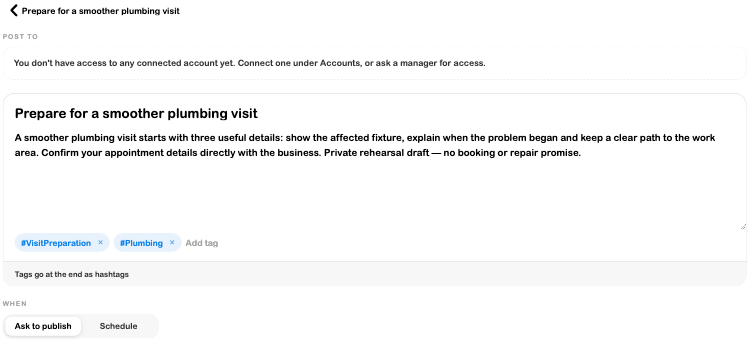
- Open the project's Publishing settings.
- Enter an accurate title and caption. Add relevant tags; the editor places them at the end as hashtags.
- Select the intended connected accounts. Review each destination's format, media and supported options.
- Use the channel preview as a check, not proof of delivery. The generic Your account preview is not a connected destination.
- Choose Save draft to retain edits without submitting them.
- Reopen the draft to confirm the saved text, targets and schedule.
The example's caption explains preparation without making a diagnosis or repair promise. Save draft succeeded with no connected accounts, and the caption and two hashtags reopened correctly. Request approval remained unavailable for this incomplete project; no request was sent.
The implementation can prepare default channel choices from available accounts and the current cut. Inspect those choices rather than assuming automatic defaults match your release plan. A new cut and an earlier published post have separate release identities.
Content Calendar
Open Content → Calendar to inspect dated posts across projects. This calendar concerns content release dates, rather than customer appointments, event doors or staff shifts.
Select a date and inspect the day's item and status. The calendar implementation includes posts with a saved scheduled or published date, so a dated Draft can appear before it is a real scheduled release.
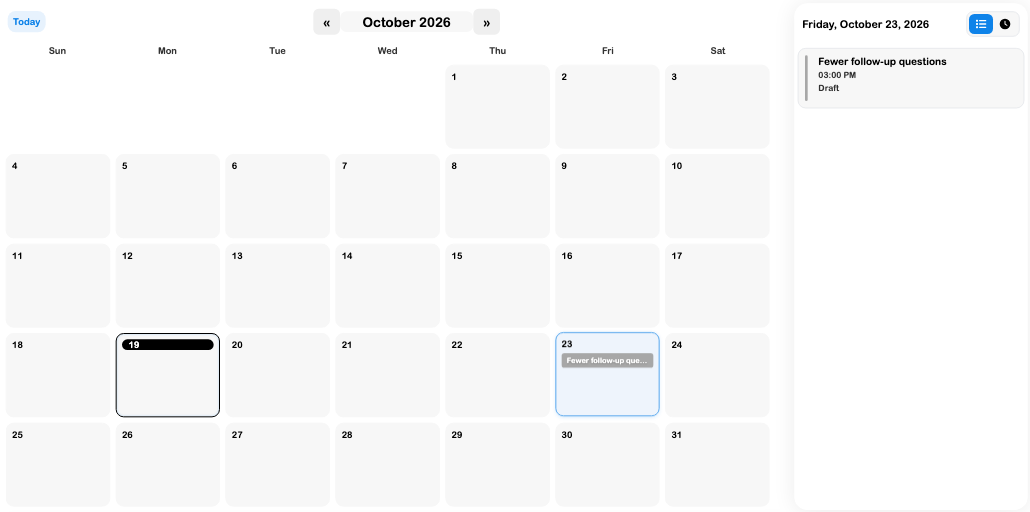
The reviewed item appeared at 3:00 PM on October 23 and the day panel explicitly said Draft. The separate Coming up list showed nothing scheduled. That distinction is useful: a planned date and an active release queue are different states.
When preparing a release time, use Schedule in the post settings and confirm the displayed timezone. Check the future date and time before saving or approving. No calendar date was added or changed here, and the rehearsal caption draft retained Ask to publish with no release time.
Content Reviews & Approvals
Open Review or the current cut's Watch & review action to inspect the media, outgoing post and feedback together. Review the exact cut and format before making a decision.
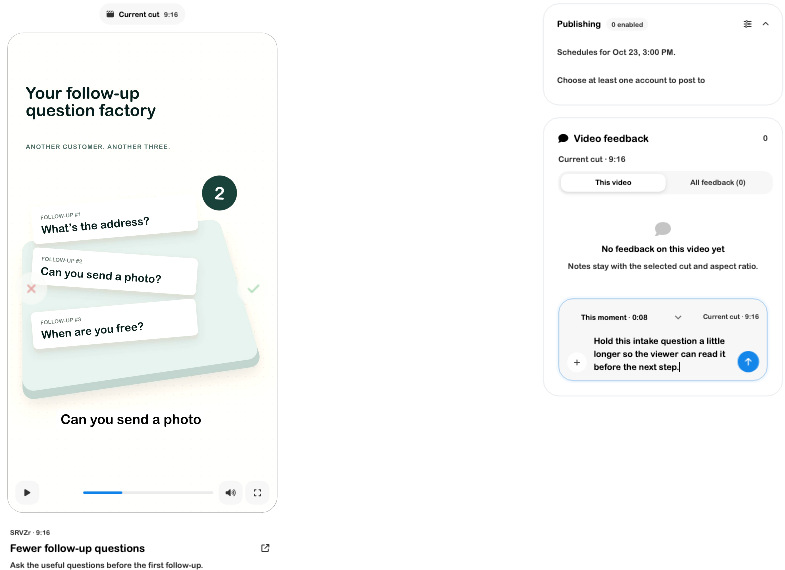
The existing review example loaded a genuine 27-second 9:16 cut. The video was paused at 0:08, and a note was typed into This moment without sending it.
Leave useful feedback
- Choose the intended cut and aspect ratio. Earlier cuts can remain available in cut history.
- Pause at the relevant moment and check the displayed timestamp.
- Choose the feedback scope: the moment, selected video or whole project, as appropriate.
- Write a specific change, such as holding a question on screen longer. Use the area tool when the note concerns a particular part of the frame.
- Send the note only when you intend to save feedback. Confirm it appears under the expected cut and scope.
- Save or clear unfinished feedback before changing videos or leaving review.
This video filters notes for the selected export; All feedback includes broader and earlier-cut notes. A note can remain useful even when its original export is no longer available, but it is not automatically a note on the current cut.
Timestamp seeking and the unsent feedback form were exercised. Sending comments, drawing frame regions, requesting changes and applying feedback with AI were not tested in this review.
Read the approval action before choosing it
Approval can have a release effect. For a project cut without a saved schedule, approval keeps the cut ready for a separate release confirmation. For a project cut with a saved future release time, approval can schedule it immediately if channel and permission checks pass.
The reviewed cut displayed Approve & schedule and its saved date, while also showing 0 enabled and Choose at least one account to post to. No approval button was pressed. Do not treat the saved time or a visible approval control as evidence that the destination setup is valid.
Standalone social-post approvals use their own scheduling flow. Read the actual action, date, targets and permissions for the item you are reviewing. If the project or post changed since it loaded, refresh and review the newer version before deciding.
Changing the current cut is also consequential: the implementation requires a fresh approval and can cancel a previously scheduled release after confirmation. Browsing an older cut for review is different from selecting Use this cut.
Social Publishing
Release only after checking the actual media, caption, destination accounts and time. A saved project, an approved cut and a provider-confirmed live post are separate outcomes.
For an eligible approved project, Publish now or Schedule opens the release confirmation. Review the caption, formats, destinations and date there. Keep ready returns without posting. Complete the release only when it is intended and authorized.
Track each channel independently afterward:
| Result | What to verify |
|---|---|
| Ready or Draft | Content is prepared; this does not mean a release is queued. |
| Scheduled | Check the actual release time, timezone, approved cut and destinations. |
| Publishing | Wait for provider processing rather than submitting another release. |
| Published | Open the returned live link and inspect the real post. |
| Partly published or Failed | Read each channel's outcome and error; successful destinations may already be live. |
The implementation retains successful destinations when retrying failed ones. Wait for the current publishing attempt to finish and inspect the affected channels before retrying. Reconnecting an account, retrying delivery and publishing a new post are different actions.
No provider publication, OAuth, account permission change, approval, scheduling action, retry or live-link check was performed for this review. The test business had no connected social account. These release steps are source-confirmed guidance, not claimed external-delivery verification.
Troubleshooting
| Symptom | What to check |
|---|---|
| Draft text is saved but publishing is unavailable | Confirm a finished current cut, connected accounts, selected targets and required permissions/options. |
| Upload fails before transfer starts | Inspect the upload-URL error and storage connection. The reviewed direct Content upload failed at this step; choosing a file was not a completed asset save. |
| A dated item appears but Coming up is empty | Read the item's status. A saved date on Draft is not the same as Scheduled. |
| Approval unexpectedly mentions scheduling | Inspect the saved release time before choosing the action. Project approval can activate that schedule. |
| Feedback seems missing | Check This video versus All feedback and the cut/aspect ratio to which the note belongs. |
| An older export is visible | Browsing history does not select it for the next release. Review current-cut identity separately. |
| One destination fails | Read its provider result and preserve already successful posts; do not assume the whole release failed. |
Use Photo Library and Files for source material, Canvas for visual design, and AI media generation for separate generation workflows. Docs holds reusable written instructions.
Work from the project and its release plan
The current project workspace keeps the cut, review, release plan and channel results together. Prepare the intended current cut, caption, destinations and release timing in that project before requesting approval.
- Open the project and check which cut is current.
- Review its release plan, including formats, destination accounts and time.
- Request review of that exact cut. Read whether the approval action also schedules it.
- After approval, inspect the actual release status and each destination's receipt or error.
Changing the current cut requires a fresh approval and can cancel a scheduled release after confirmation. The release plan remains with the project; earlier cuts, feedback and live receipts remain available. Selecting an older cut for viewing is different from Use selected cut.
Cover images now load progressively as the list scrolls. Let the relevant card finish loading before deciding an image is absent. Social analytics requires the relevant channel and provider data; an uploaded cut has no audience results by itself.