Sales tax
Use Accounting → Taxes to see what the books show as collected, recoverable, and owing for each registered agency. Open a period to prepare its return worksheet, then record filing and settlement after completing those actions with the agency.
The example follows an Ontario plumbing business through its July–September quarter. Its demo books show CA$314.47 collected and CA$130.00 of input tax credits, leaving CA$184.47 net tax. The figures illustrate the workflow; they are not a tax calculation for another business.
Sales Tax Tracking
Match setup to your registration
- Select the correct business and open Accounting → Taxes.
- If asked, set the business's country and province/state. These determine the agencies and rate options offered.
- Open Tax setup.
- Set I'm registered to collect tax according to the business's actual registration.
- Enable the relevant agency and enter its registration number, filing frequency, and registered-since date where applicable.
- Check My prices already include tax. With it off, tax is added to the price; with it on, tax is taken out of the displayed price.
- Review everything before Save. Reopen setup to confirm the saved choices.
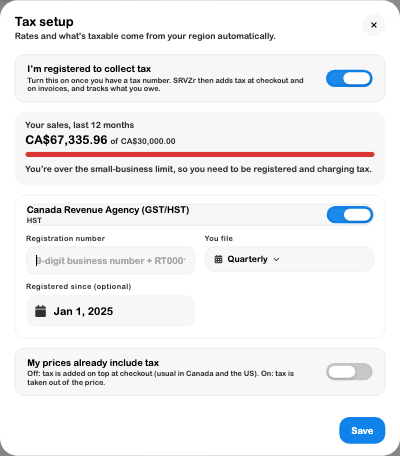
Treat the sales-limit message in setup as a prompt to check registration. Its rolling sales figure does not establish your legal obligation, effective date, or eligibility. For Canada, confirm these against the CRA's registration guidance, including the applicable supply and calendar-quarter tests. Use the relevant agency's guidance for other registrations.
Review the period, not just the current total
The overview groups tax by agency and return period. An unfinished current period and an ended period ready for filing serve different purposes. Open the intended period and check its dates, due date, and status before working on its return.
The worksheet draws from the books for that agency and date range. Check recorded sales, purchase tax, refunds, credits, and posting dates before accepting the result. Correct the underlying record when it is wrong; changing a filing status does not repair a sale or expense.
Setup requires accounting management access. Filing and settlement controls require the business's tax permission. If a control is missing, have the account manager review your access in Team.
Sales Tax Reports
Check the supporting summary
- Open Accounting → Reports → Sales tax summary.
- Set the same start and end dates as the return period.
- Review each agency's collected tax and tax paid on purchases.
- Compare Net tax for the period with the return worksheet.
- Use CSV or Print / PDF to keep the report with your working papers.
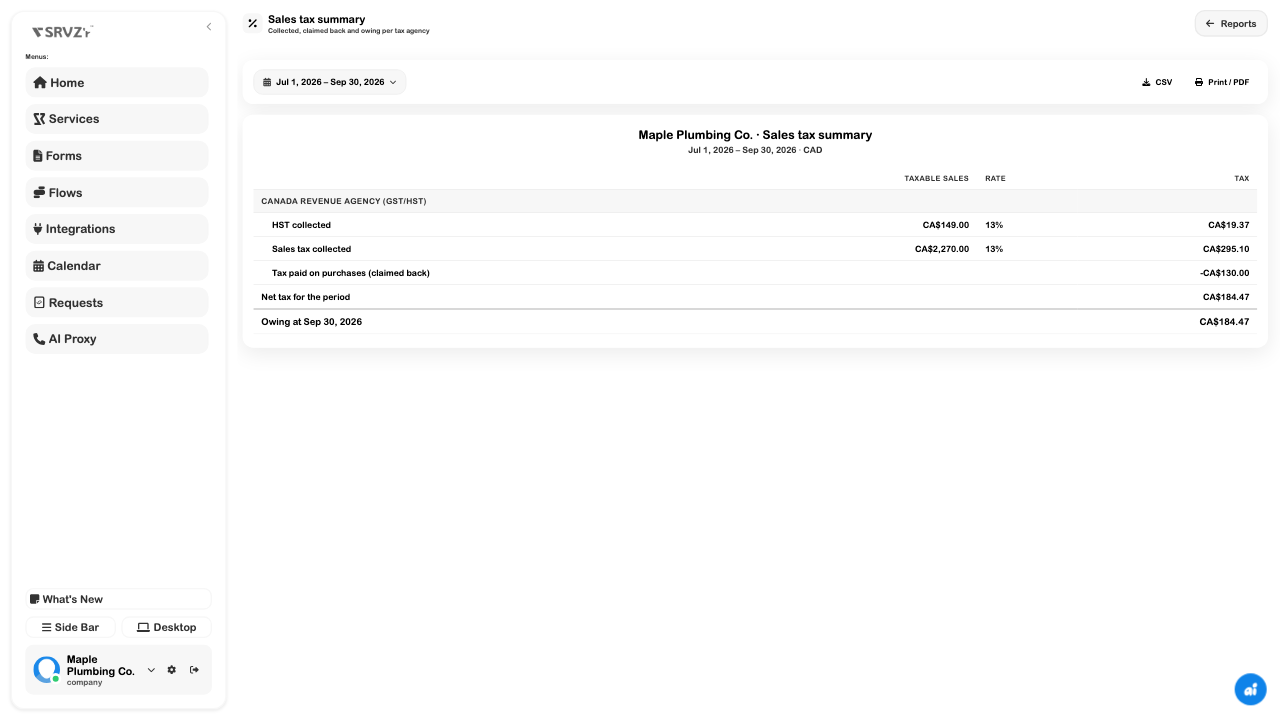
The report separates net tax for the chosen period from the amount owing at its ending date. Read those labels carefully when earlier unpaid returns or recorded settlements affect the balance.
Prepare the return and record what happened
- Return to Taxes and open that agency's period.
- Review the worksheet lines. In this GST/HST example, line 105 is CA$314.47, line 108 is CA$130.00, and line 109 is CA$184.47.
- Complete the return through the agency's own filing service, using the reviewed figures and any required adjustments.
- After filing, enter the confirmation number if available and choose Mark as filed in SRVZr.
- After paying the agency or receiving a refund, choose the actual date and bank account, then use Record payment or Record refund.
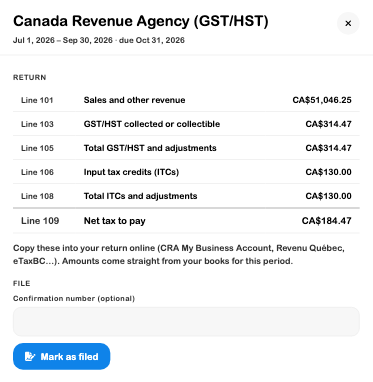
Mark as filed records a filing in SRVZr. It does not submit the return to the agency. Recording settlement updates the books; make the actual payment through your payment channel and retain its receipt. No tax filing, payment, or refund was initiated for this walkthrough.
If the figures do not agree
| What you see | What to check |
|---|---|
| Different totals in the report and worksheet | Business, agency, exact date range, and whether records changed between opening the two views. |
| Missing purchase credits | The purchase's recorded tax, agency treatment, and posting date; verify eligibility separately. |
| A registration or region prompt | Complete the business's actual region and tax setup with the appropriate access. |
| A return shown as overdue or ready | Check the agency's actual filing history before recording a status in SRVZr. |
| Amount owing remains after an external payment | Check whether that settlement has been recorded against the correct return and account. |
Continue with Bills and suppliers, Expenses, Financial reports, or Accounts and journal to inspect the records behind the tax totals.