Shifts, availability and timesheets
A schedule says who you expect to work. A timesheet says what time was recorded. Shifts keeps those records separate so you can plan coverage without treating a draft rota as completed work or payroll.
The example business has two continuing employees: Jordan handles service calls and Priya coordinates bookings. Jordan's planned day is 9 AM–5 PM; Priya's is 9 AM–3 PM. Both have a 30-minute unpaid break. The screenshots use fictional staff and illustrative pay amounts.
Shift Scheduling
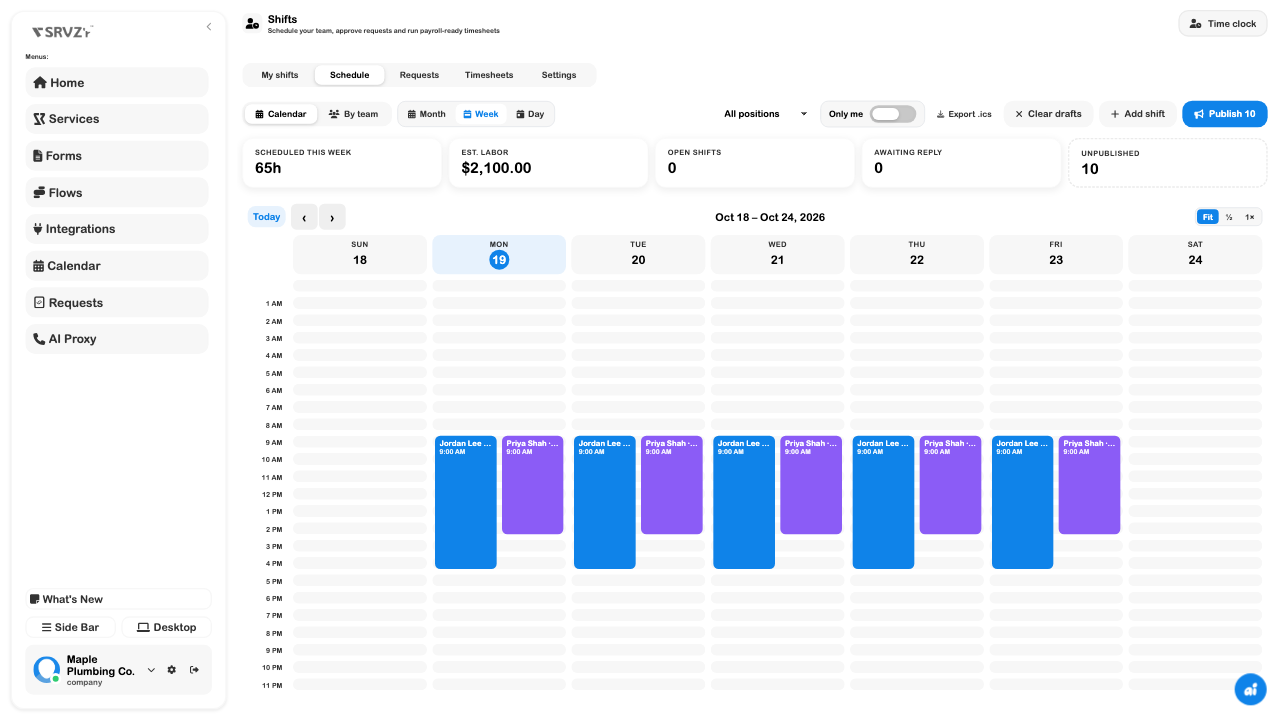
Open Shifts → Schedule. Choose Calendar to compare coverage across the day, or By team to inspect each person's assignments. Change the period and position filter before deciding that someone is free. Check the displayed dates when switching between views.
Build a week without publishing it
- Choose Add shift and use Assign to to select the person. Leave it as Open shift only when you intentionally need someone to pick it up.
- Choose a position, such as Service Tech or Dispatch.
- Set the date, start, end, and unpaid break. The paid-time summary changes as you edit.
- Use Repeat this week to select the actual days needed. Review each highlighted date; this creates multiple shifts, not a permanent recurring schedule.
- Add a recognizable label, work location, and useful handoff notes.
- Leave Fixed pay empty to use the person's configured hourly rate, or enter an agreed fixed amount when appropriate. Review the estimate before using it for a staffing decision.
- Leave Publish now off and choose Save draft. The button shows how many shifts will be created when several days are selected.
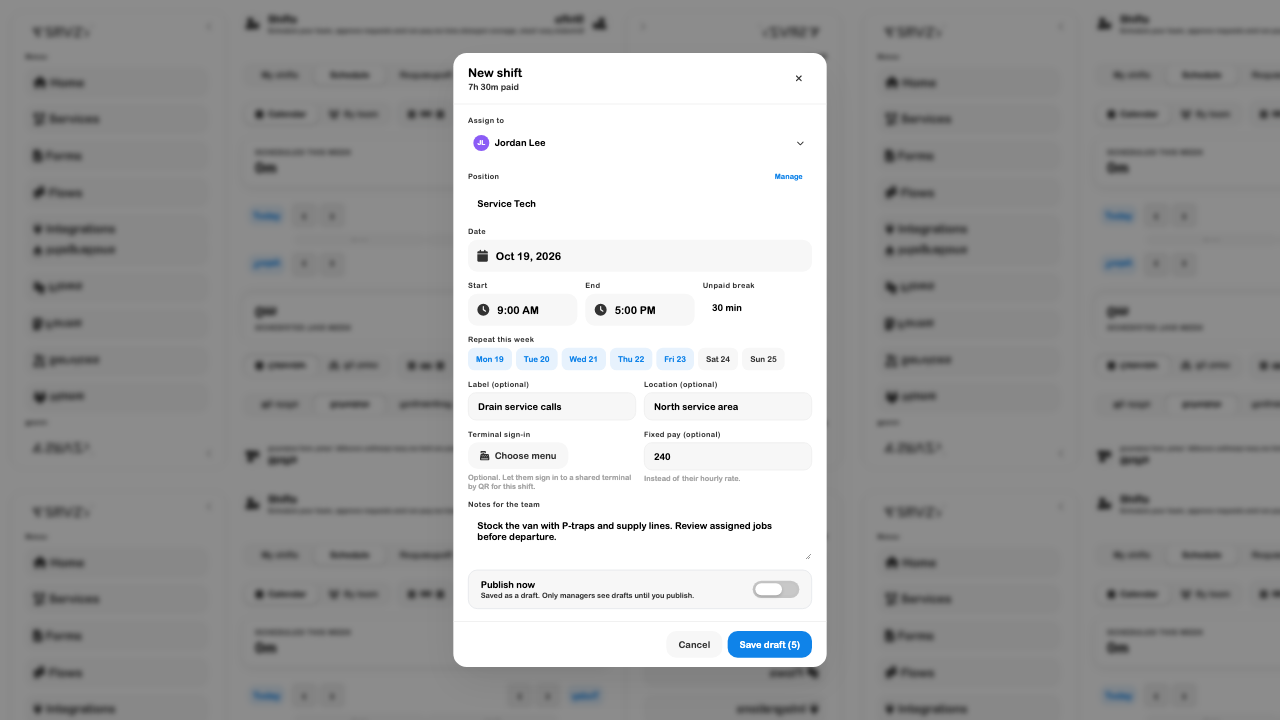
In the example, Jordan's five days produce 37 hours 30 minutes of planned paid time. Priya's five shorter days add 27 hours 30 minutes. The schedule shows 65 hours and ten unpublished shifts. Those are saved planning records, not clocked work.
Review before publishing
Check open coverage, overlaps, availability warnings, expected labour, and anyone awaiting a response. Drafts are visible to managers; Publish is the separate action that makes the selected schedule available to staff. Do not interpret an unpublished card as an assignment the employee has already seen.
An export is another separate action. Export .ics is for calendar use; it is not a timesheet export or a payroll run. Published assignments, not unsent drafts, are the relevant handoff to staff calendars.
Provider Availability
Recurring availability helps a manager understand a person's normal limits and preferences. In My shifts, find Availability and choose Add. A manager can also review the person's Shifts tab from Team.
Choose what the window means:
- Unavailable marks time the person cannot work.
- Only available describes their available window.
- Prefer to work communicates a preference rather than a confirmed assignment.
Select the weekdays and the time range, or use All day when that is what you mean. A weekday pattern repeats every week; it does not request a one-off holiday.
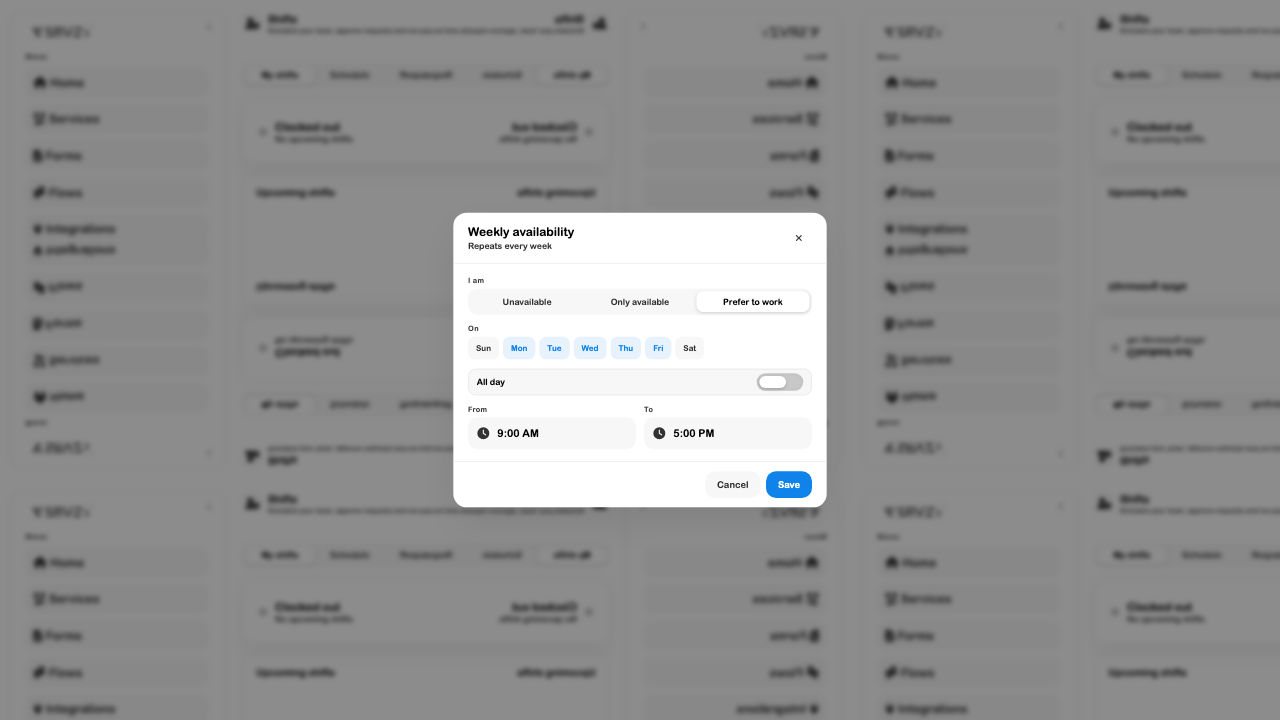
Review any availability warning when creating a shift. For provider-pool work whose time and pay were agreed as part of an assignment, the schedule is not the place to silently replace those agreed terms. Review the originating job as well.
Shift Requests
Use My shifts for your own responses and Requests for the queue you are allowed to review. Depending on the assignment and business settings, requests can involve picking up an open shift, dropping one, swapping with another person, or taking time off.
Request a day off
- In My shifts, find Time off and choose Request.
- Select From and To. These are whole days, inclusive: October 28 to October 28 requests that single day.
- Add context that helps the manager arrange cover without including sensitive personal information.
- Review the dates and choose Send request when ready.
- Check the request's status. Sending a request is not the same as having the time off approved.
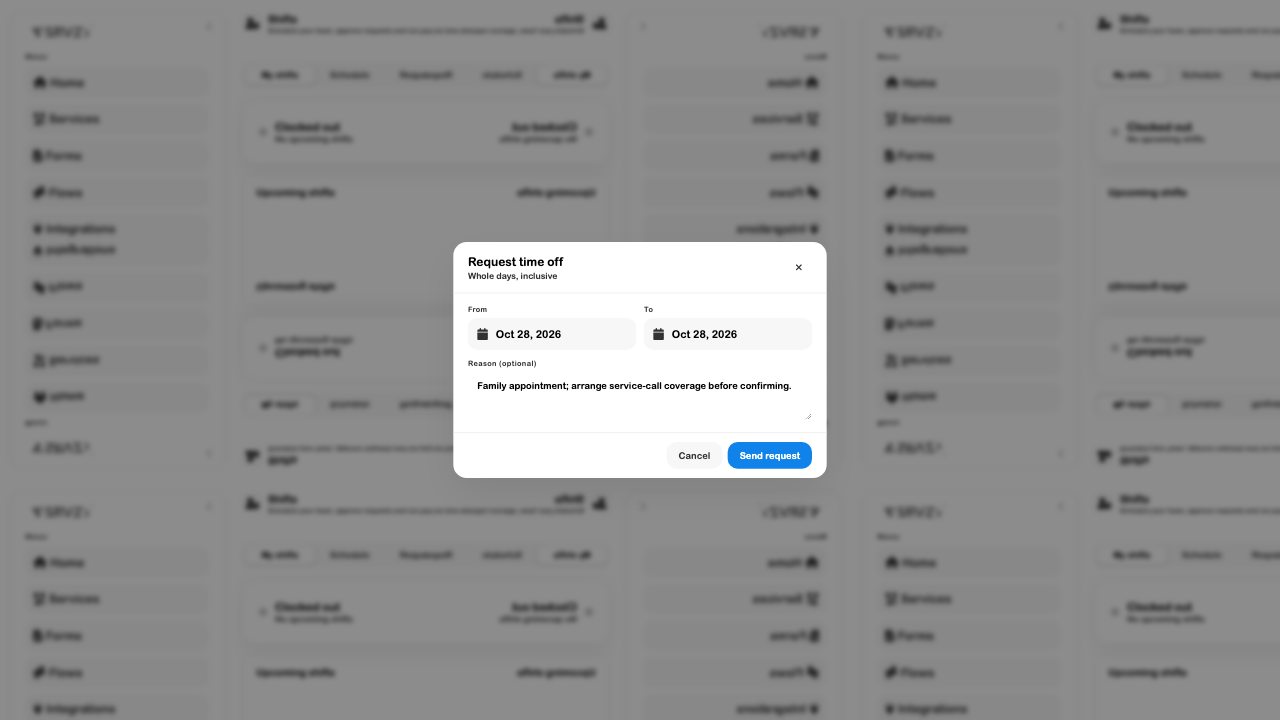
Managers can filter the request queue and inspect conflicting assignments before responding. A swap can involve both the other person's response and managerial review. Check the resulting assignment and status instead of assuming that clicking a request button completed the handoff.
Time Clock
Staff use the time clock to record work and breaks. On a shared device, Time clock opens a PIN screen so the worker does not need to borrow the owner's app login. The worker enters their own PIN, confirms the person shown, and chooses the appropriate action offered for their current state.
- Complete staff PIN setup before the shift.
- Open Time clock on the intended business's device.
- Enter your PIN privately and verify your identity on the next screen.
- Use the available clock-in, break, return, or clock-out action.
- Check the confirmation. Do not leave the shared screen showing someone else's state.
A clock-in creates a time record; it does not publish a rota or approve payroll. A manager should review a forgotten clock-out or an automatically closed entry. Location or sign-in rules can also affect which actions are allowed.
The PIN entry screen was inspected for this guide. No PIN or setup code is displayed in its screenshots, and the manual example below is not presented as a physical terminal clock-in.
Timesheets
Open Timesheets and select the weekly or bi-weekly period. Compare scheduled time with worked, regular, and overtime hours. Expand a person's row to review individual entries and their source before approving anything.
Correct a missed punch
- Choose Add entry and select the person.
- Enter the actual clock-in and clock-out date and time.
- Add a note explaining the work or missing punch.
- Choose Save, then reopen the person's entries to verify the time range.
- Review and approve the completed entry if it is correct. Adding it manually does not automatically approve it.
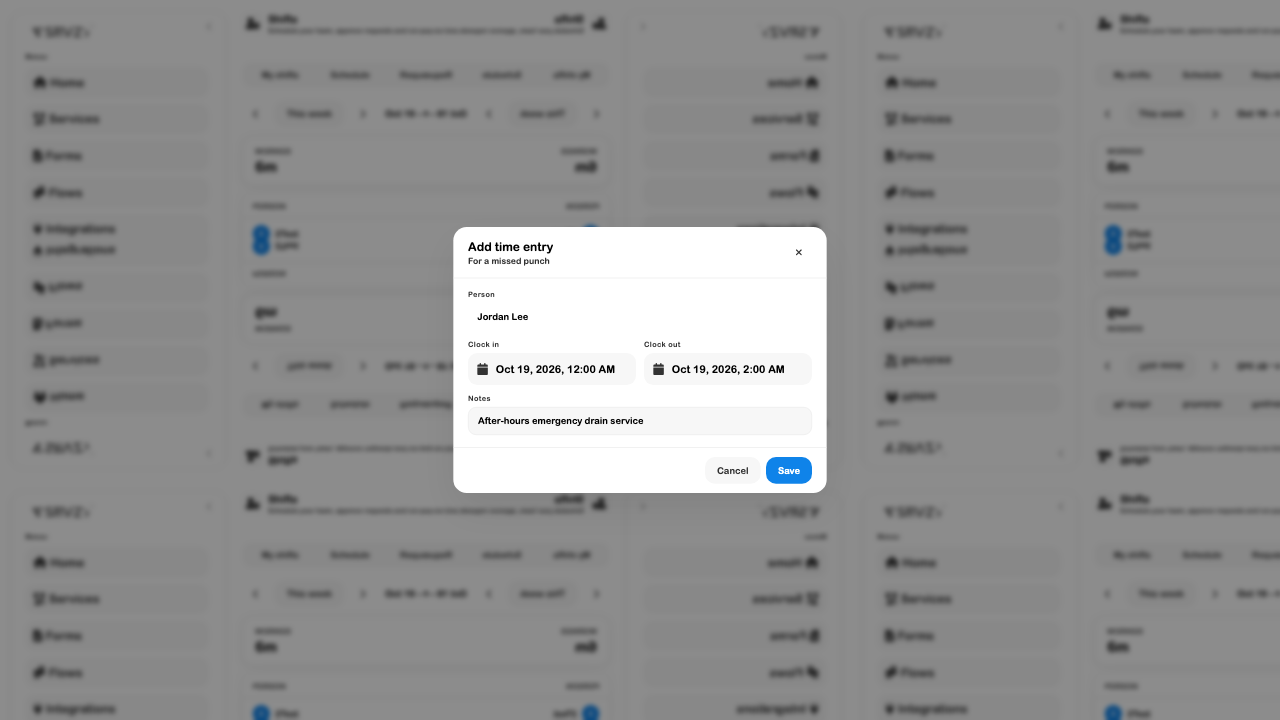
Edits to an existing entry require a reason so the correction can be understood later. Check open entries, unpaid breaks, overtime settings, missing rates, and approvals before Export CSV. Run payroll opens the separate Books workflow for people with payroll access; it is not proof that wages have been calculated, approved, or paid.
QR Staff Sign-in
A shift can also specify a menu for shared-terminal access. In the shift editor, use Terminal sign-in → Choose menu when that employee should be able to open a particular terminal menu for that shift. Review the person, menu, published assignment, and time window together.
This is separate from entering a PIN at the time clock. A terminal QR is a sign-in handoff, while clocking in records work time. Treat sign-in QR codes like other access material: show them only on the intended device and do not include live codes in public screenshots.
If scanning fails, check that the terminal belongs to the correct business, the login code is current, and the worker has the relevant assignment and access. The screenshot above shows the shift's configuration control; it does not demonstrate an actual QR sign-in or connected payment device.
Troubleshoot scheduling
| What looks wrong | What to review |
|---|---|
| Staff cannot see a saved shift | Whether it remains a manager-only draft and whether the person has app access. |
| The person's name is unavailable | Their active Team record, the business, and position/qualification filters. |
| Paid hours differ from the visible time span | The unpaid break and the entry's actual start and end. |
| An overnight shift looks surprising | The dates as well as the times; an end earlier than the start can mean the following day. |
| Estimated pay is missing | The configured rate or agreed fixed pay. An estimate is not a completed payroll run. |
| A time-off request did not remove an assignment | Request status, approval requirements, and remaining conflicting shifts. |
Continue with Team for staff and permissions, Calendar for business appointments, or Requests for the jobs those shifts support.