Image and video generation
Generate media for a specific purpose, such as a service illustration, preparation guide or short background clip. Keep the brief concrete, use authorized references and inspect the result before putting it in front of customers.
Generation, storage, captioning and publication are separate steps. An image saved in Files is not automatically a published website or social post, and successful generation does not prove that a separate AI caption service worked.
AI Image Generation
Open Files → Generate → Image. The same asset chooser is available from supported editors. Confirm the active business before starting a request that uses credits.
- Describe the subject, composition, intended use and important exclusions.
- Choose an available image model and review the current settings. Model availability and service readiness can differ; a model name in a menu is not a completed provider check.
- Choose the aspect ratio for the destination. Select a theme or add a reference only when you intend to use it.
- Review Transparent if a cutout is required. Inspect the actual output's alpha channel afterward; requesting transparency does not prove it was delivered.
- Generate once and wait for the actual result. Read any provider or credit error before retrying.
- Inspect the subject, details, text, people, logos and suitability for the intended use.
- Select the result and verify the saved original in Files before attaching or publishing it elsewhere.
A completed inspection-kit example
The reviewed prompt requested a clean still life of a plumbing inspection kit: a compact inspection camera, adjustable wrench, notebook and folded cloth, with soft light and muted green accents. It excluded people, text, logos and watermarks.
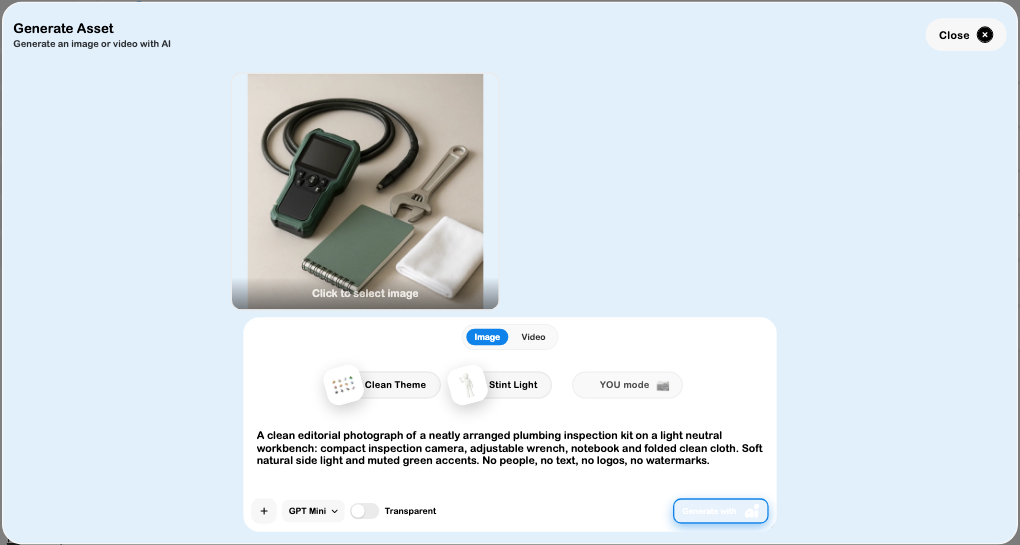
The request returned a 1024 × 1024 image. The actual result contains the requested inspection camera and cable, wrench, notebook and cloth without visible people or text. Its original file reopened in Images → AI Generated, and the downloaded original was about 1.5 MB.
A separate automatic file-context step failed at its text provider's spending limit. The image itself generated and saved successfully; no successful automatic caption or context was claimed. See Photo Library for manually reviewed captions and tags.
Review before reuse
For a business illustration, inspect small object details and avoid presenting a generated scene as evidence of an actual job, product certification or customer endorsement. Check the final crop at the size the customer will see.
For an edit or reference-based request, compare the output with the source. A recognizable thumbnail does not prove that geometry, text, identity or transparency was preserved. Keep a suitable original and review the exact file you select.
The completed example used the Image mode with its displayed model, a square result and no selected theme or reference. Transparency, reference editing and every alternative model were not tested.
AI Video Generation
Open Files → Generate → Video. Choose the method before preparing references because motion-driven and prompt/image-driven video have different input requirements.
| Method | What to prepare |
|---|---|
| Motion video | A motion-video reference, intended character/image reference, quality mode, orientation and sound choice. |
| Prompt or image-to-video | A specific motion prompt, optional start image/last frame, duration, resolution, aspect ratio and audio choice offered by the selected generator. |
The reviewed motion mode required a video reference; a still image alone did not satisfy that workflow. The prompt/image mode exposed start image, last frame, duration, resolution and generated-audio controls. Use the actual available choices rather than assuming all generators accept the same inputs.
Prepare a restrained motion brief
For the inspection-kit example, the intended motion is a slow push-in while the tools remain in place. The draft requests soft natural light, no people, no new text or logos and no exaggerated movement.
- Add the authorized start image through Add a reference and confirm the actual image appears.
- Review Start image and Last frame separately. Adding a reference does not mean it is selected for both roles.
- Set the intended duration and resolution. The inspected setup used five seconds and 720p with generated audio turned off.
- Check the requested aspect ratio and whether the destination needs portrait, landscape or another layout.
- Generate only when the inputs and credit use are intended. Wait for the actual provider result; closing a panel is not evidence of cancellation or refund.
- Play the returned video and review the beginning, middle and end before selecting it.
- Verify the stored original, duration, dimensions and sound state in Files. Use Content separately for cut review, approval and release.
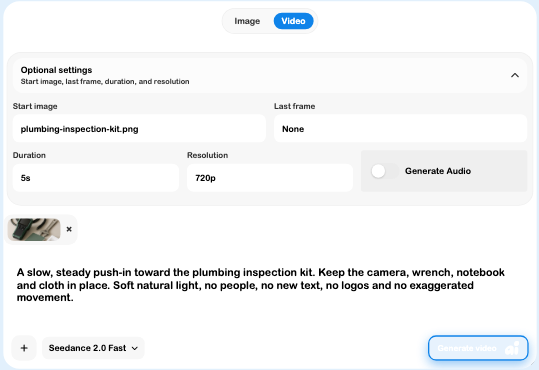
The video setup used the actual previously generated inspection-kit image as a reference. The source image is illustrative, so an animated version must also be described as generated content rather than footage of a real service visit.
Check the whole clip
Watch for unwanted object movement, changing tools, invented lettering, flicker, abrupt framing changes and unexpected sound. A good first frame does not establish a good video. Review the final frame and loop boundary when using the clip as a background.
A stored clip is not an approved social release. Content keeps cut review, captions, destinations and publication separate. In particular, approving a cut with a saved future release time can schedule it; inspect that action before deciding.
A completed five-second result
The request returned a 5.04-second, 1280 × 720 clip. Its beginning, middle and end were inspected in the actual browser player. The tools remained coherent during the restrained push-in, with no visible person, new lettering or major object transformation in the inspected frames.
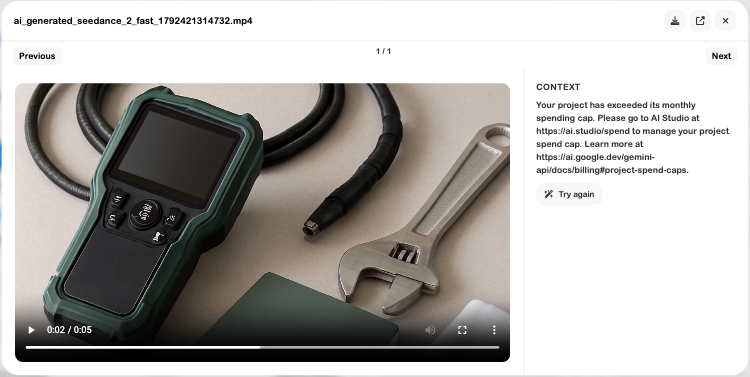
The original reopened in Videos → AI Generated and was downloaded. File inspection confirmed a 5.04-second video stream at 1280 × 720 with no audio track, consistent with the request. The beginning, midpoint and final section were checked; this does not establish how every generator or every longer request behaves.
No social post, website release or customer message was created from the clip. Other video generators, motion-reference execution, alternative durations and generated audio were not tested.
Credits, errors and recovery
Image and video requests use the selected account's available credits and service configuration. A generation can take longer than a text response. Before retrying after a timeout, check whether a result already appeared in Files or whether the provider request is still being processed.
A failed request is not proof that no provider work occurred or that no credits were reserved. Inspect the actual result and usage rather than assuming a retry is free.
The reviewed image chooser contains a fallback path that can display an unrelated stock image after some image errors. If an error appears, do not accept a later-looking picture as successful generation merely because a preview is visible. Compare it with the prompt, inspect the error and verify the stored result. The inspection-kit example above was a genuine matching generated result, not that fallback.
| Symptom | What to check |
|---|---|
| Prompt is filled but no result exists | Wait for completion or inspect the provider error. A draft setup is not output. |
| Preview appears after an error | Verify that it is the intended generated asset; do not mistake a fallback image for success. |
| Motion mode will not start | Confirm a supported video reference and required selections, not only a still image. |
| File exists but has no useful caption | Caption/context generation is separate; inspect its error or add accurate metadata manually. |
| Video begins well but changes later | Review the entire clip and choose another result before reuse. |
| A selected result cannot be found | Check the active business, category/folder and actual saved original. |
Continue with Files, Photo Library, Canvas and Content.