Devices and SRVZr Home
Use Team → Devices to manage the screens and machines associated with a business. A terminal or signage screen can sign in as a device, with its own permissions. Staff can then switch into a terminal with their PIN. SRVZr Home tablets keep their hardware settings in Assets, and robots keep their controls in Servos.
This guide uses a saved, unpaired demo terminal named Workshop counter and an existing tablet's reported settings. The terminal is waiting to connect; the tablet is offline. No screen was paired, staff PIN entered, hardware setting changed, restart performed, or software update initiated for the screenshots.
Device Logins
An owner or someone with Full access can add and manage devices. Select the correct business before preparing a shared screen.
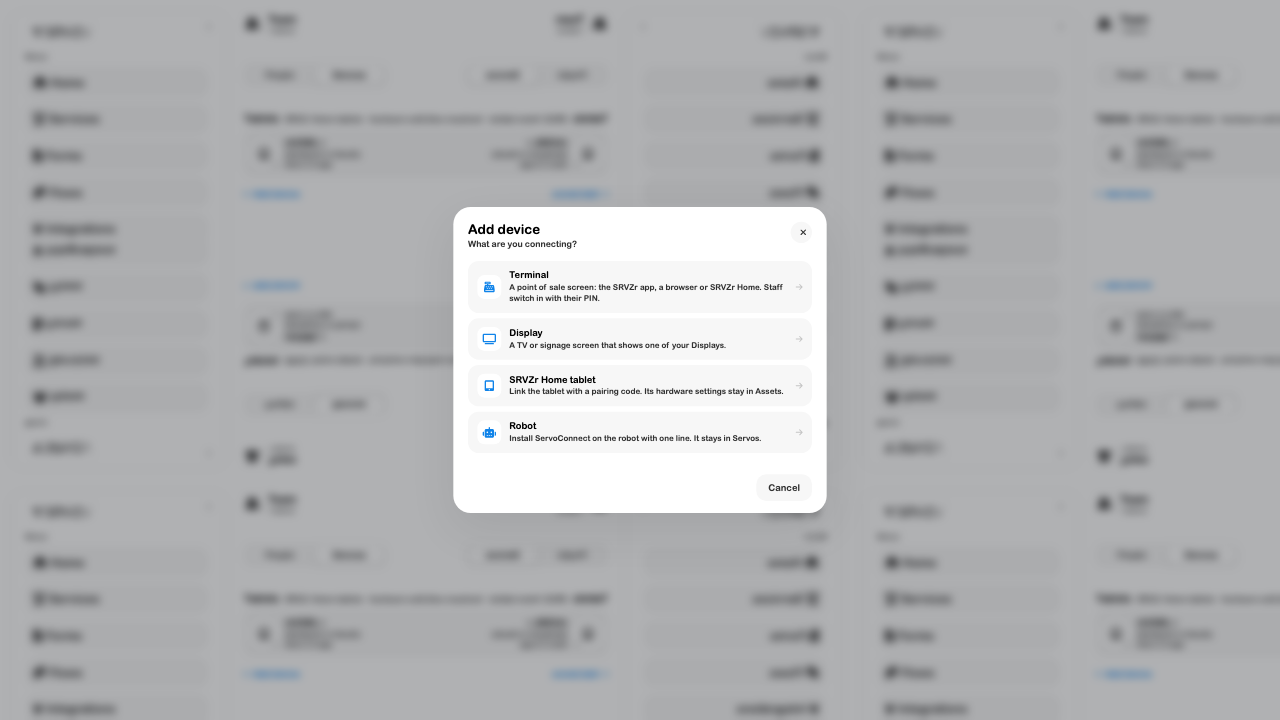
- Open Team → Devices → Add device.
- Choose the device kind.
- For a Terminal or Display, enter a recognizable name and review its access before continuing.
- For an SRVZr Home tablet, follow the tablet-linking handoff to Assets. For a Robot, follow its setup in Servos.
Decide what an unattended terminal can do
Under With nobody signed in, review selling, card payments, cash, open bills, sales history, and refunds. These choices apply when the terminal operates as itself. Once someone signs in with their staff PIN, that person's permissions apply.
Turn Sell with nobody signed in off when the screen should wait at the PIN lock for a staff login. The other unattended-selling controls become unavailable while selling is off. Under Menus, choose all menus or a nonempty selection. Review Idle sign-out, using either the business default or a specific interval.
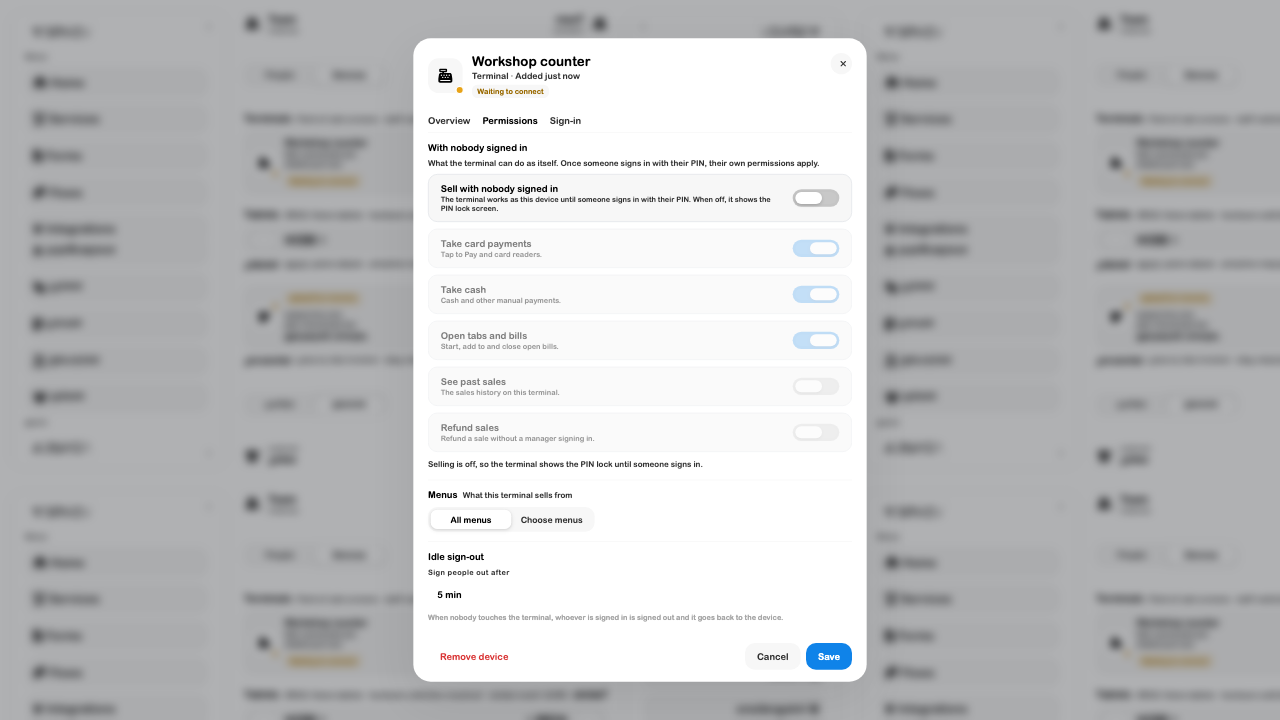
After adding a terminal, its Sign-in tab offers Everyone, Only these people, or Nobody. Individual staff access dates, shift restrictions, and PIN rules still apply. If nobody can sign in and unattended selling is also off, the terminal cannot be used until its access is changed. See Team and staff PINs for the person-side setup.
Device Pairing
There are two ways to connect a terminal or display screen. Keep generated connection codes and QR codes private; the screenshots deliberately exclude them.
Start from Team
- Add the terminal or display, enter its name and permissions, then choose Next.
- On the intended screen, open the address shown by the dialog: srvzr.app/device.
- Choose I have a code on that screen and enter the current code generated in Team, or use the offered QR route where appropriate.
- Wait for the screen to finish connecting and confirm the business and device name it displays.
- Check Team's device card. A terminal opens its terminal view; a display opens its selected Display.
Next saves the device before a screen has connected. If setup will continue later, choose Connect later. Reopen the saved card when ready rather than creating another device with the same purpose.
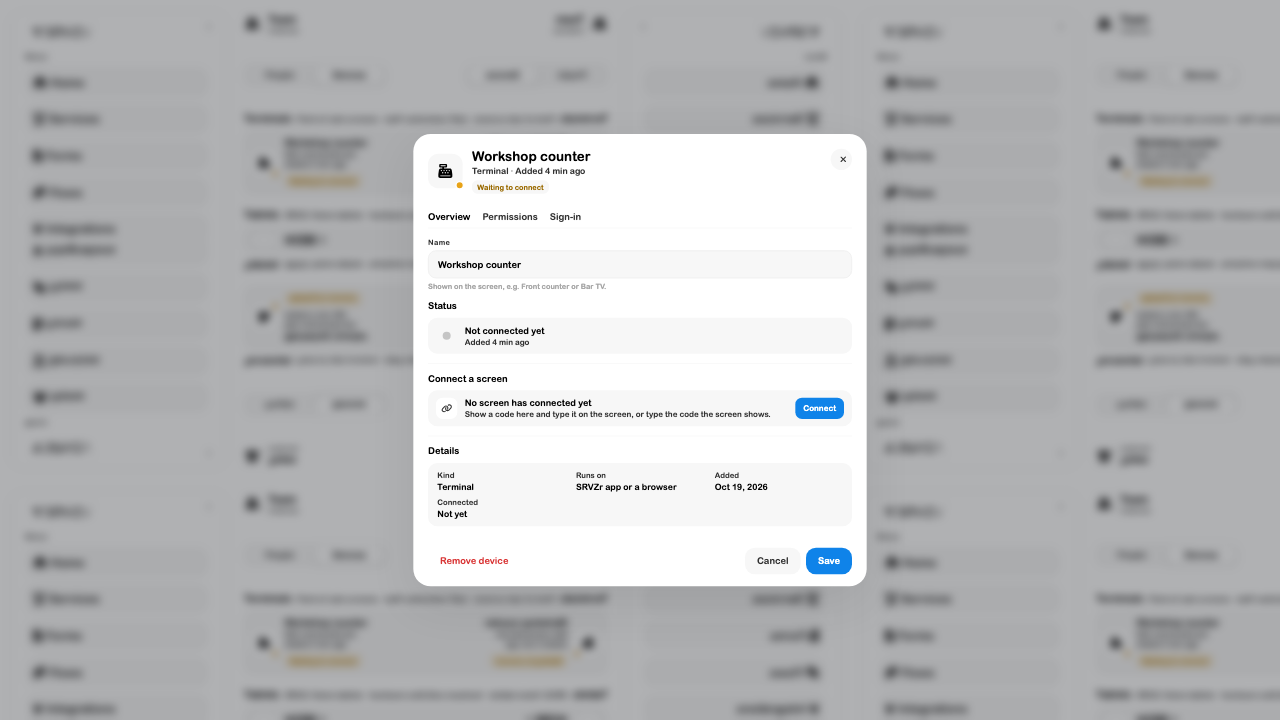
Start from the screen
Open srvzr.app/device on the shared screen and use the code it shows. In the owner's device connection dialog, enter it under Code on the screen?, check the screen description, and approve the intended screen. A scanned screen QR can also lead to the approval flow. Connection codes currently expire after ten minutes; use a fresh code when the interface reports expiry or previous use.
For an existing terminal or display, Connect again moves its login to the new screen when that connection completes. The old screen is then signed out. A display with Nothing for now selected waits until a Display is chosen in its Permissions tab.
Leave device mode on a screen forgets that screen's device login; the record remains in Team. Remove device in Team removes its access and requires setup again. Neither action is needed merely to inspect a card. The connection and removal completion paths were inspected in the implementation; this walkthrough did not execute them on a screen.
Device Status
The list groups devices by kind and separates their task state from connectivity. Search can help find a named counter or screen.
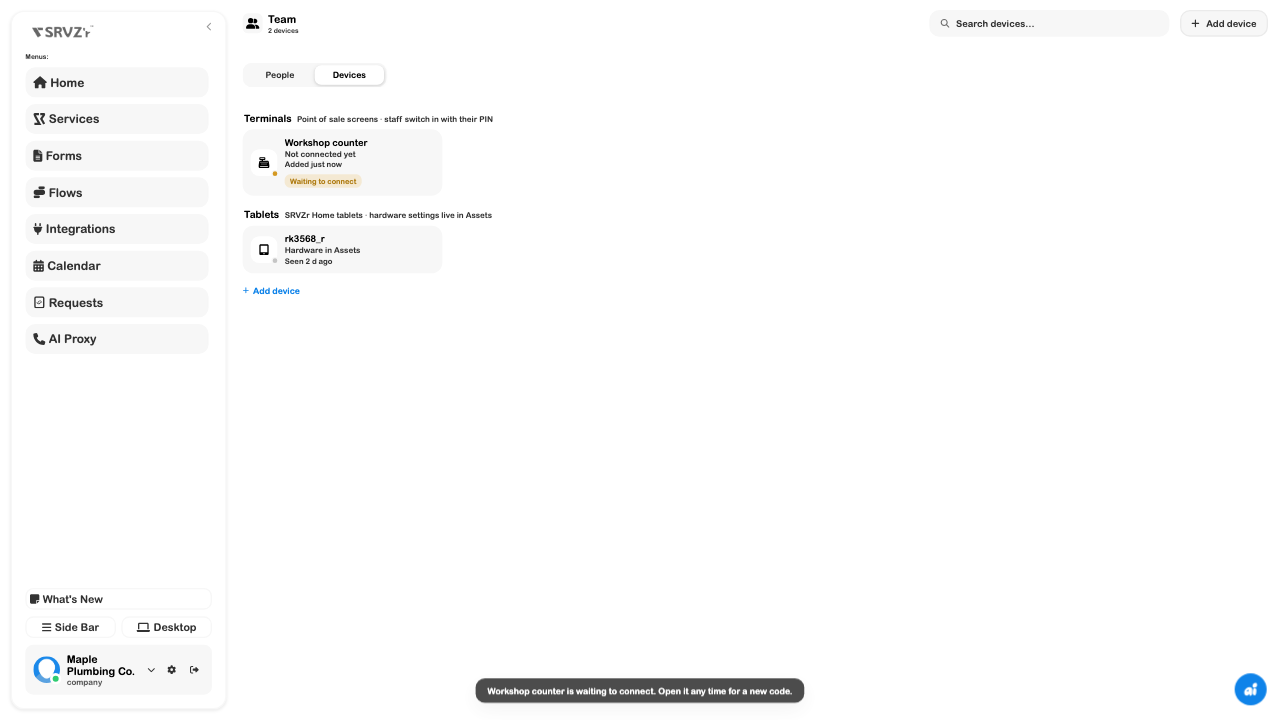
| Label or detail | What it tells you |
|---|---|
| Waiting to connect / Not connected yet | The screen's record exists, but its connection has not completed. |
| Online | The service received sufficiently recent activity for that device kind. |
| Seen … ago / Last seen | When the service last heard from it; check this before relying on displayed settings. |
| Selling as this device / Locked | The terminal's mode with no staff member signed in. |
| A person's name signed in | A staff session is active; their permissions apply. |
| Showing: … | The Display associated with a signage screen. |
| Hardware in Assets / Robot in Servos | Where to inspect that device's hardware or operating controls. |
Open a card for its kind, runtime, connection date, and last-seen details. Connectivity uses different activity windows for screens, tablets, and robots; an Online badge is not a continuous health or physical-operation test. A stale or failed list refresh can show the last known state with a retry message.
SRVZr Home
SRVZr Home is the device-side environment on supported managed hardware. It provides a home screen for installed SRVZ apps and device settings. In the business workspace, Team → Devices manages its account access, while Open in Assets leads to reported hardware information, startup app, and supported remote controls.
- Open the tablet in Team → Devices.
- Review Permissions → Who can control it: Owners or Owners and managers. Managers here means people with Full access.
- Save only if you intend to change that policy.
- Use Overview → Open in Assets to inspect the tablet's hardware card.
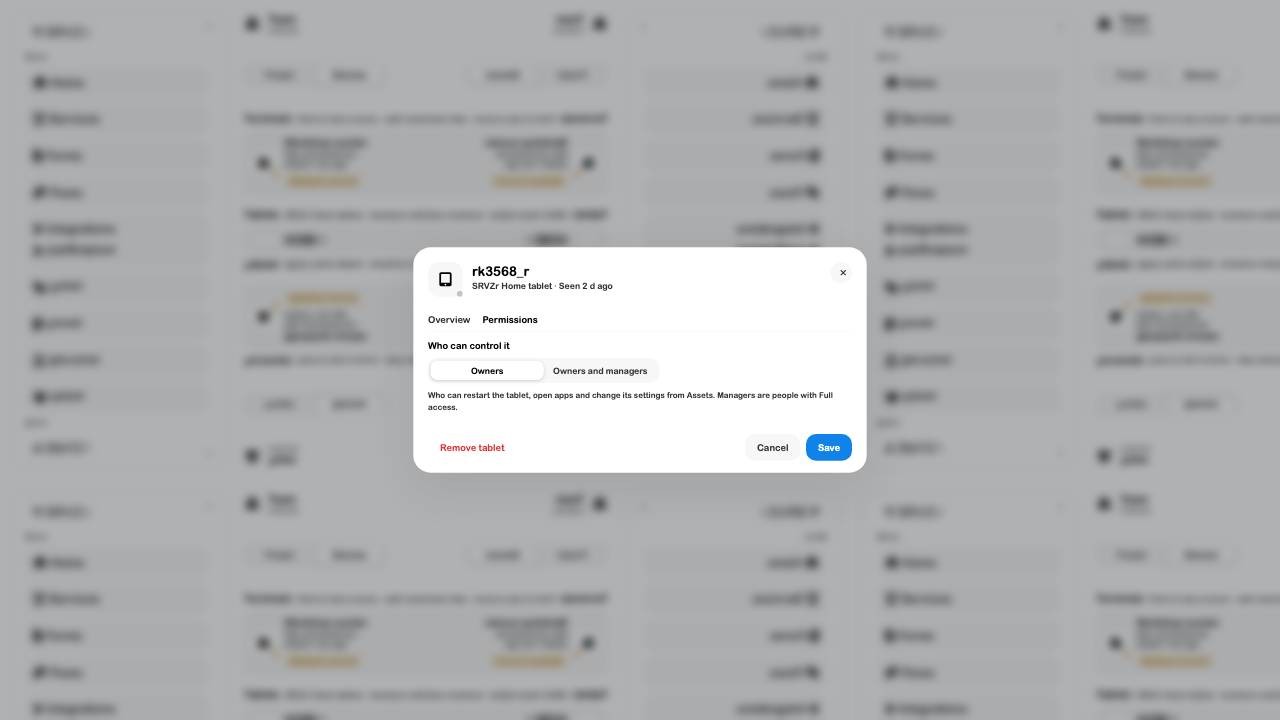
In Assets, check the reported app versions, startup app, display/sound settings, and last-seen state. Opening Assets requests fresh status where the device supports it. An offline device may continue to show an older report. These screenshots show the browser management interface; the native Home screen was not captured or exercised here.
Remote Device Controls
Open Assets → Devices or use the tablet's Open in Assets link. With the required access, its card offers Restart, Check for updates, and More settings. A Turn on action can appear when the device reports its screen is off.
Expand More settings to inspect brightness, volume, dark mode, fullscreen, and startup app. Adjusting a slider sends the setting after a brief pause; mode and startup-app changes send their command when changed. Review the target device before making an operational change.

Check delivery in Recent commands
Expand Recent commands after an intended operation. Read the command name, age, and status rather than assuming a button press means the device completed it.
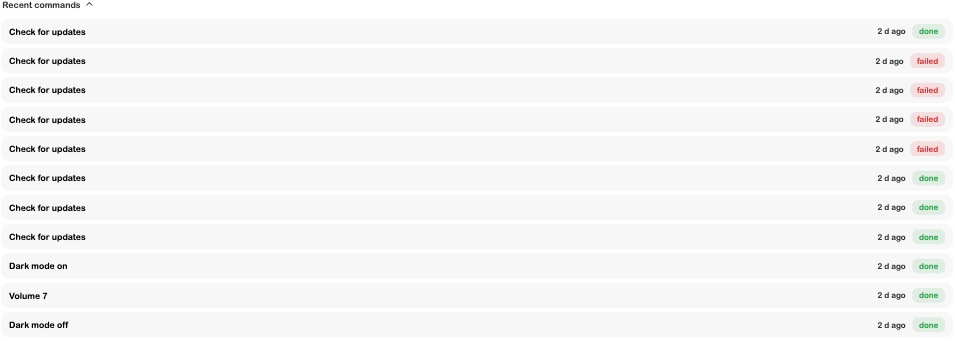
Pending or sent is different from done. A failed result needs review; a superseded entry indicates a newer operation replaced the pending one. A completed “Check for updates” command also does not, by itself, prove that a particular app version was installed. Confirm the reported version and device state afterward.
Device Power Schedules
For a compatible SRVZr Home device, open On & off times on its Assets card. The current tablet in this walkthrough reports an older capability set, so the app shows an update requirement instead of the editor.

The compatible-device editor provides the following workflow, confirmed from the current implementation:
- Enable Turn on and off on a schedule.
- Enable each required day and set its on/off times. For example, a weekday workshop could use 08:00–18:00 and leave weekends off.
- Use Copy Monday to weekdays or Copy Monday to every day when appropriate, then review exceptions.
- Choose different on and off times. An off time earlier than the on time is treated as the following day; check the device's local date, time, and time zone.
- Choose Send to device to save and send the plan.
- Check Waiting for the device versus On the device, the reported schedule, and subsequent device behavior.
Turning the schedule switch off means the screen remains as it is until someone uses the power button; it is different from disabling a particular day in an enabled weekly plan. Turn off now is a separate immediate operation. Supported devices may need their on/off permission enabled, and switching behavior depends on their capabilities. A queued plan is not proof of a physical wake/sleep test.
Troubleshooting
| Situation | What to check |
|---|---|
| A saved counter still says Waiting to connect | Complete pairing on the intended screen; creating its record is only the first step. |
| A code expired or was already used | Request a fresh code and check the screen description before approval. |
| A terminal waits at the PIN lock | Unattended selling, permitted sign-in people, and that person's PIN/access rules. |
| A display waits for content | Its Permissions tab and the selected Display. A deleted Display needs replacement. |
| Settings do not appear to change | Last-seen time, connection, supported capability, and command status. |
| Scheduling asks for an update | Update through the appropriate device maintenance process, then confirm that the device reports scheduling support. |
| An offline tablet still shows values | Treat them as its last report until a fresh check-in arrives. |
Continue with Team, Terminal, Displays, Assets, or Servos for the related operational workflow.