Accounting
Use Accounting to see the money recorded in your business, what customers owe, what needs attention, and what upcoming commitments could do to cash. Sales, invoices, expenses, bills, inventory movements, and payroll feed the same books instead of becoming separate spreadsheets.
A useful morning check is simple: look at the overview, resolve an uncategorized expense, review an overdue invoice, then check whether the next payday and supplier bills fit the forecast. The overview gives you starting points; the original records and financial reports explain the numbers.
Accounting overview
- Select the correct business, then open Accounting.
- Choose a period, such as This month. The income, expense, and activity views depend on that selection.
- Read Available now and its account chips. These are recorded balances; a chip is not confirmation from a bank that funds have settled or are available to withdraw.
- Check Profit · this month, Owed to you, and Tax owing. Use their links to open the underlying report or records.
- Review Needs you. Categorize spending, review overdue invoices, or investigate records that could not be posted.
- Open an item under Latest in your books to inspect its journal lines and source.
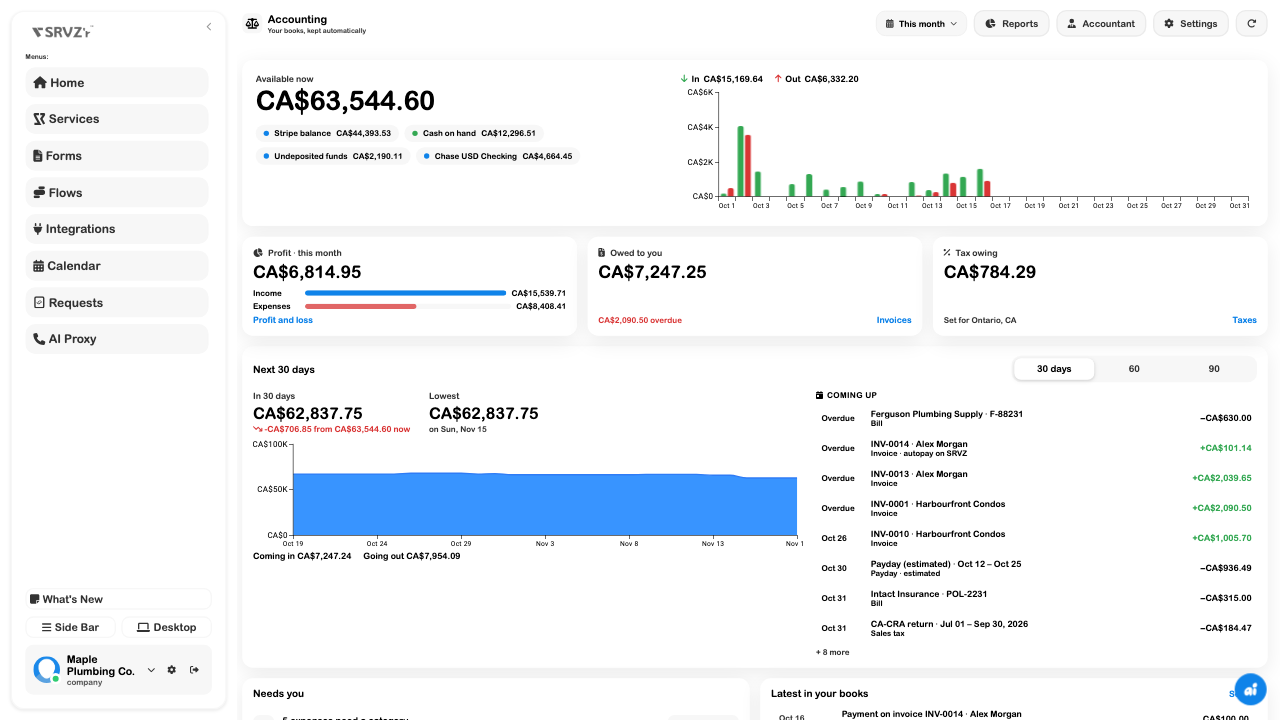
The example shows CA$6,814.95 of October profit alongside CA$7,247.25 owed by customers. Those are different questions: profit describes recorded business performance, while a receivable is money still due. Use the cash forecast and reconciliation when deciding what can be paid.
Set up the business once
Open Settings on the Accounting overview. A business that has not finished setup also shows Set up on the page.
| Setting | Why it matters |
|---|---|
| Country and region | Establish the location used by the tax setup. Pick the province, state, or other region when requested. |
| Home currency | Sets the currency used for the books and reports. It is fixed while multiple currencies are enabled. |
| Business type | Describes whether the business handles services, food, events, rentals, retail, or a mix. |
| Fiscal year starts | Establishes the beginning of the business's reporting year. A calendar year and fiscal year need not start together. |
| Multiple currencies | Enables foreign-currency bookkeeping. Review the home currency before turning it on. |
Save after checking the choices. Changing a country or currency is a business decision; it does not verify a registration, file a return, or move money.
Double-Entry Bookkeeping
Each posted event has balancing debit and credit lines. For example, an unpaid customer invoice increases receivables and records revenue and tax. Recording its payment reduces receivables and increases the receiving account. The payment is a second event, not another copy of the sale.
To follow an amount:
- Open Accounts → Journal.
- Set a period and search for the invoice, supplier, memo, or reference.
- Open the entry and compare its account lines and totals.
- Use Open original when offered to inspect the source invoice, expense, or payment.
- Correct the original record when it is an automatic entry. Use a manual entry for a separate accounting adjustment, rather than editing an automatic line to hide the cause.
See Accounts and journal for account registers, balanced manual entries, and closing dates. If Needs you reports posting failures, investigate the missing detail first, then use Try again. Do not assume a failed record is included in a report simply because its source record exists.
Cash Forecasts
The Next 30 days card projects recorded cash forward using upcoming invoices, bills, recurring commitments, payroll, remittances, and tax amounts. Overdue items are counted at the start of the forecast. Labels such as estimated, draft pay run, or autopay on SRVZ explain the kind of input.
- Compare 30 days, 60, and 90 to suit the decision.
- Read the projected ending balance and Lowest balance, including its date.
- Compare Coming in with Going out.
- Review Coming up. Open a linked invoice, bill, payroll item, or tax item to check its due date and amount.
- Update the source when timing changes, then revisit the forecast.
For the example business, the 30-day projection falls from CA$63,544.60 to CA$62,837.75. That is a planning prompt to inspect the expected payments, not a guarantee that customers will pay on time. Unrecorded purchases, unexpected work, and changed dates are outside the projection until recorded.
Class & Location Tracking
Use a class for a line of business, such as Residential or Commercial. Use a location for a branch, shop, or service area. These are reporting tags; they do not replace a customer address, work-order assignment, or bank account.
- Open Accounts → Tracking.
- Add a class or location with a short, consistent name.
- Open an entry under Journal and review its tracking choices.
- Choose the relevant class or location. Each selection saves immediately; reopen the entry to confirm the saved choices.
- Open Reports → Profit and loss by class or Profit and loss by location to review the split.
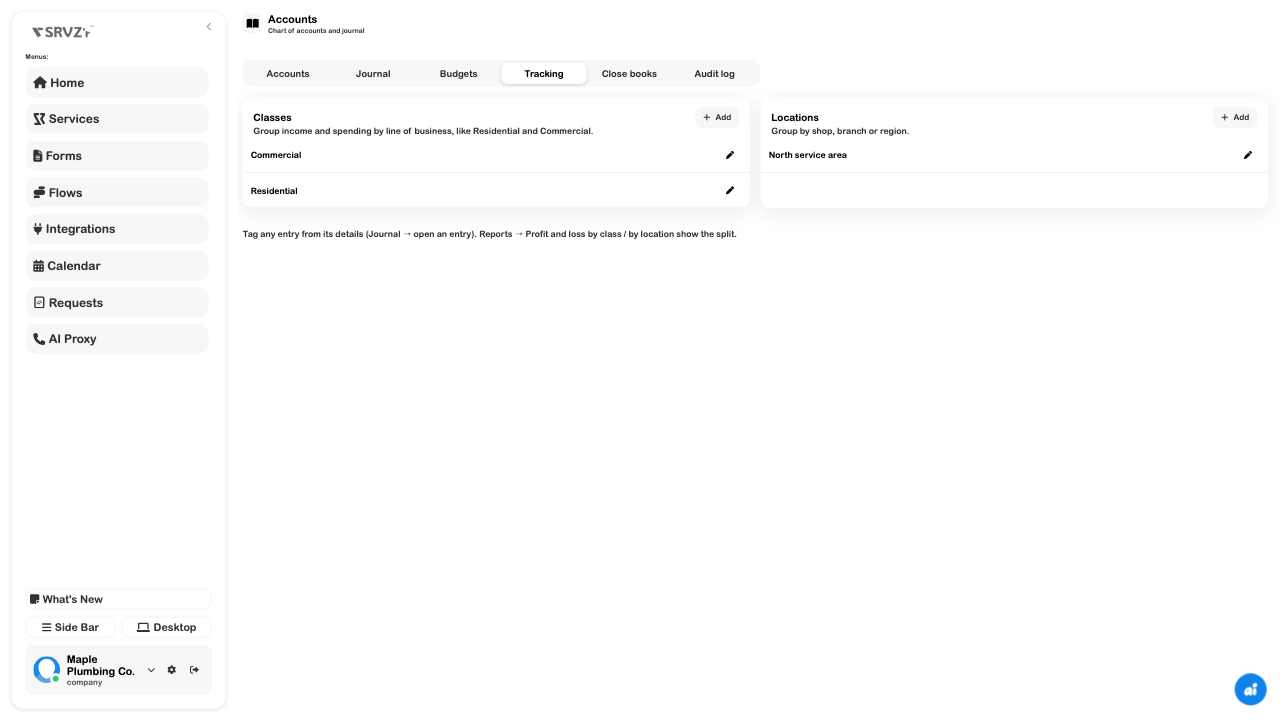
Creating a tag does not automatically categorize historical entries. Review unassigned amounts when the report does not show the split you expect. Make an obsolete tag inactive instead of reusing its name for an unrelated activity.
Give the right people access
The Accountant action opens the team invitation flow with the accounting role selected. Review the proposed permissions before sending. Reading reports, managing accounting records, and inviting people are different capabilities; a person who can see financial data does not necessarily have permission to change team access.
Use Team management for the invitation steps. To hand over a period without granting app access, use Export for accountant.
When the numbers need investigation
| What you notice | Where to look |
|---|---|
| Profit looks reasonable but cash is tight | Check unpaid invoices, bill due dates, payroll commitments, and the cash-flow report. |
| Spending lands in the wrong report line | Review its expense category and the account behind the original entry. |
| A record is absent from the journal | Check the period, business, source status, and any posting error. |
| A prior-period edit appears later | Review the closing date; closed-period changes post as adjustments in an open period. |
| A class/location report is incomplete | Check the tags on entries, rather than only the list of available tags. |
| A colleague cannot change a financial setting | Review their accounting permissions with a business owner or account manager. |
The screenshots use populated demo records. They demonstrate the bookkeeping views, not a live bank confirmation, filed tax return, or completed money transfer.
Related guides: Accounts and journal, Financial reports, Expenses, and Invoices.