Financial reports
Open Accounting → Reports to answer a specific business question: did the month make money, what is still owed, where did cash go, or which jobs earned their margin? Reports use the same books as the account registers and journal, so you can investigate an amount instead of copying it into a separate spreadsheet first.
Start by choosing the correct business, currency, and dates. A report for a period answers a different question from a snapshot on one date.
| Question | Report to open |
|---|---|
| Did the business make a profit? | Profit and loss |
| What does it own and owe now? | Balance sheet |
| Why did cash change? | Cash flow |
| Which customers have not paid? | Accounts receivable aging |
| Which bills remain unpaid? | Accounts payable aging |
| Which jobs earned their margin? | Job profit |
| What is the stock on hand worth at cost? | Inventory value |
| Which account explains a total? | General ledger, Trial balance, or Journal |
Profit & Loss Reports
Profit and loss groups recorded income, cost of goods sold, expenses, and other income/expenses for a period. It is useful for a monthly review, comparison with a previous period, or a discussion with the person responsible for the books.
- Choose Profit and loss.
- Select the month, quarter, year, fiscal year, or custom range.
- Use Total only, monthly, quarterly, or yearly columns when the control offers them.
- Turn on Compare to previous period to compare the same kind of range.
- Review income, gross profit, operating expenses, and net income.
- Open an account amount where drill-down is available to inspect the entries behind it.
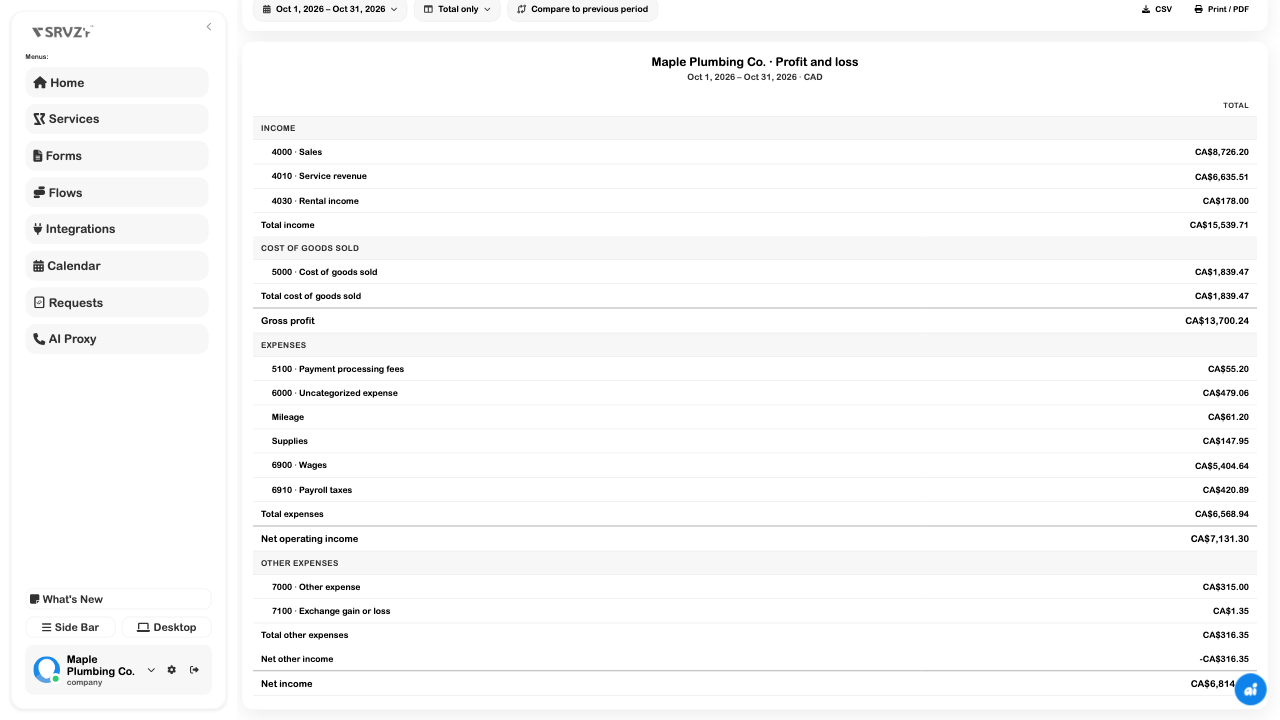
In the example, CA$15,539.71 of October income less CA$1,839.47 of cost of goods sold produces CA$13,700.24 of gross profit. Wages, supplies, fees, and other expenses are still deducted before net income. This helps explain why a strong sales month does not make every dollar available to spend.
Uncategorized spending can distort the explanation even when the arithmetic balances. Resolve the category in the original expense rather than renaming a report row.
Balance Sheets
The balance sheet is an as-of snapshot of assets, liabilities, and equity.
- Open Balance sheet and choose the date.
- Review cash and bank accounts, receivables, inventory, and other assets.
- Review payables, tax, payroll, deposits, and other liabilities.
- Compare total assets with total liabilities plus equity.
- Use Compare to last year for the corresponding prior-year snapshot.
The example's October 19 snapshot reports CA$20,608.85 of assets and the same total for liabilities plus equity. Its bank account, receivables, and liabilities each have their own meaning; the asset total is not a withdrawal balance.
An Assets equal liabilities plus equity indicator confirms the statement balances. It does not prove that every source record has been entered or every bank account reconciled.
Cash Flow Reports
Use Cash flow to explain how recorded cash changed over a completed period. It groups the effect of operating, investing, and financing activity rather than simply repeating the profit figure.
- Choose a period that matches the review.
- Read net income and the adjustments under operating activities.
- Review any investing and financing sections present.
- Compare Cash at the start, Net change in cash, and Cash at the end.
- Investigate unexpected movements through the corresponding accounts or original records.
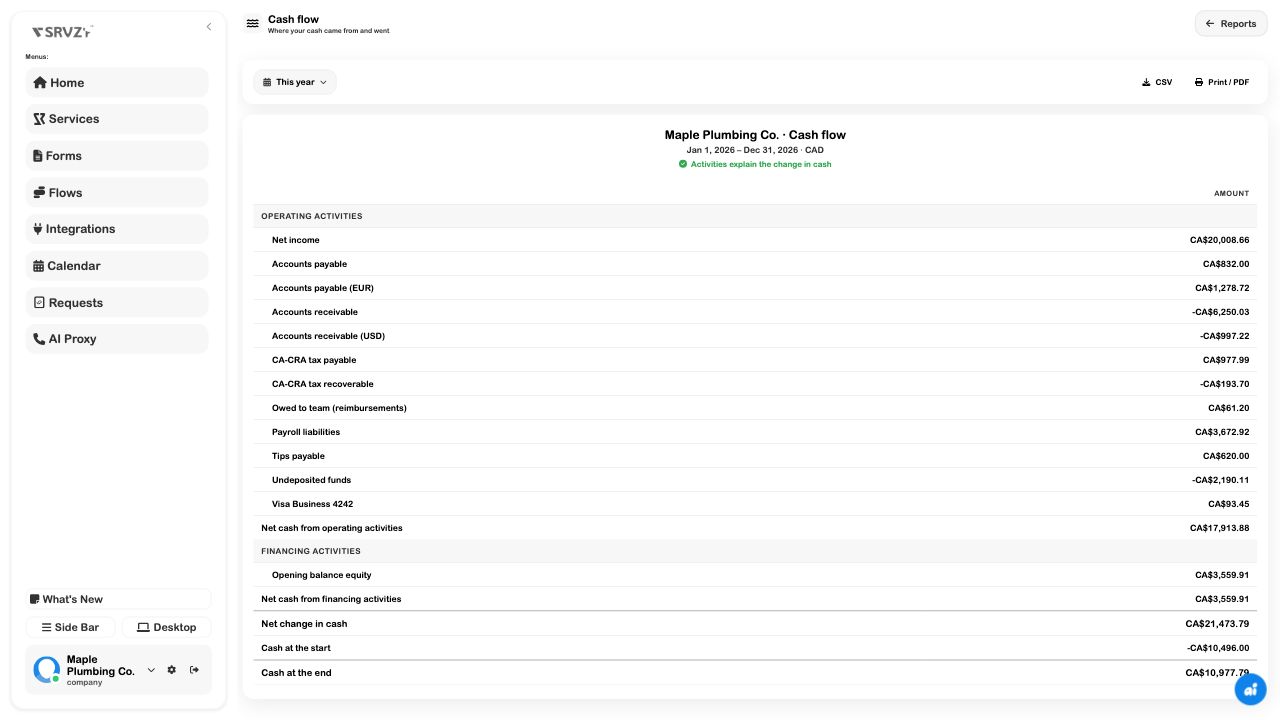
A cash-flow report explains recorded history. The cash forecast projects upcoming commitments. Use the historical report to understand what happened and the forecast to inspect expected timing; neither is a live confirmation from a bank.
Job Profitability
Open Job profit to compare income and costs linked to work orders. Review Income, Materials, Other costs, Labour, Profit, and Margin, along with any recorded hours.
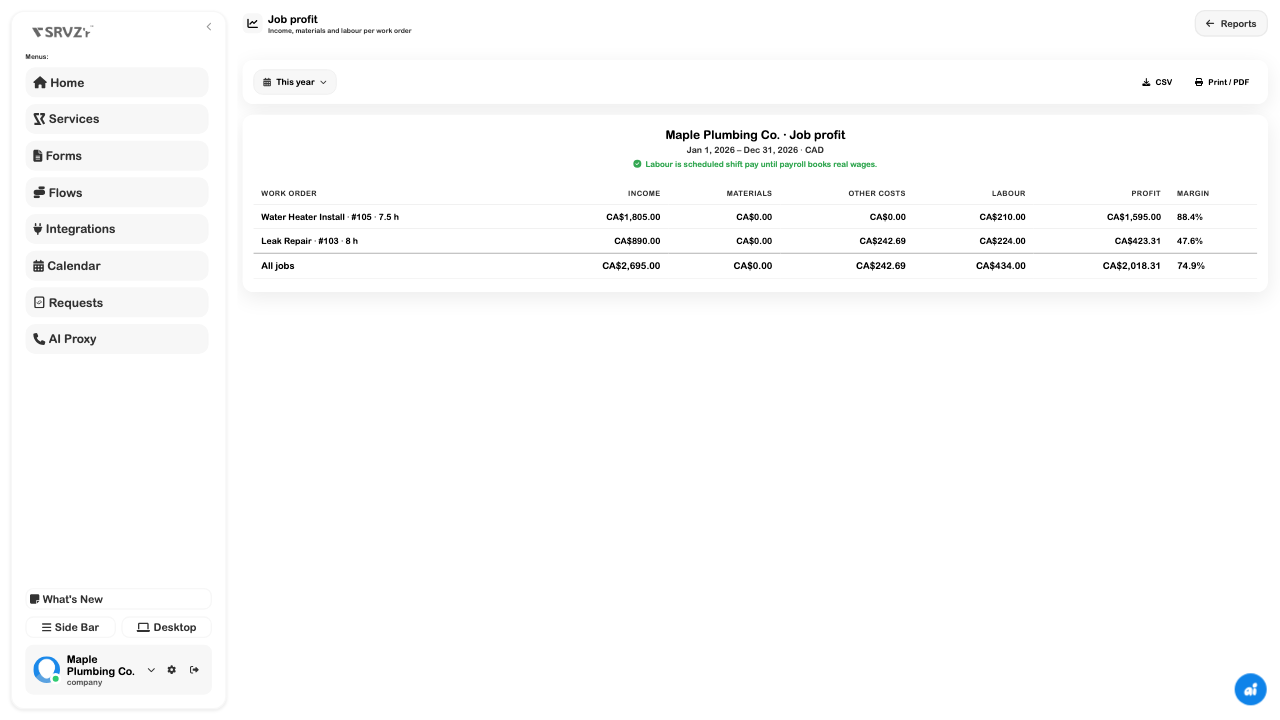
For example, the leak repair shows CA$890 of income, CA$242.69 of other costs, and CA$224 of labour, leaving CA$423.31 of profit. A zero materials column does not mean materials were free: check whether the stock consumption and costs were recorded and linked to the job.
- Choose the period.
- Find the work order you want to review.
- Check that related income, expenses, stock movements, and labour are attached to that job.
- Read the labour note. Scheduled shift pay is an estimate until payroll records actual wages.
- Compare the jobs' margin and their underlying cost records before changing prices or staffing.
Use Expenses and Shifts to improve the source records. A report can only explain costs that have been recorded with the relevant connection.
Inventory Valuation
Inventory value shows stock at cost using first-in, first-out stock layers. It is different from an inventory catalogue's selling price or an estimate of future sales revenue.
- Record the item's cost and receive or adjust stock through the inventory workflow.
- Open Reports → Inventory value.
- Compare each item's on-hand quantity, average cost, and value.
- Review the total and the comparison with the Inventory account.
- Investigate missing opening stock, missing costs, or unrecorded stock movements if the result is incomplete.
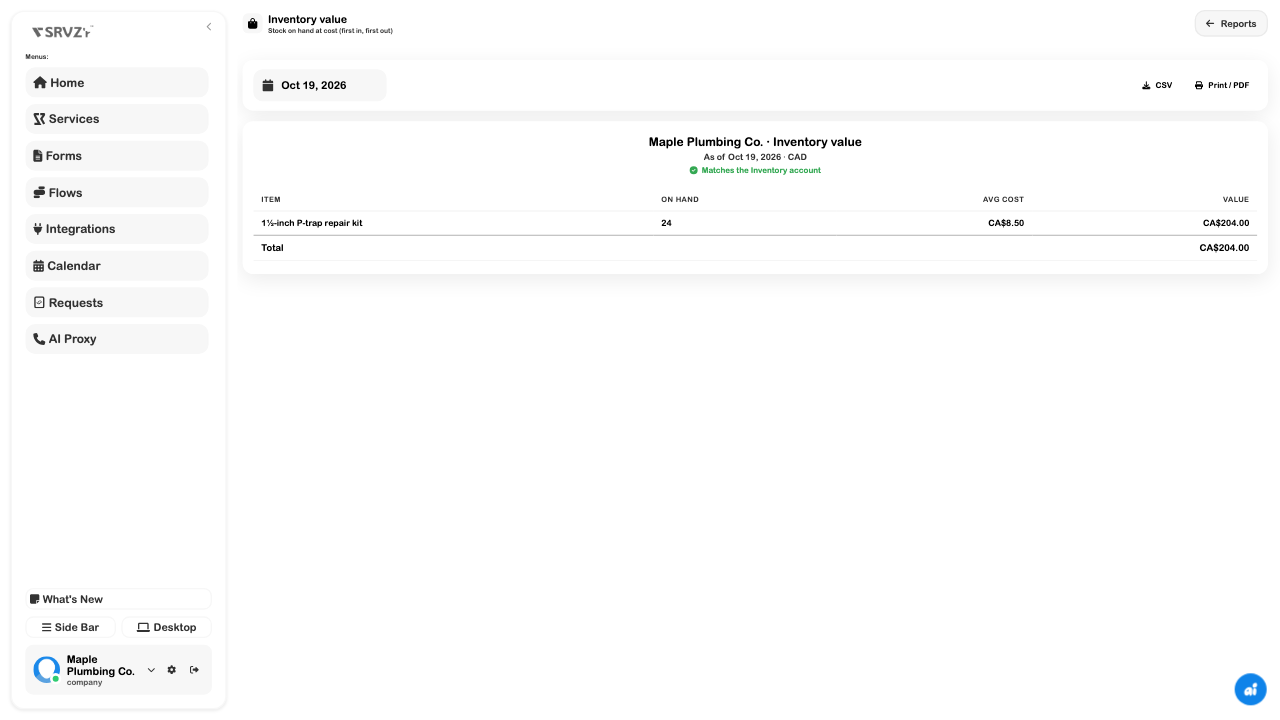
The current report shows remaining stock at the time you open it. Changing its as-of date does not rebuild historical stock layers. Keep period-end exports when a dated snapshot is needed.
Scheduled Reports
Use Reports → Email reports to configure a recurring report pack for yourself or an accountant.
- Choose New schedule, or Edit an existing schedule.
- Give it a recognizable name, such as Monthly books.
- Select the reports to include. Available choices include profit and loss, balance sheet, cash flow, receivables, payables, sales by customer, and expenses by category.
- Choose Weekly, Monthly, or Quarterly, then the day and reporting period.
- Enter the intended recipient addresses and an optional note.
- Review all recipients before Save. Use Preview on the saved schedule to inspect the pack.
- Review the next run, last run, and any error. Use Pause when the schedule should stop.
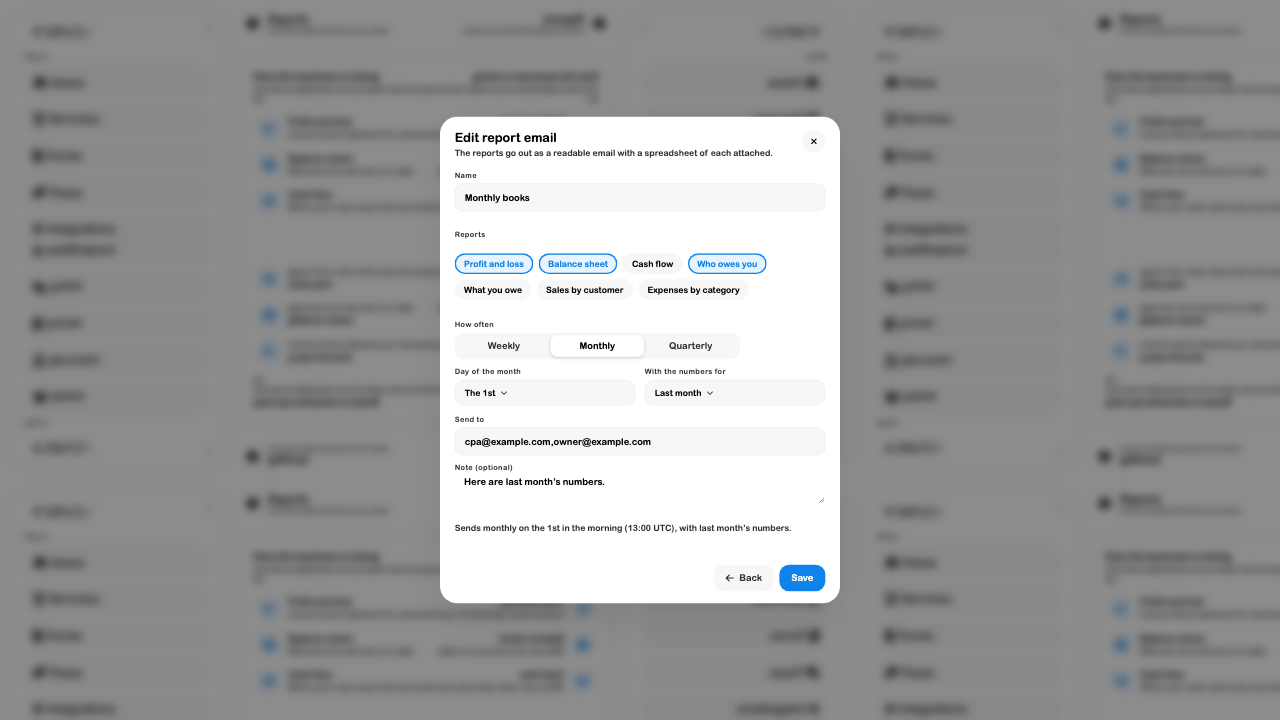
Weekly schedules select a weekday. Monthly schedules use a day from 1–28; quarterly schedules use that day in January, April, July, and October. The form describes the scheduled time as 13:00 UTC. Check the date and time shown for your intended workflow rather than assuming a local morning in every timezone.
Delivery also needs the server's email setup and scheduled processing. In the reviewed demo environment, the existing schedule reported Email is not set up on this server. No report email was sent for this guide. A saved schedule, a last-attempt timestamp, and successful delivery are separate states.
Accountant Exports
Use Export for accountant when you want a period's working pack without giving someone app access.
- Open Reports → Export for accountant.
- Select the period. The initial choice is Last year, so change it when reviewing the current year.
- Check the business and displayed date range.
- Choose Download zip and wait for the files to finish.
- Open the ZIP and review the files before sharing through your usual private channel.
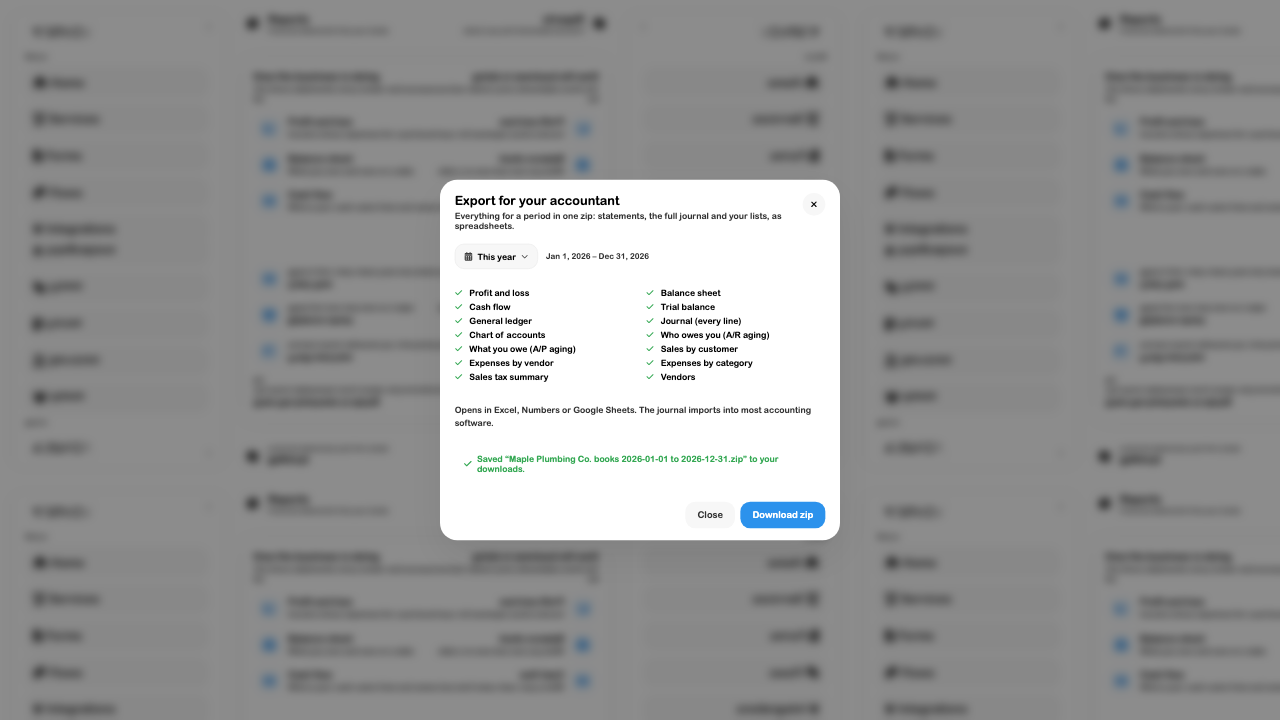
The pack includes profit and loss, balance sheet, cash flow, trial balance, general ledger, journal lines, chart of accounts, receivables/payables aging, sales by customer, expenses by vendor/category, sales tax summary, and vendors, plus a readme. The CSVs open in spreadsheet software. Review account mapping and import requirements before putting them into another accounting system; opening a CSV is not the same as a verified migration.
Individual reports also offer CSV and Print / PDF. Check the period, comparison columns, currency, and destination before sharing a financial export.
Troubleshoot a report
| What you see | What to check |
|---|---|
| A blank or zero result | Confirm the business, date range, source records, and posting status. For inventory, confirm actual costed stock movements. |
| Profit differs from cash | Review unpaid invoices, bills, payroll/tax liabilities, and the cash-flow statement. |
| Job profit looks too high | Check missing cost links and whether labour is estimated rather than booked payroll. |
| A class/location split is incomplete | Inspect entry tracking under Journal; adding a tag alone does not tag past entries. |
| Email schedule reports an error | Read the last error and confirm server email/scheduler setup. Do not treat Save or Preview as delivery. |
| The export is for the wrong year | Reopen the period picker; the accountant pack starts with Last year. |
| A report differs from another view | Align the period or as-of date, currency, account scope, and source status before comparing. |
Related guides: Accounting overview, Accounts and journal, Inventory, Expenses, and Team access.