Bills and suppliers
Use Bills for purchases the business needs to pay later. Keep the supplier, reference, due date, categories, tax, credits, and payment records together so the team can see what remains owed.
The example follows a fictional supplier, Willow Parts Supply: order 12 drain-repair kits, receive them into stock, review the copied bill, apply a packaging credit, then record a partial payment. Each step changes a different part of the records.
Bill Management
Open Accounting → Bills. The summary separates overdue amounts, amounts not due yet, and payments recorded in the last 30 days. Use the filter for Unpaid, Overdue, Paid, Drafts, Vendor credits, or All, and search by vendor or document number.
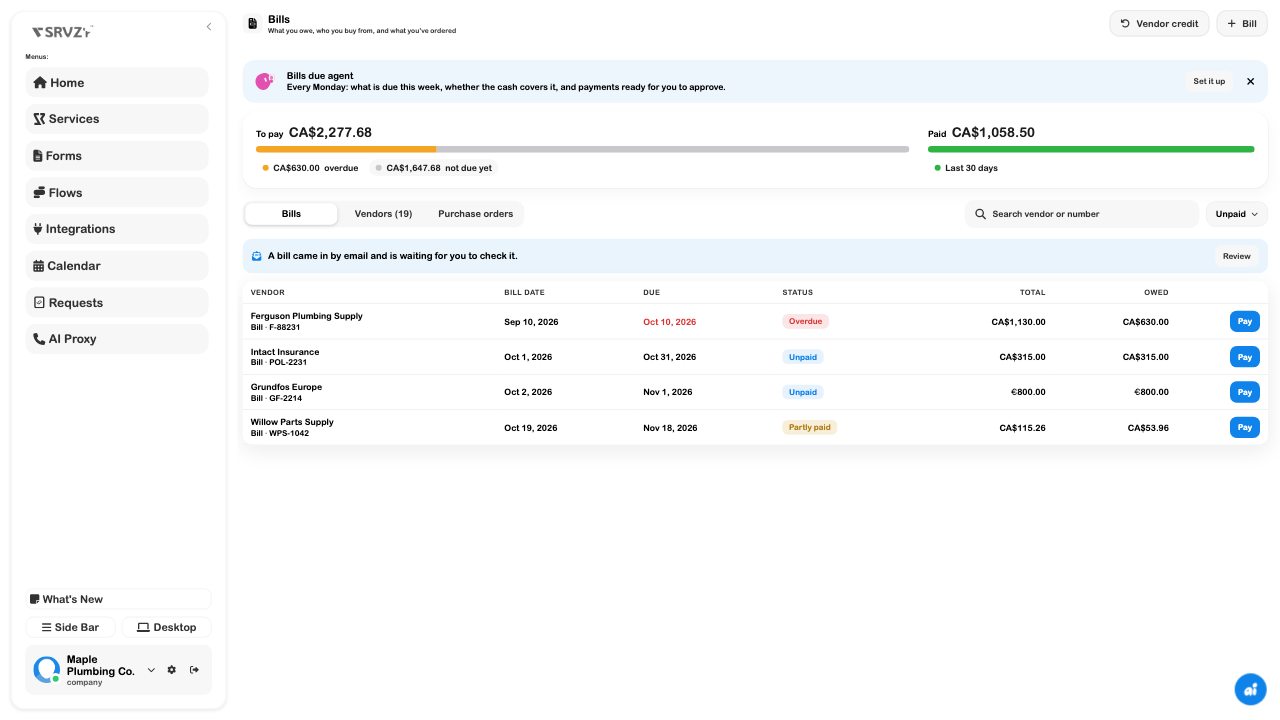
Add or review a bill
- Choose Bill, or open an existing draft.
- Select the vendor. The picker can also create a vendor from a new typed name when saved.
- Enter the supplier's bill number, bill date, and due date. New bills use the vendor's payment terms until you change the due date.
- Add the category, description, and amount for each line.
- Check the tax mode: the usual regional tax, an entered tax amount, or no tax. Compare it with the supplier's document.
- Add a memo and class/location tracking if used by the business.
- Use Save draft to keep it for review, or Add bill to post a reviewed draft as owed.
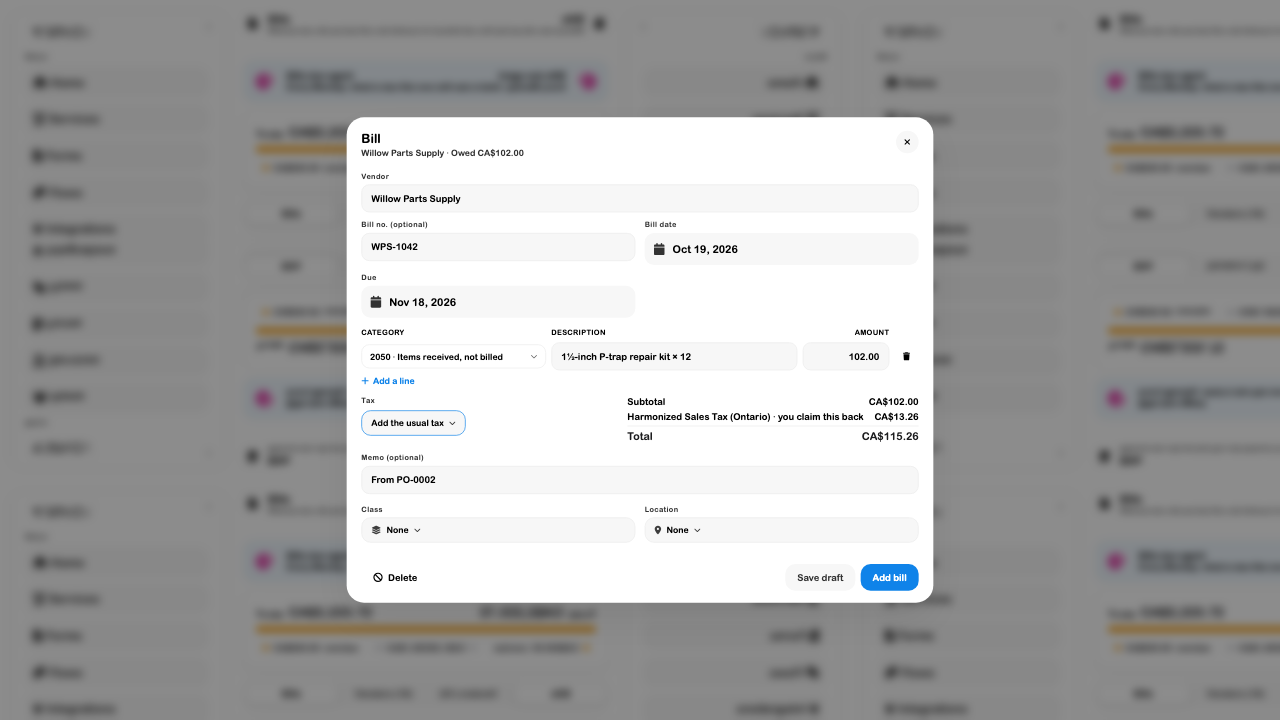
The example's CA$102 purchase plus CA$13.26 of displayed tax became a CA$115.26 bill after review. The screenshot's tax treatment is an example of the demo business's settings, not a rule for every purchase or business.
To correct an open bill, review the existing record rather than creating a second bill with the same supplier reference. Void retains a record at zero and removes it from what is owed; deleting a draft is a different action. Both ask for confirmation.
Bills by Email
Use Integrations → Accounting → Bills by email to choose the inbox that receives supplier bills. Incoming supported documents are read into drafts, which need a person to check them before posting.
- Have an active mailbox that you can manage. It must receive mail and cannot be a catch-all mailbox.
- Open Bills by email, choose the intended inbox, then Use this inbox. Only one inbox is selected for this business at a time.
- Give that address to suppliers or forward bills to it through your normal mail workflow.
- Review Recently for reading, drafted, skipped, or failed items.
- Open Bills and use the email-review prompt or Drafts filter.
- Compare the vendor, reference, dates, lines, and tax with the original. Use the original-file link when one is available.
- Correct anything missing, then choose Add bill when reviewed.
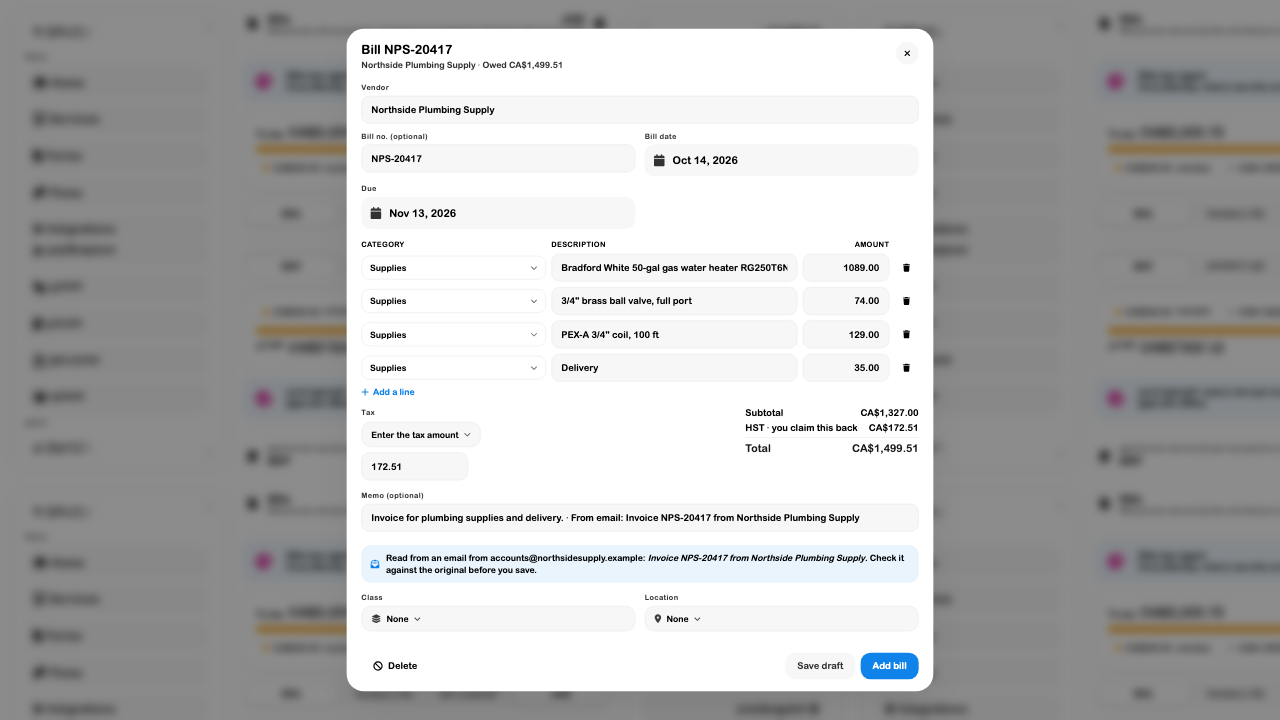
The integration describes reading PDFs and bill photos with AI using SRVZr credits. Low credits or an unreadable document can prevent a draft from being created. A Not a bill result is different from a failed read. Review the status and any error instead of assuming every received email became a payable.
The walkthrough verified the inbox settings and an existing draft, without changing the selected inbox or sending a new email. It does not prove mail delivery or extraction accuracy for every supplier format.
Vendor Management
Use Vendors for suppliers, contractors, and other people or businesses you pay. A vendor's usual category and payment terms help fill new bills; they do not remove the need to review them.
- Open Vendors → Vendor.
- Enter the display name and useful company/contact details.
- Select a Usual category, if appropriate.
- Enter Pays in (days) for the normal bill terms.
- Check the vendor currency when multiple currencies are enabled.
- Review contractor tracking only when it applies, then choose Save.
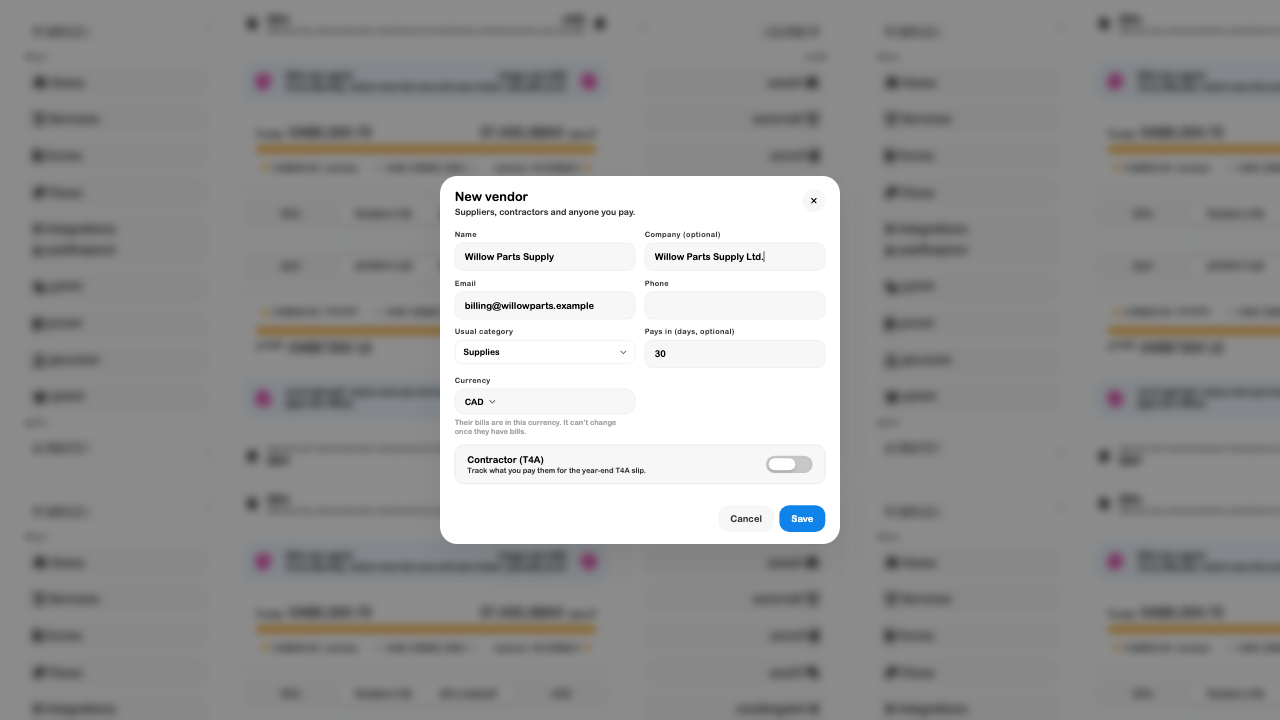
Contractor tracking labels depend on the business country, such as T4A or 1099-NEC. It can ask for a tax identifier. Keep those identifiers private and review the business's reporting requirements separately from selecting a toggle. This example leaves contractor tracking off.
A vendor's currency cannot change after it has bills. Make an obsolete vendor inactive rather than repurposing it for a different supplier; existing financial history still needs a meaningful name.
Purchase Orders
A purchase order records what you ordered. Linking its lines to stock items allows receiving to update quantities and cost; copying it to a bill creates a separate draft for review.
- Open Purchase orders → Purchase order.
- Select the vendor, order date, and expected date.
- Enter each description, quantity, and unit cost.
- Choose the matching Stock item for lines that should update inventory when received.
- Add a note and choose Save.
- Reopen the order when goods arrive. Use Receive all only when the remaining stock lines have actually arrived.
- Use Copy to bill to create the draft bill, then review it under Bills → Drafts.
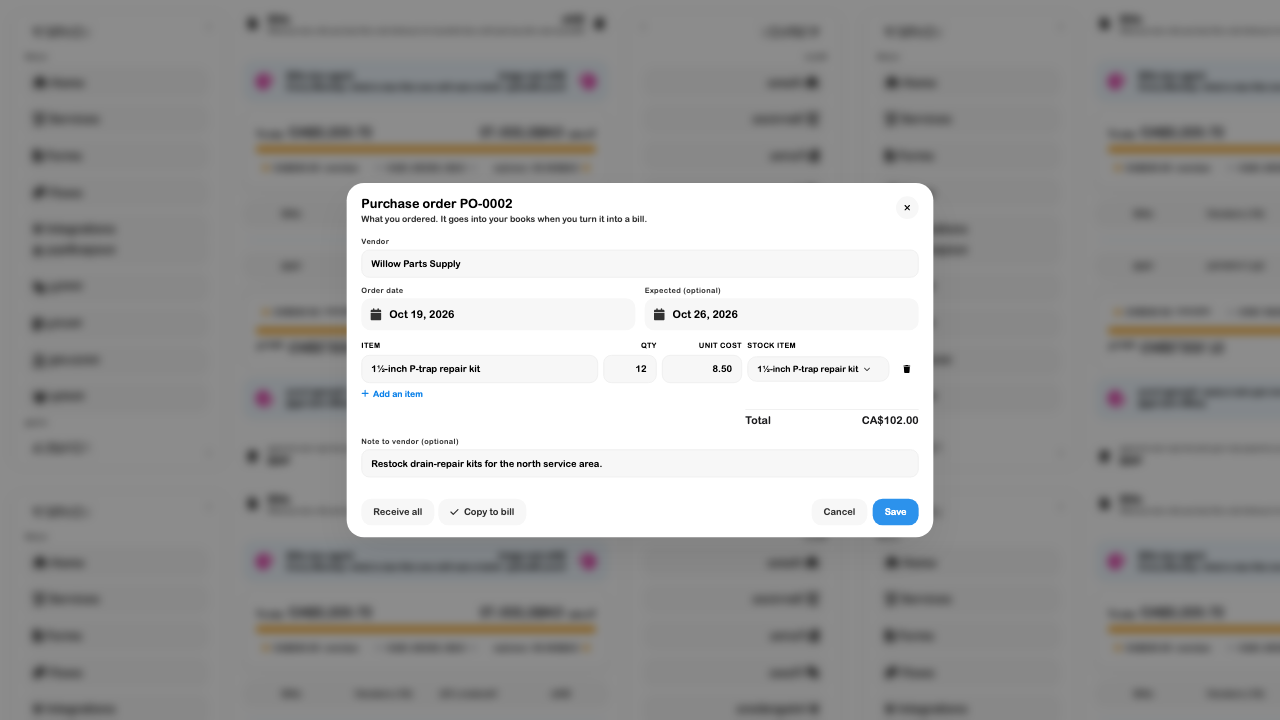
The demo order totaled CA$102. Receive all added 12 units at the order cost to the item's existing stock. Once fully received, the receive action was no longer offered. Copy to bill created a draft; its tax and supplier reference were reviewed before Add bill.
Creating a purchase order does not send it to the supplier. Receiving can affect stock and its accounting value before a supplier bill is posted. Keep the received-item treatment on the copied bill unless the person responsible for the books decides a correction is needed; changing it casually can count stock costs twice.
Vendor Credits
A vendor credit is money the supplier owes back to the business that can be applied to that supplier's bills. Keep the credit's reference and reason so it can be matched with the supplier statement.
- Choose Vendor credit.
- Select the same vendor as the bill it will reduce.
- Enter the credit reference, date, category, description, amount, and applicable tax.
- Review the total, then choose Add credit, or save a draft if it needs review.
- Open Pay on that vendor's bill and review the available-credit toggle before recording the result.
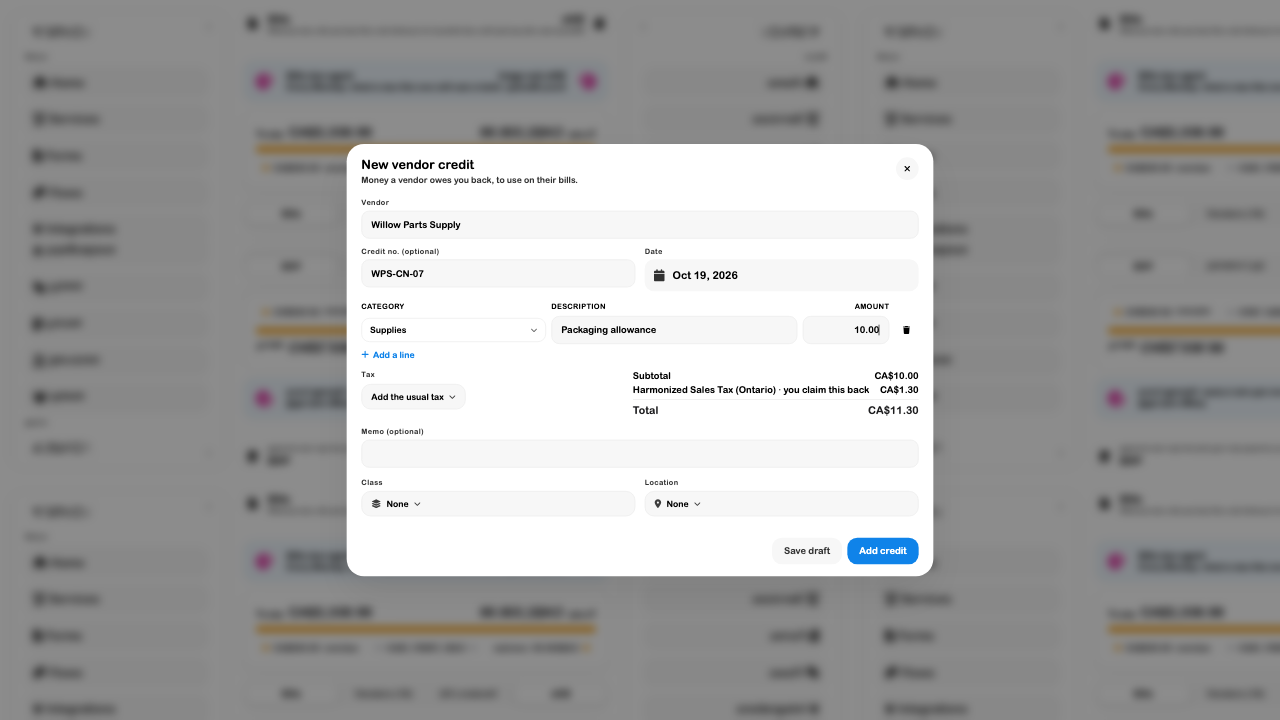
A financial credit does not by itself demonstrate that physical stock was returned. Record any actual stock movement through inventory as well.
Record a payment and apply credit
- Choose Pay on the bill.
- Review Owed and any Use … of credit option. Available credits from the same vendor can reduce the bill first.
- Enter the amount already paid, payment date, account, method, and useful reference.
- Confirm that the amount is no more than the balance left after credit.
- Choose Record payment, then inspect the bill's remaining balance.
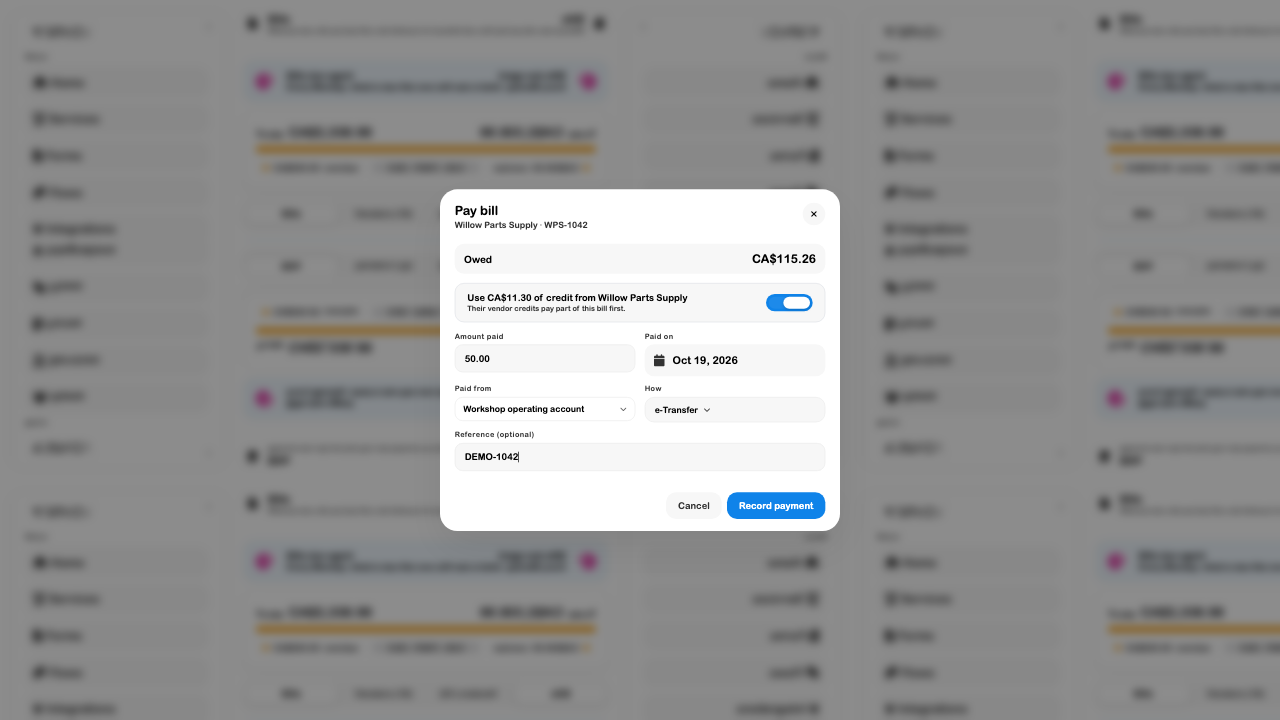
Partial payments leave the bill Partly paid. A full payment/credit combination can mark it Paid. The bill retains payment history. Removing a mistaken payment record makes the amount owed again; it does not retrieve money already sent outside SRVZr.
Accounts Payable
Open Reports → Accounts payable aging to review outstanding supplier balances by due date. The report separates current amounts from 1–30, 31–60, 61–90, and over-90-day overdue buckets.
- Choose the as-of date.
- Review vendors with overdue balances first.
- Expand your review to the individual bill or credit references shown underneath.
- Compare credits and recorded partial payments before deciding what still needs paying.
- Use CSV or Print / PDF for a private review copy when needed.
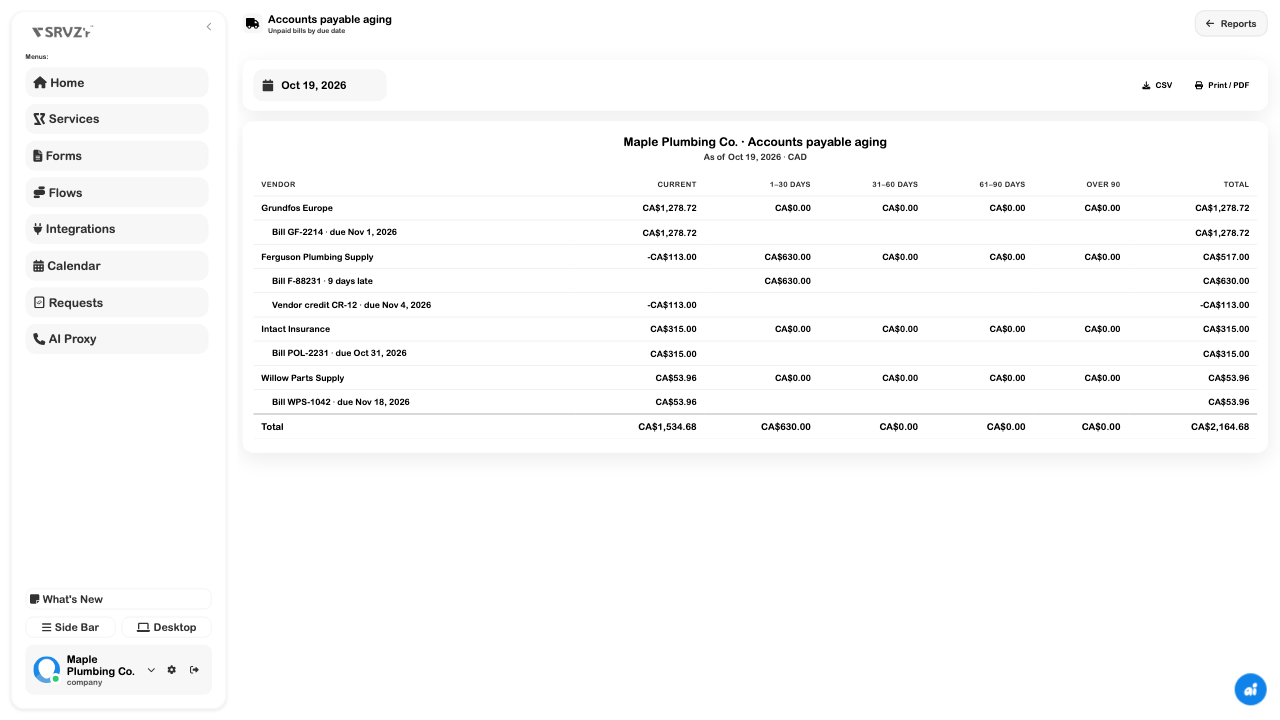
Foreign-currency bill rows retain their document currency in Bills; reports express totals in the business's home currency. Align dates and currency before comparing the list with an aging report or supplier statement.
Troubleshoot supplier records
| Problem | Check |
|---|---|
| An emailed bill is not in Unpaid | Look in Drafts or use the email-review prompt; it must be checked and added first. |
| No email draft was created | Review the integration's recent status, mailbox eligibility, credits, and document readability. |
| The due date looks wrong | Check vendor terms and whether the date was manually changed. |
| The credit does not appear when paying | Confirm vendor, status, and remaining credit balance. |
| A copied bill has no expected tax | Compare it with the supplier invoice and select the appropriate tax mode before posting. |
| Receiving did not change stock | Check whether the order line is linked to a stock item and whether it was already received. |
| The bill still shows partly paid | Compare its original total, applied credit, and recorded payment amounts. |
| The aging total differs from the unpaid list | Compare as-of dates, credits, currency conversion, and which statuses each view includes. |
Related guides: Banking, Inventory, Expenses, Financial reports, and Accounting.