Business Context and AI preferences
Business Context gives assistants a shared description of how your business works. It contains profile guidance, FAQs, learned facts, and a snapshot of relevant business records.
When to use it
A plumber records service area, hours, call-out guidance, cancellation policy, and answers to common questions. The phone assistant and cloud tasks can use the same business guidance instead of inconsistent prompts.
Open the workspace
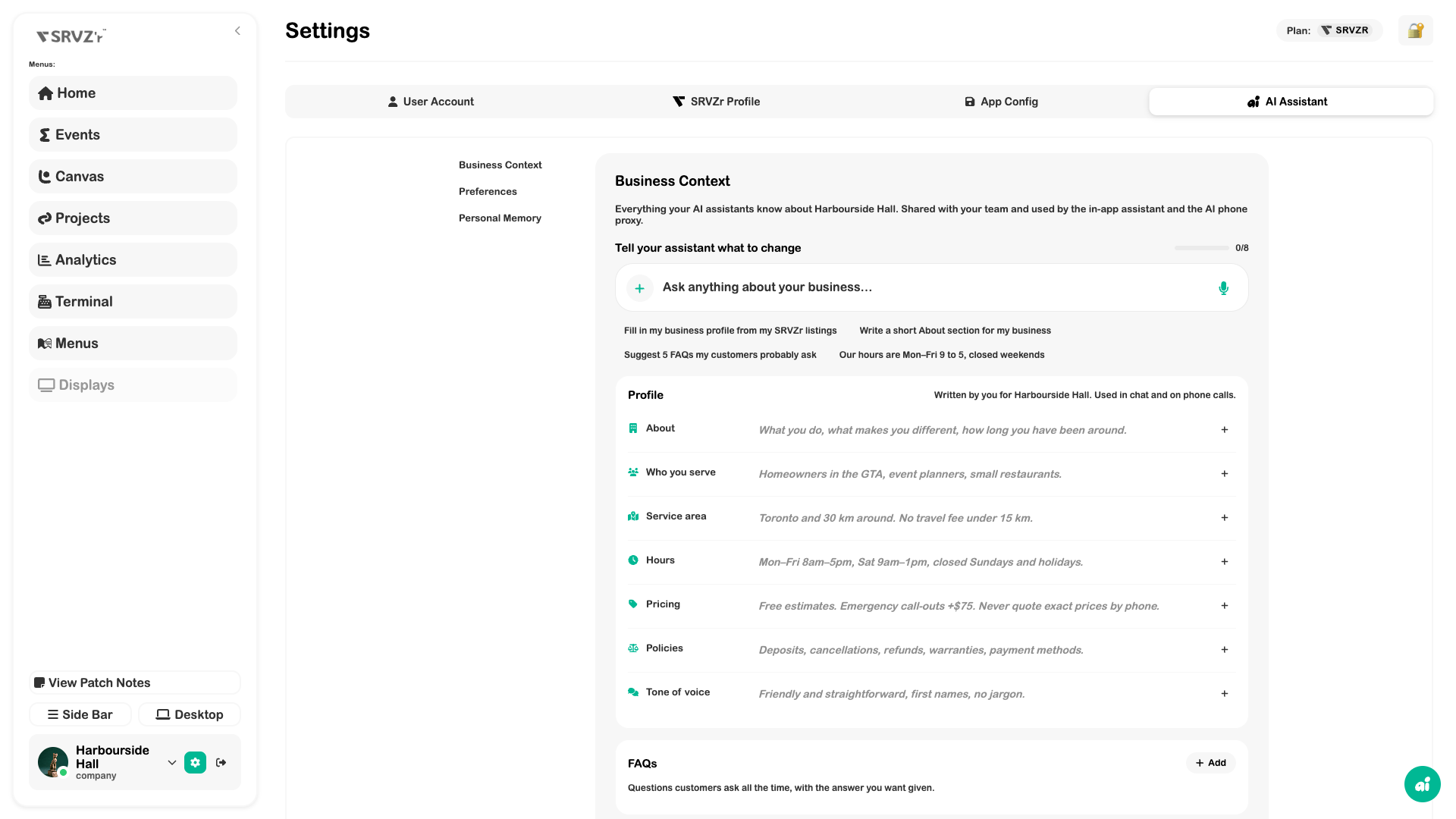
In the app, open Settings → AI Assistant → Business Context from the full navigation. Open this area in SRVZr. Screens shown here use the local app and a test business; your records, plan, and permissions may differ.
Step by step
- Open Settings → AI Assistant → Business Context.
- Fill About, Who you serve, Service area, Hours, Pricing, Policies, and Tone of voice.
- Add concise FAQs with answers the team has approved.
- Review learned facts and their source. Correct or remove stale information.
- Decide which facts may be used on phone calls where that control is available.
- Refresh the business snapshot when listings change, then inspect the assembled context before relying on it.
Settings and options
| Option | What to check |
|---|---|
| Business profile | Defines the business guidance, distinct from a personal user profile. |
| Facts | Can originate from You, Learned, or Phone call; source and phone-use review help manage confidence. |
| Snapshot | Summarizes available listings and customer context for the assistant. |
| Preferences and memory | Assistant settings and personal memory are separate sections. |
Tips for real work
Write concrete boundaries: “Free estimates; do not promise an exact phone quote before inspection.” Keep policies and hours current and resolve contradictory facts.
Troubleshooting
If an assistant gives an outdated answer, check both profile text and learned facts. Refreshing a snapshot is separate from editing a policy or listing.