Team, access and staff PINs
A technician, a visiting bookkeeper, and a helper at a weekend event should not all receive the same access. Team brings their names, jobs, permissions, terminal sign-in, shifts, and pay into one place. Use the People tab for staff and the Devices tab for the equipment they use.
This guide follows a demonstration plumbing business. Jordan is a service technician; Priya coordinates dispatch; Sam helps at a home-care open house. Their examples show how to separate a continuing employee from a person whose access should end after an event.
Team Management
Open Team → People. The filters distinguish Partners, Employees, Temporary, Invited, and Working now. Search by a person's name, job, or position when the roster grows. Show past helps you find people whose access has ended instead of treating them as current staff.
Choose the kind of person before choosing their access:
| Person | Use for | Decision to make |
|---|---|---|
| Partner or director | Co-owners, directors, and business partners | Whether they actually need ownership or broader business access. |
| Employee | Continuing staff | App access, terminal access, their job, and the positions they can work. |
| Temporary help | Event or short-term assistance | The specific access window and reason they are helping. |
Add a terminal-only employee
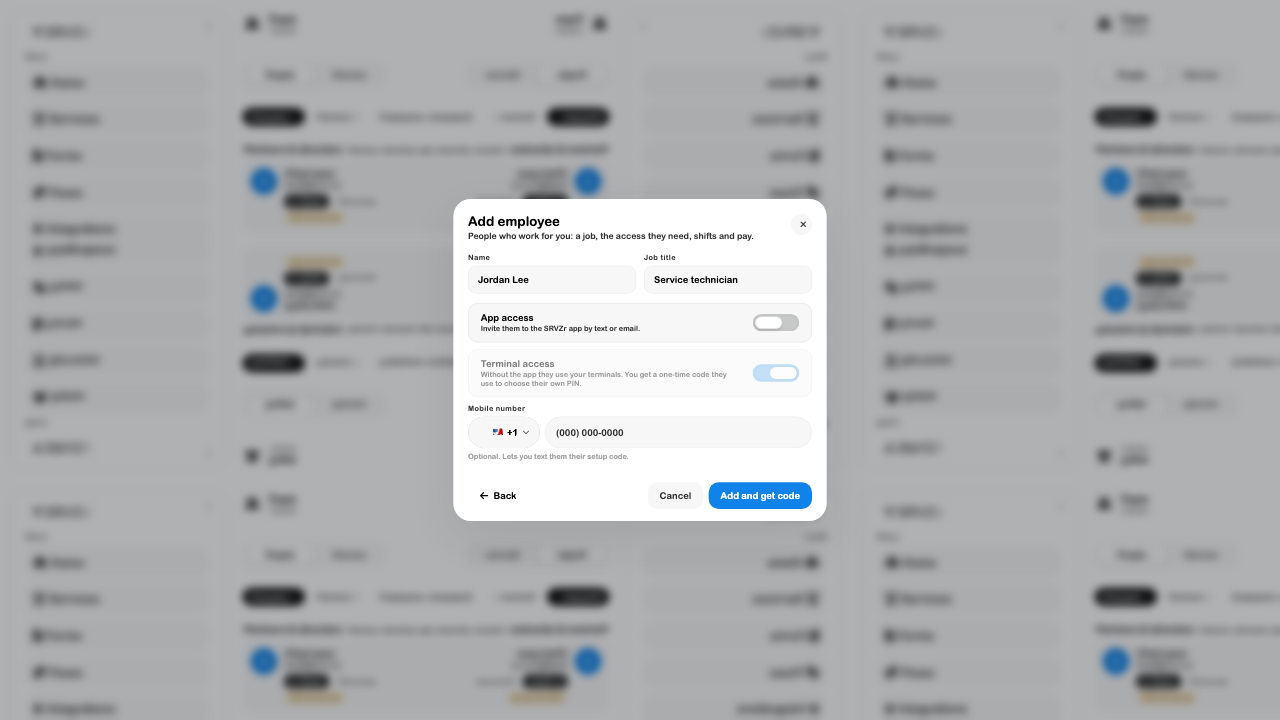
- Choose Add person → Employee.
- Enter the person's name and job title. For example, Jordan Lee, Service technician.
- Turn App access off if this person only needs to sign in on your shared terminal.
- Review Terminal access. Without app access, the form explains that the person will choose a PIN using a setup code.
- Add a mobile number only if you intend to use it for a setup message. It is optional for the terminal-only path.
- Choose Add and get code. Give the setup code to the intended person through an appropriate private channel, then close the setup screen.
- Find the person under Employees and open their record to review the saved job and access.
The person's record separates Profile, Access, Shifts, and Pay. Updating a name does not set a wage, assign a shift, or grant an app login. Use the relevant tab for each decision.
Team Invitations
Use an app invitation when someone needs to open the business in SRVZr on their own device. In Add person, leave App access on and choose Phone or Email. Enter the intended recipient and select what they can do before sending.
- Confirm you are in the correct business and adding the right type of person.
- Enter their name and job title.
- Select the delivery method and check the recipient carefully.
- Choose an access preset rather than granting every permission by default.
- Review terminal access separately. A bookkeeper may need the app without being able to sign into a checkout station.
- Choose Send invite only when the recipient and permissions are correct.
- Check Invited for the pending invitation. An invitation is not evidence that the person has accepted or can sign in.
Invite with a link or QR code instead opens the alternative invitation flow. Treat invitation links and QR codes as private access material; do not put them in a public document or screenshot.
The invitation in the next image is a filled example, not a sent message.
Roles & Permissions
An access preset is a useful starting point. Match it to the person's work and inspect the individual permissions when a narrower combination is needed.
| Preset | Typical purpose |
|---|---|
| Manager | Day-to-day operations, schedules and timesheets, terminal, menus, inventory, requests, and sales reports. |
| Front of house | Checkout, menus, online orders, shifts, and chats. |
| Kitchen | Menus, inventory and stock counts, requests, and shifts. |
| Accounting | Bookkeeping work across banking, bills, taxes, payroll, payments, expenses, and reports. |
| Accounting · view only | Reviewing the books, payments, and reports without changing them. |
| Set later | An invitation whose access still needs to be decided. Do not leave this unresolved when work depends on it. |
For an app member, open their Access tab. Review Can open, any additional capabilities, and Edit individual permissions where available. An owner or a person with Full access controls app permissions. Some screens are unavailable to staff who lack the relevant permission; that is different from the feature being absent from the product.
Use the person’s work-order scope where offered to decide whether they should see all work orders or only assigned work. Review a changed role with the person before they start a task that depends on it.
Accountant Access
Invite an accountant through Team so their access belongs to a named person, rather than sharing the owner's login. Choose Accounting when they will maintain records, or Accounting · view only when they only need to inspect them. Confirm the distinction before sending the invitation.
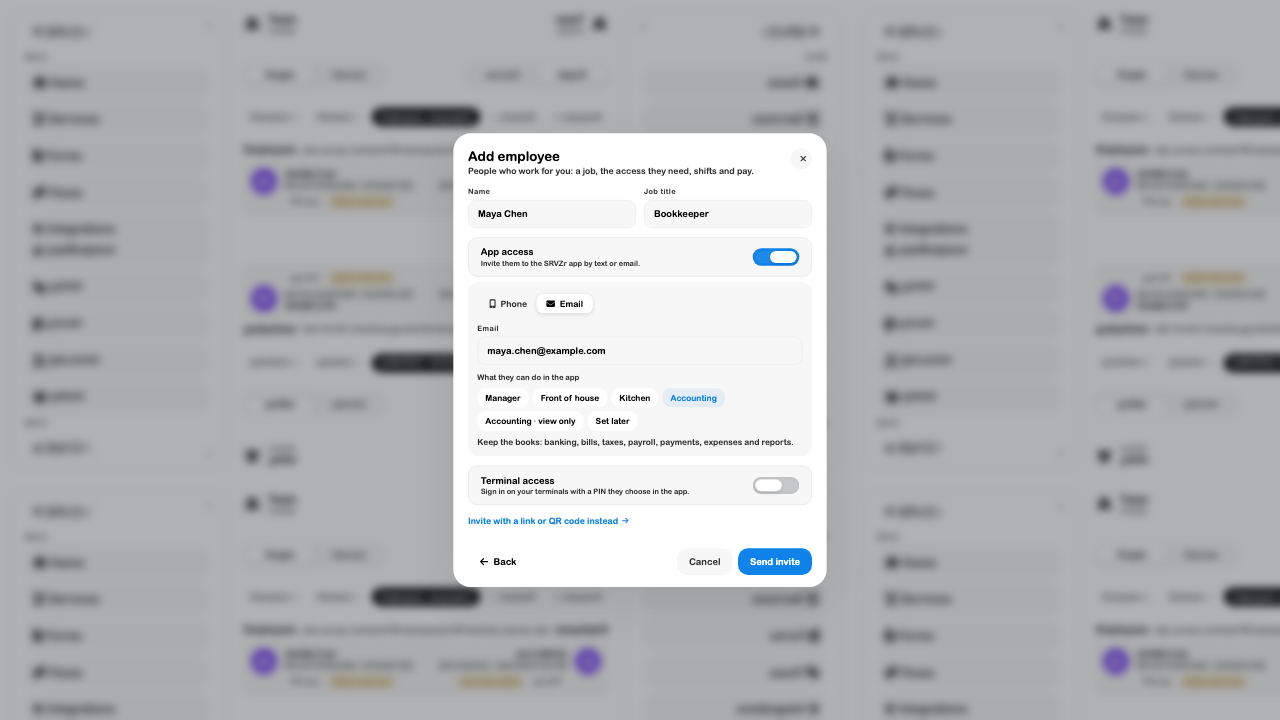
An accounting role does not connect a bank, import an accounting system, or make a payment. Those are separate workflows with their own setup. If the business's Books area is unavailable, granting access does not resolve that availability issue.
Temporary Team Access
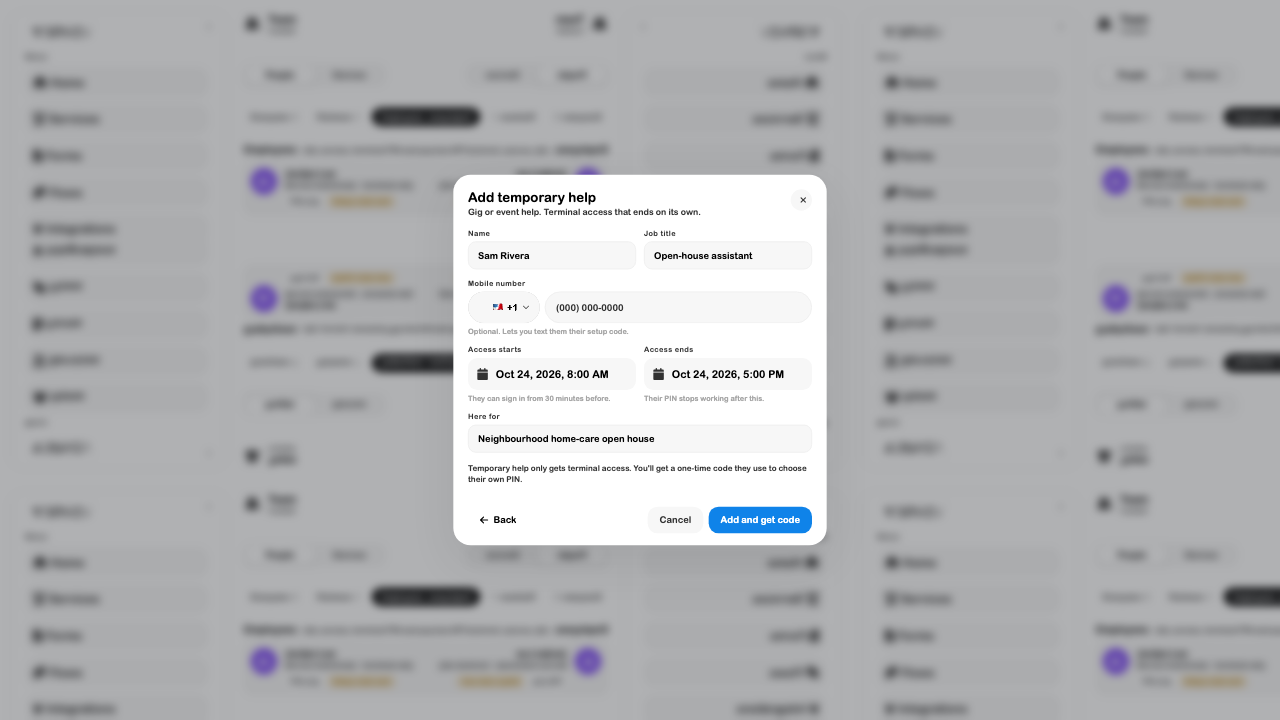
For a helper who should only use a terminal during an event, choose Add person → Temporary help. Enter a clear job and reason, then set Access starts and Access ends.
In this example, Sam helps at an open house from 8:00 AM to 5:00 PM on October 24. The event name in Here for makes the record understandable later.
- Check the displayed dates and times against the actual event, including the local time zone.
- Set the end after the start. Avoid using a long default window when only a single shift is needed.
- Review the explanation beneath the fields: terminal sign-in can begin 30 minutes before the access start, and the PIN stops working after the end.
- Choose Add and get code, share the setup code privately, and close the setup screen.
- Reopen the saved person to confirm the dates. Use Show past when reviewing ended assignments later.
Temporary helpers do not receive general app access through this path. Scheduling a shift and defining a temporary access window are related but separate tasks; check both before the event.
Staff PINs
People choose their own terminal PIN. Managers can issue a setup code or reset an existing PIN; they do not inspect the person's PIN or choose it on their behalf.
Open the person's Access tab to review Terminal. Sign-in options can include Business default, Anytime, During shifts, or Never. The business default is shown so you can see what it means for that person.
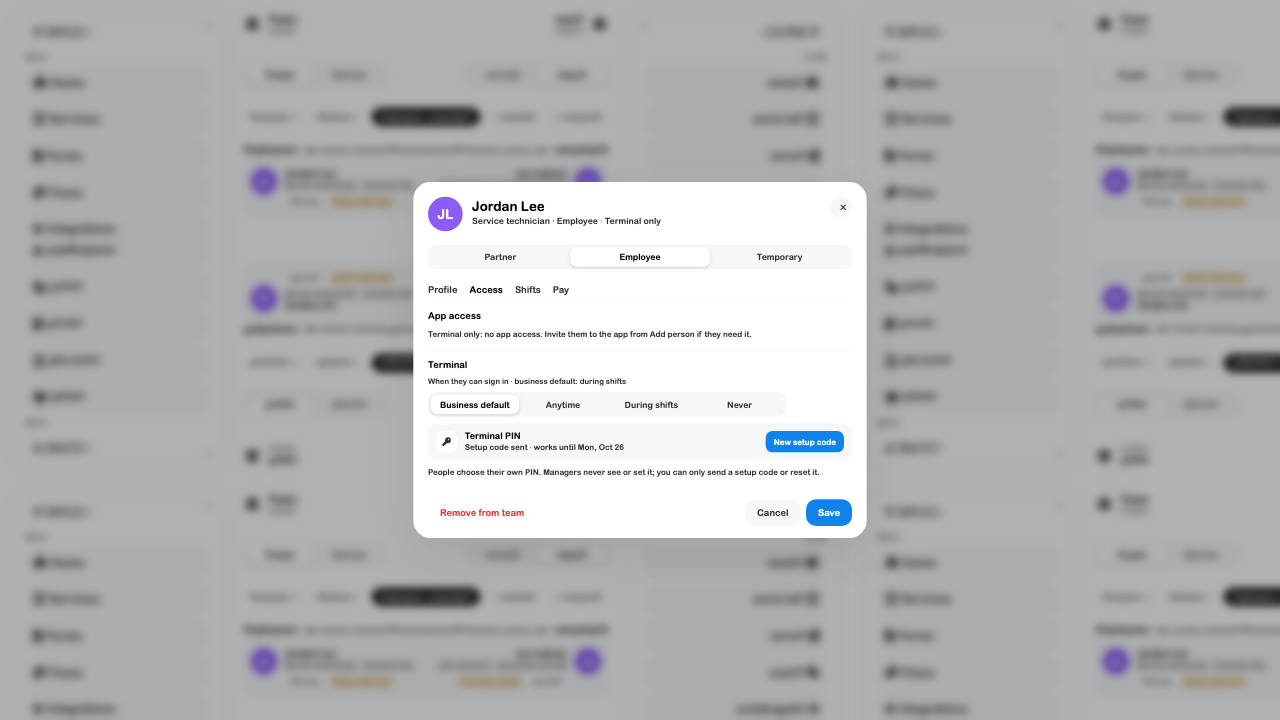
Use New setup code when a person still needs to choose a PIN. Where a PIN already exists, Reset clears it and requires a new setup. Keep setup codes and PINs out of shared screenshots. A “setup code sent” status does not prove the person has finished setup or signed into a terminal.
Removing someone from the team is more than hiding their roster card: it ends their access and affects their terminal credentials and sessions. Read the removal message and review any active assignments before confirming.
Troubleshoot access
| Problem | First check |
|---|---|
| Someone cannot open the business in the app | Whether they were invited to the app, accepted the invitation, and received the required permissions. A terminal-only roster entry is not an app invitation. |
| The person is missing from the list | The current business, search term, person filter, and Show past setting. |
| Terminal sign-in is refused | PIN setup, the selected sign-in rule, scheduled shifts, and any temporary access dates. |
| A person should only review accounts | Use Accounting · view only rather than granting Accounting management access. |
| A former employee can still work | Review the person's active status and removal process; check active device sessions separately. |
Continue with Shifts to schedule work, Devices to manage shared equipment, or Requests to assign jobs.
For shared screens and hardware access, see Devices and SRVZr Home. Device permissions and a staff member's own PIN permissions serve different roles.