Payroll
Use Accounting → Payroll to prepare pay from your team's work, review employee deductions and employer costs, and record an approved run in the books. The page brings together Pay runs, employee pay settings under Team, and Year end summaries.
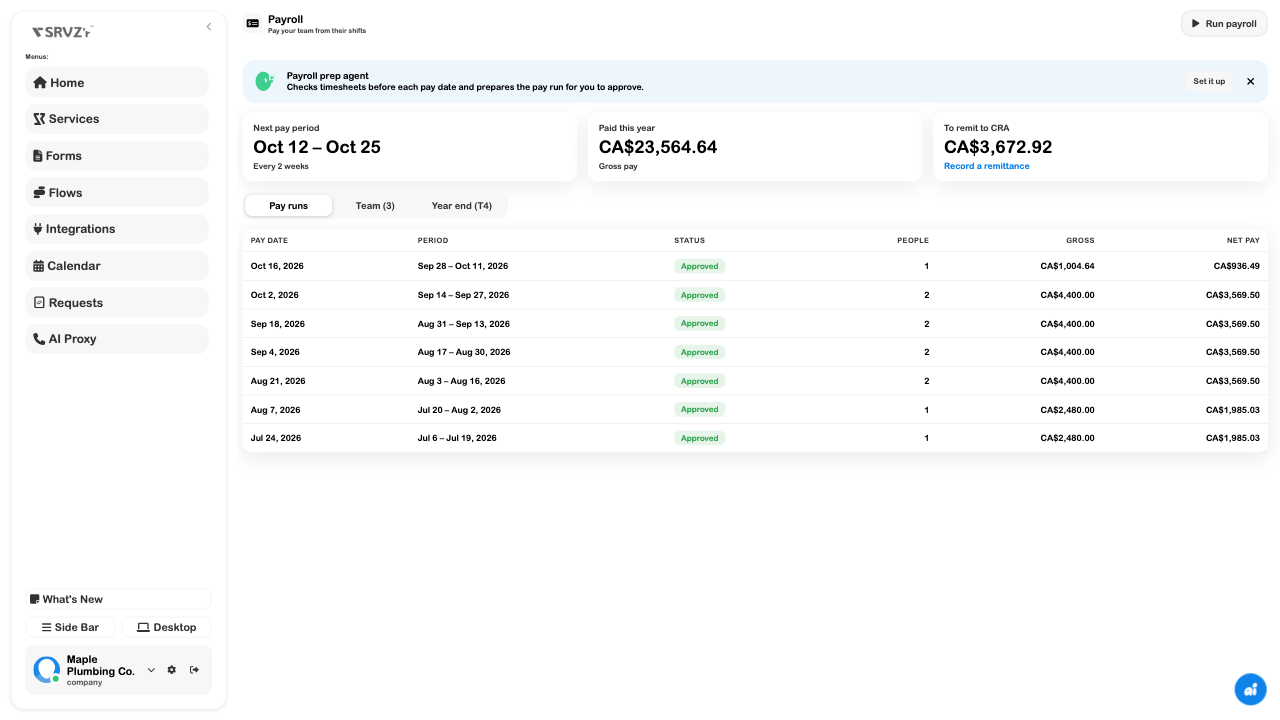
This example uses populated demo records for a Canadian plumbing business. An existing approved run for fictional employees Marcus Bell and Priya Shah shows CA$4,400.00 gross pay and CA$3,569.50 net pay. It demonstrates how to review a run; no new payroll approval, staff notification, or bank transfer was initiated for these screenshots.
Payroll
Prepare the employee's pay settings
Payroll requires the Run Payroll permission. Select the correct business before editing pay or personal details.
- Open Team inside Payroll and select an employee, or use its add action for a new payroll record.
- Check the name and pay-stub email.
- Set Paid to By the hour or Salary, then enter the hourly rate or annual salary in the displayed currency.
- Enter Income tax to hold back each pay for the applicable pay frequency.
- Review vacation pay, province/state of employment, and any applicable exemption settings.
- Complete the separate year-end identity fields when needed, then Save.
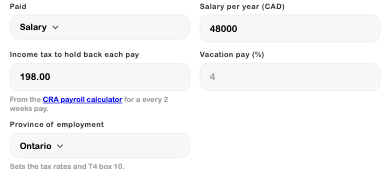
For Canada, use the CRA Payroll Deductions Online Calculator where applicable to determine the income-tax amount. Review it when pay or circumstances change. The app's income-tax field is an entered per-pay amount, not proof that every employee's tax situation is calculated automatically.
The Canadian interface shows CPP/EI calculations and their employer share. It also warns that Quebec QPP/QPIP calculations are not implemented. Do not treat a populated run as evidence that unsupported deductions are complete. The examples here cover the Canadian UI; US-specific calculations and year-end outputs were not exercised.
Pay Runs
Start with the right dates
- Choose Run payroll.
- Check Period starts, Period ends, and Pay date separately. The work period and payment date describe different events.
- Choose the frequency under You pay: weekly, every two weeks, twice a month, or monthly.
- Select the hours source: scheduled shifts or approved clock-ins.
- Choose Continue to save the chosen settings and create a draft run.
- Review every employee before approval. Correct source work records or pay settings when appropriate rather than accepting an unexplained total.
The existing run list shows date, work period, status, number of people, gross, and net pay. Select a run to inspect its detail.
Read the review totals
| Field | What to review |
|---|---|
| Hours | The work included from the selected source. Salary rows can show zero hours while still having earnings. |
| Gross | Earnings before employee deductions, including displayed vacation pay where applicable. |
| CPP / EI and income tax | Employee deductions. Draft income-tax amounts can be edited for that pay. |
| Net pay | The amount after employee deductions. |
| Your share | Employer payroll costs, separate from amounts withheld from employees. |
| To remit | Employee deductions plus the displayed employer share. |
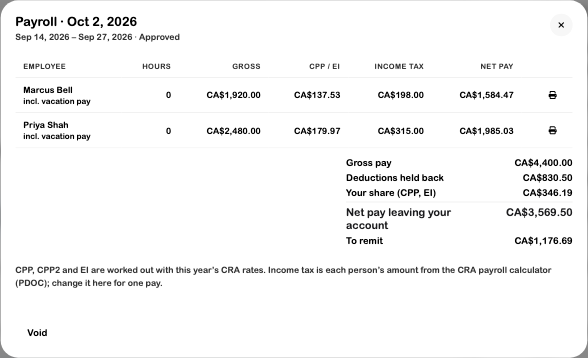
In a draft, check Pay from before choosing Approve payroll. Approval posts the payroll to the books and can notify staff that their pay stub is ready. It records the net-pay accounting entry; arrange the actual employee payments through your payment process. The wording “Net pay leaving your account” describes the accounting amount, not confirmation of a completed bank transfer.
Delete draft removes an unapproved draft. Void reverses an approved run's accounting treatment; it does not retrieve money already sent to employees. Review the confirmation carefully before either action.
Payroll from Timesheets
Use approved clock-ins when the pay should follow reviewed attendance rather than the scheduled duration.
- Open Shifts → Timesheets and review the intended period.
- Correct missing clock-outs, breaks, and other time issues, then approve the eligible records.
- Open Payroll → Run payroll, or use Run payroll from Timesheets when available.
- Match the payroll period to the reviewed dates.
- Under Pay hours from, select Approved clock-ins (timesheets).
- Choose Continue, then compare the draft with the approved timesheets before approving payroll.
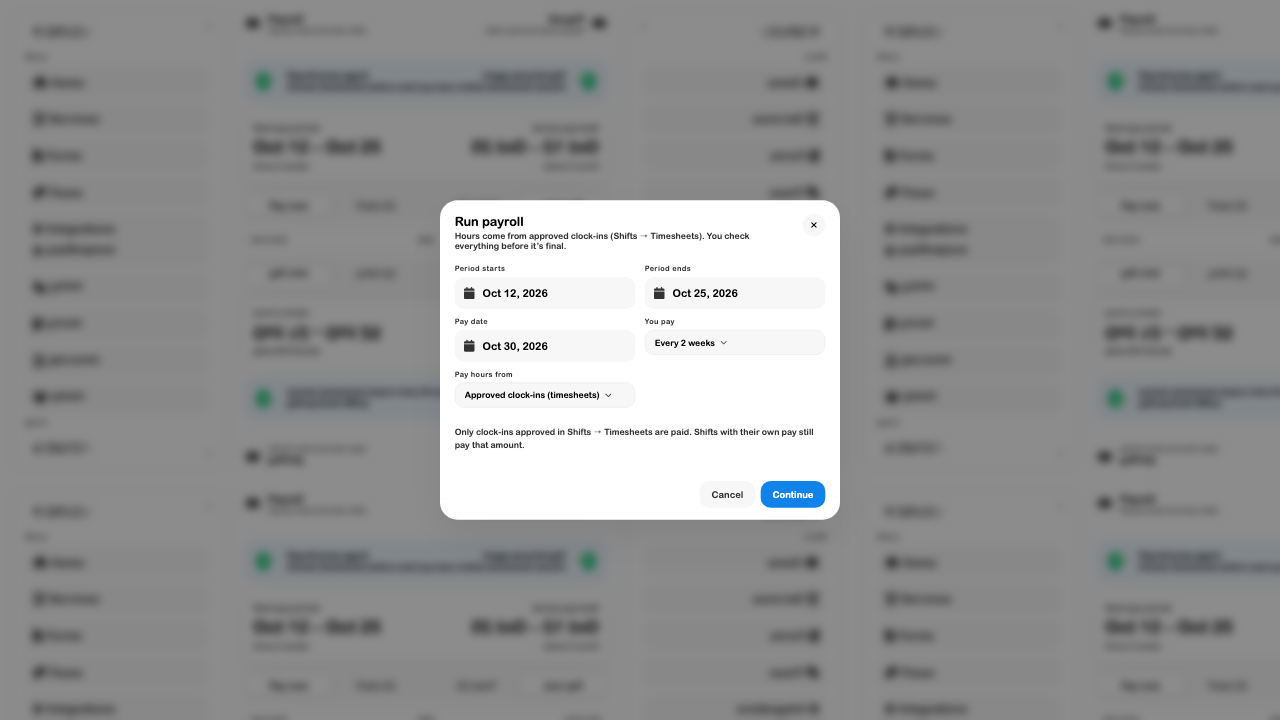
Only approved clock-ins are used in this mode. Shifts with their own fixed pay still use that amount, as the dialog explains. Selecting a source in the dialog is not the same as saving it: Continue saves changed frequency/source settings before creating the run.
Pay Stubs
- Open the desired run in Pay runs.
- Find the employee and choose the Print pay stub icon at the end of their row.
- Review the employee name, period, pay date, earnings, deductions, and net pay in the print view.
- Use the browser's print options to print or save a PDF as needed.
The approved-run screenshot above shows the actual row actions. The print view is designed to include regular pay and any nonzero overtime, vacation, or other earnings, followed by deductions and net pay. Approval can notify staff; do not use approval merely to regenerate a document.
The row controls were inspected for this walkthrough. A printed PDF and delivery to an employee were not verified. Keep payroll documents within the business's authorized payroll process.
Year-End Tax Slips
Open Year end (T4) in the Canadian interface. Choose the intended year; the current year is explicitly shown as so far. Totals grow as pay runs are approved, so an in-progress year is not a finalized annual return.
- Check the year before comparing totals.
- Review Employer → Edit for the legal business name, address, payroll account, and applicable employer details.
- Review each employee's Ready or Needs … status. Select a row to complete its legal name, address, and required identity details.
- Compare the summary with payroll and remittance records, including Remitted and Still to remit.
- Review contractor details when the contractor section appears; maintain those records under Bills → Vendors.
- When ready, use CSV for the filing-software data or Print slips for the app's printable records. Complete the agency's filing process separately and check its current requirements and deadlines.

The screen normally masks personal tax numbers, but printing and CSV export request full numbers. Treat those files as sensitive payroll records. A Ready indicator means the app's required details are present; it is not confirmation that an agency has accepted a return. These controls do not submit an electronic tax filing.
To record an actual remittance already made, return to Payroll, choose Record a remittance, and enter its amount, date, account, and reference. This records settlement in the books; it does not send the payment.
Troubleshooting
| Situation | What to check |
|---|---|
| Nobody appears in a draft | Payroll employee status and rates, work-period dates, hours source, and approved attendance where selected. |
| Hours differ from the schedule | Determine whether the run uses approved clock-ins, scheduled shifts, or a shift's own fixed pay. |
| Net pay differs from the bank amount | Review deductions, per-pay income tax, pay date, and whether the actual payment has been made. |
| A year-end row needs details | Open it to complete the listed fields; employee details can also be supplied through My Pay where available. |
| Remittance totals do not match | Compare the selected year and recorded remittances with your payment receipts before recording a correction. |
| Payroll access is denied | Ask the account manager to review the Run Payroll permission. |
Continue with Shifts and timesheets, Team access, Accounts and journal, or Financial reports.