Accounts and journal
Open Accounts when a financial total needs an explanation. The chart of accounts groups the business's assets, liabilities, equity, income, and expenses. The journal shows the events that changed those accounts; an account register shows the lines that affected one account.
For example, an invoice and its later payment both appear in the journal. Checking their receivable lines explains why revenue can be recorded before the customer has paid.
Chart of Accounts
- Select the business and open Accounts → Accounts.
- Search by name, account code, or account subtype.
- Use Active accounts or Include inactive to choose which accounts appear.
- Open a row to inspect its register and balance.
- If a new account is needed and you have management access, choose Account, enter its details, and save.
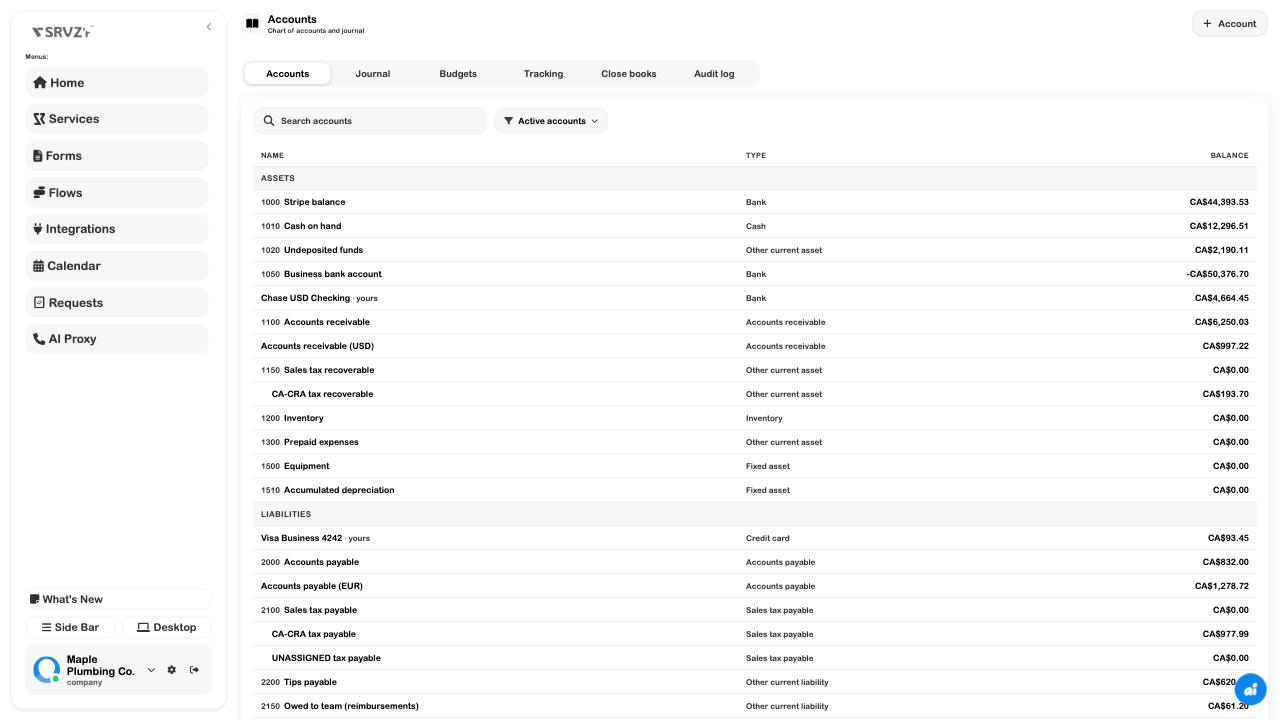
Accounts marked yours were added by the business. The remaining accounts are maintained by SRVZr for its bookkeeping workflows. Income and expense balances on this page are for the current fiscal year; do not compare them to a report for a different period without adjusting the dates.
Choose an account type for its accounting purpose. A supplier name belongs on a bill or expense; it usually does not require its own expense account. Keeping a manageable chart makes reports easier to understand.
Journal Entries
Inspect an automatic entry
- Choose Journal.
- Set the reporting period.
- Use the source filter to narrow the list, or search a memo/reference.
- Open a row and compare its debit and credit lines.
- Review the source, date, and available tracking tags.
- Use Open original when present to inspect the source record.
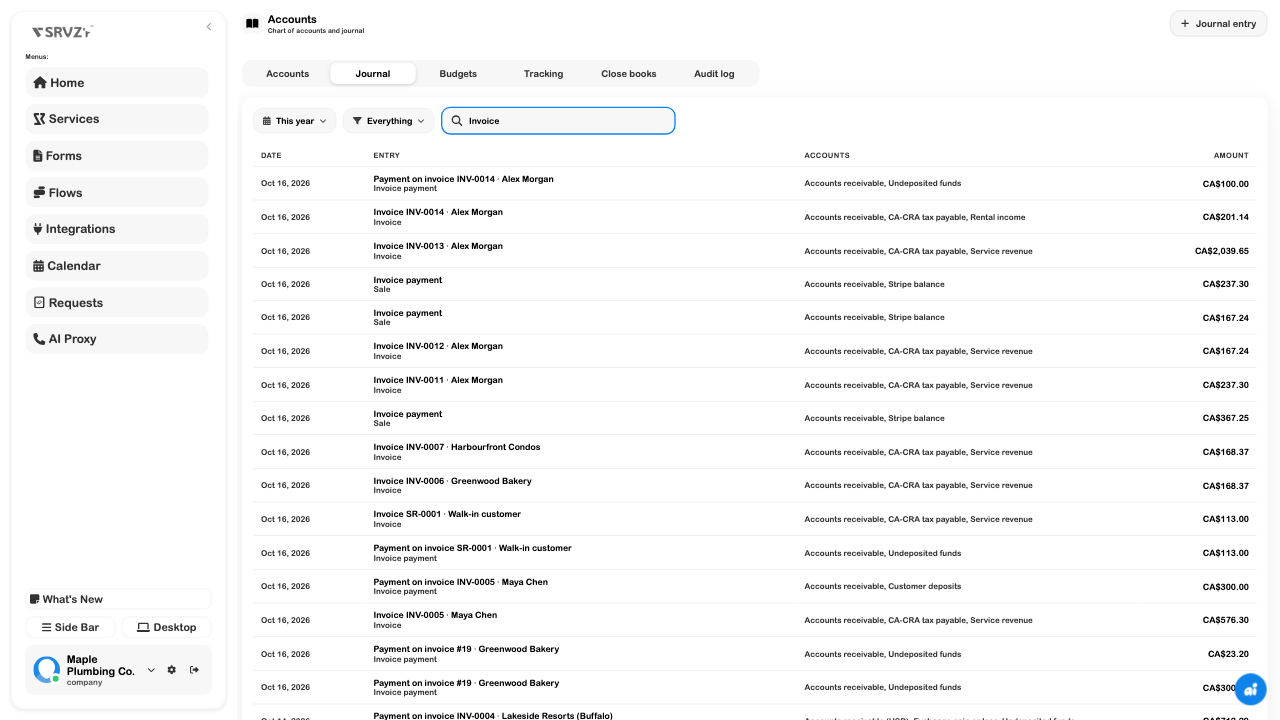
An automatic entry should be corrected through its original invoice, expense, payment, or other source. That preserves the relationship between the business record and the books. Some sources have a direct Open original link; others can be found in their own workspace using the displayed reference.
Prepare a manual entry
Use manual entries for events such as an owner contribution, a loan, depreciation, or a correction that is not already represented by a source record. Decide the accounting treatment with the person responsible for the books before posting.
- In Journal, choose Journal entry.
- Select the date and write a memo that will still make sense months later.
- Choose an account for each line.
- Enter a debit or a credit on each line, with an optional explanation.
- Add more lines if needed. At least two lines must have an account and an amount.
- Check the totals. The form shows Balanced when debits equal credits, or Off by with the difference.
- Review the accounts, date, and business, then choose Save entry to post. Close the form to discard an unsaved draft.
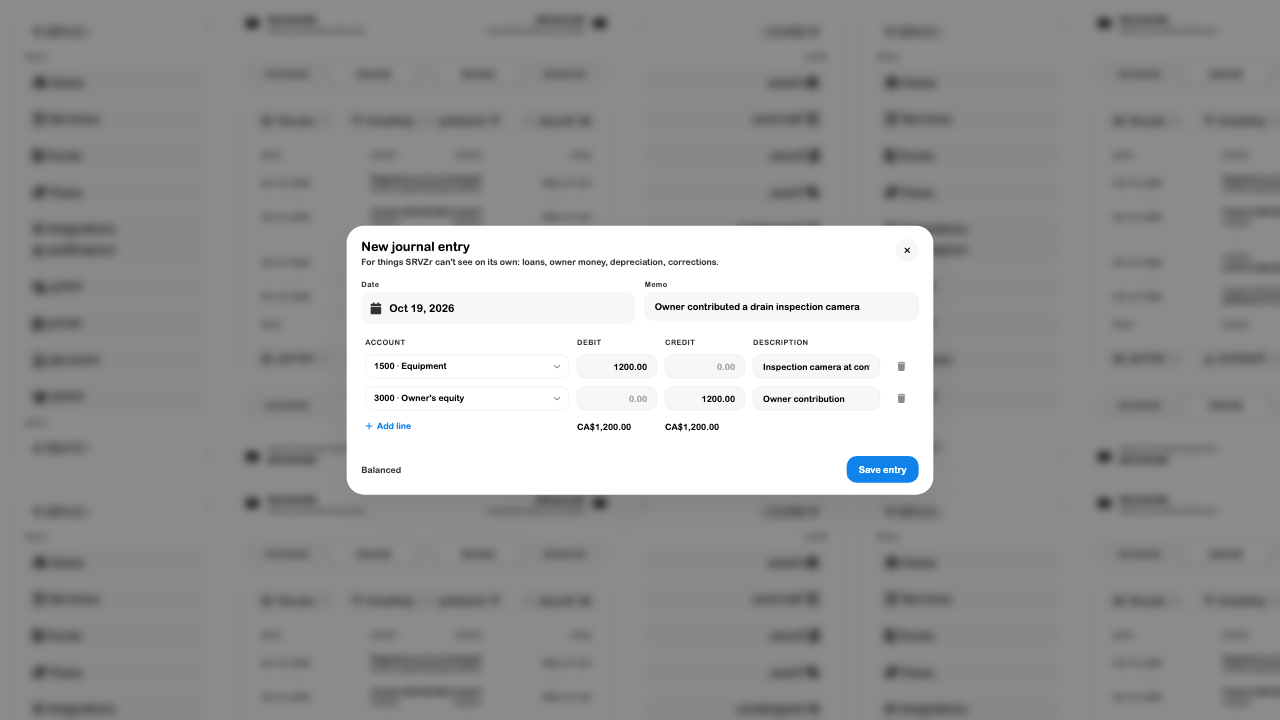
For a manual entry, the drawer offers editing and voiding when permitted. Voiding removes its amounts from the active books while retaining the entry's history. It is different from silently deleting the trail. Confirm which event you are correcting before voiding it.
The draft in the screenshot was closed without saving. It is not included in the report examples elsewhere in these guides.
General Ledger
The journal groups lines by event. The General ledger groups them by account, making it useful when a balance looks wrong.
- Open Reports → General ledger.
- Choose the period to investigate.
- Review the opening balance, debits, credits, and closing balance for the account.
- Open the account or entry where the report offers drill-down.
- Compare the original record and its dates before making a correction.
For a smaller view, open one row in the chart of accounts. Its register lists the period's movements and running balance. For example, the receivables register helps connect an invoice increase to the later decrease from its payment.
Do not read a credit as automatically meaning money came in. Its effect depends on the account type. Read the account name, source event, and running balance together.
Trial Balance
Open Reports → Trial balance and choose an as-of date. The report places each account's balance in its debit or credit column and totals both sides. A Debits equal credits result confirms that the recorded ledger balances mathematically.
That result does not prove every transaction was entered, every category was correct, or every bank statement was reconciled. Use it alongside the original records and the financial statements. A balanced entry can still be assigned to the wrong account.
Use CSV for a spreadsheet or Print / PDF for the browser's print flow. Check the business, as-of date, and currency before sharing a report.
Accounting Audit Log
Managers can open Audit log on the Accounts page. Use the period, person, change-type, and search controls to find the event you are investigating.
- Start with the smallest useful date range.
- Filter the kind of change when you know what happened, such as an edit, void, reconciliation, or books closure.
- Expand the relevant row to inspect the recorded change and available before/after detail.
- Open the related entry when offered.
- Use CSV if the review needs a separate working copy.
The audit log answers who changed the books and when. The journal answers what the current posted amounts are. A voided entry's historical row can remain visible even though it no longer contributes to current balances.
Keep audit exports private: they can contain staff identifiers, references, and details that belong in a financial review rather than public documentation.
Close the Books
After a period has been reviewed, a manager can protect it from accidental changes:
- Finish the period's corrections and reconciliation.
- Open Accounts → Close books.
- Select Closed through.
- Review the date, then choose Close books.
Closing locks entries through that date. Later changes to an older sale or expense are represented as adjustments on the next open day instead of silently rewriting a finished period. The manual-entry date picker also respects the lock date.
Use Reopen only when the business has decided that closed periods should be editable again. It prompts for confirmation and opens all closed periods until another close date is set. Closing or reopening does not file taxes or confirm that a bank statement is correct.
This guide's browser review inspected the close controls without changing the business's closing date.
Troubleshoot an entry or balance
| Problem | Check |
|---|---|
| Off by remains in a manual entry | Compare debit and credit totals, including every additional line. |
| The entry will not save | Ensure at least two populated account/amount lines, a valid date, and appropriate management access. Read the validation message. |
| An expected entry is missing | Check the business, period, source filter, posting status, and memo/reference search. |
| A correction lands after its source date | Check whether that source date falls inside a closed period. |
| The register differs from the chart | Compare the selected register period and the chart's fiscal-year treatment of income/expenses. |
| A balanced trial balance still looks wrong | Investigate missing records, account selection, source duplication, and reconciliation. |
| A control's menu does not respond | Close and reopen it. If the problem repeats, report the control and browser rather than assuming an account choice saved. |
Related guides: Accounting overview, Financial reports, Expenses, and Invoices.