Maps and field work
Use Maps to organize places and field observations on a shared geographical view. Pins identify places, drawn areas describe boundaries, and visit labels help the team decide what needs attention next. A map is separate from a customer record, a work order or a payment.
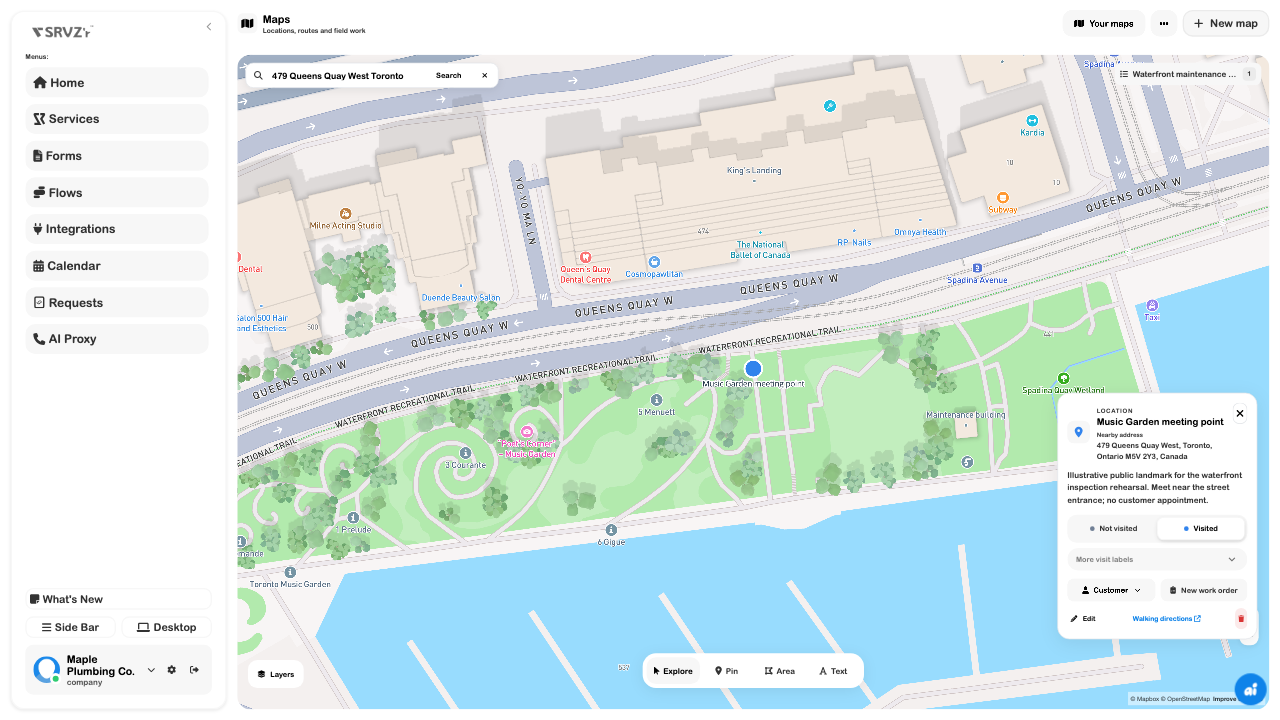
The reviewed example is Waterfront maintenance visits, a fictional planning exercise at public Toronto waterfront landmarks. Its map, meeting point, visit label and inspection area were saved and confirmed after reload. No customer address, real appointment or staff position was added.
Map Workspaces
Give each map a clear operational purpose: a maintenance round, a canvassing territory or a site inspection. Keep unrelated work in separate maps so notes and visit labels remain understandable.
- Open Maps → New map.
- Enter a specific name and a description explaining the intended work. Choose Save.
- Search for a public place or address, then select a suggestion to move the map there. Search results need review: a broad place name can return a different district.
- Use the suggestion's explicit save action to create a named location, or choose Pin and click the intended point.
- Add useful notes and save. Reopen the map and select the saved record to confirm it persisted.
- Use Your maps to switch workspaces. Check the active map before editing.
Explore, Pin, Area and Text do different jobs. Explore navigates and selects existing content; Pin and Text place a point; Area draws a closed boundary. Choosing a tool alone does not save a record.
Layers and structured records
Open Layers to review appearance and optional information. Light, Dark and Satellite change presentation. Work-order visibility requires access to work orders; customer actions also depend on customer access. A missing overlay can reflect access or missing source coordinates rather than an empty map workspace.
The map menu offers a location-bank connection and explicit export. Treat the bank export as a snapshot: repeat the export after map changes when the destination needs updating. It is not continuous two-way synchronization. The implementation matches exported rows to saved features; a compatible bank schema and bank access are required. Bank export was inspected in source but not performed for this rehearsal.
Territory Drawing
Use an area when the work concerns a boundary, such as a garden inspection zone, rather than one entrance. The drawing expresses your plan; it does not establish a surveyed property boundary or permission to work there.
- Choose Area.
- Click each corner on the actual map. Close the shape or choose Finish area once the boundary is ready.
- Review the calculated area and perimeter in the editor.
- Enter a clear name and notes explaining what the boundary means, then choose Save area.
- Select the saved area again and inspect its measurements. View sides exposes individual boundary lengths.
- Use m / km or ft / mi to change the displayed units without redrawing the boundary.
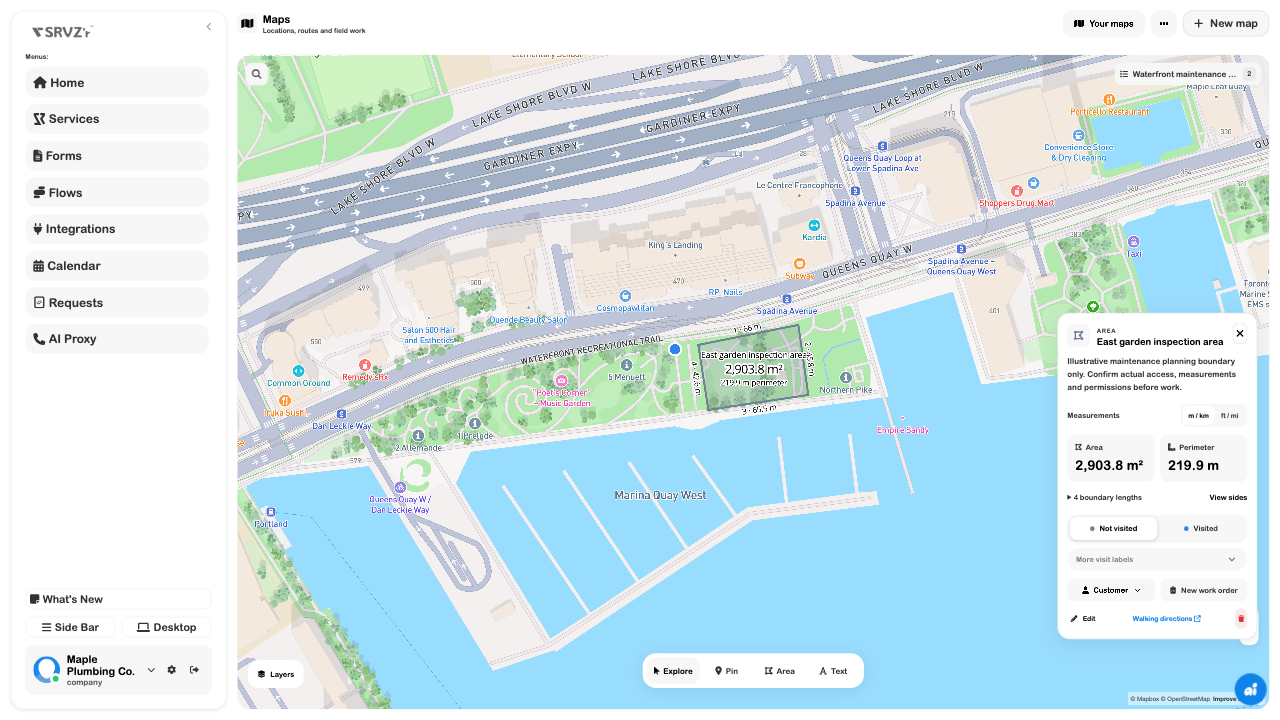
Switching the reviewed area to imperial units showed 31,256.2 ft² and 721.4 ft; the display was then returned to metric. Confirm the drawing against the actual site before using a measured area for an operational estimate.
Field Visit Tracking
Select a saved location and choose Not visited, Visited or another visit label. These are operational observations. Record the result that actually happened and use notes for the next useful action.
The saved Music Garden meeting point was marked Visited for the rehearsal. Reloading the map and opening its location list showed 1 / 1 locations visited, alongside the separate area drawing. Area drawings do not add another location to that progress denominator.
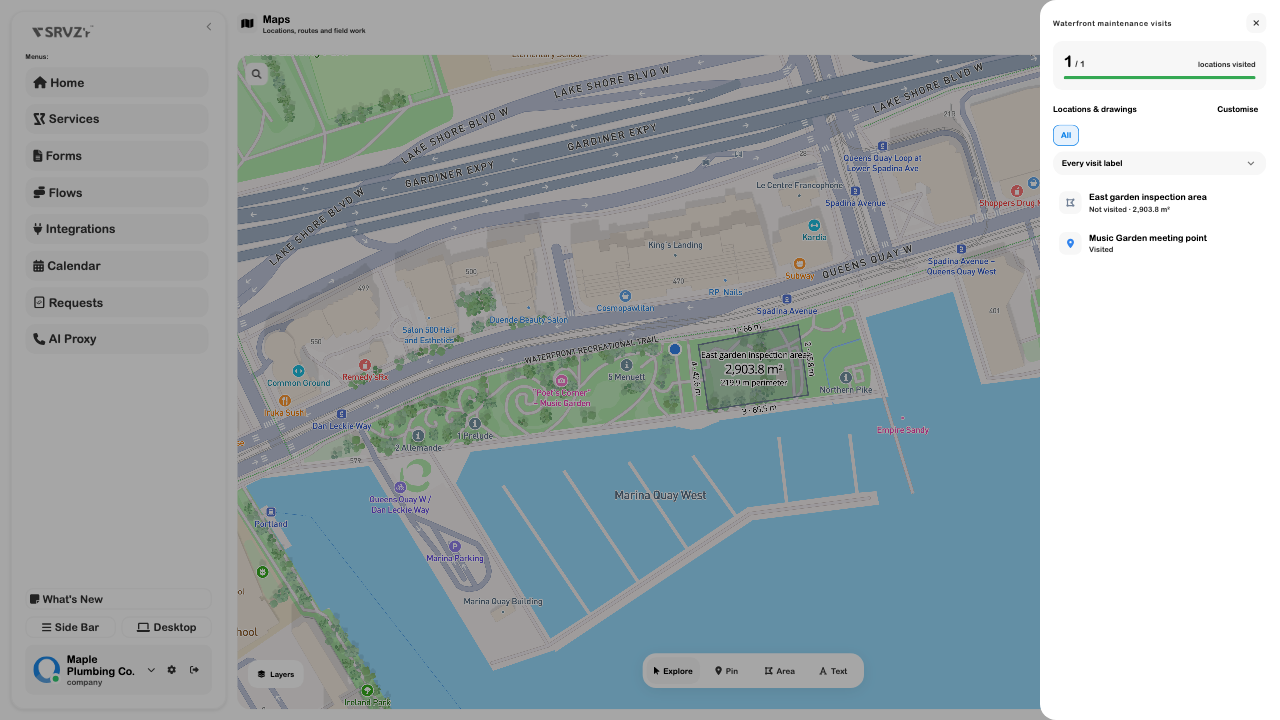
Use the list's visit-label filter to narrow the records. Customise offers workspace-specific visit labels and saved filters; review names so the team uses them consistently. Those customizations were inspected in source, not saved in this rehearsal.
A label such as Paid is still only a map status. It does not create a payment, mark an invoice settled or complete a work order. Changing away from Not visited records a visit time; returning to Not visited clears that field. This is not a complete historical route or attendance ledger.
Customer and work-order actions
A selected place can be connected to a customer, and New work order can start a related workflow when access allows it. Confirm the identity and address before linking a customer. Saving a map pin does not create either record automatically.
No customer link or work order was created for the public-landmark rehearsal. Do not treat its Visited label as evidence that maintenance was performed.
Live Location Tracking
Layers → Live tracking displays locations already shared with the business, including supported robot location records. It is a viewing layer, not a button that starts tracking every teammate's phone.
Check the update time. Fresh records are distinguished from last-known positions; a stale point should not be treated as a current location. A robot marker also does not prove that the robot is online, controllable or safe to dispatch.
The live layer was enabled in the rehearsal and showed No shared locations yet, then was disabled again. No populated live feed, GPS permission, teammate tracking or robot movement was tested, and no empty tracking screenshot is presented as a working fleet demonstration.
If positions are missing, check whether the source device actually shares a valid location with the selected business and whether realtime connectivity is available. Do not create synthetic positions to stand in for a missing device feed.
Map Routes
A selected place offers Walking directions, which opens an external directions provider with that point as the destination. It is useful for navigation to one saved location.
The current map does not provide a verified multi-stop route optimizer, road-route drawing tool or automatic driver dispatch. Pins, polygons and text labels do not establish those capabilities. A progress count also does not reconstruct the order in which staff traveled.
The external walking-directions destination was inspected, but no navigation session was started. Review its destination and the actual conditions before following it.
Troubleshooting
| Symptom | What to check |
|---|---|
| Search finds the wrong district | Search a more precise address and review the suggestion before saving. |
| A drawing disappears after leaving | Finish the shape, name it and complete Save area; an unfinished canvas action is not a saved record. |
| Location count differs from drawing count | Progress counts location pins, not every area or text label. |
| A change appears in the map but not the bank | The export is explicit; check access, schema and whether the snapshot was refreshed. |
| No live positions appear | Verify actual shared source locations and their timestamps. Enabling the layer does not collect GPS. |
| Customer or work-order actions are unavailable | Check access to those tools and the selected business. |
Continue with Locations, Banks, Customers and Requests and work orders.