Quotes, invoices, and customer balances
Use Invoices to turn an agreed scope into a bill and follow the balance through to payment. A quote asks the customer to agree to the work; an invoice records what they owe; a sales receipt records a sale already paid. A customer deposit holds an advance until you apply it to an invoice.
The examples follow Maple Plumbing Co.: an itemized water-heater quote, a bathroom remodel billed in stages, and a retainer applied to a customer's existing invoice. Check the selected business before creating a document. Document actions require access to the business's services; accounting reports require accounting access.
Invoices
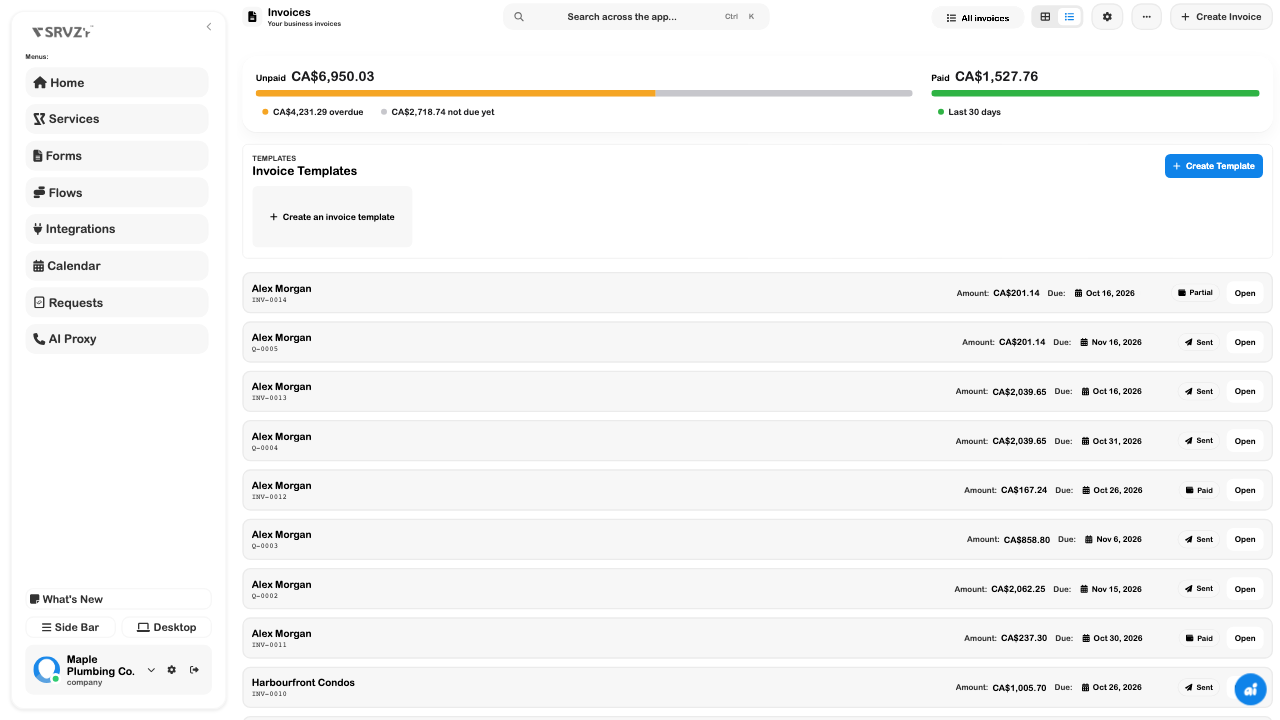
The list combines drafts, quotes, invoices, and receipts. Switch to List view to compare customer, document number, amount, due date, and status. Use the document filter or the overdue/not-due summaries to narrow the work you need to follow up.
- Choose Create Invoice and select the customer with Change in the billing card.
- Check the business and customer details, bill date, due date, and currency where available.
- Add the work and materials as separate lines. Review their quantities, rates, tax categories, and calculated total.
- Save the draft. Reopen it to check that the customer and amounts persisted.
- Use Send invoice when ready to issue and email it. Review the recipient and message before sending.
- For an issued invoice, use Record payment only for money actually received, or apply available customer credit.
| State or action | Meaning |
|---|---|
| Draft / No number yet | A saved working document; review it before issuing. |
| Sent in the list | The label used for an open document. Check its delivery/history separately; this label alone does not prove an email was delivered. |
| Partial | Some of the invoice has been covered; the remaining balance is still collectible. |
| Paid | The recorded balance has reached zero. Check how it was settled when reconciling. |
| Copy pay link | A sharing action that can issue a draft. Finish reviewing before using it. |
| Issue without sending | Available from the draft's extra actions; issues the bill without emailing it. |
An invoice's list amount is its document amount, not necessarily its remaining balance. For example, a CA$201.14 partial invoice can have only CA$101.14 left to pay.
Record an external payment
Open an issued invoice → Record payment → enter the amount, date received, method, and reference → review the balance that will remain. The example below is an unsaved CA$500 payment entry against CA$2,039.65 owed; it previews CA$1,539.65 still owed.
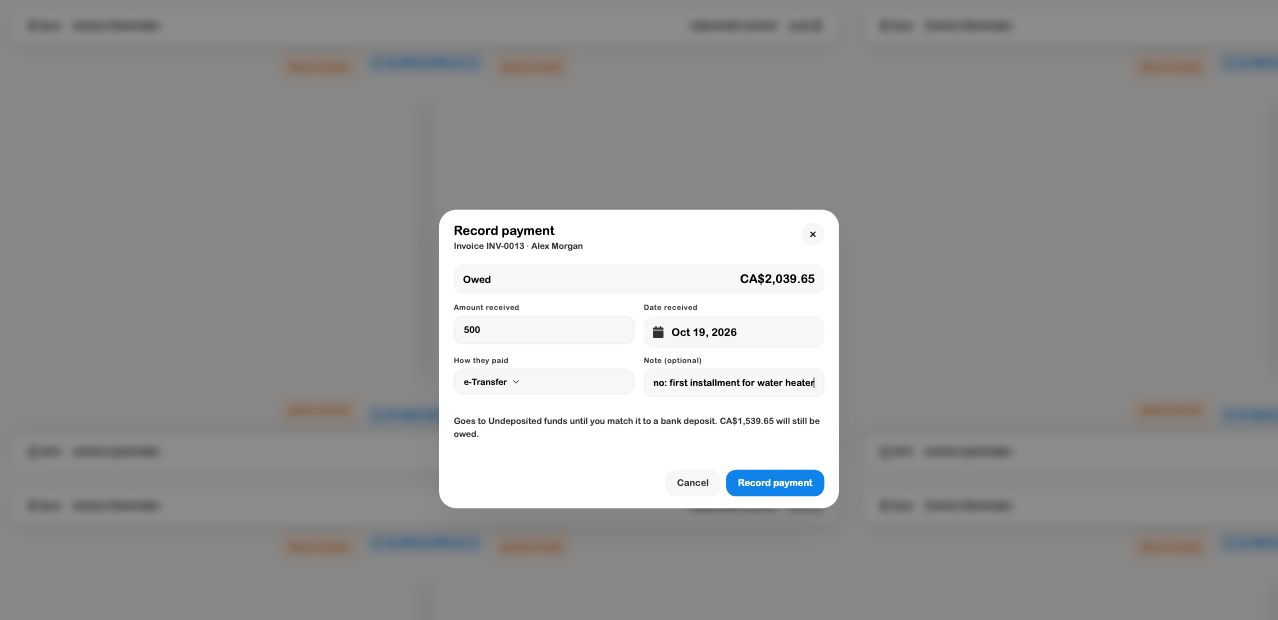
Cash goes to Cash on hand; the other methods shown go to Undeposited funds until matched to a bank deposit. Recording a card payment here does not charge the card. Continue in Banking when the bank transaction arrives.
Quotes
Use a quote when the customer needs to agree to the proposed scope and price before work starts. Open Invoices → document filter → Quotes, then Open the quote you need. Check Valid until and save any edits before sending or sharing the approval link. For a quote attached to a work order or rental, start in that order’s Payments → Quotes & invoices → New quote. The examples here reopen existing quotes.
For a water-heater replacement, separate the supplied heater, installation/venting/permit, and removal of the old tank. The customer can see what is included, and your team can revise one part without replacing an unexplained lump sum.
- Select the customer and check the quote's validity date.
- Describe the scope in specific line items; add useful assumptions or exclusions in Notes.
- Review the tax and total, then save.
- Use the quote's send action or Copy approval link when ready. Copying an approval link can issue a draft.
- Return to the quote to read the customer's decision and any related work-order or invoice link.
Saving edits and sending an updated quote are separate actions. Use the update/send control offered by the quote when a customer needs to review changed terms.
Line Item Pricing
Each line has a description, quantity, rate, tax category, and calculated amount. A quantity of two at CA$2,000 gives CA$4,000 before tax. Use quantity for repeated units or hours and the rate for the price per unit.
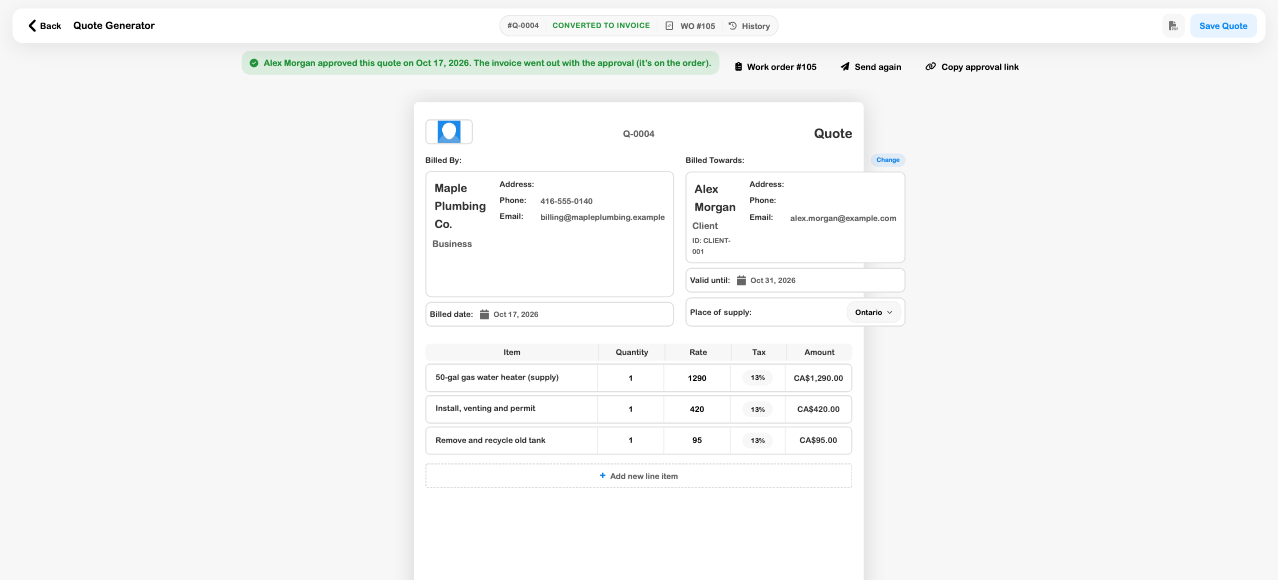
Choose Add new line item for another part of the scope. Check the calculated amount after changing a quantity or rate. Save and reopen a draft before relying on the document for customer communication.
Tax Totals
The editor calculates tax from the business's configured tax settings, the place of supply, and each line's category. Place of supply is shown beside the billing dates; selecting a customer can populate it from their address. The line's percentage button opens categories such as Goods, Service, Repair of goods, Equipment rental, Zero-rated, and Exempt.
- Check the customer's country/region and the displayed place of supply.
- Inspect the category suggested for each description; change it when the work requires a different category.
- Review subtotal, tax breakdown, total, and any paid/remaining amounts.
- Resolve a wrong business setting or customer address before sending the document.
The examples use the test business's Ontario configuration. The CA$100 faucet repair below has CA$13 tax and a CA$113 total. Those example rates are not a universal rate for every business, customer, or item. See Taxes for reviewing the underlying configuration and reports.
Quote Approvals
Read the decision banner on the quote. Waiting on… means the customer has not approved it. An approval shows the customer's name and date; a requested change is a different state that needs review.
The water-heater example above shows Alex Morgan approved this quote on Oct 17, 2026, Converted to Invoice, and Work order #105. That existing work-order quote also reports that the invoice went out with approval. Use the related work-order link to continue the job.
For a standalone approved quote, use the invoice action offered by the screen or create a progress invoice. Do not assume every quote follows the work-order conversion path: a customer decision, a linked invoice, and payment are separate facts. An approval banner does not mean the invoice is paid.
This walkthrough inspected an existing approved quote and a separate pending quote. It did not send an approval request or impersonate a customer's approval.
Progress Invoicing
Use Invoice part of it to bill a share of a larger quote. This keeps each part linked to the original scope instead of creating unrelated invoices for deposits and milestones.
- Open the quote and inspect its progress row and linked invoices.
- Choose Invoice part of it.
- Enter the percentage to bill, or use an available preset/the remaining share.
- Review This invoice (before tax), then choose Create invoice.
- Review the resulting draft's lines and total before issuing or sending it.
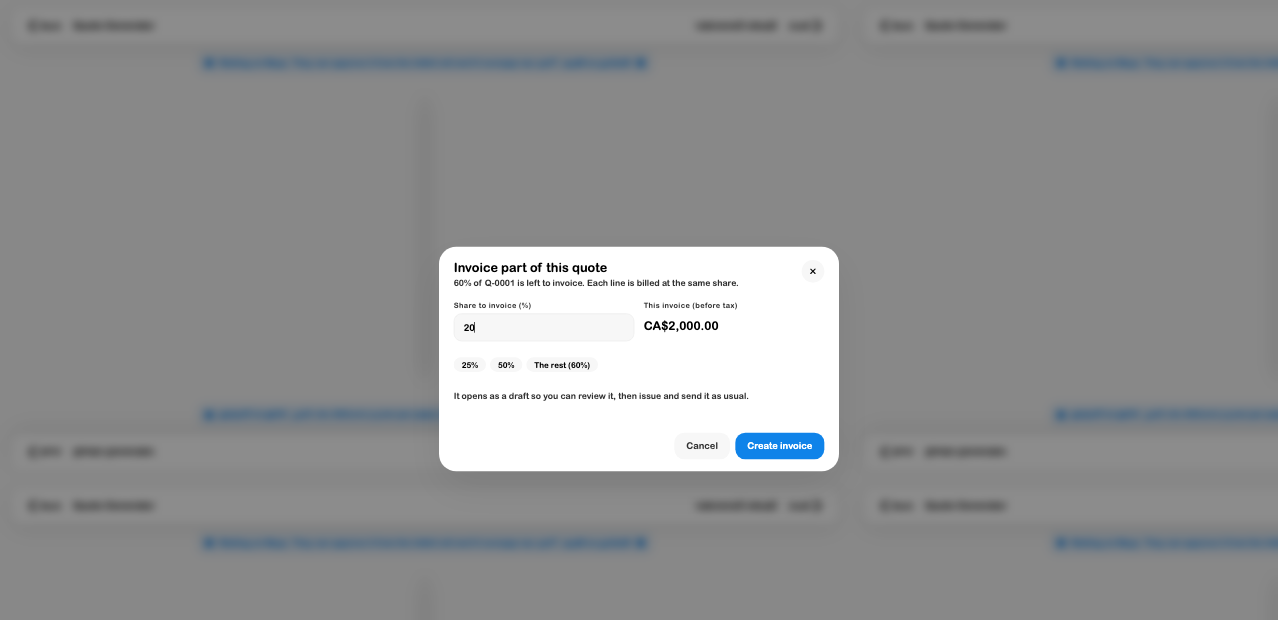
The generated lines retain their quantities and scale the rates/amounts to the chosen share. Their descriptions identify the percentage and original quote. In the verified example, reopening the quote showed 60% invoiced · Draft (40%), Draft (20%).
Draft parts count in the progress percentage. That percentage does not prove the parts were issued, sent, paid, or approved by the customer. Check each linked invoice's state. The interface limits the next part to the remaining share.
Batch Invoicing
Batch invoices are useful when several customers owe the same maintenance charge. Each customer gets a separate document using the shared lines.
- In Invoices, open More ways to bill → Batch invoices.
- Pick the intended customers. Search if needed; inspect the selected names rather than using Pick all by habit.
- Enter the shared description, quantity, and price.
- Review each invoice amount and the displayed tax groups. Customers in different regions can have different tax totals.
- Turn Issue them now off to save drafts for review. When issuing, inspect Email each customer separately.
- Create the invoices and reopen the resulting records.
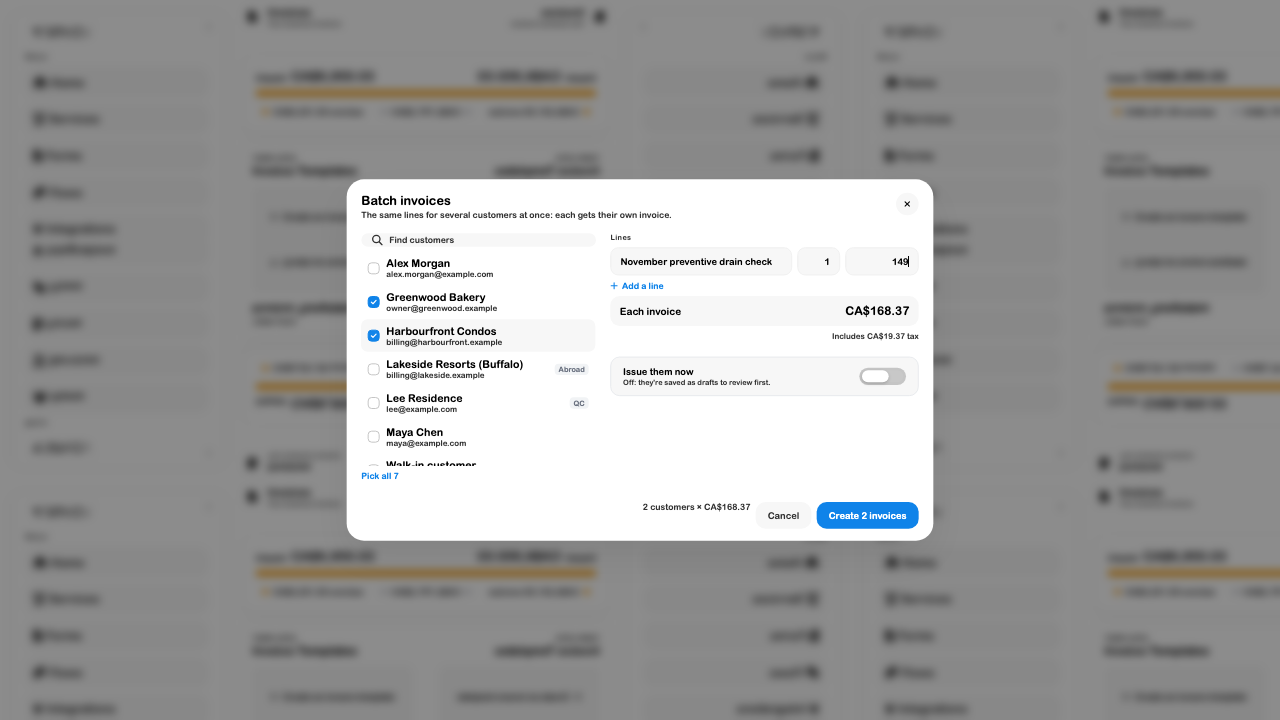
The form initially enables issuing and emailing. Set the intended behavior before creating the batch. The current customer picker loads up to 500 customers; the batch operation accepts up to 200 selected customers at a time.
Sales Receipts
Use More ways to bill → Sales receipt for a sale already paid on the spot. Enter the customer, lines, date, and Paid with method, review the total, then choose Record sale to save the sale and record it paid.
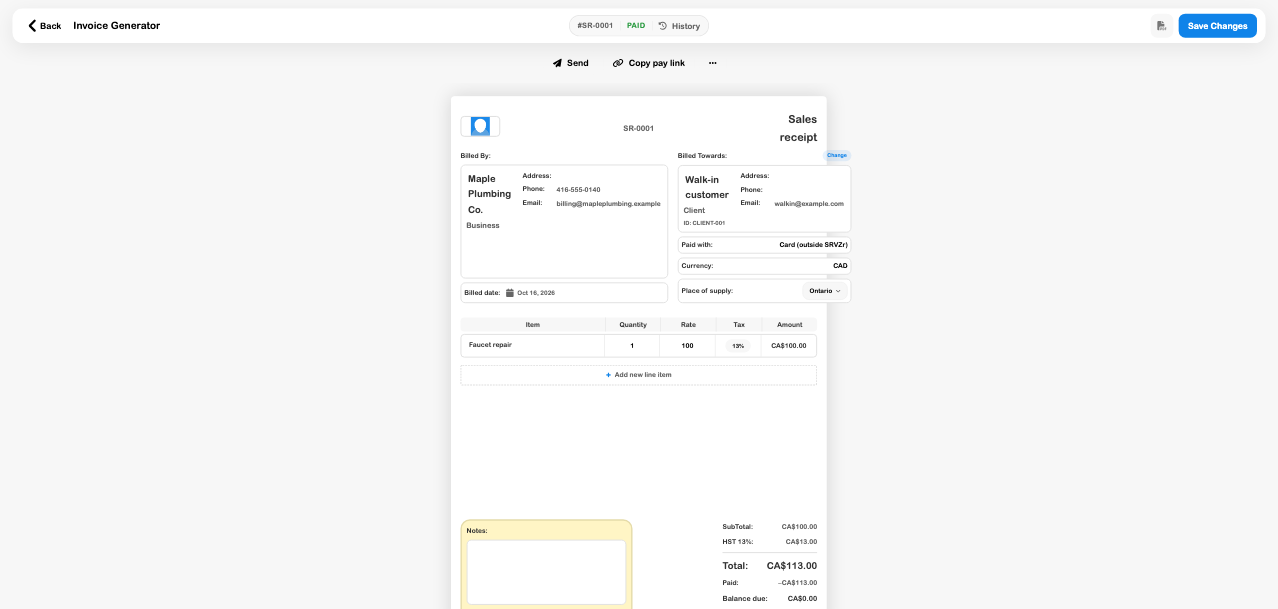
This is a record of the sale and its payment method; choosing Card (outside SRVZr) does not process a new card charge. The verified example reopened an existing completed receipt. Check for an existing receipt before recording the same paid sale again.
Customer Deposits
A deposit is an advance held for the customer until applied to an invoice. Use Customers → open customer → Overview → Balance → Receive a deposit. The customer needs an email for the deposit controls.
- Enter the amount actually received, date, method, and a meaningful reference.
- Review the destination described in the form, then Save deposit.
- Reopen the customer to confirm the deposit and available credit.
- Open an issued invoice for the same customer, then choose Apply credit.
- Review the available credit and proposed application before confirming.
- Return to the customer and invoice to check the used deposit and reduced balance.
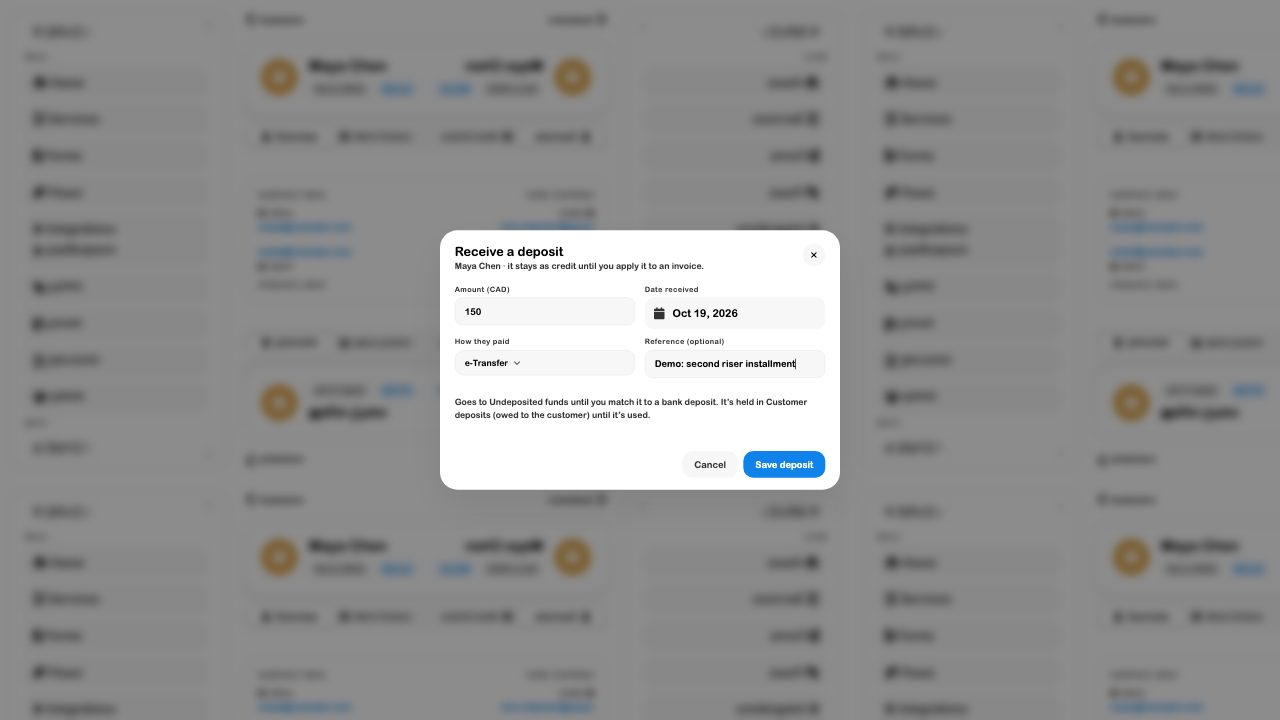
The receipt initially goes to Cash on hand or Undeposited funds according to the method. It is held in Customer deposits until used. Saving it records an advance already received; it does not request or transfer money.
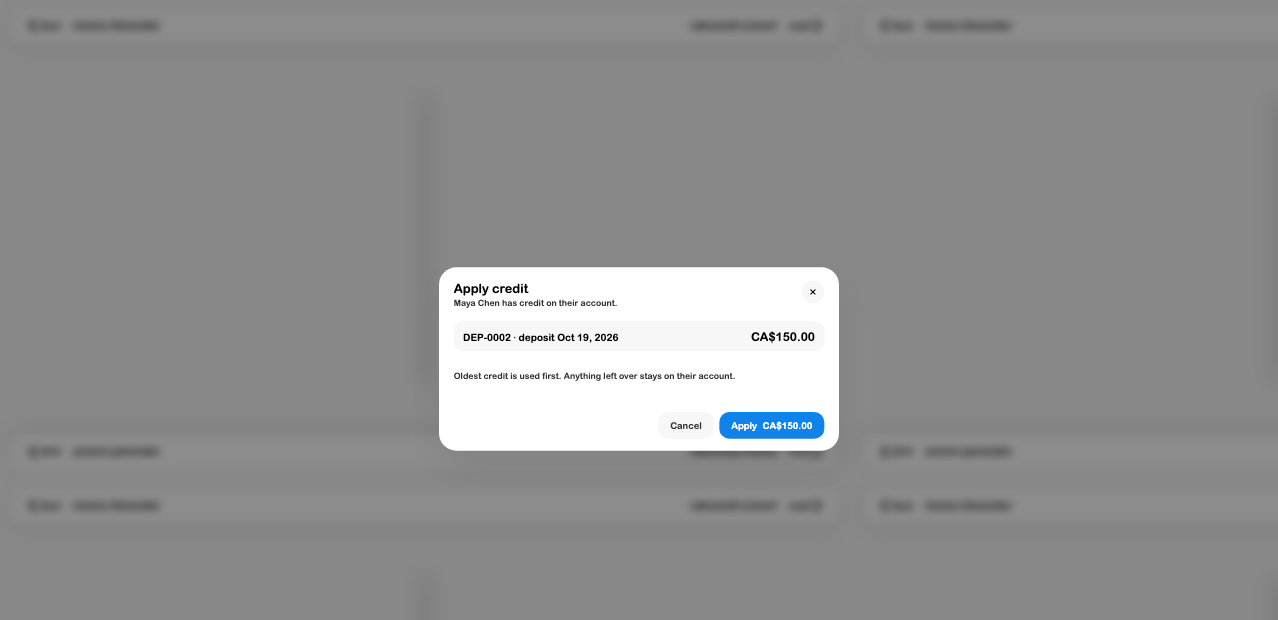
Credit memos are applied first, then deposits; older credit is used first within each group. The action uses no more than the invoice owes, and any unused credit stays on the account. Deposits must belong to the customer, and this application path requires an issued invoice in the business's home currency.
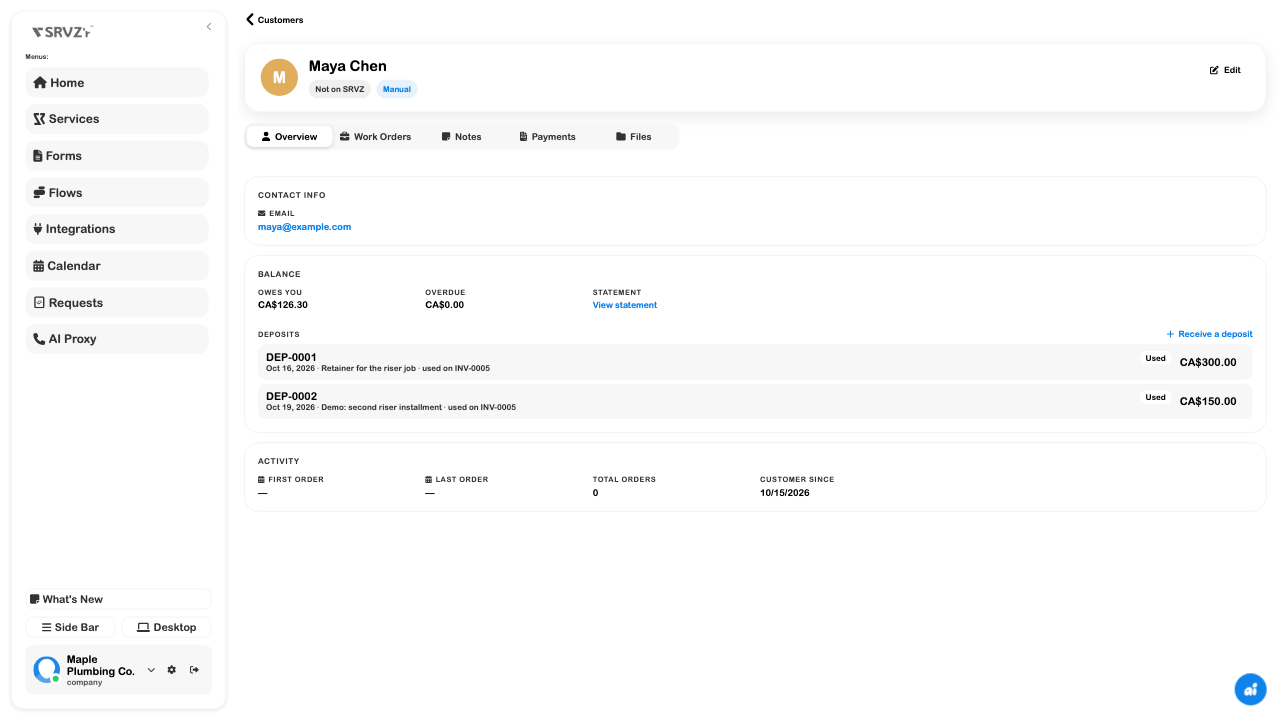
An unused deposit can expose Refund or a void action. Refund records money paid back from Cash on hand in the books; reconcile the account used for the real refund separately. Void is for an erroneous entry and is restricted once the deposit has been used or refunded.
For the complete example, follow Apply a customer deposit to an invoice.
Accounts Receivable
Use Accounting → Reports → Accounts receivable aging to decide which unpaid invoices need attention. Choose the as-of date, compare Current and overdue age buckets, then open an invoice row to inspect its balance.
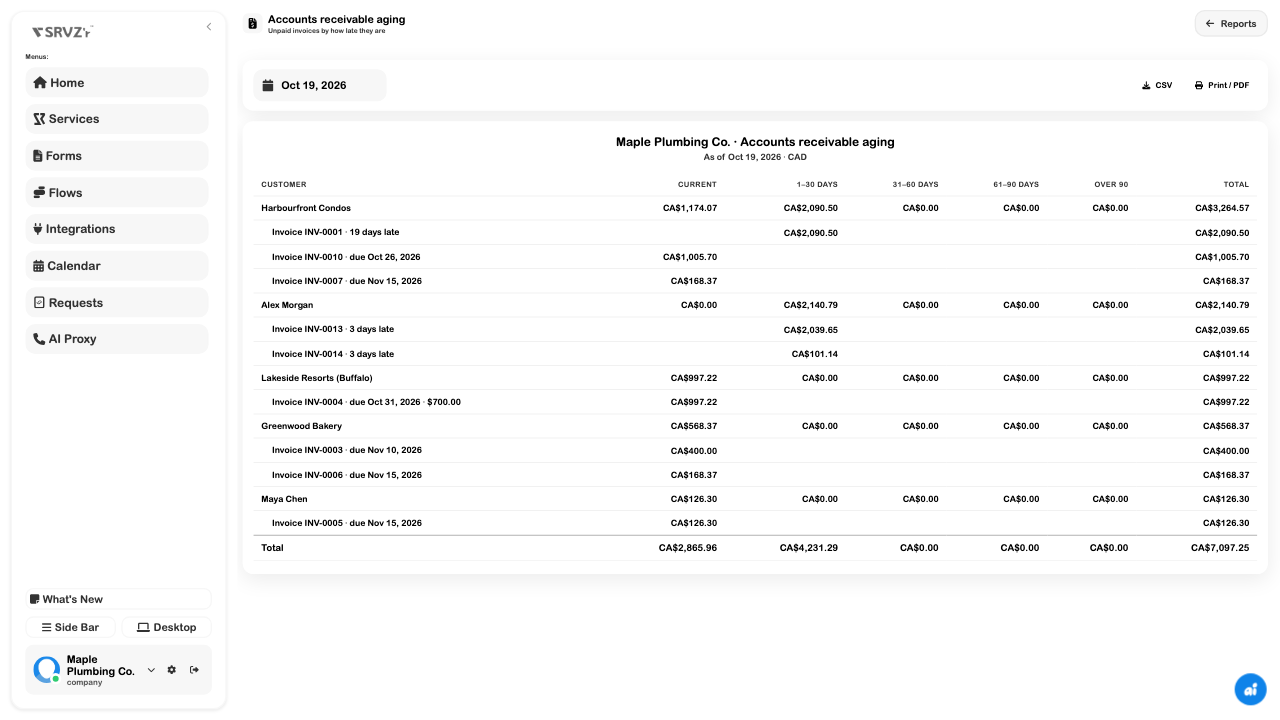
The report accounts for successful payments and applied credits through the selected date. Its home-currency amounts can differ from an invoice list that shows the original document currency. In this example, the Buffalo customer's US$700 balance is displayed as CA$997.22 in the report.
Use CSV or Print / PDF when you need a copy, and inspect its dates and currency. See Financial reports for the wider reporting workflow. A customer's View statement provides a separate customer-level history.
Invoice Reminders
Open Invoices → Sales settings to choose default payment terms and reminder timing. Available reminder steps are three days before, the due date, and 1, 7, 14, 21, or 30 days late. Select the steps your business intends to use, then Save when ready to change the configuration.
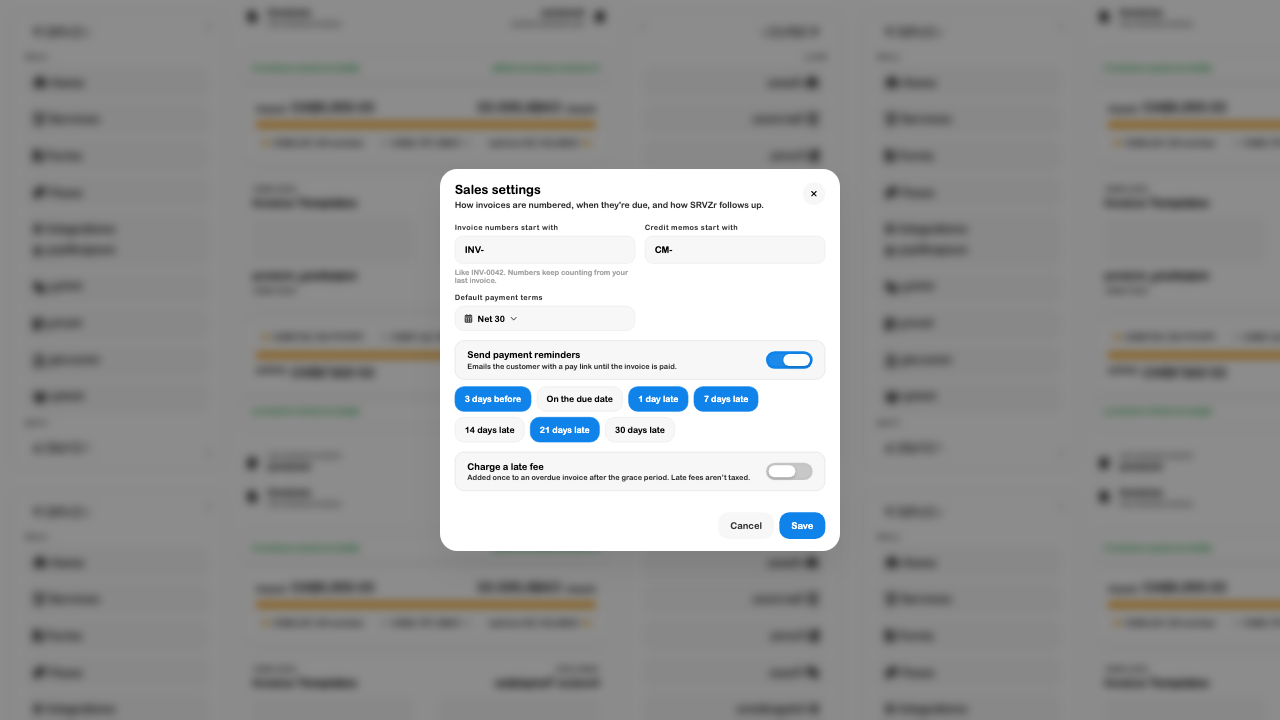
Reminders apply to sent invoices that still have an amount due and a due date. An issued document without a recorded send is not the same as a sent invoice. An eligible invoice can also expose Send reminder in its extra actions.
The schedule depends on the running delivery service. Saving the settings alone does not prove a scheduled email ran or reached the recipient. Check document history and the actual recipient before following up manually. Late fees have their own switch and amount/grace settings; enabling reminders does not enable a fee.
Invoice Autopay
Autopay is authorized by the customer through their SRVZ account and bank setup. The business invoice screen reports the resulting payer/payment state; it does not give the business a switch to debit any customer's bank.
| Invoice message | How to interpret it |
|---|---|
| On SRVZ | The linked customer can see the invoice in their app and use the available bank-payment flow. It does not itself indicate an autopay authorization. |
| Autopay is on | An enabled customer rule covers this invoice within its limit. Continue checking payment state. |
| Paying from bank | A bank payment is processing; wait for its result before recording another payment. |
| Paid from bank through SRVZ | The recorded bank-payment state reports success. Reconcile the payment normally. |
The inspected water-heater invoice displayed On SRVZ. No enabled autopay authorization or completed bank debit was demonstrated in this walkthrough. Bank setup, customer consent, payment limits, supported business/currency, and a running payment service determine availability. Keep pending/failed payments separate from a settled payment; do not use Record payment to manufacture a success state.
Troubleshooting
- A draft disappeared from the filter: return to All invoices and check Draft. Batch and progress invoices start without an issued number when saved as drafts.
- A quote says “invoiced” but the customer has not approved: inspect the approval banner and each progress invoice separately. Draft parts contribute to the percentage.
- A deposit is missing from Apply credit: confirm the customer's email, remaining credit, invoice issue state, and currency. A used deposit has no balance left to apply.
- The customer still owes money after a payment: compare the recorded amount with the invoice's remaining balance, not only the original total.
- Tax looks wrong: inspect the business configuration, place of supply, line category, and rounding before sending. An example screenshot does not establish the correct treatment for a different transaction.
- A reminder has not arrived: inspect send history, outstanding balance, due date, selected schedule, and delivery-service availability. The list's Sent label alone is insufficient.