Assets
Assets brings together domains, business phone numbers, mailboxes, API keys and connected devices for the selected business. Check the business name before adding a resource: an address or key belongs to that business, rather than every profile you can access.
Custom Domains
Use your own domain for a recognizable business address and supported website connections. For example, a plumbing business can prepare a visits mailbox on the same domain as its service website. Domain ownership, DNS configuration, mailbox delivery and website deployment are separate steps.
- Open Assets → Add Domain.
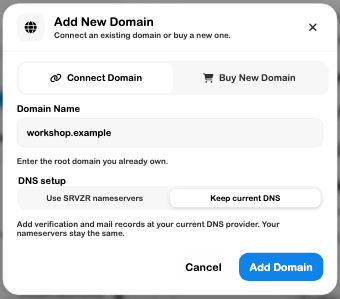
- Choose Connect Domain for a domain you already own. Enter the root domain, without a mailbox name or page path.
- Choose the DNS arrangement before adding it:
- Use SRVZR nameservers moves DNS management to the supplied nameservers. Copy your existing records first so that websites, mail and other services can continue working.
- Keep current DNS keeps your nameservers in place. Add the verification and mail records supplied by SRVZr at your current DNS provider.
- Choose Add Domain, follow the resulting instructions, then use the verification control to check the actual records.
- Check the domain's state before setting up a mailbox or connecting it to a site. A domain record alone does not establish working mail or a deployed website.
Buy New Domain is a different workflow. Review availability, price, registration contact details and renewal terms before confirming a purchase. Connecting an existing domain does not buy or renew it.
Connect the domain to other work
After verification, create a shared mailbox. For a Website, use the site's domain settings and check its deployment state; available site connections can depend on the domain's management setup. Do not infer that every domain labelled Verified can be attached through every site control.
Troubleshoot domain setup
If verification stays pending, compare the exact record type, host and value with the instructions, including records at the root versus a subdomain. Check which provider currently hosts DNS. Editing records at an old provider will not update the active zone. After a nameserver move, recheck existing website and mail records as well as the new verification record.
The inspected example-domain fixture was useful for exploring mailbox setup, but it does not prove public DNS verification, registration, website routing or email delivery.
Phone numbers
Open Assets → Phone numbers, or go directly to the phone section. Use Add Phone Number to get a SRVZr number or Move your number to SRVZr to prepare a guided porting request. An active number showing Set up is not yet ringing into SRVZr.
Open a line to edit its visual call flow: team ringing, AI answering, opening hours, hand-offs, voicemail, recording and missed-call texts. Voice and tool settings belong to the assigned agent in Agents.
To keep an existing carrier, use Phone → AI Proxy for verification and forwarding instead. Forwarded lines are managed there, not in this SRVZr-number list. Follow Phone lines and call flows for setup and porting, or Set up a team-first business line for the complete workflow.
Other shared resources
- Mailboxes: a verified domain, an address and explicit member permissions. See Business Email.
- API keys: public listing access for a selected business. See API Integrations.
- Phone calls: use Phone to dial, answer and review call history after setting up the line.
- Devices: connection and readiness are separate from a device appearing in the list. See Devices.
Use recognizable names and review ownership when staff or providers change. Avoid copying keys, setup codes or private device details into public pages.