Customers and job history
Use Customers to keep the contact and operational context behind repeat business. Search for the existing customer before adding another record: a different spelling or email can split the information your team expects to find together.
The examples use Cedar Lane Property Care, a fictional property-management contact, and populated invoice records for Alex Morgan and Maya Chen. Select the correct business before creating or editing a contact.
Customer Management
Add a useful contact
- Open Customers and search by name, phone, email, or notes.
- If the person or company is new, choose Add Customer.
- Enter a display name, the person's name where relevant, and the contact details they supplied.
- Search for an address or use Enter manually when needed.
- Add a short operational note, then choose Create Customer.
- Return to the list and reopen the saved record to confirm the details.
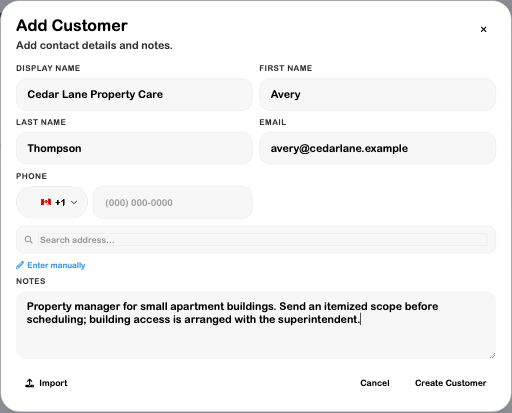
A display name can be the company name while First name and Last name identify its contact person. The example appears in the list as Cedar Lane Property Care. The form accepts a name, email, or phone as the starting identity; a supplied email or phone must pass its format checks.
Open Edit on the customer record to correct the contact. A manual contact and a linked SRVZ account are different states: Not on SRVZ / Manual does not mean a new SRVZ account or invitation has been created.
Keep the next visit informed
Use Notes for information that helps the team prepare without repeating the intake conversation.
- Pinned Note is the standing summary. It auto-saves as you type and also has a Save action.
- Note Log records a separate entry for an inquiry or update. Write the note and choose Add Note, or use the shortcut shown in the editor.
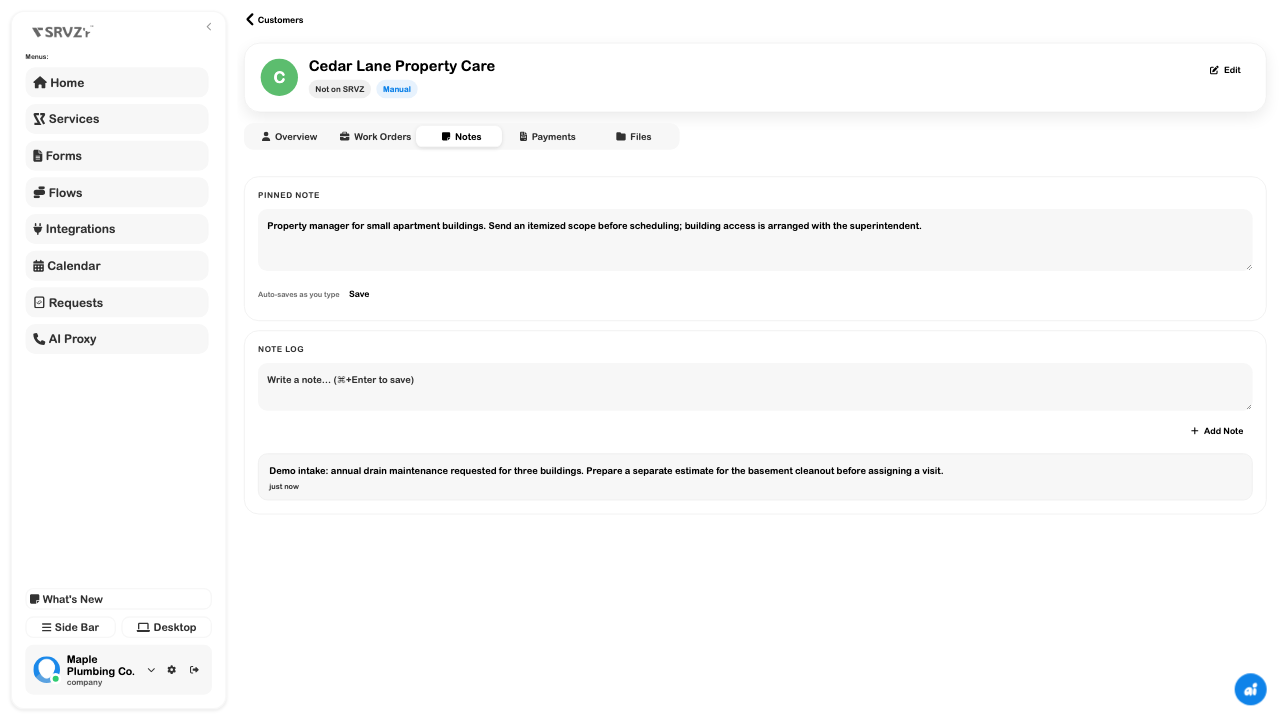
Write facts the next team member can act on: scope to quote, who arranges access, or a constraint on the visit. Do not use operational notes as a place to copy payment credentials or unrelated personal information.
Find and organize customers
The list's search accepts names, phone numbers, email, and notes. Its filter includes account-link states and customer groups when available. A displayed balance is a reason to open the financial record; it is not the total value of all past work.
Import is available from Add Customer for a phone list or CSV. Review names, contact details, row errors, and the inserted/updated summary when using it. Existing contacts can be updated by an import, so inspect the result rather than treating every row as a new customer. The walkthrough created one contact manually; it did not execute an import or change group membership.
Calls and texts
When a customer has a phone number, Call can start an in-app call from an enabled SRVZr line. Choose the line if prompted. Text opens a short composer and, after sending, the SMS thread in S~Chat. Without a suitable business line, these actions can open the device's phone or messaging app instead.
The customer page also shows call history, with links to the calls in Phone. Check the customer identity and number before following up; similar names are not proof that a call belongs to the right person. See S~Chat texts for replies and Phone lines for business-number setup.
Job History
Open a customer, then choose the tab that answers your question.
| Tab | What it is for |
|---|---|
| Overview | Contact details, current balance, overdue amount, deposits, and statement access. |
| Work Orders | Work-order cards attached to this customer record; open a card to inspect the job. Event-ticket context can also appear for linked customers. |
| Notes | Standing instructions and the note log. |
| Payments | Related invoice records with dates, status, amounts, and summary totals. Open a row to inspect the actual invoice. |
| Files | Currently displays a coming-soon message; customer-file uploads are not available in this tab. |
The Work Orders view currently loads up to 20 recent attached work orders. Payments loads up to 30 related invoices. These limits matter when checking older history: do not treat the visible subset as a complete lifetime archive.
Inspect invoices behind the customer balance
Choose Payments and open the relevant row. Check the invoice number, date, customer, currency, and remaining balance in the invoice itself. The customer view offers Create Invoice to start a new bill for that contact.
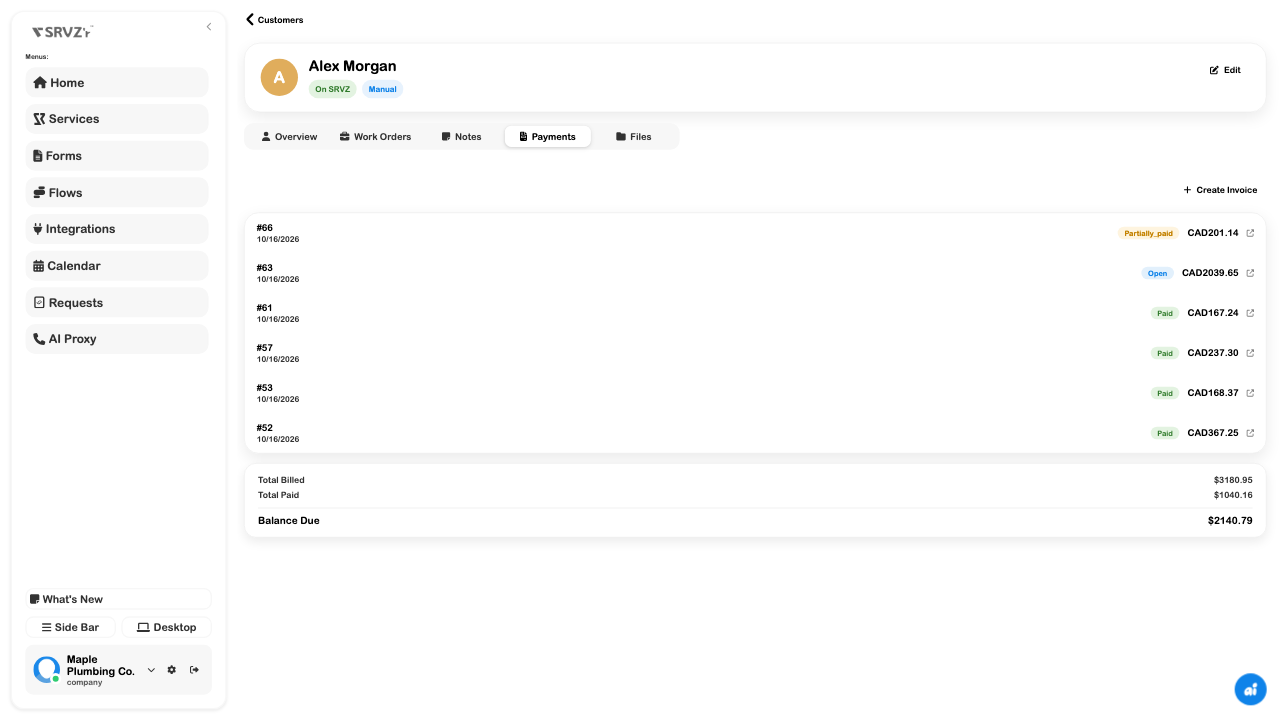
In the inspected test data, Alex's Payments tab contains these invoices while Work Orders says no work orders found. An invoice associated with the customer does not by itself establish a work-order association. The walkthrough verified the populated financial history; it did not demonstrate a populated customer Work Orders list or an event-ticket history.
For mixed currencies or a period-based check, inspect the document currency and use the receivables report. Do not assume a summary of several invoice rows has performed the conversion you need.
Read a customer statement
Open Overview → Balance → View statement. Choose the period and compare the opening balance, invoices, payments or applied deposits, and running balance. Open an activity row to inspect its source document.
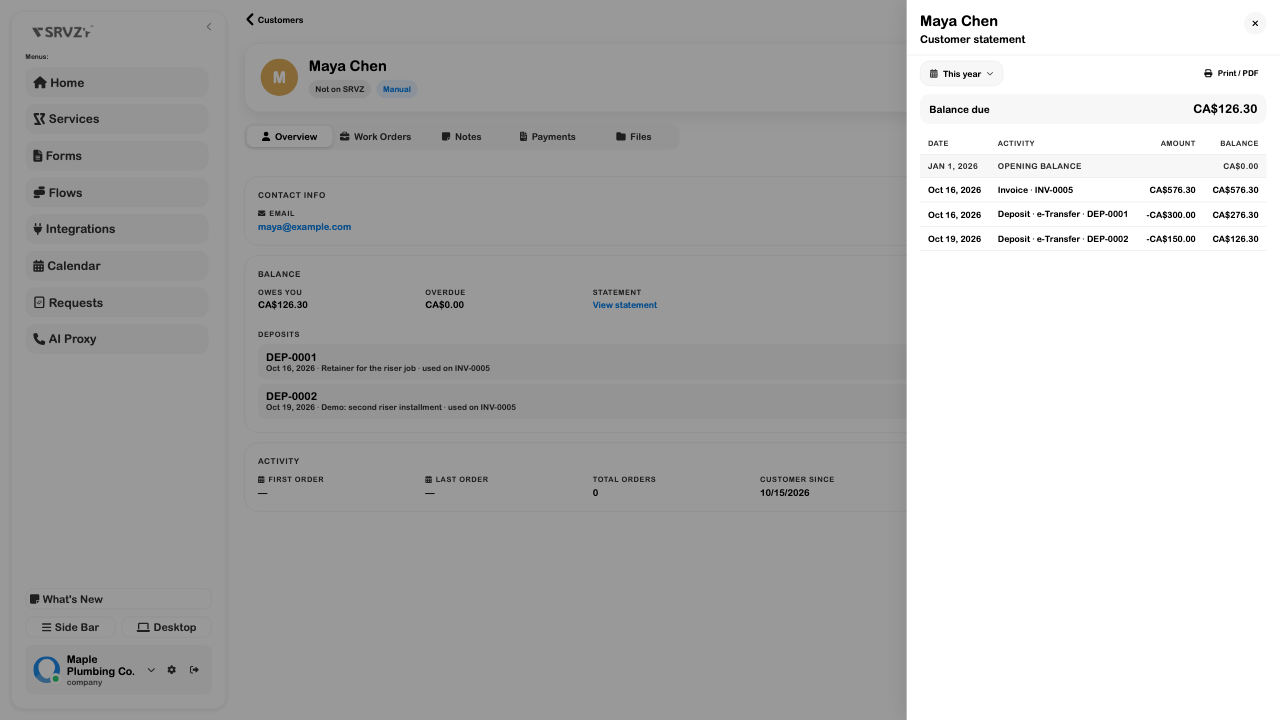
Print / PDF is available for a copy of the statement; check its customer, period, and currency before sharing. This walkthrough inspected the statement without printing or sending it. See Apply a customer deposit to an invoice for the complete example.
Troubleshooting
- A new contact seems missing: search the saved display name as well as the person's name, and clear link-state/group filters.
- The wrong history appears: confirm the customer identity and business. Similar names are not proof that two records belong together.
- Payments has invoices but Work Orders is empty: inspect which customer record is attached to the job. Invoice matching and work-order association are separate.
- A note did not persist: reopen the record and confirm the save completed before relying on it for dispatch.
- The statement differs from a current balance: check the selected period and the dates of payments/credit applications.
Continue with Invoices, Requests, and Forms when the next step is a quote, a job, or a more structured intake.