Prepare a counter menu and unpaid bill
A workshop sells repair essentials at its collection counter. The cashier needs correct prices; the person packing kits needs exact components; both need to know whether the order has actually been paid. This walkthrough connects those tasks without requiring a customer transaction.
The example uses CAD $9.50 hand soap and a CAD $24.95 P-trap repair kit. Work in an authorized test business when practicing. A normal Terminal session can save real business records; check the actual demo indicator and do not complete payment merely to follow this tutorial.
1. Prepare the menu
Open Menus and review Your Items. Create the products first if they are missing, then choose Create Menu. Name it for the counter, select its currency, and include the intended items.
Open Manage and enter each selling price explicitly. Initial copied amounts need review: stock quantity is not a selling price. Apply any item-dialog edits and choose Save Changes for the menu. Reopen it and confirm both prices.
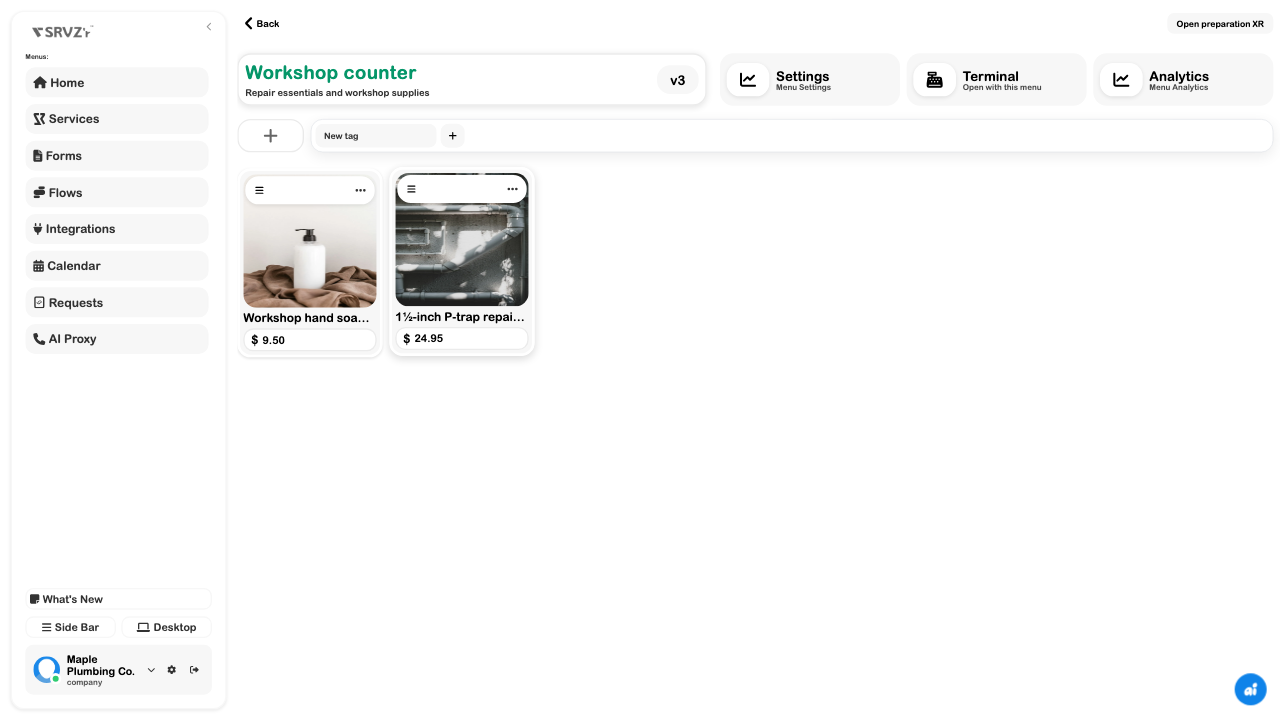
Creating a menu does not enable customer ordering. Leave its Online ordering switch off for this counter exercise. Payment preferences and card-provider readiness are separate settings.
2. Save the kit's recipe
On the kit's menu card, open its actions, choose Edit item → Recipe & preparation, and create a recipe making one portion. Add one trap body and two washers, both in each units. Link the intended inventory records, or review the names before saving creates missing ingredients.
Write two specific steps: inspect the body and washer size, then pack, label, and place the kit on the collection shelf. Choose Save recipe and reopen it to confirm the components and instructions.
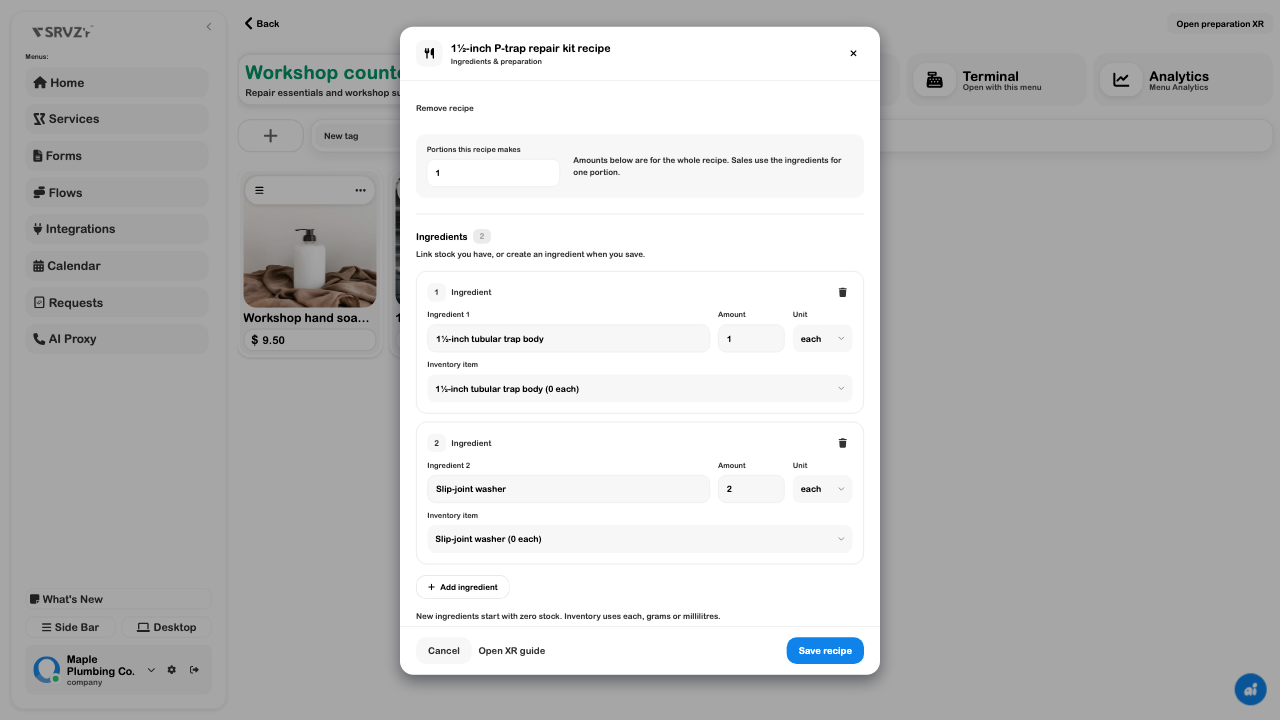
The recipe belongs to the inventory item and can serve other menus. Its yield describes the entire ingredient batch, not the number of units currently on the shelf.
3. Check a three-kit preparation
Open the saved recipe's guide or the menu's preparation page. Choose the repair kit, enter 3 portions, and select Start preparation.
The ingredient list should show 3 trap bodies and 6 washers. Advance through both instructions and choose Finish to inspect the completion review.
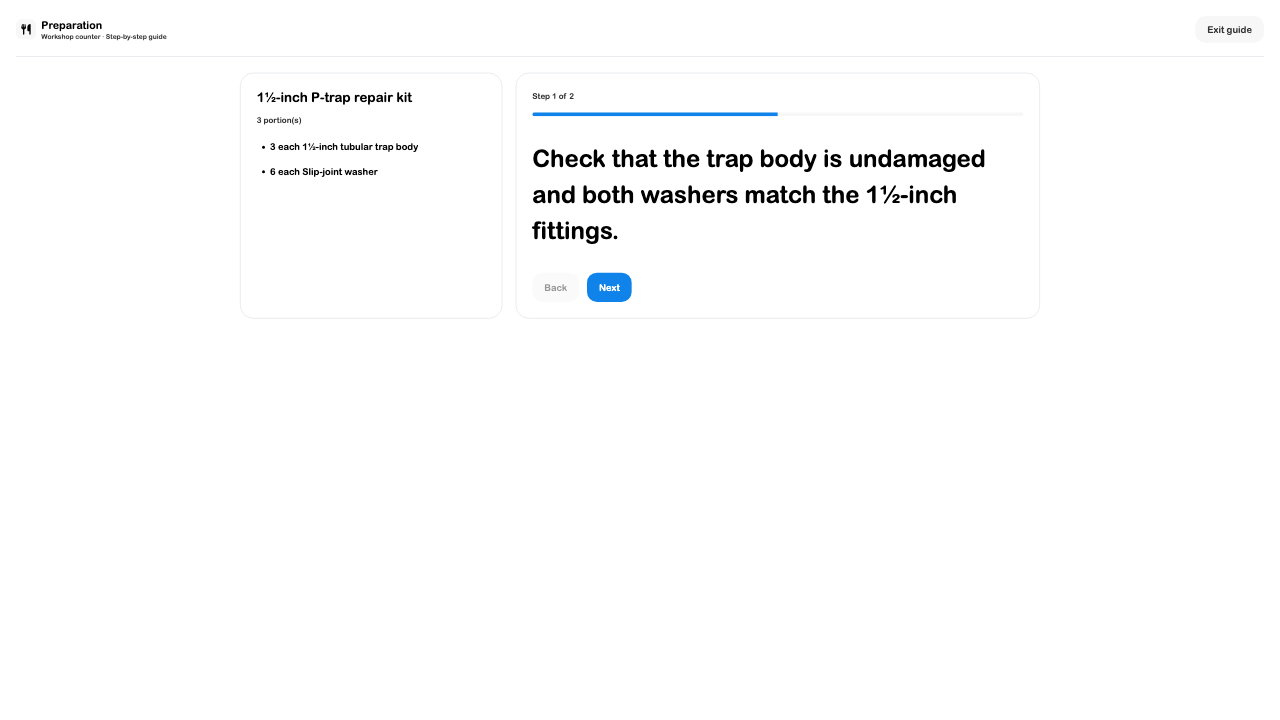
Do not choose Record standalone ingredient use for a batch that a Terminal sale already counts. That action changes stock and requires permission and sufficient ingredients. This example stopped without recording consumption.
4. Open the counter cart
From the menu dashboard choose Terminal → Open with this menu. Add one soap and one kit. Check the actual items, quantities, tax category, and total.
In this test setup, the calculation was $34.45 subtotal + $4.48 HST = $38.93. Your tax and fees depend on the business, products, and settings. Adding an item to a cart does not receive stock or guarantee sufficient ingredients for a completed recipe sale.
5. Park, split, and reunite the bill
Choose Bills → New Bill, name it Workshop collection, and choose Start with Cart. Open it again to confirm both lines.
Use the bill card's split action and choose By items. Put the soap in Bill 1 and the kit in Bill 2. Assign every unit, then choose Split Bill. Two new bills replace the original.
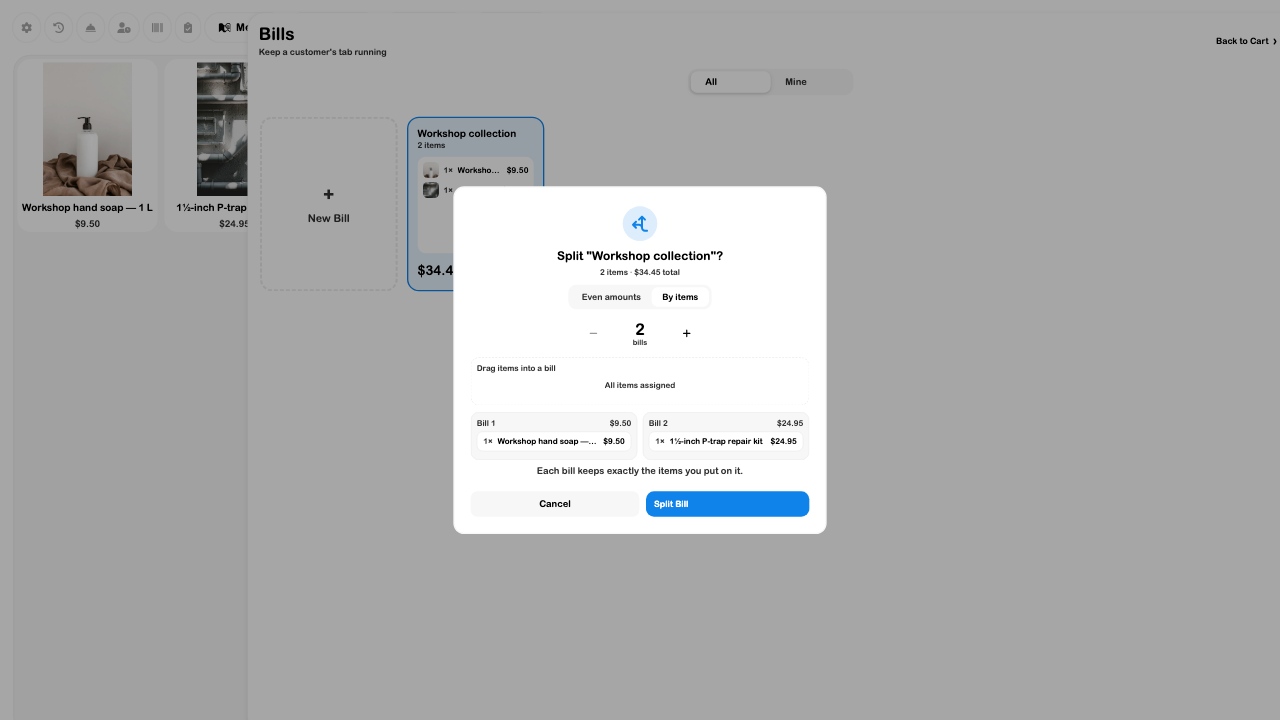
To reunite them, hold one bill card, select the other, and choose Merge bills. Open the merged bill and verify that it still contains one of each product. Bill cards show line subtotals; review the payable cart for tax and the final tender total.
6. Review cash change without a sale
Choose Cash and enter two $20 notes. Against the example's $38.93 total, the screen shows $1.07 change.
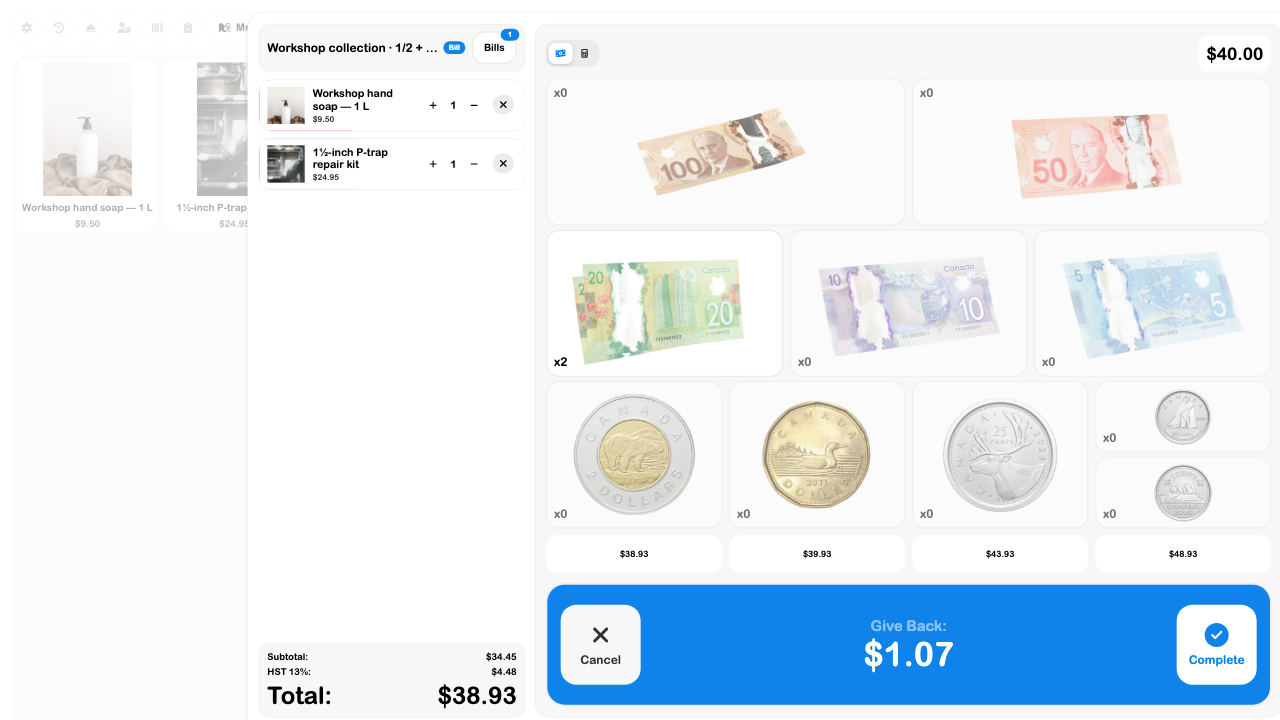
Choose Cancel. Reopen Bills and verify the unpaid bill remains. Payment History contains completed payment records, so it is not the place to look for this unpaid tab.
Check the handoff
The menu's saved prices should match Terminal, the recipe should reopen with its components, three portions should scale correctly, and the final bill should contain the expected lines. No payment or ingredient use should be recorded from this exercise.
For live service, receive ingredients, verify staff access, and test the intended payment hardware separately. Customer online orders add an approval and fulfillment workflow: accepting a card order captures its authorized payment, and marking it ready can notify the customer. Those actions are outside this unpaid counter walkthrough.