Apply a customer deposit to an invoice
A customer pays an advance before their next invoice is settled. Record the advance once, apply it to the right invoice, and check the remaining balance in both the customer record and Accounting.
This example uses a fictional test customer, Maya Chen. Her existing invoice is CA$576.30, an earlier CA$300 retainer has already been used, and CA$276.30 remains. We record another CA$150 demo deposit and apply it, leaving CA$126.30. No money is transferred by these bookkeeping actions.
Before you start
Select the correct business. You need access to Customers and Invoices, and accounting access to inspect the final report. Confirm that the customer has an email, the invoice is issued, and it uses the business's home currency. Record only an advance actually received in real use; a promised payment belongs in your follow-up, not a paid record.
Read Customer deposits if you need the difference between an advance, an invoice payment, and a credit memo.
1. Record the advance
Open Customers → Maya Chen → Overview. Under Balance → Deposits, choose Receive a deposit.
Enter 150, the date received, e-Transfer, and a reference explaining the installment. Inspect the form's account description before choosing Save deposit.
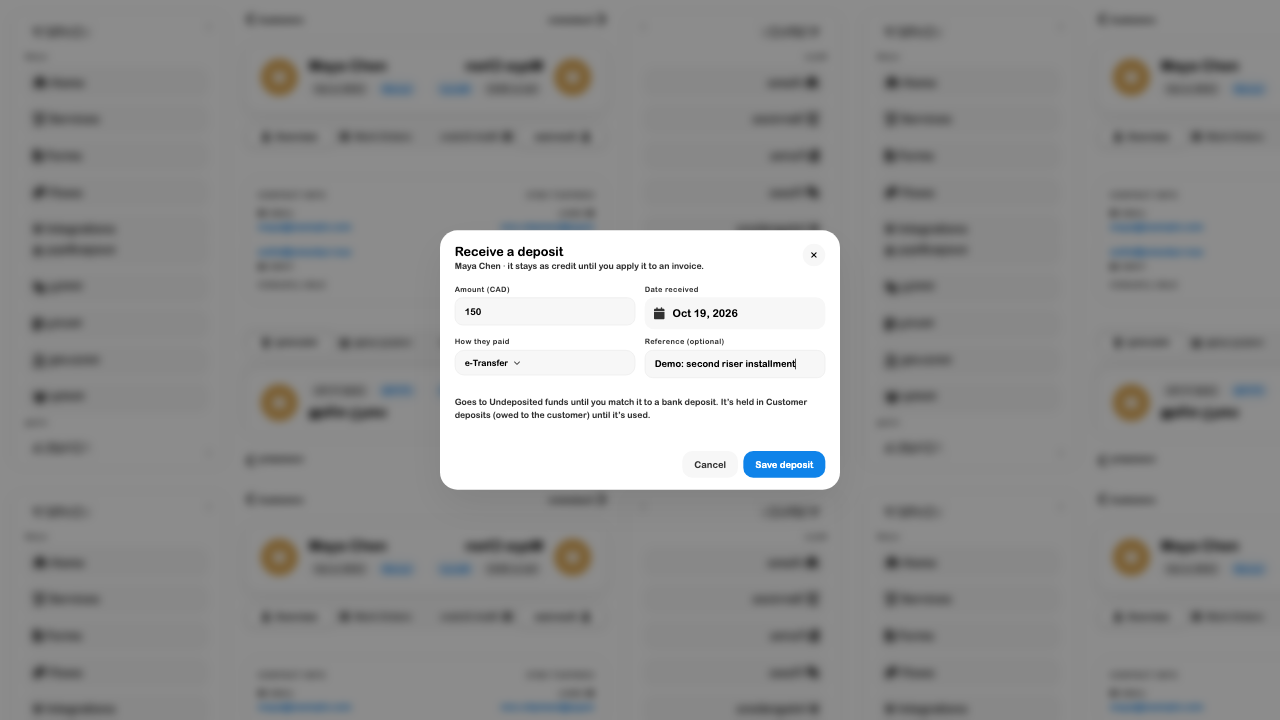
Reopen the customer. The new deposit should show Credit left and CA$150. It is held for the customer until applied; do not create a second deposit simply because the invoice balance has not changed yet.
2. Apply the available credit
Open Invoices, find INV-0005 for Maya, and open it. Choose Apply credit.
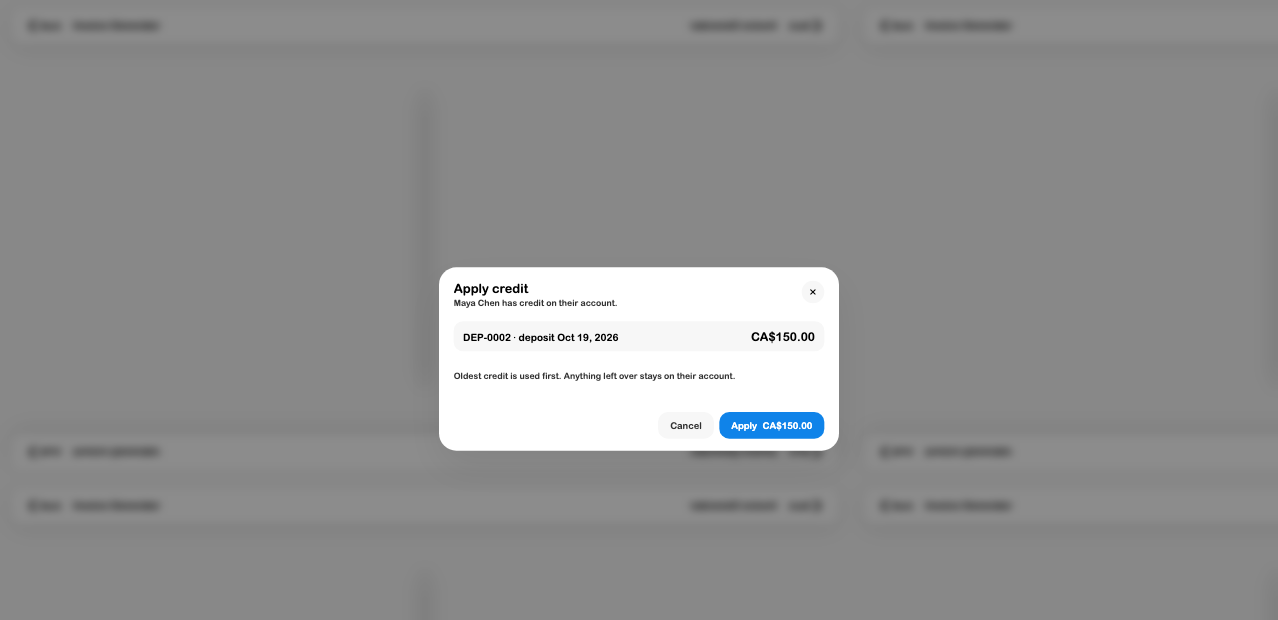
The preview shows DEP-0002 at CA$150. Confirm Apply CA$150.00. In this case it is less than the CA$276.30 owed, so the invoice remains partially paid.
The current action uses credit memos first and then deposits, with older credit used first within each group. It applies up to the outstanding invoice balance; it does not offer a field to choose a smaller custom amount. If several credits are listed, check all of them before confirming.
3. Verify the customer record
Return to the customer and reload the record.
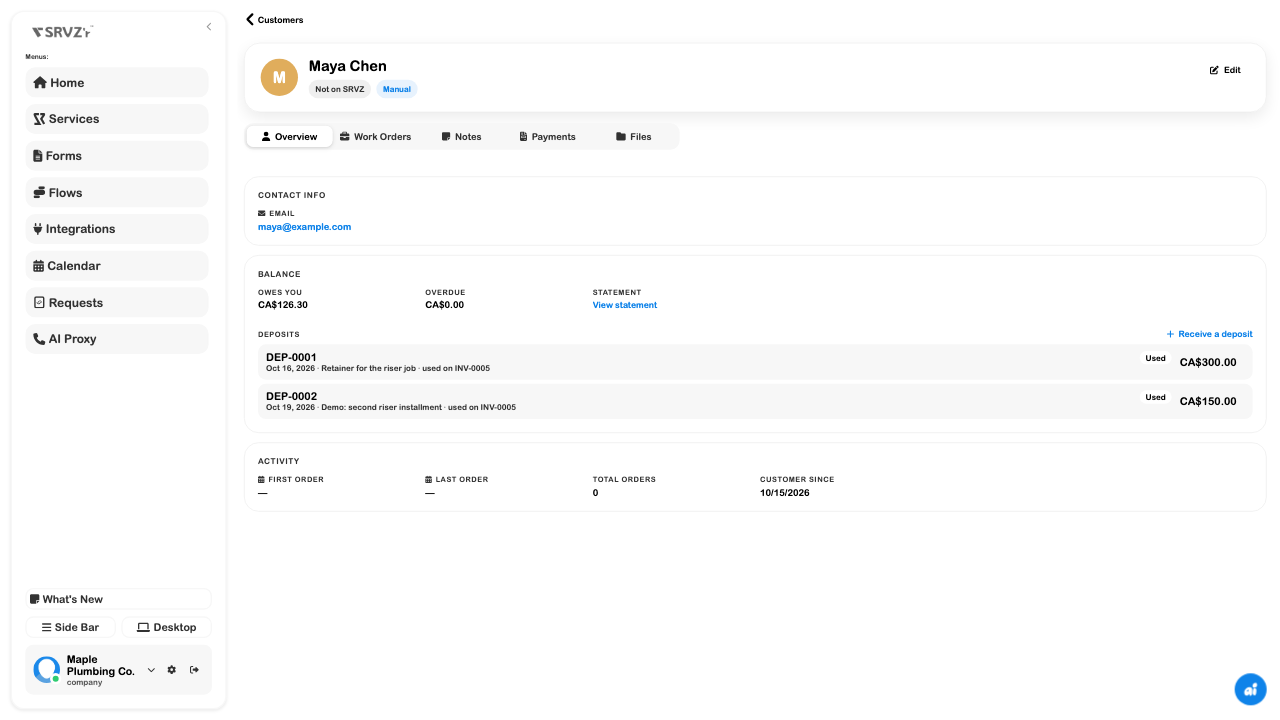
Check these three facts together: the deposit number, the invoice it was used on, and the remaining balance. A Used deposit should not still appear as available credit for the next invoice.
4. Check receivables
Open Accounting → Reports → Accounts receivable aging and select the date through which the deposit was applied.
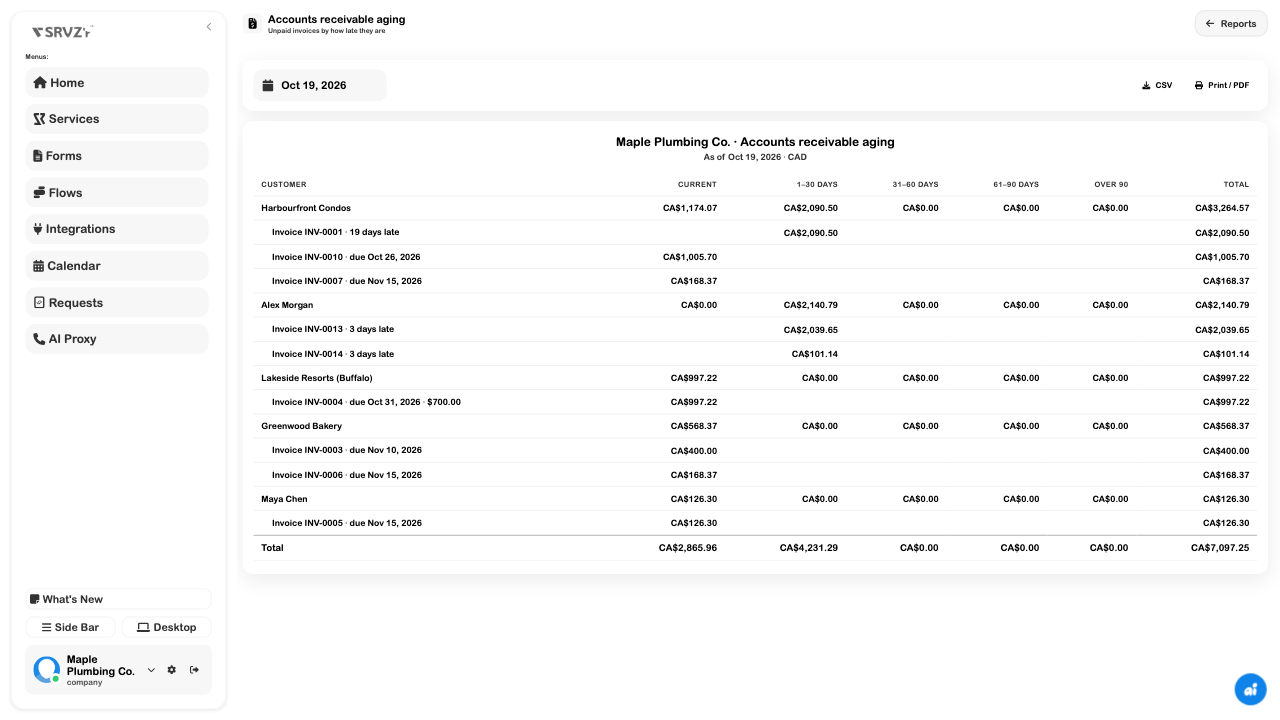
Expand or open the customer/invoice rows offered by the report. Confirm that the invoice, amount, due date, and currency match the customer record. The new progress and maintenance drafts are excluded from receivables until issued.
5. Match the real bank deposit
The example's e-Transfer entry goes to Undeposited funds. When the actual bank receipt appears, continue with the Banking workflow to match it rather than recording the income twice. Cash uses Cash on hand instead.
Applying a deposit does not initiate a transfer, charge a card, or send a customer message. A refund entry also needs to match an actual repayment and the account used for it.
If the numbers do not match
Check the selected business, customer email, invoice issue state, currency, application date, and whether another credit was consumed first. A different report as-of date can legitimately show a different balance. Read the document history before creating a replacement payment or deposit.