Deals
Deals keeps a possible sale separate from confirmed work. Record the opportunity, estimated value and next conversation while the team decides whether to proceed. A pipeline stage does not take a payment, book a visit or complete a work order.
Sales Pipeline
A plumbing business has discussed a workshop drain inspection but still needs to review access and prepare an estimate. Start it in Contacted, record the scope questions, then move it to Proposal Sent when the proposal has actually been delivered.
- Open Deals → New Deal.
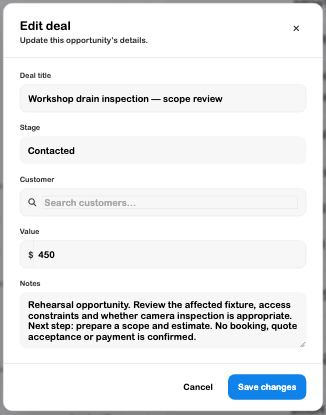
- Enter a title that identifies the outcome and next step, such as “Workshop drain inspection — scope review.”
- Choose a stage. Add the estimated Value if known; it is a planning figure, rather than an invoice or amount collected.
- Search for and select a customer when you want the opportunity linked to that record. Leaving the field blank creates an unlinked opportunity.
- Write Notes with the known scope, open questions and next action. Choose Create Deal.
- Open the saved card to update its title, stage, customer, value or notes, then choose Save changes. On desktop, cards can also be dragged between stage columns.
- Reload and confirm the card is in the intended column. Keep the associated customer, quote and request records current as the work progresses.
| Stage | Use it when |
|---|---|
| New Lead | An opportunity has arrived and needs qualification. |
| Contacted | A conversation has started and the next step is being worked out. |
| Proposal Sent | A proposal has actually been provided; the stage itself does not send it. |
| Won | The customer has agreed to proceed. Confirm operational records separately. |
| Lost | The opportunity is no longer active. Record useful context in Notes. |
From agreement to delivery
The current board offers opportunity creation and editing. Despite wording in its page subtitle, the inspected implementation does not provide an order-conversion action. Create or review the actual work record through Requests and the relevant Service, Rental or Event workflow. Do not assume that moving a card to Won creates an order or schedules staff.
Check and troubleshoot
Search the correct customer before selecting a result, particularly when names are similar. If an existing customer link reopens without a readable name, confirm the intended customer before changing it; a numeric reference is not enough context for a public example.
If a stage move appears briefly but does not survive reload, inspect the saved record before assuming that the visual move completed. The reviewed example used the explicit edit-and-save control to verify persistence. No drag-and-drop persistence or downstream conversion was exercised.