Plans, credits, and access
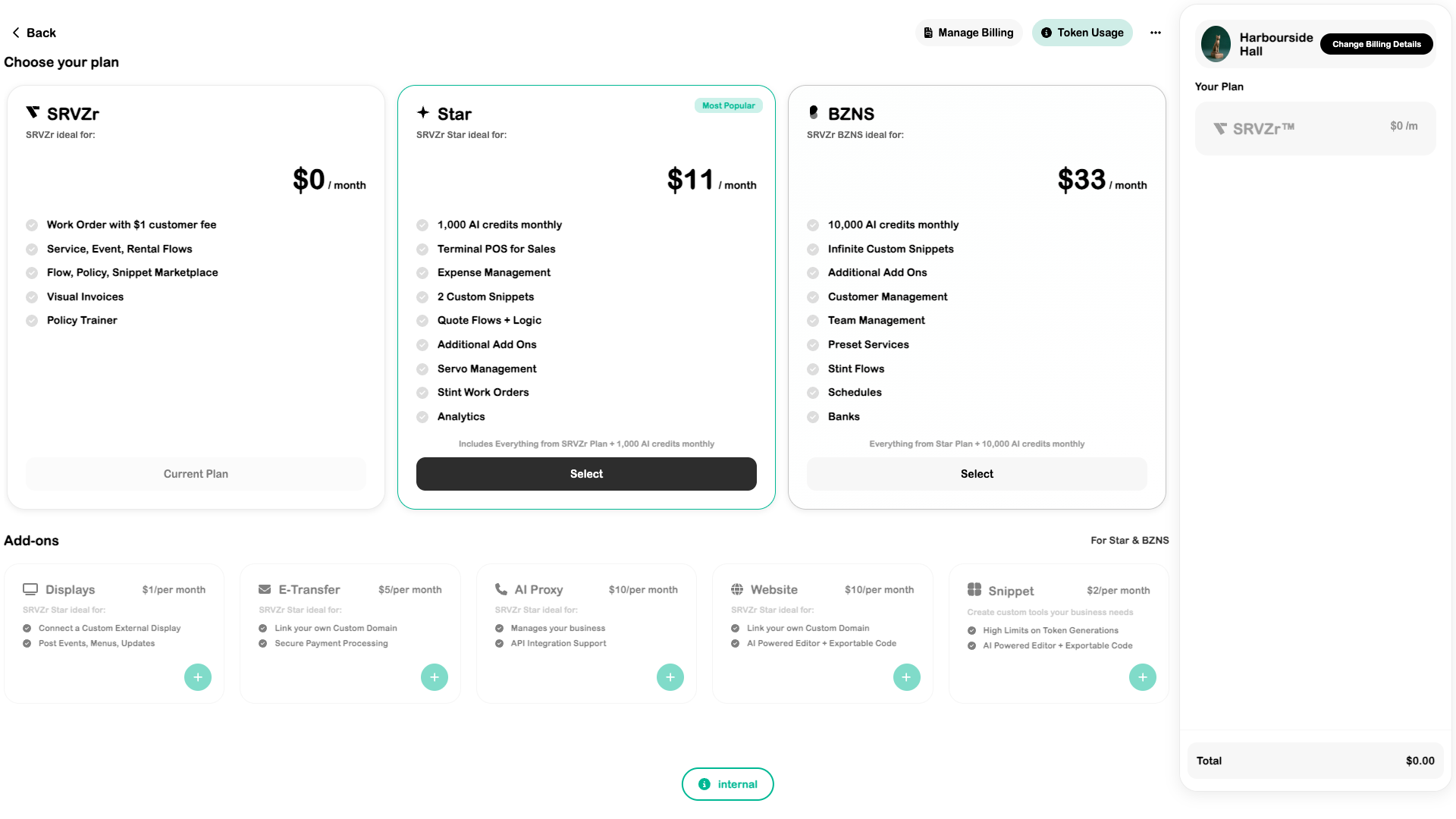
The plan screen shows the selected business’s subscription, feature access, add-ons, and token usage. Access can differ between business profiles even under the same login.
When to use it
A manager sees an Expenses or Displays access prompt and checks the active business’s plan before assuming the feature is unavailable across the platform.
Open the workspace
In the app, open Settings → Plans, credits, and access from the full navigation. Open this area in SRVZr. Screens shown here use the local app and a test business; your records, plan, and permissions may differ.
Step by step
- Open the plan badge in Settings or the plan page.
- Check the business name, current plan, and enabled add-ons.
- Review the live plan comparison for the capability you need.
- Use Token Usage to inspect AI usage where available.
- Use Manage Billing for the subscription and payment details.
- After an approved plan change, return to the feature and confirm access for the same business.
Settings and options
| Option | What to check |
|---|---|
| Plans | The UI describes SRVZr, Star, and BZNS; prices and included limits should be checked on the live screen. |
| Add-ons | Some features have separate add-on requirements. |
| Credits | AI usage limits and balances are distinct from customer card-payment setup. |
Tips for real work
Choose access based on the workflow you need, and check the displayed billing terms before changing a subscription.
Troubleshooting
A feature prompt may indicate a plan, add-on, or permission requirement. A paid plan does not complete Stripe onboarding or external account authorization.