Prepare a job follow-up
A return visit goes more smoothly when the team can find the original work, the questions still open, and the equipment to bring. This walkthrough uses two existing Maple Plumbing Co. jobs, a new project, a saved operating checklist, and a calendar preparation block.
It prepares the team to arrange a visit. It does not demonstrate a new customer booking, agreement to extra work, a published staff shift, or a delivered customer message.
1. Start with the source work orders
Open Requests → Services and inspect the relevant jobs. Review their current status, assignee, submitted information, and Details → Notes before making a new plan.
The drain-cleaning example already has instructions about the cleanout inspection, rear access, and keeping the laundry area usable by noon. Those constraints belong with the job. Check them against the current customer conversation before promising a return time.
2. Group the related work in a project
Open Projects → New Project and give it an outcome-based name. The example is Drain and heater follow-up.
Choose Link work order and select the existing Drain Cleaning and Water Heater Install jobs. Add two useful project notes: one for access and open repair questions, another for equipment and dispatch preparation. Choose Save note and reopen the project to verify the result.
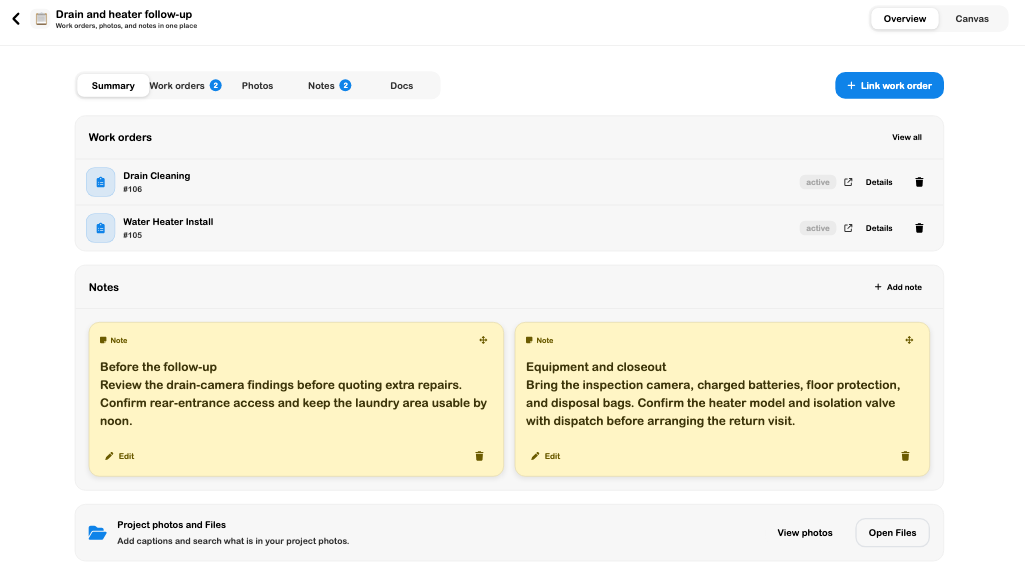
Open a linked job and inspect Details → Projects. In the walkthrough, its project badge returned to this same saved project. If you prefer a visual plan, switch to Canvas, arrange the elements, wait for Saved, and confirm their positions after reopening.
3. Keep reusable instructions in Documents
For steps that apply to future visits too, open Docs → New Doc. Set the Document name through Page setup, then write the operating checklist in the editor.
The example separates Before leaving the shop, At the property, and Before closing the job. Save it and reopen its library card before asking someone else to use it.
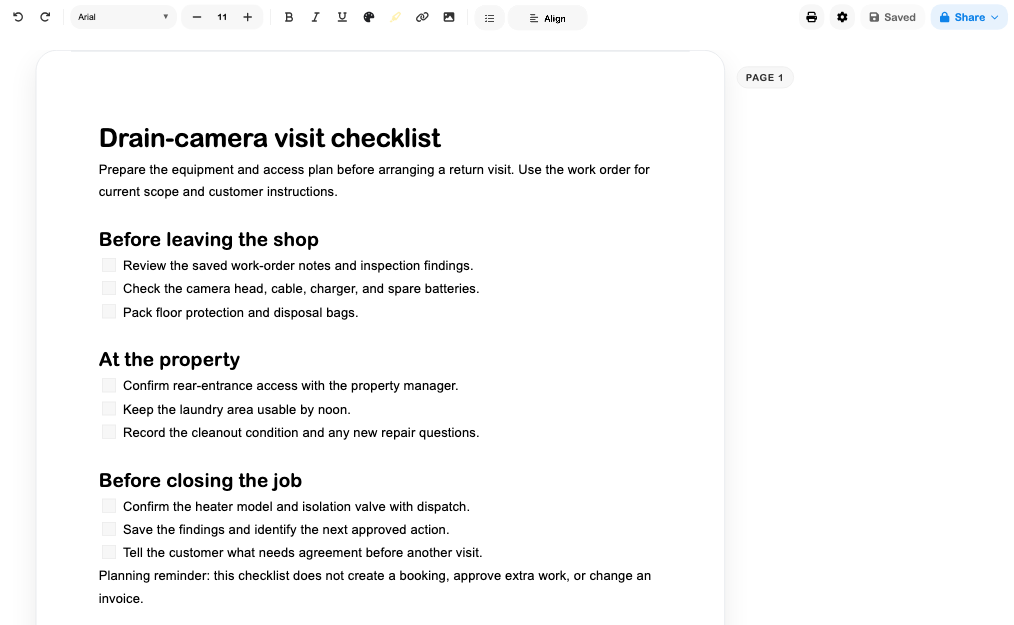
Use project notes for this follow-up's decisions and Documents for the repeatable procedure. The project's Docs tab instead shows linked media-workflow notes and reports. Verify each destination rather than assuming the two lists are the same.
If the editor asks you to choose between a local copy and the web version, compare them before continuing. See Documents and operating checklists for the tested version-selection example and current search/link limitations.
4. Reserve preparation time
Open Calendar, inspect the intended day and staff coverage, then choose Add Event for an internal preparation block. The saved example is Drain-camera preparation, October 19 from 9 to 10 AM, with notes about the camera, batteries, floor protection, and access review.
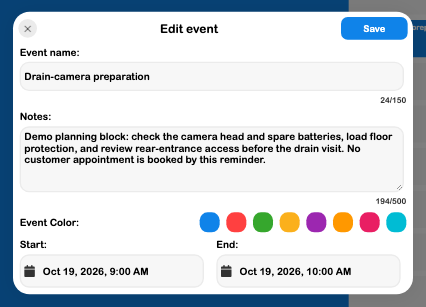
The example falls within an existing Service calls shift. Check whether an overlap represents preparation inside working time or a competing commitment. Confirm the actual staffing in Shifts and the customer's agreed appointment through the appropriate booking workflow.
5. Check readiness before the return visit
Reopen the project and confirm its job links and latest notes. Open the checklist from the Documents library and confirm it is the saved version you intend to use. Check the preparation reminder's date and time, then verify customer agreement, equipment availability, and staff coverage separately.
The walkthrough verified project creation, two job links, note edits across Overview and Canvas, saved element positions, archive/restore, document content and page settings, checkbox persistence, version selection, and the one-time calendar reminder. It did not establish that the customer agreed to a return visit or that field work was completed.
Continue with Projects, Documents, Calendar, and Work-order customer updates.