Plan bookings and schedules
A useful visit plan answers three questions: what needs doing, who is responsible, and when the team can prepare. This walkthrough combines work-order instructions with a personal calendar reminder and an existing service shift.
The example uses Maple Plumbing Co.'s drain-cleaning work and a fictional preparation task on October 19. It does not book a customer appointment or publish a new staff shift.
1. Read the job before choosing a time
Select the correct business. Open Requests → Services, choose the relevant status, and open the job. Read its submitted details and existing instructions. Use Unassigned when looking for work that still needs an owner.
In Details, review Assigned to. Owners and managers can select app-account team members and choose Done to save. Newly added teammates can be notified, so make this change only when you intend to assign the work.
The inspected drain-cleaning job was temporarily unassigned, found again after a reload, and restored to its original signed-in owner. No other teammate was notified.
2. Save the constraints on the work order
Write the operational plan under Details → Notes and choose Save Notes. Keep standing customer context in the customer record and job-specific instructions with the job.
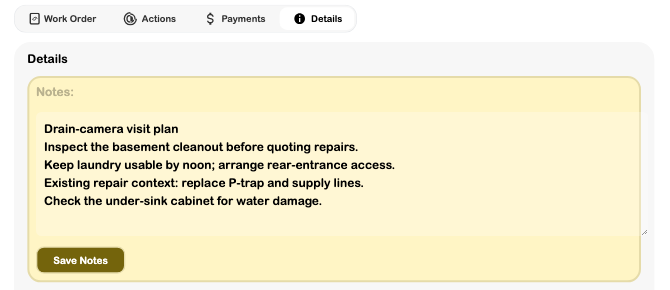
These notes did not send a customer update. Use the appropriate customer conversation or communication action if the customer needs to agree to a time or access arrangement.
3. Compare the plan with the calendar
Open Calendar and select the intended day. Enable Events and Shifts in Filter, then use Day or Week to inspect the time range. Check the source of each entry: ordinary events belong to the signed-in user's schedule, while shifts follow the selected business and access rules.
The example's existing Service calls shift runs from 8 AM to 4 PM. The preparation task belongs within that working time; it is not a second customer booking. The inspected shift was not newly created by this tutorial or linked to the drain-cleaning order.
4. Add and reopen the preparation block
Choose Add Event and enter Drain-camera preparation. Add useful notes: check the camera head and batteries, load floor protection, and review the access arrangement.
Set Start to October 19, 9:00 AM and End to 10:00 AM, leave Does not repeat, and choose Add. Reload the calendar and reopen the event to verify the saved text and times.
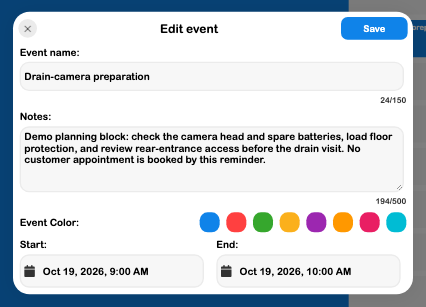
A missing title or an end before the start must be corrected before saving. If a repeat configuration fails to save, do not treat the future occurrences as scheduled; recurring persistence was unavailable in this test environment.
5. Check the result before promising the visit
Return to Day view and inspect the relationship between the reminder and staff coverage.
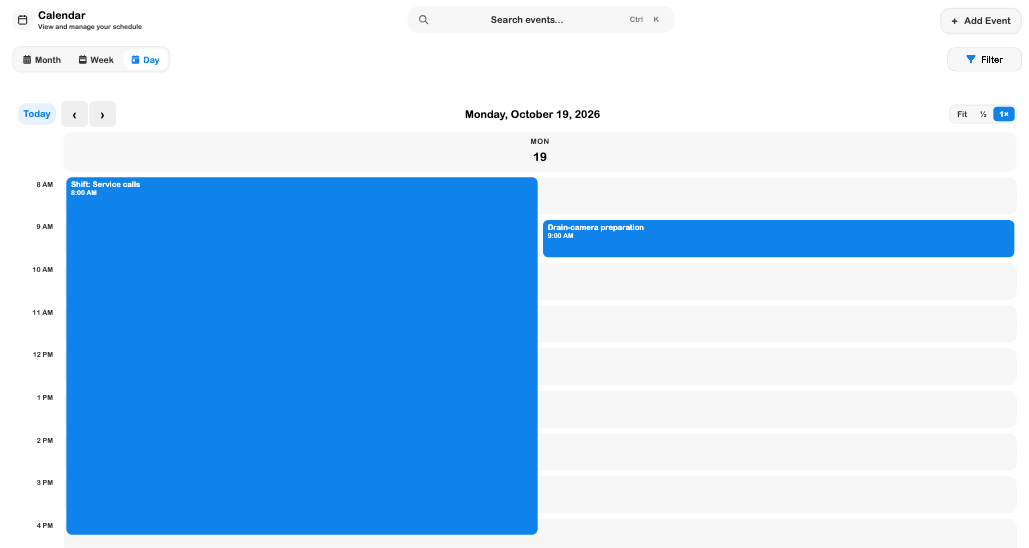
Confirm that the work order has the right assignee and instructions, the preparation event survived reopening, and any required staff shift is actually saved and published. Customer agreement and resource availability still need their own checks. A free-looking calendar or a saved reminder does not establish them automatically.
Continue with Calendar and scheduling, Work orders and assignment, Shifts, and Customer updates.