Design a business graphic
Turn three useful preparation instructions into a graphic that your team can revise later. This example uses a single square frame for a plumbing visit checklist.
1. Define the message and output
Open Canvases → New Canvas, name it “Before your plumbing visit,” and choose Social Post. The starting frame is 1080 × 1080. If your destination needs another shape, choose the appropriate preset or custom dimensions before composing.
2. Write useful instructions
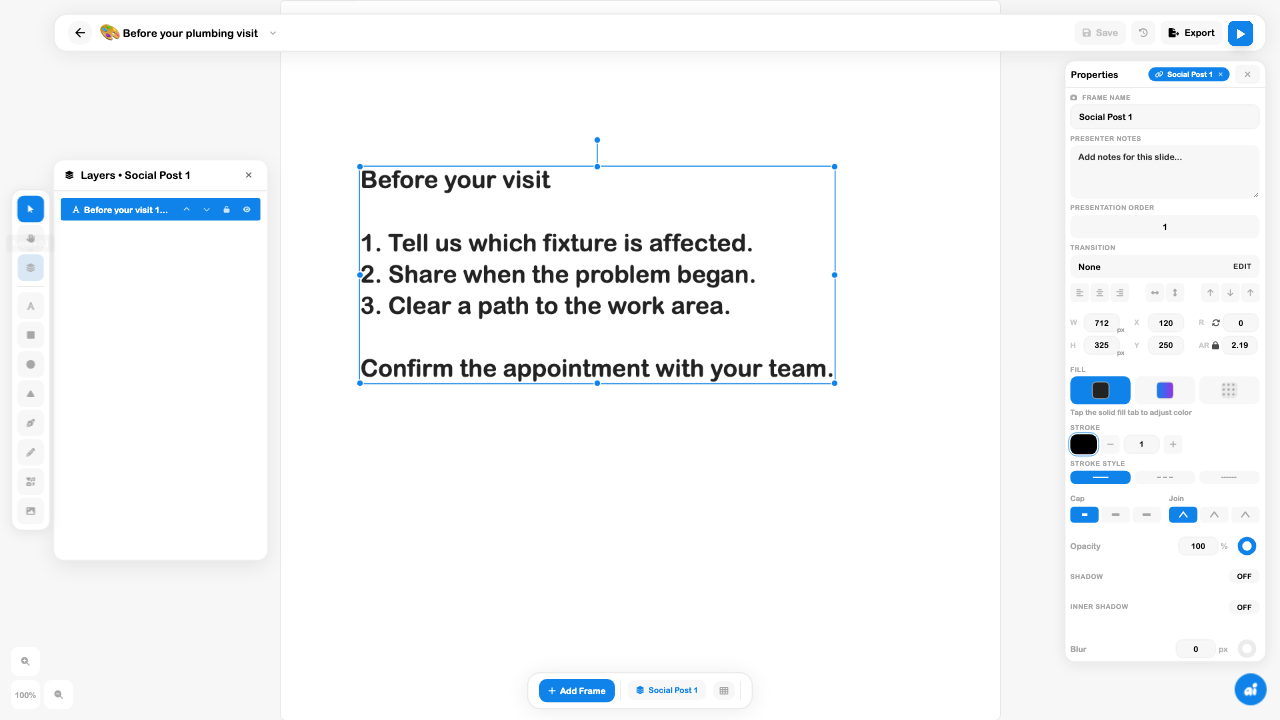
Choose Add Text, double-click the object and replace the placeholder with a short heading, three instructions and a final reminder. For example: identify the affected fixture, explain when the problem began, and clear access to the work area. Remind the customer to confirm the appointment with the team; the graphic itself does not confirm a booking.
Select the object to adjust font size and position in Properties. Open Layers to inspect what is selected. Keep the text comfortably inside the frame and readable at the final viewing size.
3. Save and reopen
Choose Save and wait for completion. Reopen the document and compare it with the intended layout. If a version conflict appears, compare both previews before choosing. In this example the Cloud version contained the latest position; choosing it restored the saved design.
4. Export and inspect the file
Open Export, select the named Social Post frame and choose PNG. Download the file and open it outside the editor. Check the dimensions, full text and margins. The inspected 1080-square frame exported at 2160 × 2160, and the filename used the frame name despite a custom name being entered.
The expected result is an editable saved document plus a reviewed image. If you need a Story or widescreen slide, create and inspect that composition separately; stretching the square does not verify another destination.
Use the result
A file is ready for the next workflow only after inspection. Adding it to Displays, attaching it to Content, or publishing it through a website are separate actions. The reviewed example did not publish a post, website or presentation.
See the Canvas feature guide and full editor manual for tools, properties, presentation, history and recovery.