Build a useful intake form
Prepare a form that gives the team enough context to estimate a drain problem before assigning a visit. The example collects the issue, address, photo, access instructions, and acknowledgment without asking the customer to write an unstructured email.
Before you start
Select the intended business profile and open Forms. Decide which answers change the quote, preparation, or scheduling. Use fictional information for testing and a sample photo you are allowed to use.
This walkthrough verified the local draft and preview. Publication, connection to an offering, and a saved customer submission remain separate steps to complete when putting the form into use.
1. Add six purposeful blocks
Choose Create New Form, name it Plumbing visit intake, and explain what the information will be used for.
| Question | Block | Configuration |
|---|---|---|
| What needs attention? | Text Area | Required; explain what symptoms to describe. |
| Where is the visit? | Location Input | Ask for the service address. |
| Photos of the issue | File Upload | Images only, three files maximum, 10 MB per file. |
| Access and special requests | Text Area | Ask about access, preparation, and visit constraints. |
| Before we visit | Statement / Legal Text | Explain the sample estimate/approval process. |
| Confirm the intake details | Initials | Use an explicit acknowledgment sentence and make it required if needed. |
Click a palette item to append it, then select the field on the canvas to edit General, Variables, or Logic. Use the field's move controls to put it in the right order. A longer intake can use Section / Page Break for several steps.
2. Name the answer the workflow will use
Select the issue field → Variables → set Variable Name to issue_description and Variable Type to Information (Text).
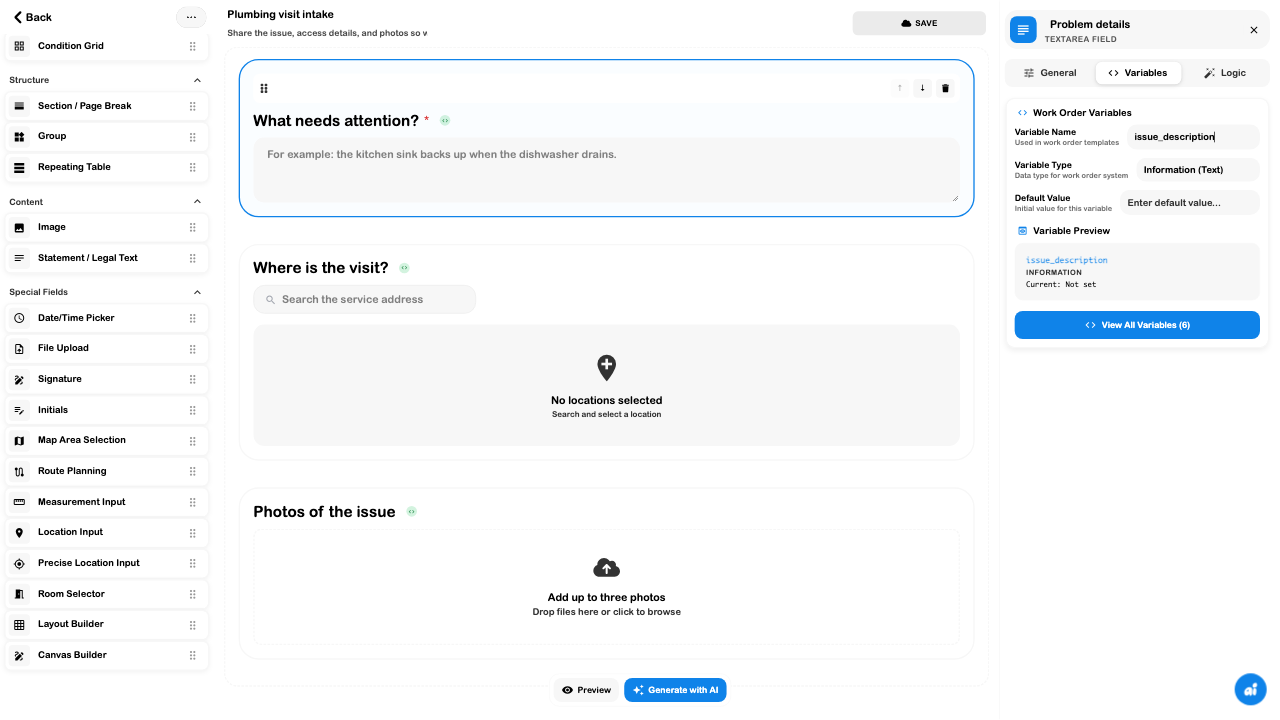
In Logic, enable Required Field for the issue. Do the same for any other answer genuinely necessary to continue. Keep optional access instructions optional unless the job requires them.
3. Restrict the photo field
Select Photos of the issue → General → File Upload Settings. Leave Images enabled and turn the other file types off. Set 10 MB, 3 Files, and Grid View.
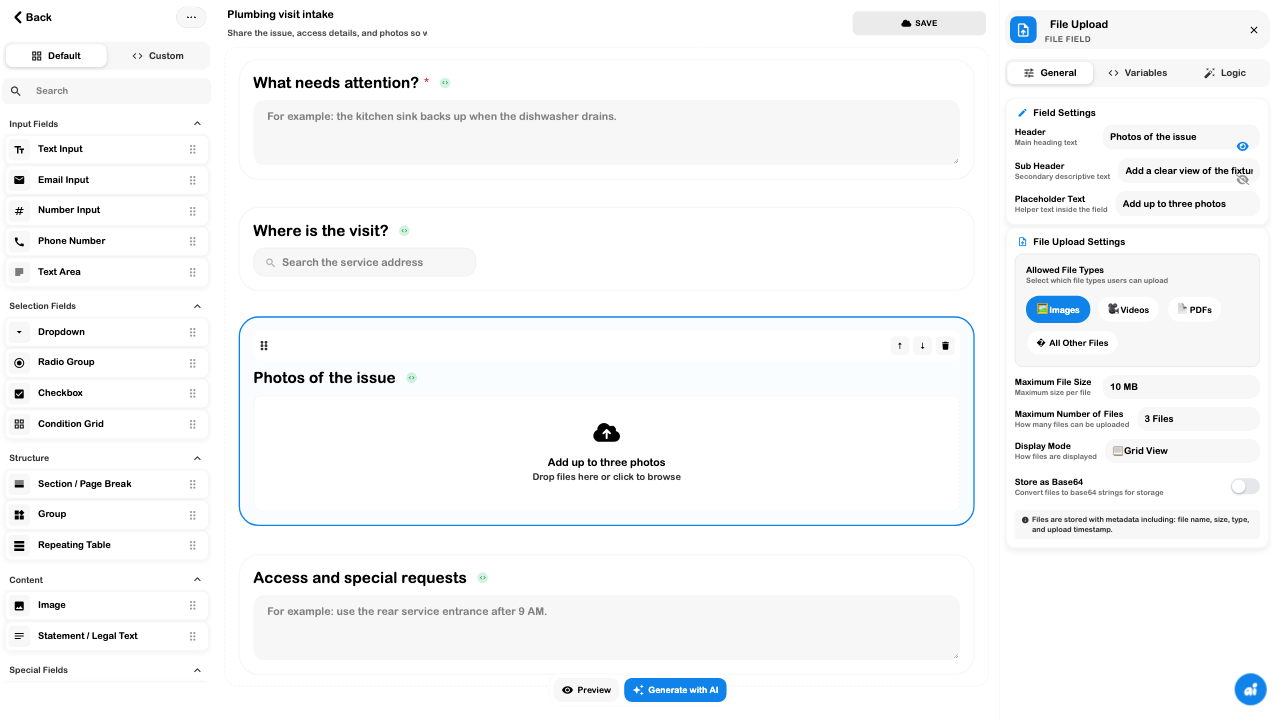
Explain what makes a useful image, such as a clear view of the fixture and surrounding area. A content Image block displays your image; File Upload collects one selected by the customer.
4. Complete the customer preview
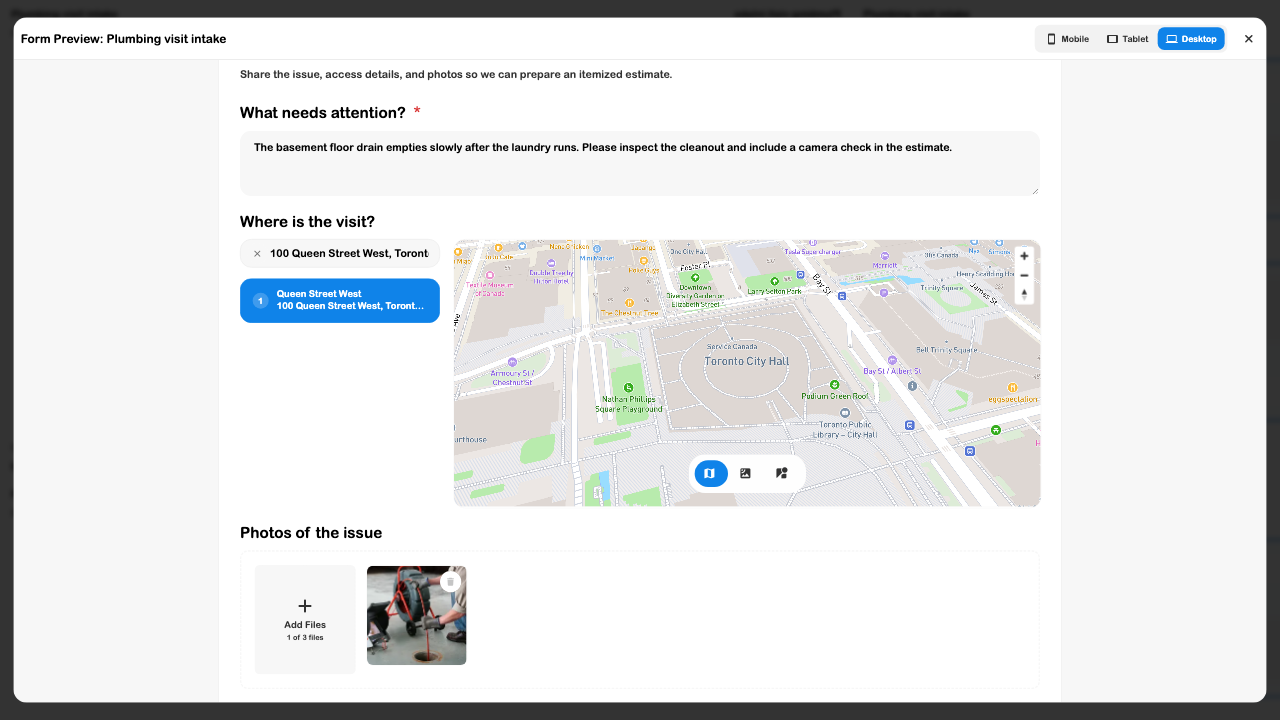
Choose Preview and enter a realistic issue: the basement floor drain empties slowly after the laundry runs and the estimate should include a camera check. Search for an address, choose the correct suggestion, and inspect the map. Select one allowed sample photo.
Fill the access request and acknowledgment, then review the bottom of the form.
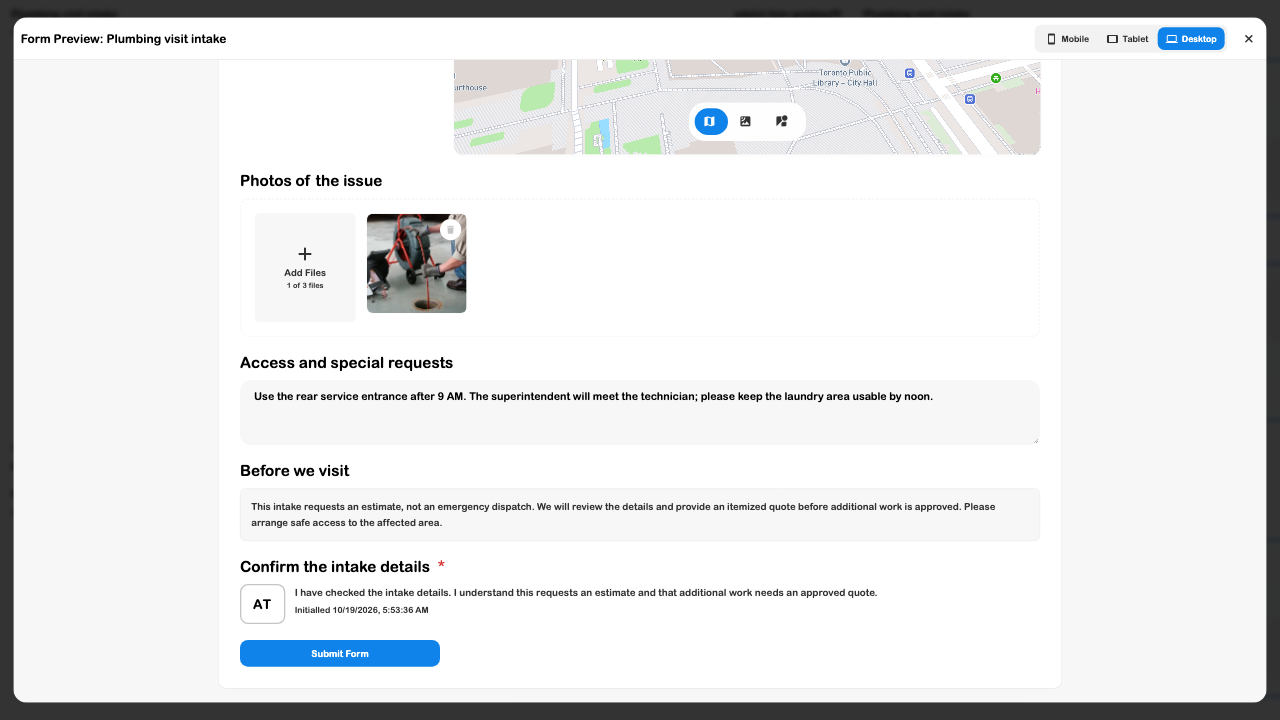
Clear the required issue answer and press Submit Form: the missing answer should be focused and prevent submission. Restore it. Try a disallowed file, such as a CSV, and confirm it is rejected. The verified test did both. Preview's submit action does not create a live customer response.
Review the Mobile, Tablet, and Desktop presentations for the devices customers will use. Test any conditional questions in both the matching and nonmatching state before relying on them.
5. Reopen the draft
Return to Forms, find the DRAFT, and choose Edit. Confirm the six blocks, issue_description, required settings, and photo limits. The example passed this reload check.
Local auto-save keeps the question configuration in that browser/profile. Preview answers, selected sample files, and initials are test input; they are not a stored customer submission.
6. Publish and connect when ready
The editor's cloud Save publishes a new form; an existing published form can show Update. Review the wording before using that action. The example drafts were intentionally left unpublished.
After publishing, select the form in the service's work-order intake or the relevant registration configuration. Continue with Flow Builder or Services, then complete a fresh test through that actual customer journey.
Check where answers and attachments land and which work-order details are populated. A successful preview does not prove cloud attachment storage, a booking, dispatch, or a created work order.
Check your result
- Questions and help text explain the information needed for the estimate.
- Required answers and disallowed files are actually checked.
- The address selection and image preview show the intended context.
- Local draft changes survive reopening.
- Before using it with customers, the published form is selected by the intended offering and a real test submission reaches its destination.
See Forms for signatures, initials, location options, publication states, and troubleshooting. Use Customers for the standing context that should remain available for the next visit.