Prepare a private event rehearsal
Use a rehearsal to check what a guest is being offered before opening sales. This example connects a reusable room, a saved event and Terminal's seat-selection draft. It stops before reservations, guest details, payment or ticket issuance.
The fictional Garden Jazz at Harbourside runs from 5–9 PM and offers CAD $35 General admission and CAD $55 Front-row table tickets. Its illustrative public venue is not an advertised event. Practice only in a business where you are authorized to create test records.
1. Prepare the room
Open Layouts → Create Layout for a new plan, or select the correct existing room. Review its dimensions and furniture sizes before adding seating. A template appends to the current plan, so start in an empty draft when experimenting with a new arrangement.
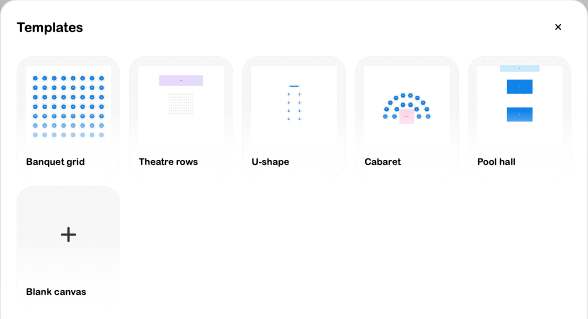
For the reusable rehearsal plan, Cabaret produced sixteen six-seat tables and a dance floor. Save it with a specific name and description, return to the library, and reopen it to confirm 16 tables and 96 seats. Resolve spacing suggestions against the actual venue before operational use.
The event shown below instead uses an existing 17-table, 108-seat room. Keep the reusable room and event-specific copy distinct; editing one does not establish that the other changed.
2. Enter the event information
Open Events → Create Event. Add the poster, name, description and tags, then choose the date, start/end times and location. If image autofill fails, enter these details manually and check the saved result.
Choose Layout-Based Tickets and the intended saved room. Use Amount-Based Tickets for a quantity-only event, or Information when you are not selling tickets.
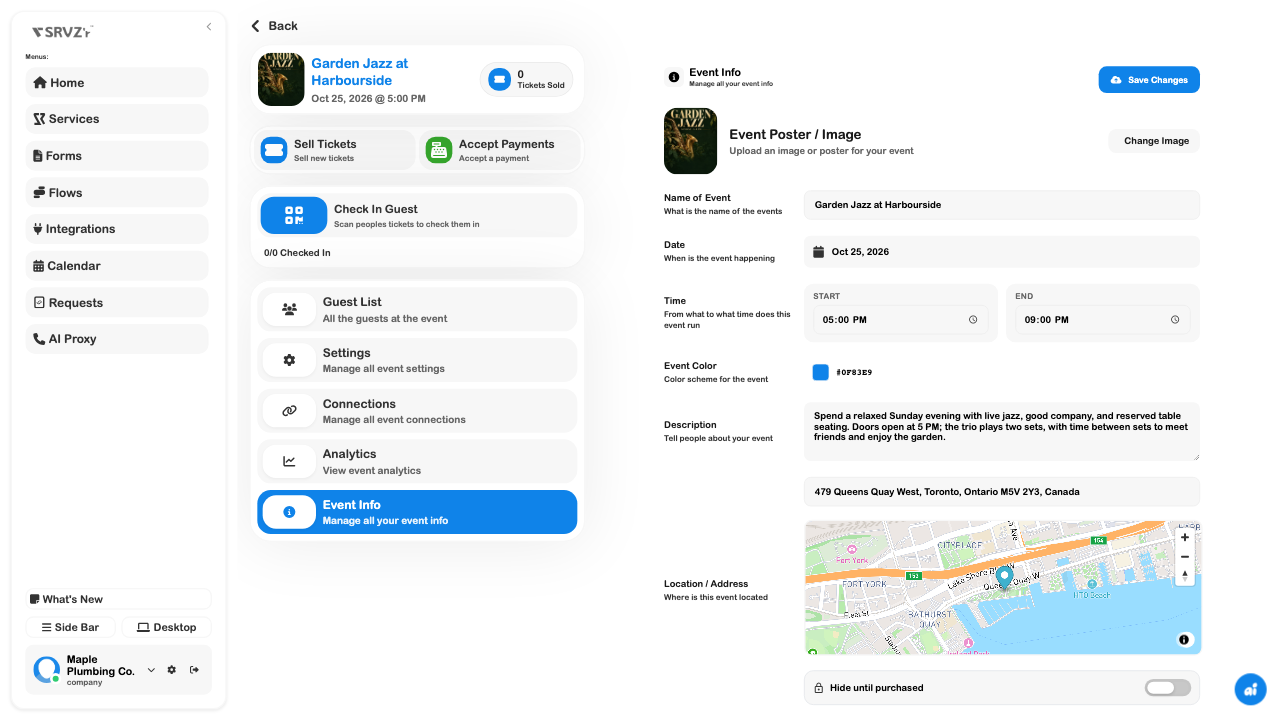
3. Review visibility and the ticket offer
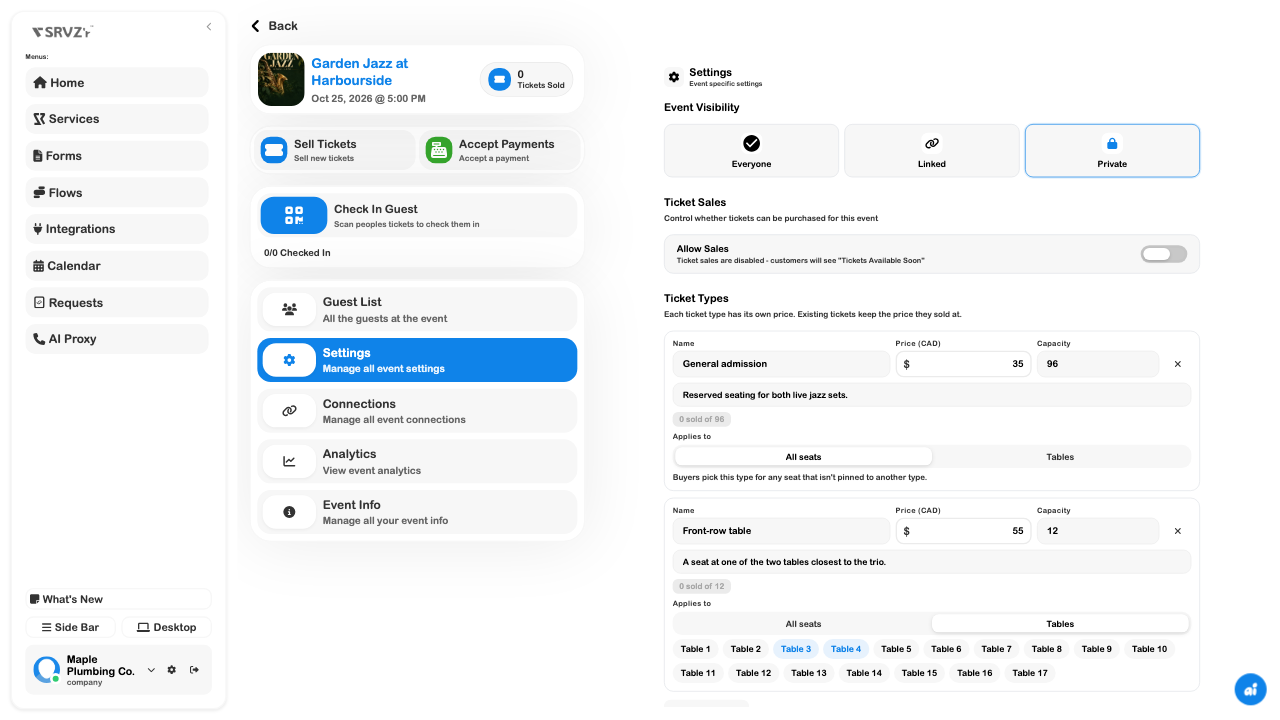
In settings, select Private for the rehearsal. Define each ticket type's price, capacity and any table restriction. The example uses General at $35 and Front-row table at $55, with the latter restricted to two front tables.
Review currency, tables for sale, fees, payment methods and registration. Card payments require provider setup. Do not enable a payment method simply to make the settings appear complete.
The current creation flow uses Publish to create the event; review that action deliberately. A private saved event still needs its Allow Sales switch checked separately. Open the dashboard, turn sales off for the rehearsal, and choose Save Changes.
4. Reopen and compare
Reload the dashboard. Check Event Info, then Settings: the date and times, privacy choice, sales switch, currency, ticket prices and table restrictions should match the intended offer.
Payment instructions also need this check. In the reviewed creation path, the entered cash instruction did not appear in the later dashboard field; do not assume that an instruction shown before saving reached the guest-facing checkout.
5. Inspect a seat-selection draft
Choose Sell Tickets to open the event in Terminal → Events. Inspect the actual floor plan and select an available seat. Review its summary, then use Clear to remove the selection.
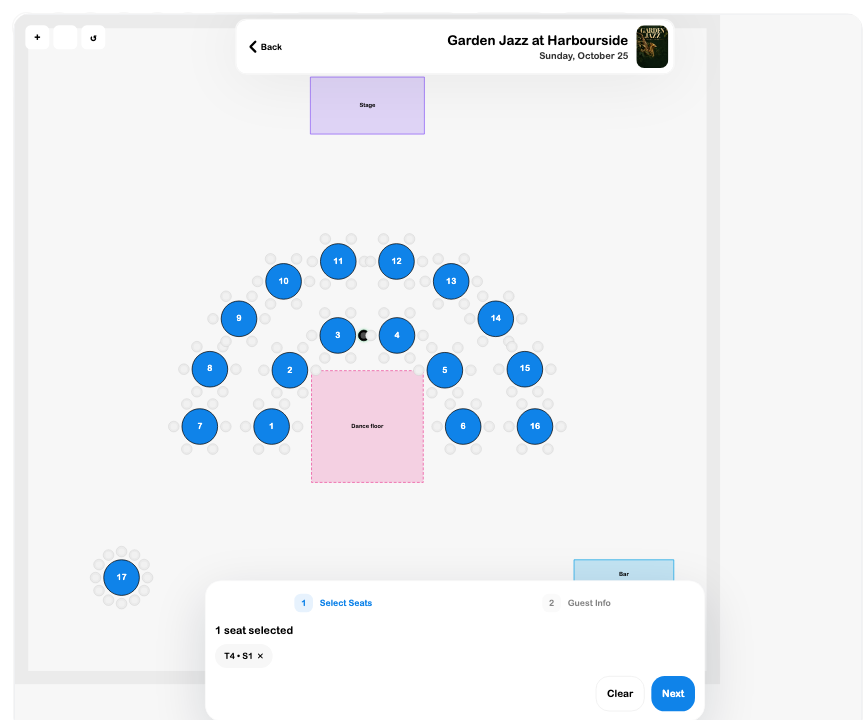
The reviewed Terminal card showed midnight despite the saved 5 PM start, and the seat summary could disagree with a seat's accessible table label. Resolve those inconsistencies before issuing tickets. This draft verifies loading and selection, not a completed consumer checkout.
6. Plan the admission test separately
For a real launch, test an authorized ticket through the entire intended channel: purchase, payment, delivery and Check In Guest on the entrance device. Confirm wrong-event, unpaid and already-used handling as well as successful admission.
That operational test was not performed for this private rehearsal. No ticket was issued, emailed, printed or scanned. Do not use zero-ticket analytics as evidence of audience or sales performance, and keep admission QR codes out of public screenshots.
Read the event availability notes before promising wallet passes, a ticket designer, song requests, guest photo albums or token payments. Those workflows were not found as complete current features.