Handle a customer request
Find, review, accept, assign, and follow through on a request.
Before you start
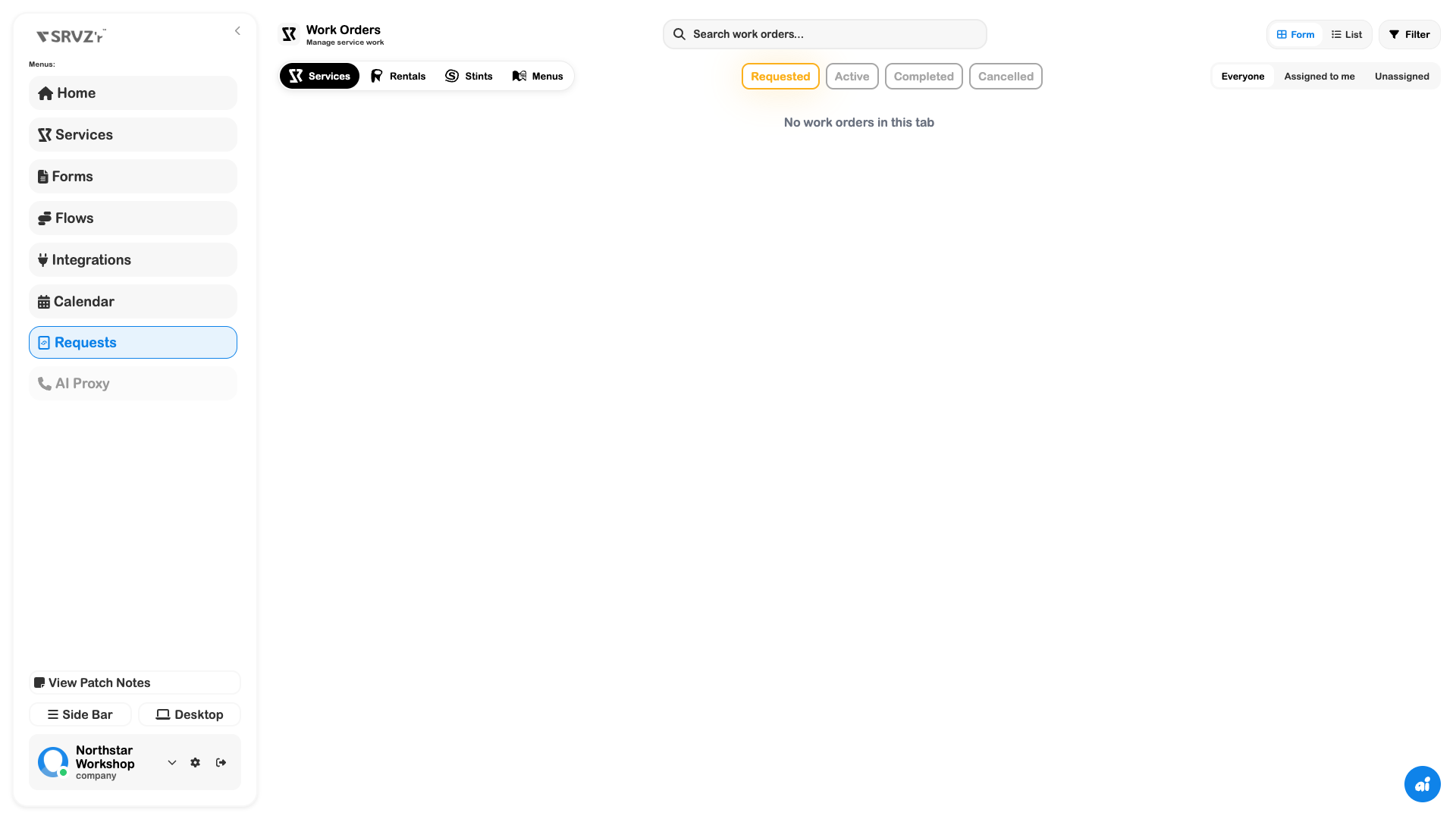
A submitted request in the intended business. The account used for the screenshots had no active work orders, so the screenshots show the inbox controls rather than a completed job.
The example
A customer asks for drain clearing. You need to determine whether the request is within coverage, whether more information is needed, and who will deliver the job.
1. Find the right request
Open Requests → Services → Requested. If needed, choose Everyone and clear filters. Use Form view for submitted answers or List view when scanning a busy inbox.
2. Review before accepting
Open the request and check contact, service scope, location, requested time, attachments, and price/quote state. Ask for clarification through the supported conversation workflow if the details are insufficient.
3. Plan and assign
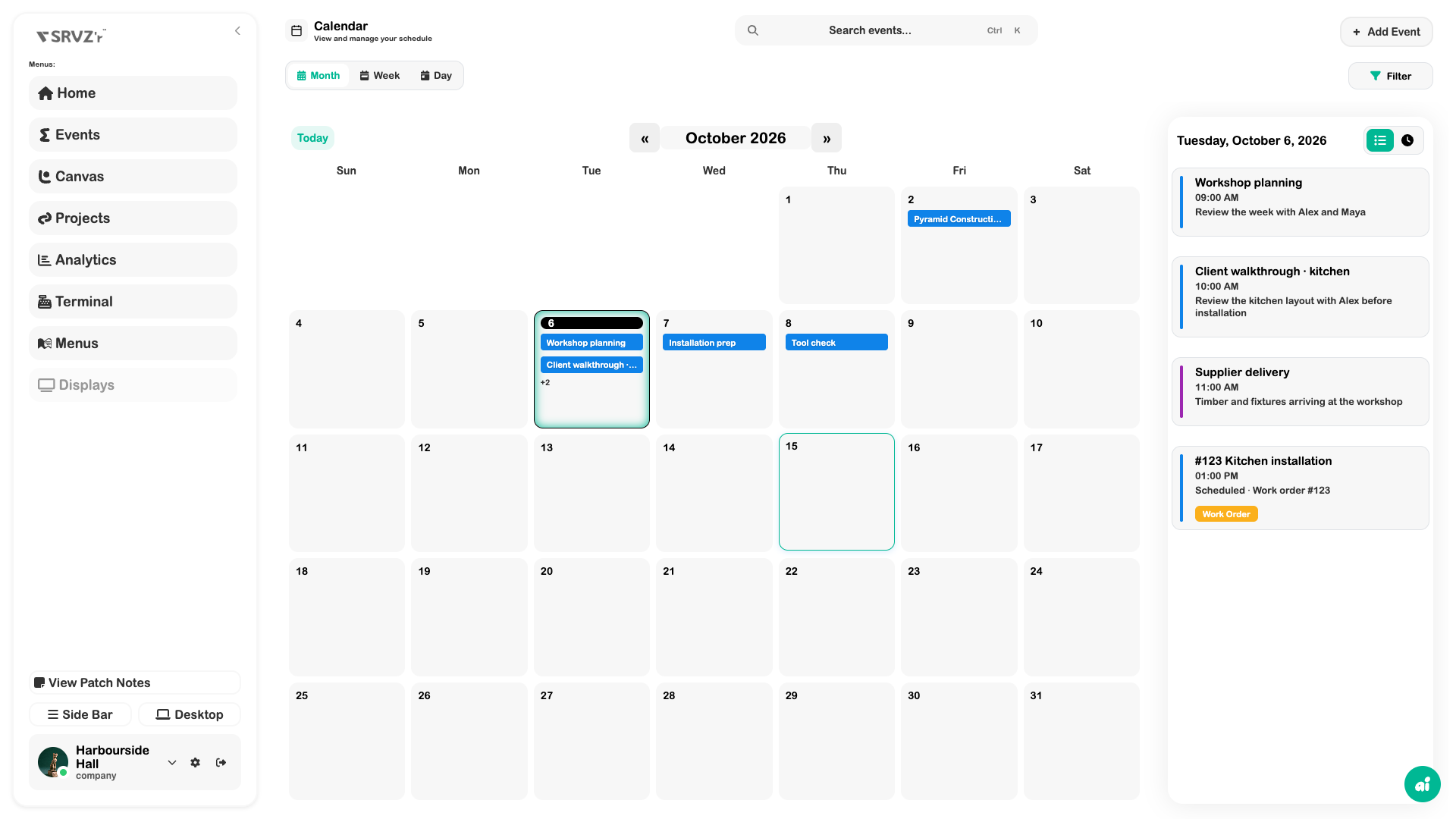
Check Calendar and staff coverage in Shifts before accepting a time. Use the record’s assignment and acceptance actions where available. Confirm the intended team member can access the work.
4. Follow through and close
Keep the request’s operational status current as work progresses. Review the final work record, related invoice/payment, and customer follow-up before treating the job as complete. Menu, rental, and Stint requests use their own fulfillment actions.
Expected outcome
A reviewed request with a clear owner, realistic schedule, and operational state that matches the work.
Check your result
- Customer and location match the request.
- The quoted or payable amount has been reviewed.
- A team member owns the next action.
- Completion is reflected in the operational record, with payment checked separately.