Capture and review an expense
Use a receipt image or manual entry, then correct and categorize the record.
Before you start
Expense Management access and a receipt image or the purchase details.
The example
Record a workshop materials purchase and check the extraction before it becomes part of the cost report.
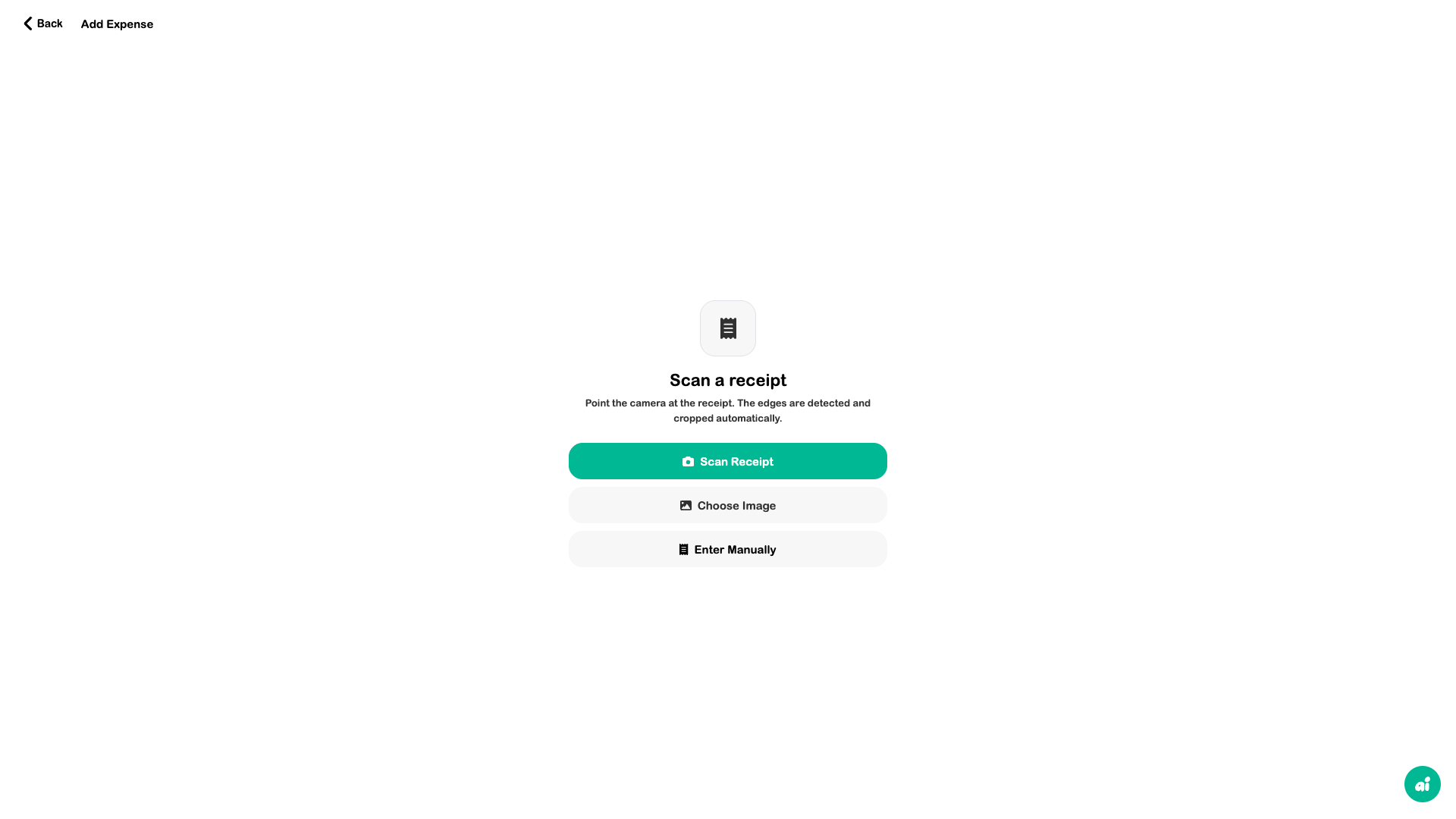
1. Choose capture method
Open Expenses → Scan Expense. Choose Scan Receipt for the camera, Choose Image for an existing receipt, or Enter Manually when no readable image is available.
2. Review the extracted draft
Use a flat, sharp image of the whole receipt. Check merchant, date, line items, tax, discounts, total, and currency. Correct any incorrect value before saving.
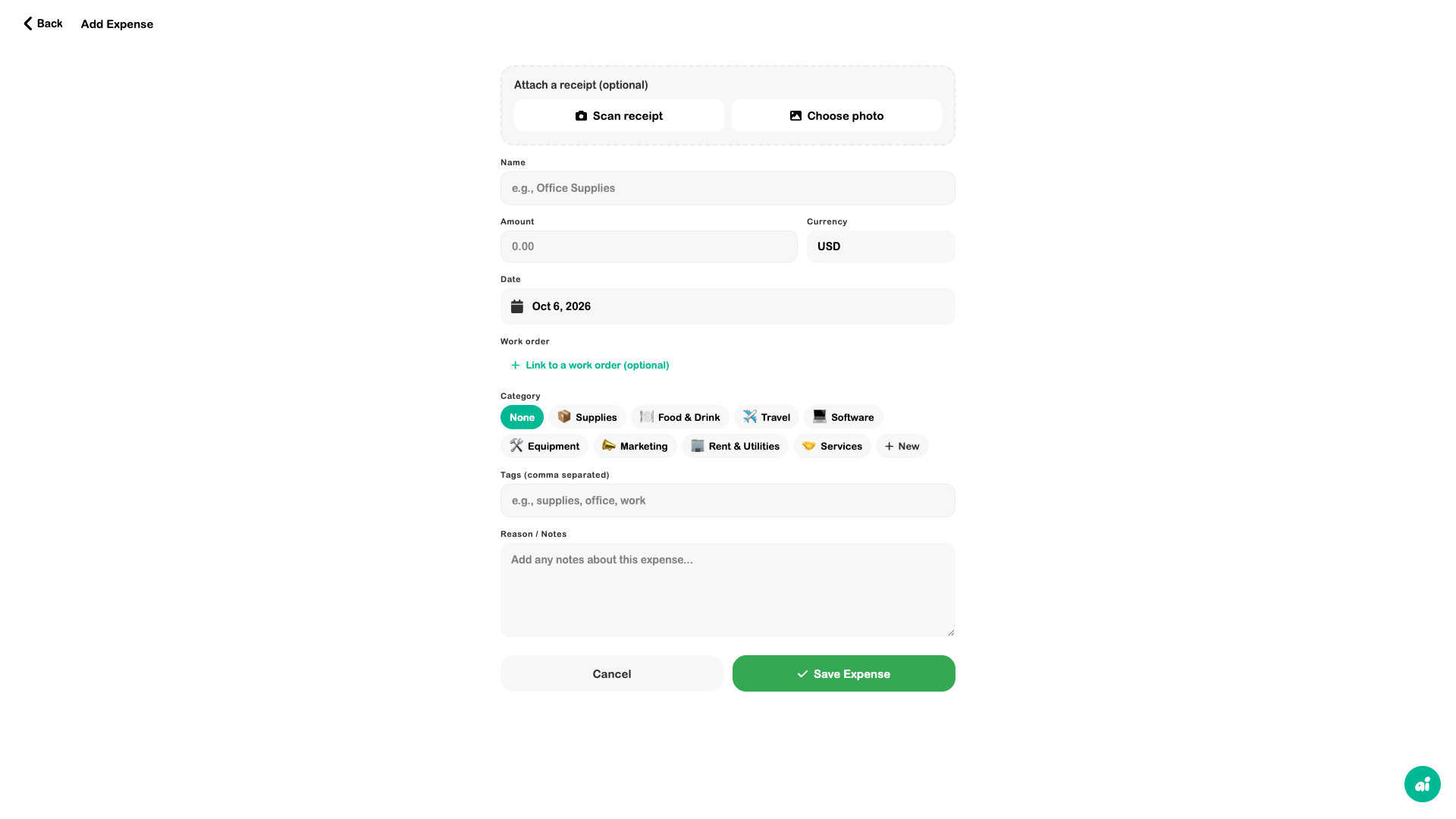
3. Categorize and save
Choose a category that makes the cost useful in your reporting. Save, then reopen the record from Recent Expenses to check it.
4. Review the reporting period
Use Categories or Report with the intended period. Compare the report with the source records rather than relying only on a headline total.
Expected outcome
A reviewed expense record that contributes to the correct period and category.
Check your result
- The recorded total matches the receipt.
- Currency and date are correct.
- The original image is available where the record supports it.
- The saved record appears in the expected report period.