Customize the customer experience
Keep listings, forms, sites, content, and brand presentation consistent.
Before you start
A business offering and the branding/content it should present to customers.
The example
A venue makes its event page, registration form, website, menu, and social announcement feel like one consistent customer journey.
1. Align the public identity
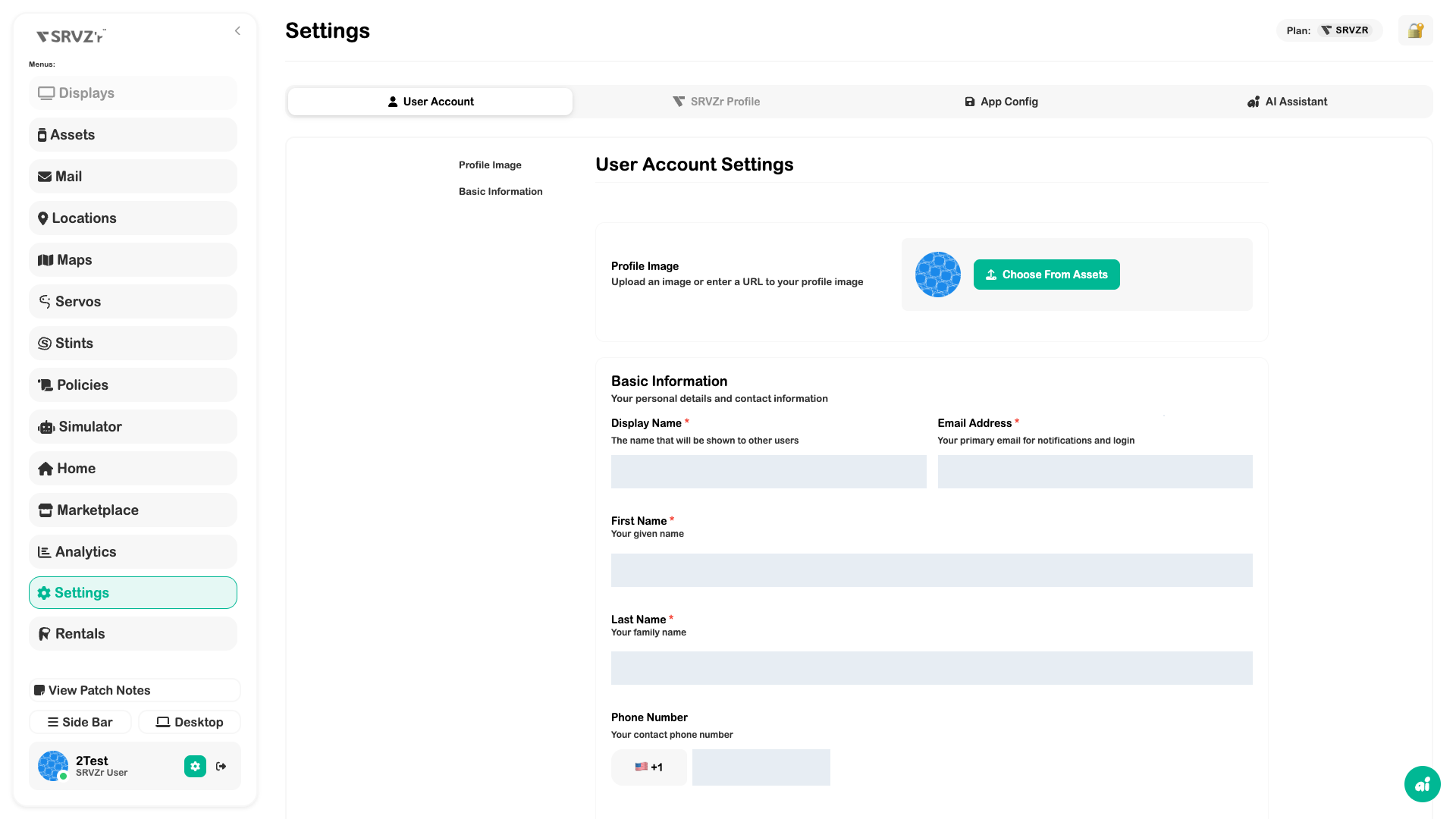
Review SRVZr Profile branding and public business details. Use the same recognizable name and imagery in your offers.
2. Clarify the offer
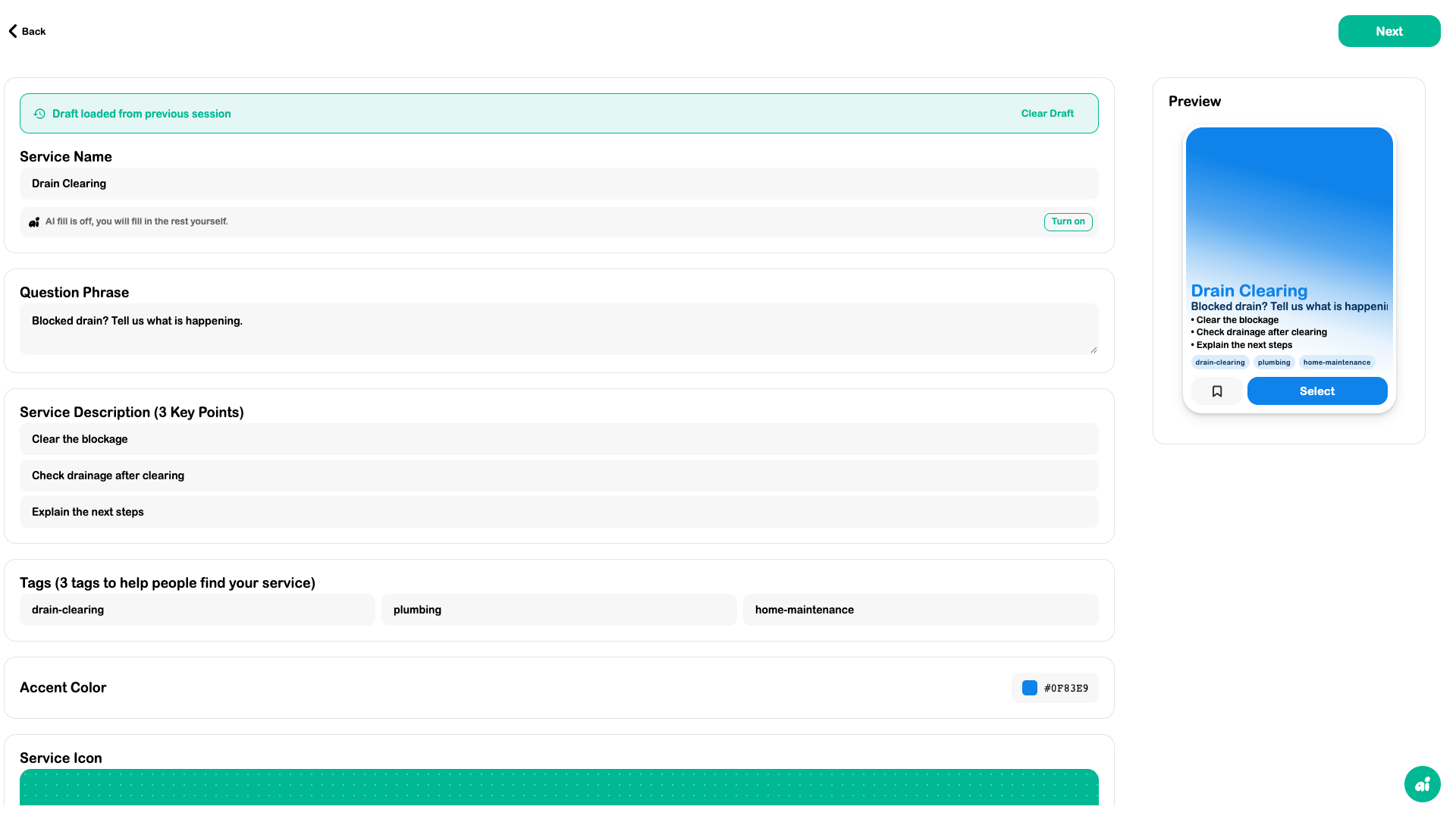
Update the service, event, rental, or menu description with the outcome, inclusions, and preparation customers need. Choose appropriate visibility.
3. Simplify the booking path
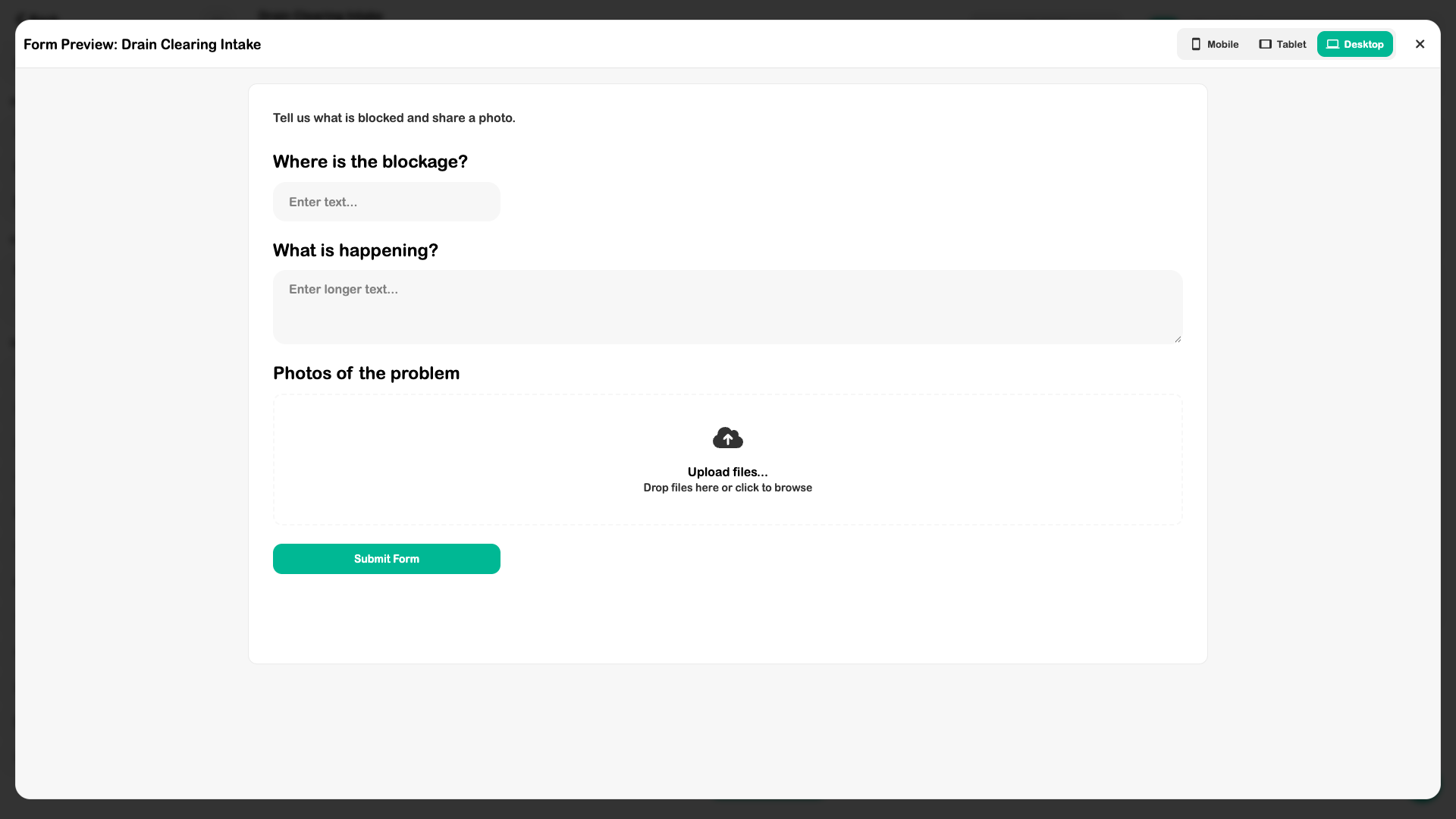
Review form labels and required answers. Check pricing, registration, and the next step in the booking flow. Remove questions that do not affect the work.
4. Connect the supporting content
Use Canvas for destination-sized graphics, Website for the site/CMS, and Content for social campaigns. Review each customer link and complete a sample journey before promoting it.
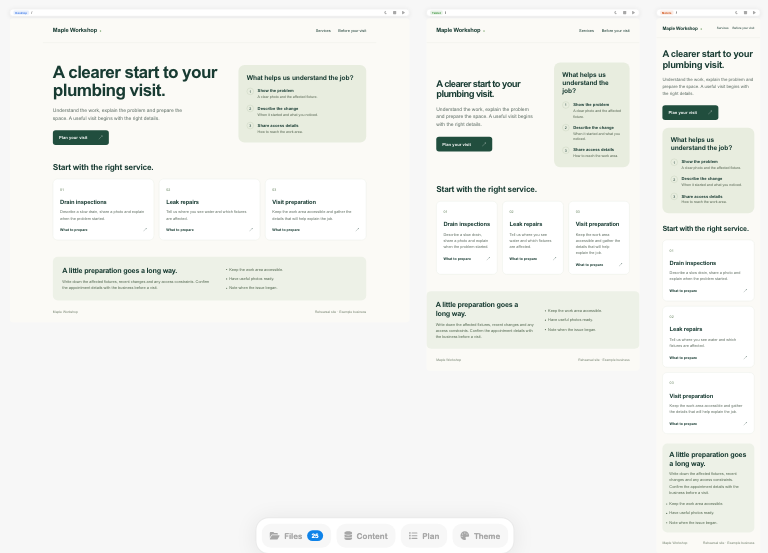
For a site, use the Website guide to edit content, review the file changes and save them. Treat CMS connection and Publish as separate steps. Do not promote a preview URL as a finished public destination.
5. Prepare supporting content without releasing it
Create a Content project, save the concept on its idea board and draft a caption that matches the actual service and website. Check the photo caption and tags before using an image. Save the post draft and reopen it to verify the wording.
Treat review and release as separate decisions. Check the action carefully: approving a project cut with a saved release time can schedule it immediately. A draft date in the Content calendar is not proof that the post is queued. The Content guide explains those states.
Expected outcome
A consistent customer experience whose content and operational path support the same promise.
Check your result
- Business and offering identities are consistent.
- The customer knows what they will receive.
- Forms and checkout are understandable.
- Public links reach the intended published content.