Review payments and sales reports
Before comparing a sales figure with money received, establish what each report includes. This walkthrough inspects existing Maple Plumbing Co. test transactions and item records. It downloads reports without taking a payment, refunding one, or changing payment-provider setup.
1. Define the review period
Open Payments, confirm the business, and choose a period. The example uses Last 30 days during the October 19 review. Note the date range, time basis, currency, and any menu or method filters.
With Any method, the list contained 48 records on two pages. Next and Previous let the reviewer inspect both pages without changing the report scope.
2. Inspect one payment group
Choose Bank to isolate the three invoice-linked records. Check each row’s method and status, then open a row to inspect the invoice item, references, and timeline.
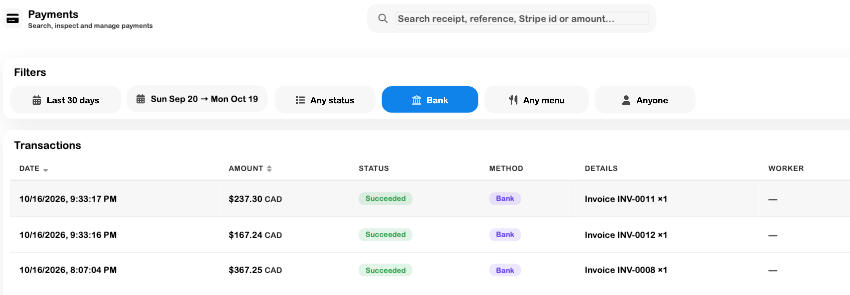
Succeeded is the record’s state. It does not confirm that a matching payout has reached a business bank account. Use the original invoice and payout information when investigating that separate question.
3. Export the selection
Choose Export and inspect the downloaded CSV. The Bank file contained three rows. Restore Any method and export again if the review requires every method: in the walkthrough, exporting from page 2 still included all 48 matching rows.
Keep the report scope with the file. A page number is a navigation position, not an export filter.
4. Compare the item report
Open Analytics → Terminal Sales. Choose Selected range → Last 30 days → Apply, then review currency and payment/menu filters.
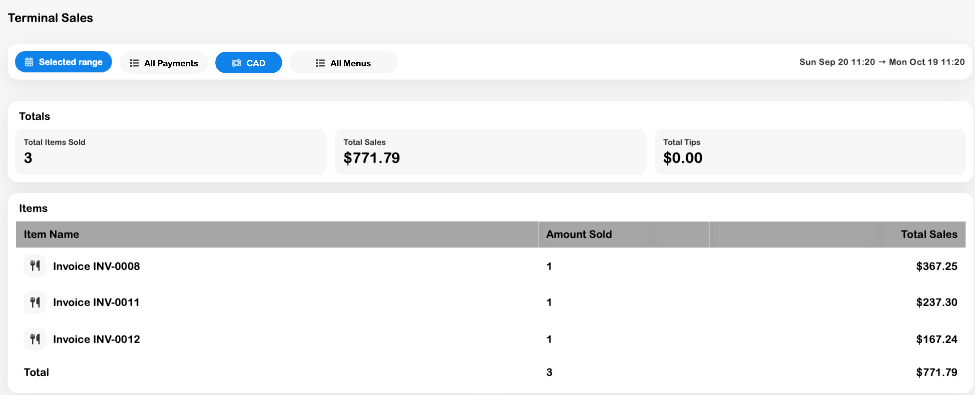
The item report loaded three transaction records with item lines and transaction timestamps. It totaled $771.79, matching the three Bank records. It did not summarize all 48 payment-list records: some older test records lacked the transaction-time and item information required for that comparison.
Under Exports, download aggregated CSV to review the item rows and Total row, or Raw CSV for the loaded payment-level summary. Both paths produced the expected populated files in this walkthrough.
5. Resolve differences before making adjustments
Compare the reports in this order:
- Business, currency, date range, and UTC/local presentation.
- Which date each report filters: recorded date or transaction time.
- Payment method, menu selection, and event-ticket scope.
- Whether the source transactions contain item quantities and prices.
- Refunds, fees, and payouts as separate records.
Do not create another payment or refund merely to make two reports match. If a specific transaction needs an authorized adjustment, review Refund management and its remaining balance and method first.
Check the result
You should have a saved report with a known selection, an inspected example transaction, and an explanation for any difference in the item report. This walkthrough establishes report inspection and export. It does not establish live payment readiness, processor settlement, or a completed bank reconciliation.
For provider setup and payouts, continue in Integrations. For accounting reconciliation, use Banking and Financial reports.