Add and schedule team members
Review roles, sync the scheduling roster, and publish shifts.
Before you start
Owner or management access and the team members’ intended responsibilities.
The example
Add a venue manager and service worker, then prepare staff coverage without giving everyone access to every administrative action.
1. Add people to the business
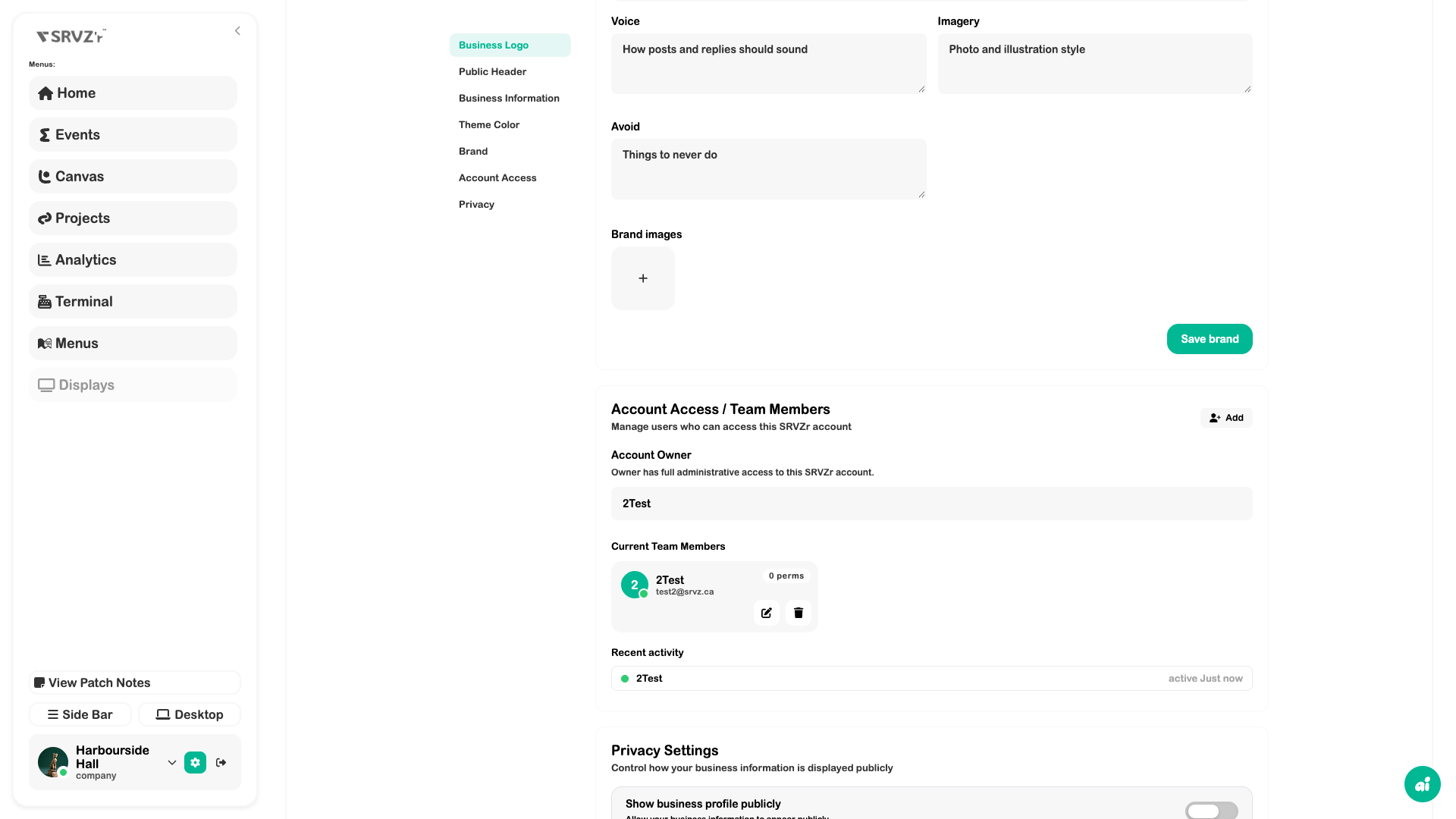
Open Settings → SRVZr Profile → Account Access / Team Members. Use the add-member workflow and the intended role.
2. Review permissions
Inspect feature access and Edit Permissions for existing members. Check terminal, requests, scheduling, and financial access against the person’s job.
3. Bring the roster into scheduling
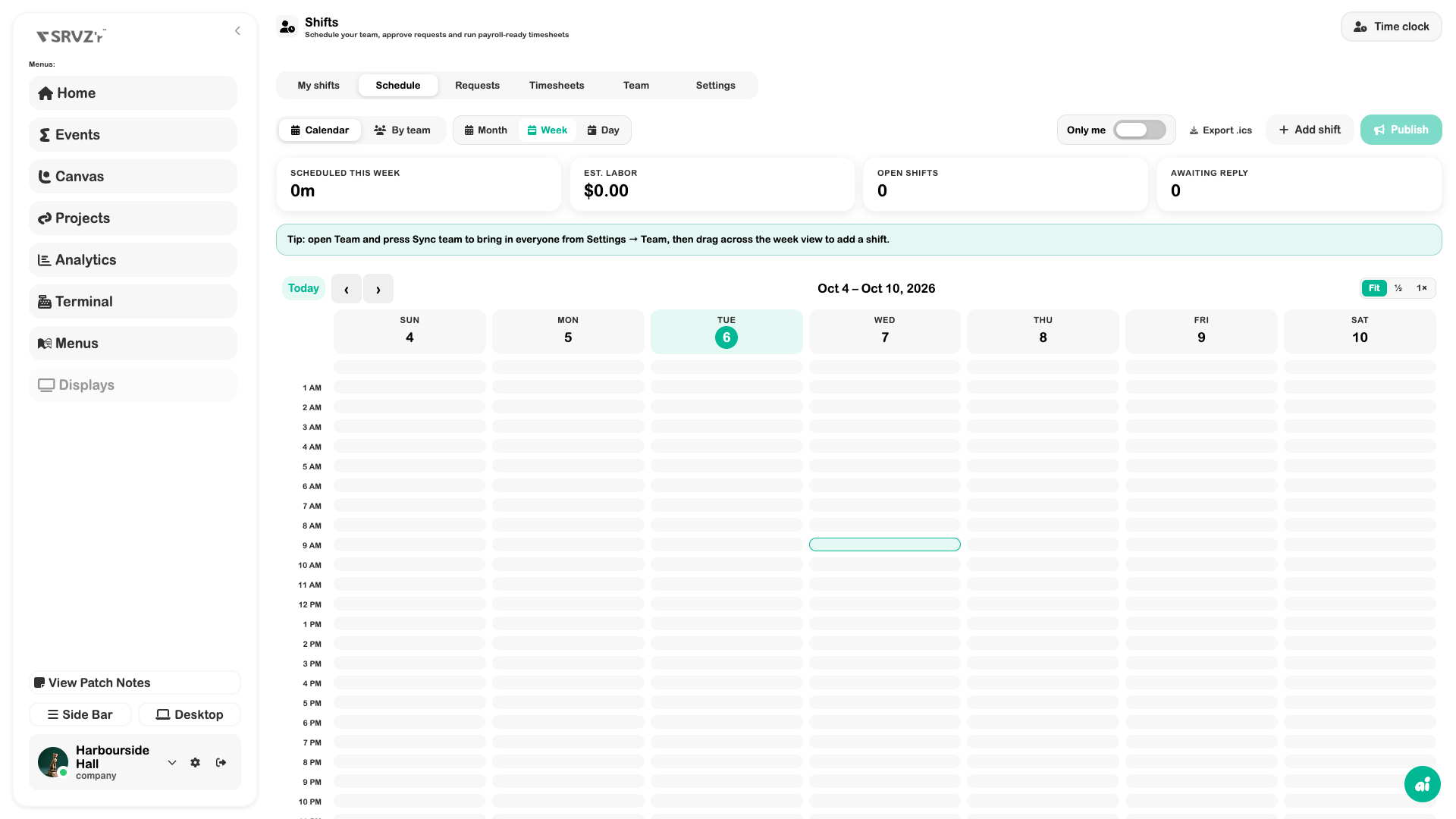
Open Shifts → Team and use Sync team. Check the roster before adding duplicate members.
4. Plan and review coverage
Add shifts, check open shifts and awaiting replies, then publish the schedule. Workers use My shifts and Time clock; managers review Requests and Timesheets. Mailbox access is granted separately in Assets.
Expected outcome
A business team with appropriate access and a usable scheduling roster.
Check your result
- Invitations are accepted where required.
- Each person can use the tools their role needs.
- The scheduling roster matches the business team.
- Published coverage and actual clocked hours are reviewed separately.