Create a bookable service
Prepare the offer and the customer journey together. This walkthrough draws on an existing drain-service draft and a separate water-heater estimate flow. The flow's calculation was previewed through Checkout, but its service page was left unconnected and nothing was published or submitted.
1. Describe the work
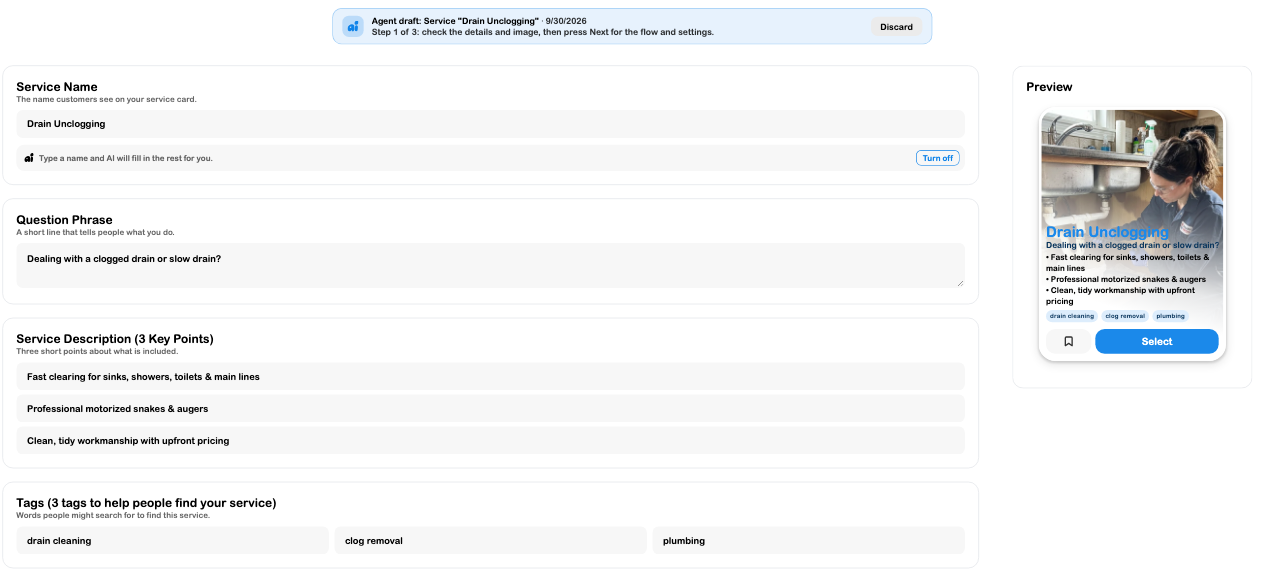
Open Services → Create Service, or review the draft you intend to finish. Enter a clear name, a natural customer question, three practical inclusions and three relevant tags. Add a real service image and review any generated copy for accuracy and scope.
Choose Area, Cities, or Location for coverage. Use Showcase for preparation, access instructions, exclusions and useful gallery images. Avoid claiming work or coverage you do not provide.
2. Open and connect the flow
Choose Next from the service details to open Flow Builder. Select the appropriate template, name the flow and connect Service Page to the intended service. On Job Details, select the published intake form.
The test flow first stopped with No form ID specified in node configuration. Selecting the existing Plumbing request · service intake form and restarting Preview resolved it. This is why an existing form and a connected, published form are different checks.
The separate estimate draft used the Quote & Pay pattern: intake, service level, calculator, scheduling, Quote, Checkout and Service. Its service page still needs binding before live use. See Flow Builder.
3. Check the money settings
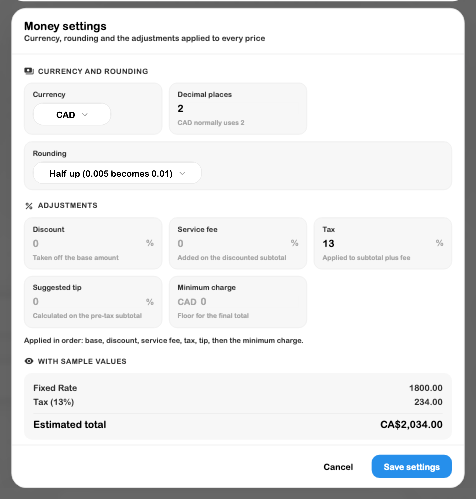
Set the appropriate calculation, currency and adjustments. In the water-heater example, Fixed Rate = $1,800 CAD, with an illustrative 13% tax setting. Money settings displayed $234 tax and a $2,034 estimated total.
On Quote, review whether customer approval should book the job and send the invoice immediately. Compare the actual customer Preview with the calculator; a canvas card can show a base amount rather than the runtime total.
4. Review the deposit and later balance
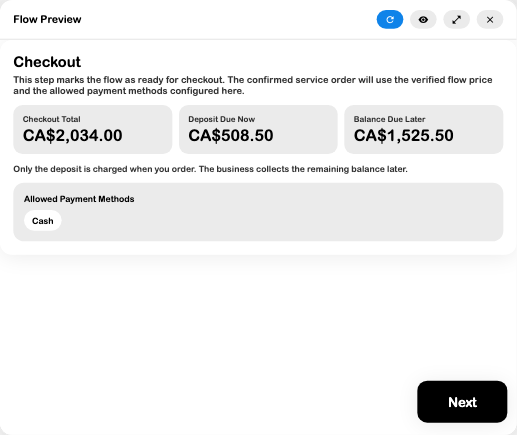
On Checkout, select the allowed methods and Pay in full or Deposit. The example uses Cash and a 25% deposit. Preview displayed:
- Total: $2,034.00 CAD.
- Deposit due now: $508.50.
- Balance due later: $1,525.50.
Selecting Cash does not record a deposit as received. Check the order's balance and payment record when money is actually collected. Card payments also require verified business payment setup. See Service deposits and Checkout.
5. Review the full offer before publishing
Check the linked service, coverage, intake, service-level choices, price, schedule, quote actions, allowed methods and visibility together. Confirm that required fields and alternate branches behave correctly. Then review the service's settings and publishing checklist.
The flow editor's Next in the service creator saves the flow to the cloud before settings; it is not just a local draft action. Publishing an agent-created service can also publish its associated form and flow, so inspect those resources before the final action.
The completed checks here establish persisted draft settings and a working preview calculation. Live service publication, order submission, customer approval, payment collection and provider dispatch remain separate steps.