Receive supplies and check stock
Follow supplies from the supplier's purchase order to the shelf and the books. This walkthrough uses actual saved demo records: 12 P-trap repair kits received on PO-0002 join 24 already stocked; one damaged kit is then removed, leaving 35. A physical-count example checks those kits alongside a partially used workshop supply.
Before you start
Select the correct business. You need the relevant bills/purchase-order access, Manual Inventory Adjustment permission for stock changes, and accounting report access to check value. Prepare the actual delivery information and item costs; the illustrative figures here should not be entered into operational books.
The feature guides explain Inventory and Bills and suppliers in more detail. Keep ordering, receiving, supplier invoicing, and payment as separate steps: receiving stock does not establish that the supplier was paid.
1. Check the stock item before ordering
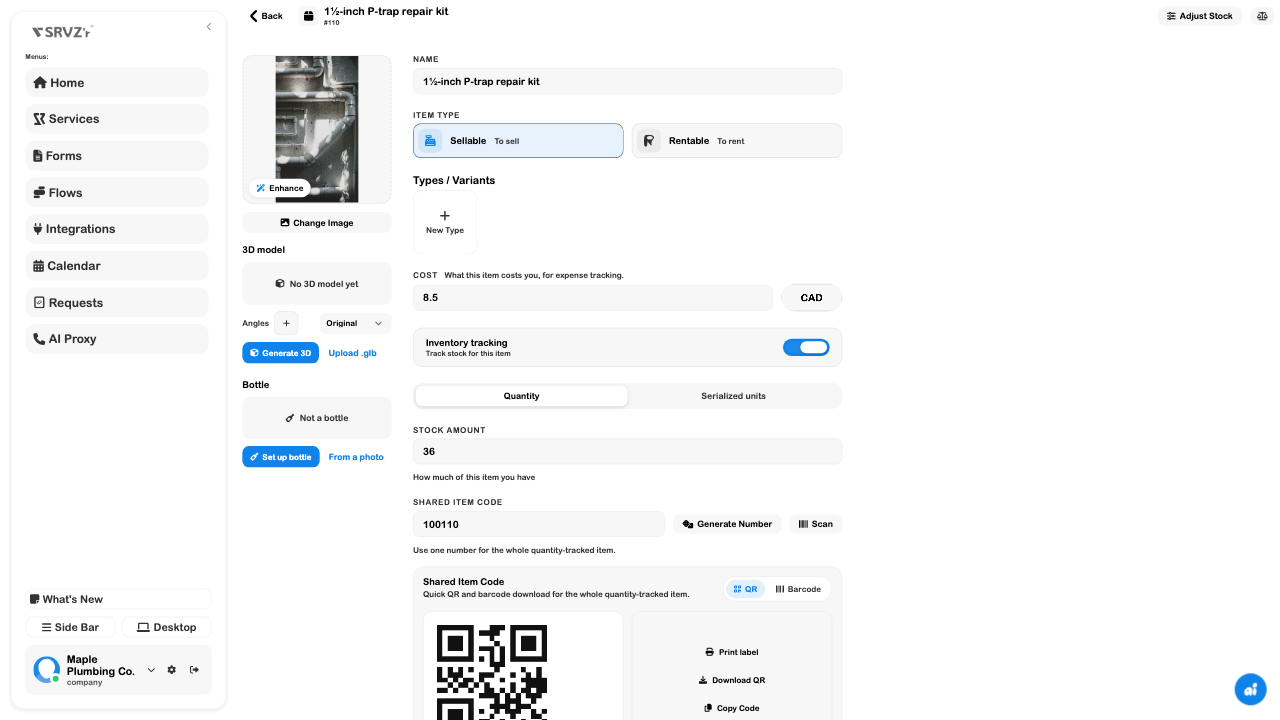
Open Inventory and find the exact item, including its size or variant. Check whether it uses quantity tracking, serialized units, or linked inventory sources. For a straightforward quantity item, review the current amount and cost.
In the demo, the repair kit has 24 units before the PO receipt and a CA$8.50 unit cost. The later item screenshot below shows the resulting 36 after receipt, before damage.
2. Review and receive the purchase order
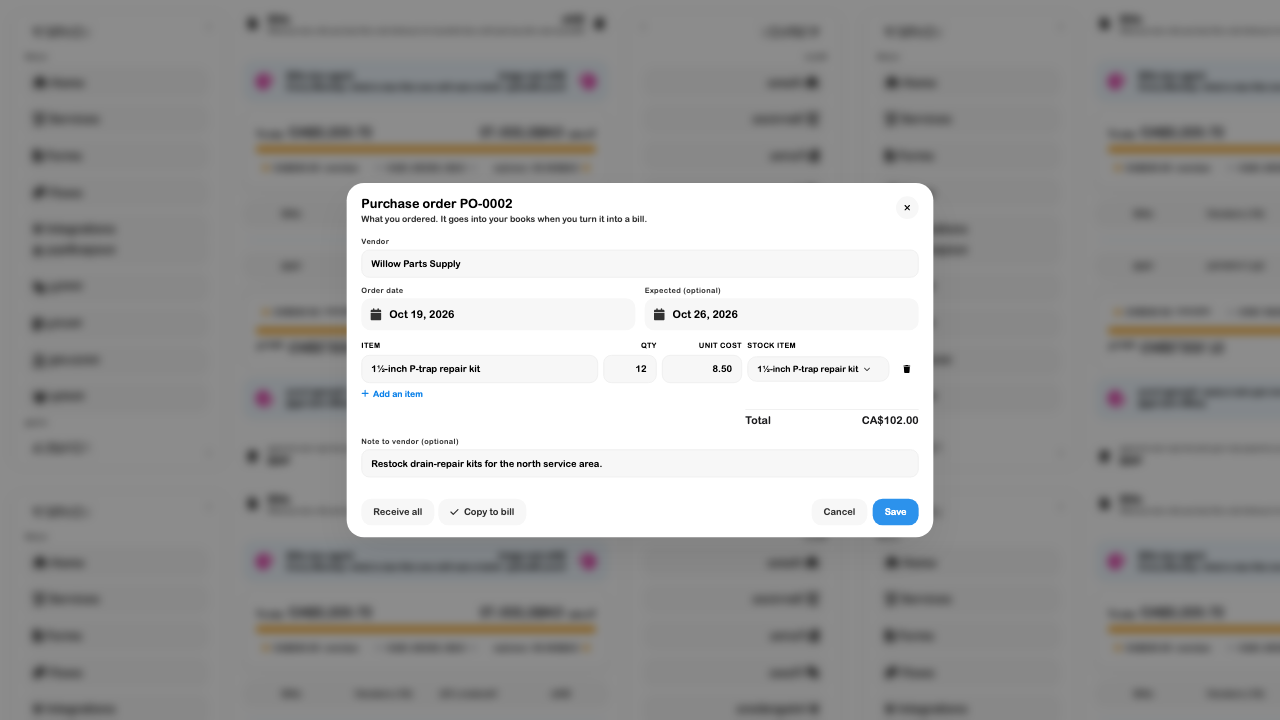
Open Accounting → Bills → Purchase orders and select the intended order. Confirm the vendor, linked inventory item, quantity, unit cost, and delivery details against what arrived.
For the example, PO-0002 contains 12 kits at CA$8.50 each, totaling CA$102 before the supplier bill's tax. When the complete expected delivery has actually arrived, choose Receive all and review the result. Do not use it to mark a partial delivery as complete.
Return to the item and check both its quantity and log. In this demo, stock increased from 24 to 36 and Received on PO-0002 appeared as a +12 restock. Reopening the record confirmed persistence.
The supplier bill is a separate record. Copy to bill can prepare a draft from the PO; review its reference, dates, amounts, and tax before adding it. See Purchase orders and Bill management.
3. Record damaged stock once
Suppose the workshop inspection finds one kit with a cracked slip nut. Open the item, choose Adjust Stock → Damaged / Lost, enter 1, and add a note explaining the problem. Check the preview says 36 → 35, then apply the adjustment.
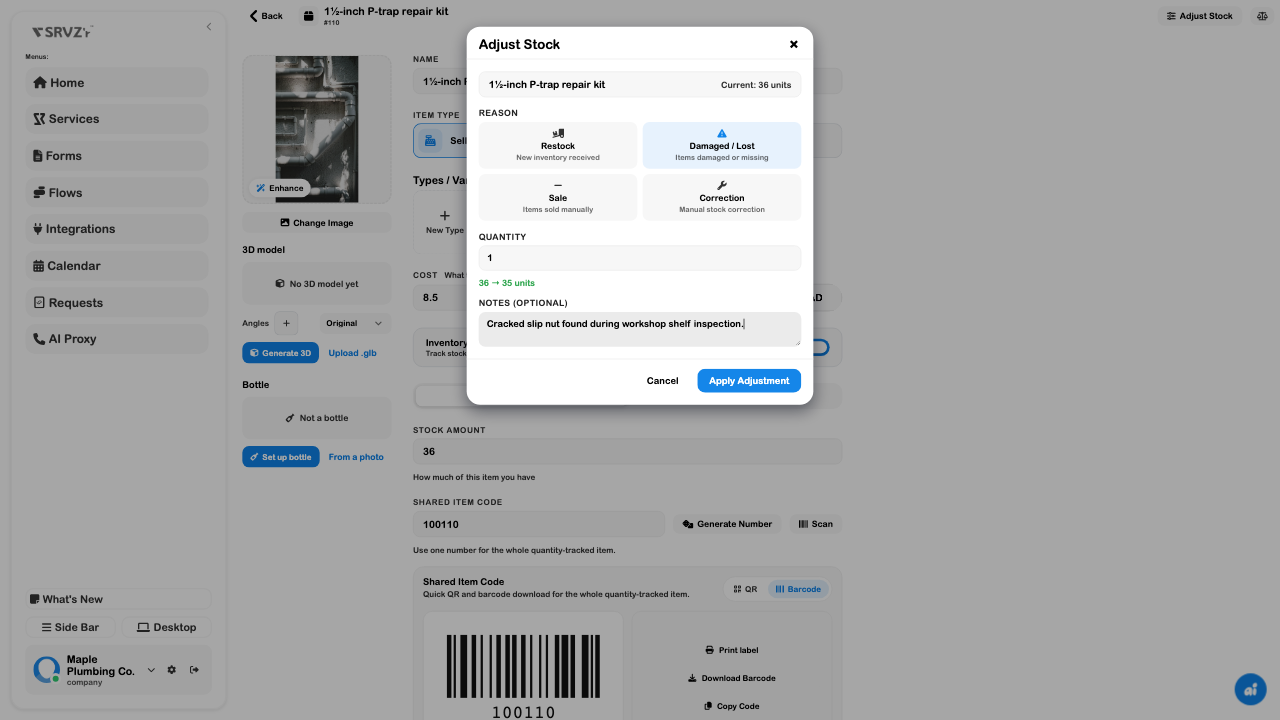
Reopen the item to confirm the saved result. If the old amount remains visible temporarily, refresh the view before applying another adjustment.
4. Trace the quantity through the activity log
Read the item's Activity Log. The three movements should tell one coherent story:
| Movement | Change | Result |
|---|---|---|
| Original workshop shelf receipt | +24 | 24 kits |
| Receipt on PO-0002 | +12 | 36 kits |
| Cracked kit removed | −1 | 35 kits |
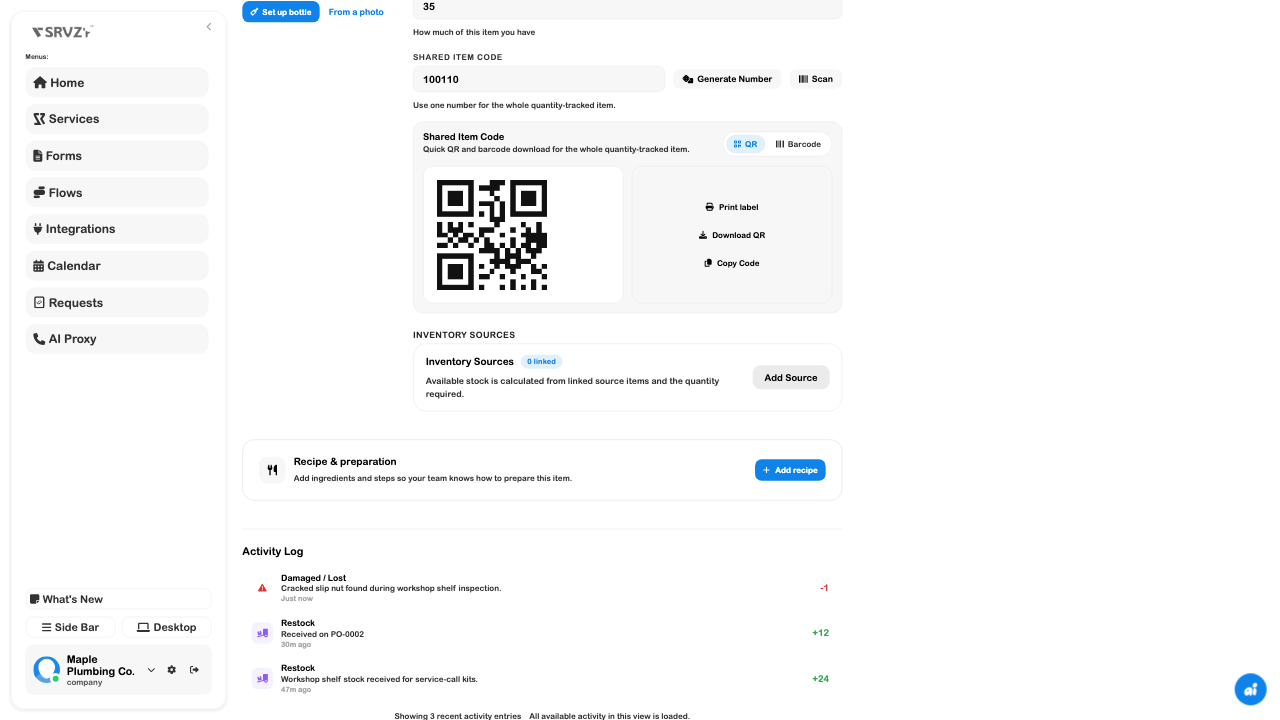
Do not add another receipt merely because a supplier bill arrives later. Check the existing movement first to avoid counting the delivery twice.
5. Review a physical count
From Inventory, choose Count, select the counting area, and record the items actually inspected. Use Review to compare each count with expected stock before saving.
The demo's Workshop count confirms 35 repair kits. It also records two unopened soap bottles plus a manually estimated half bottle, reducing that separate item from 3 to 2.5 bottles. This uses a saved bottle profile; it is not a live scale measurement.
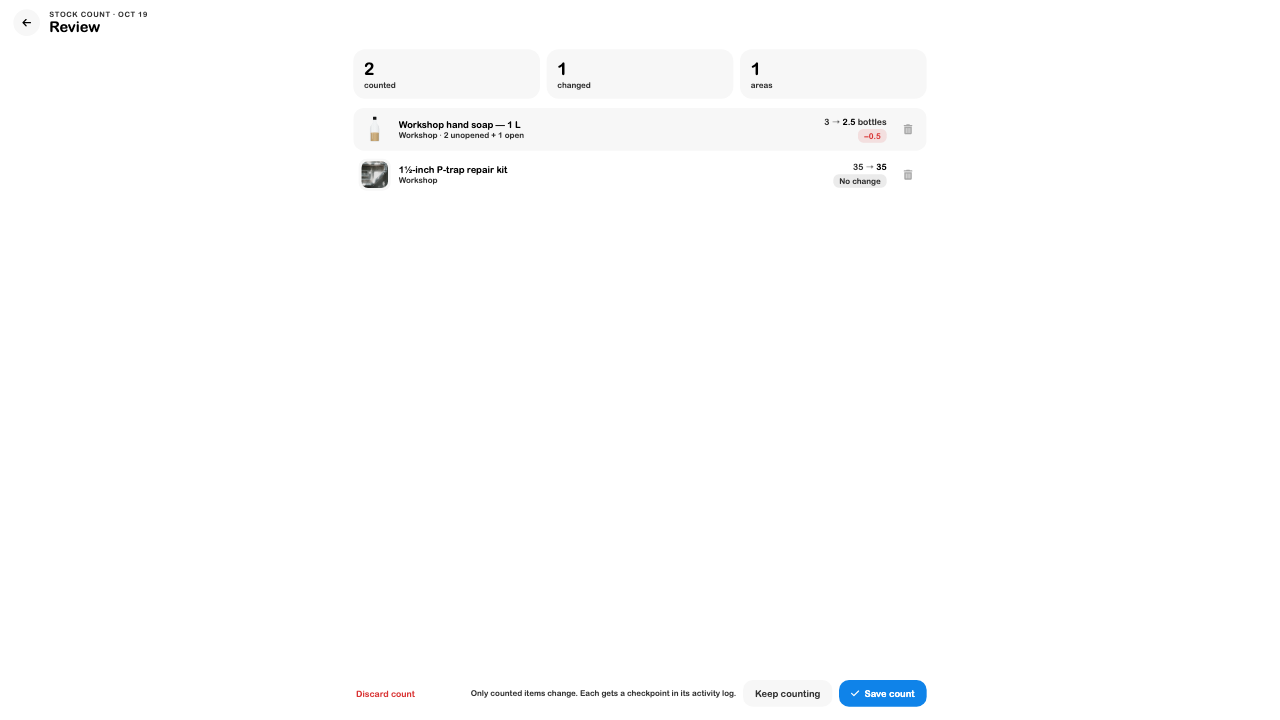
Choose Save count after review. Check the completion message, then reopen the items. In this example, 35 kits and 2.5 bottles persisted, with count checkpoints in their activity logs. Uncounted inventory is not zeroed by this workflow.
6. Compare quantity and cost
Open Accounting → Reports → Inventory value. The demo shows 35 kits at an average CA$8.50, valued at CA$297.50. The separate fractional bottle record displays CA$10.63.
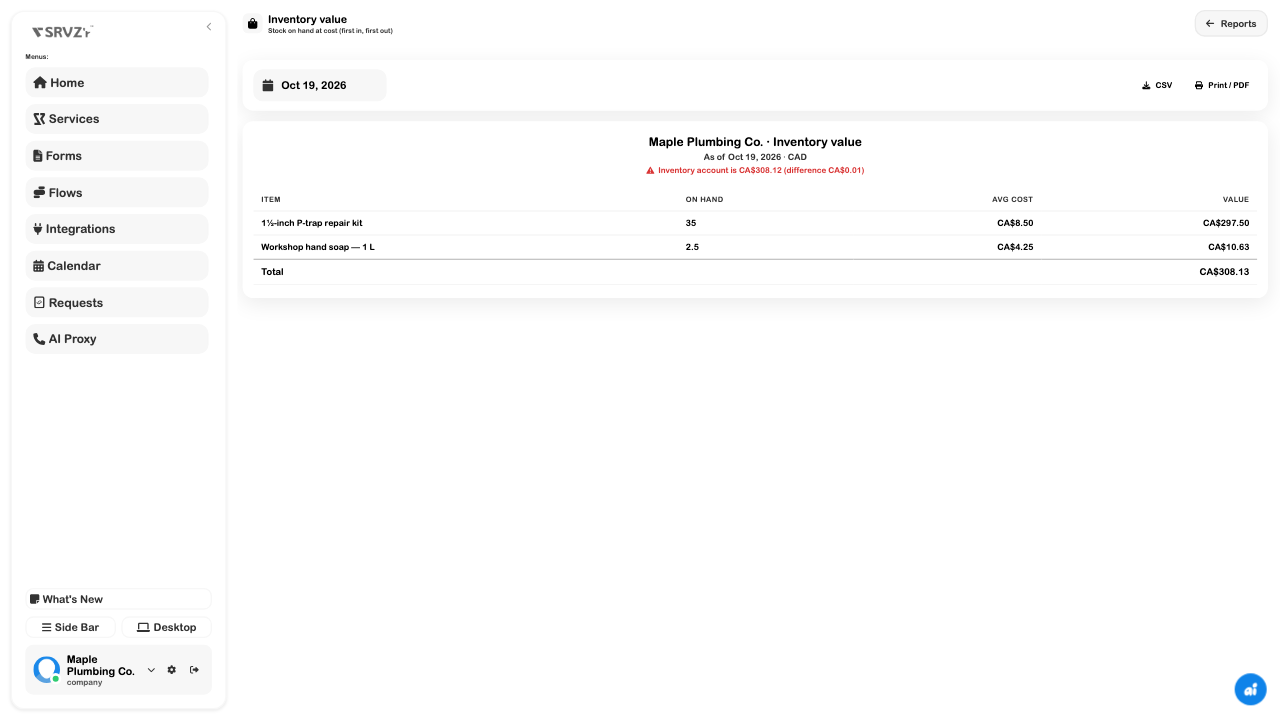
This example does not finish with an exact cost reconciliation. Investigate the displayed difference, including fractional-quantity rounding, before posting any adjustment. The current report uses remaining cost layers; the displayed date does not establish a reconstructed historical stock valuation.
Check the outcome
- The receipt points to the correct item and PO, and was counted once.
- The damaged quantity has a specific reason and note.
- The item amount and activity history explain one another after reload.
- The physical count changed only its selected items and completed without unresolved failures.
- The value report's difference has been reviewed separately from physical quantity.
Continue with Inventory cost tracking, Inventory valuation, or Supplier bills and credits.