Set up your business workspace
Choose the business profile, find tools, and prepare your first offering.
Before you start
A signed-in SRVZr account and access to the business you will configure.
The example
You are setting up a small service business. The goal is a recognizable profile, an intake process, and a place for the team to manage incoming work.
1. Choose the right business
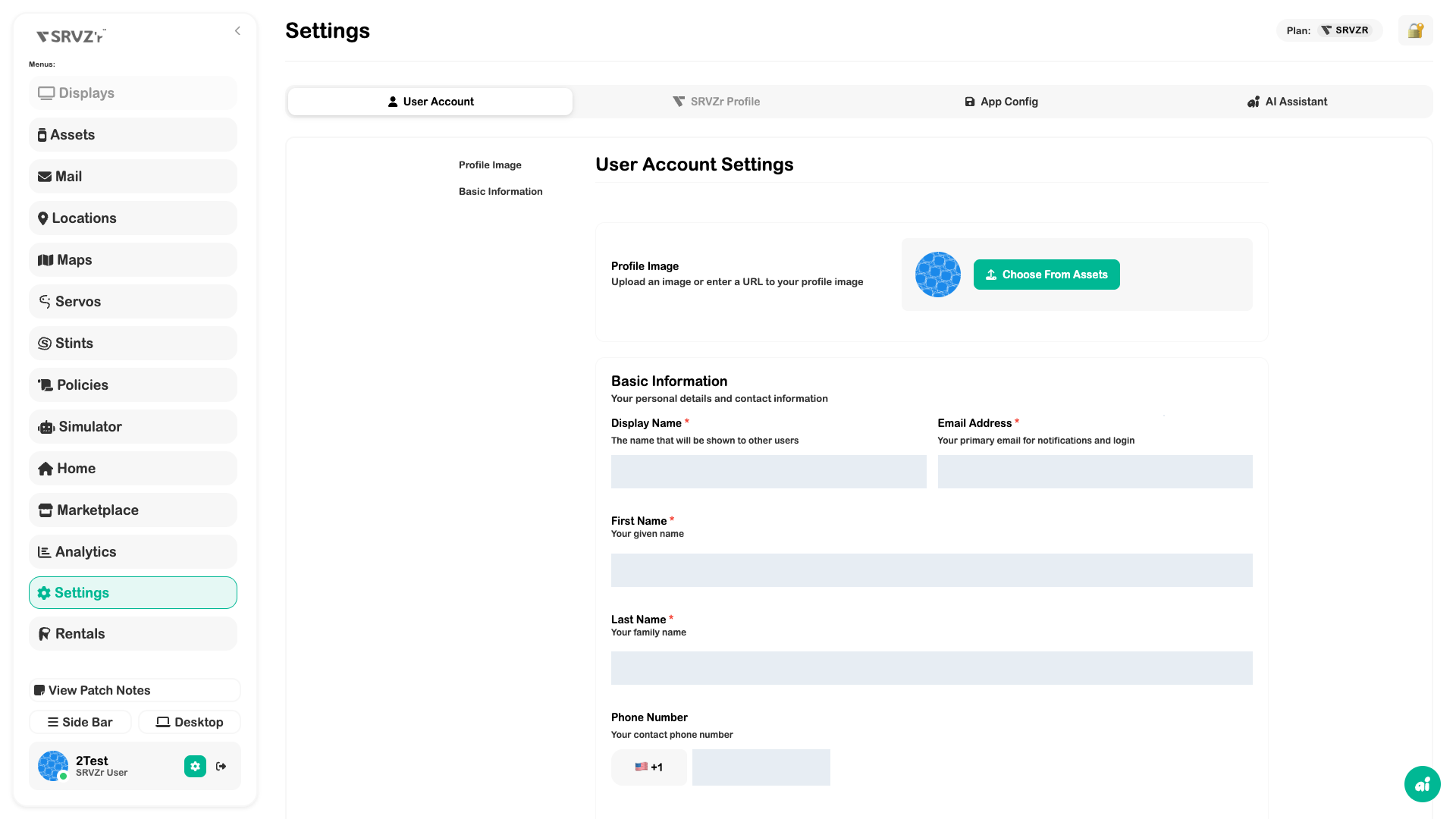
Check the business name in the navigation. If you have several accounts, select the intended business before editing its profile. Open Settings → SRVZr Profile and review the name, logo, public business information, and privacy settings.
2. Find the tools you need
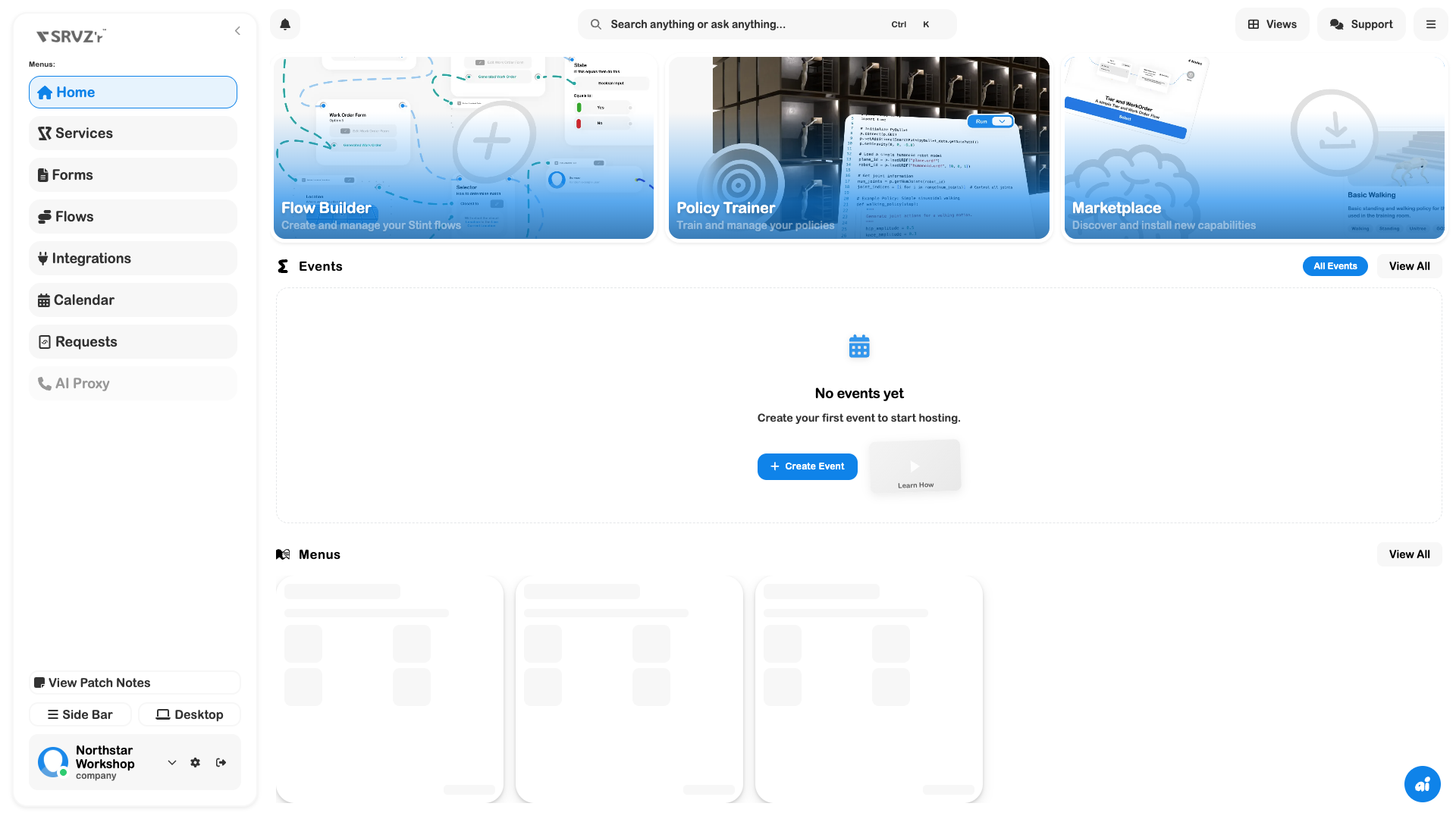
Open the full Menus catalog. A services-focused sidebar may show Services, Forms, Flows, Integrations, Calendar, Requests, and AI Proxy. Pin the areas you will use regularly; other tools remain discoverable in the full catalog.
3. Define one offering
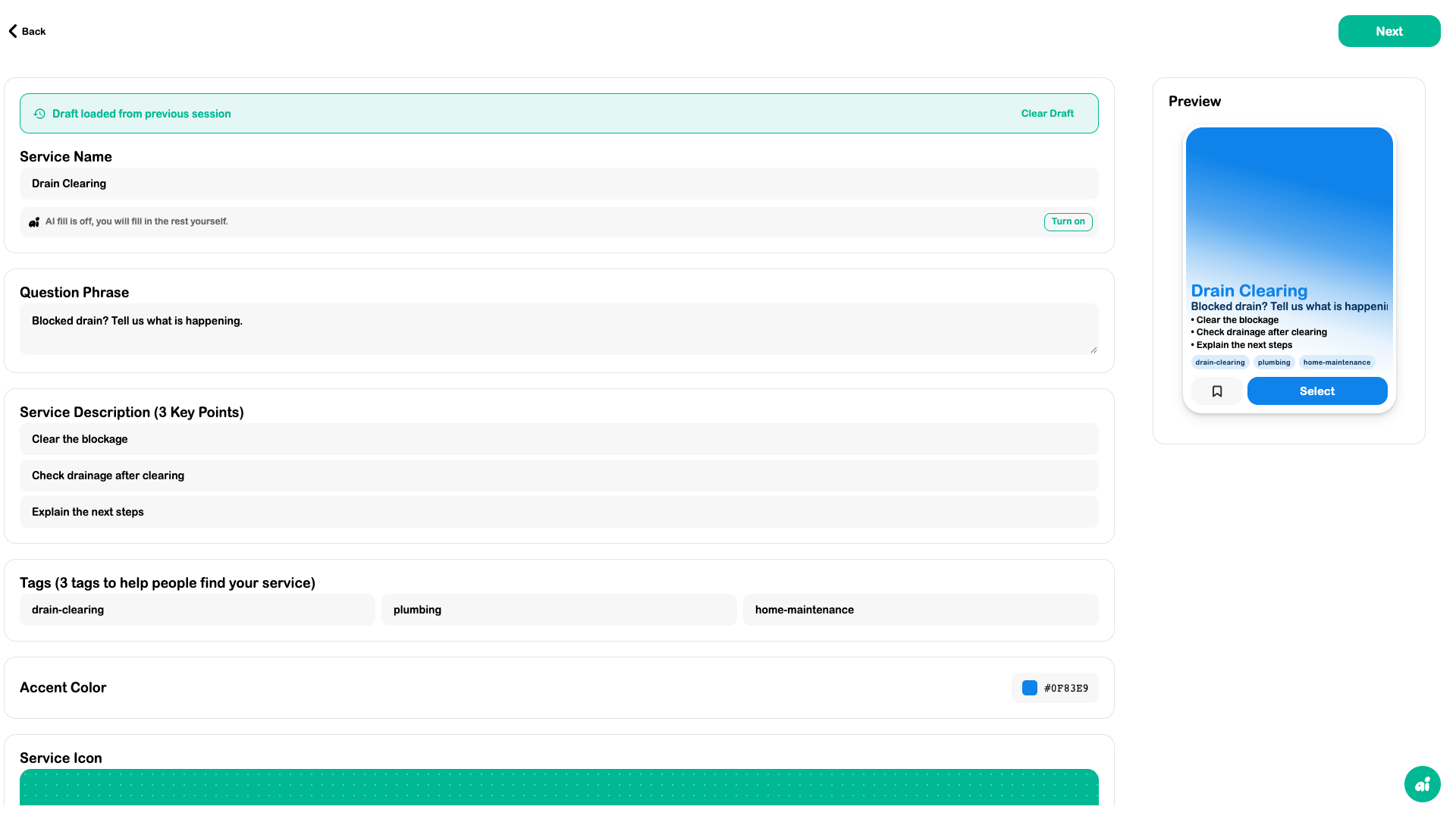
Start with one service you actually deliver. Write the customer outcome, coverage, required information, and pricing decision before building the page. Follow Create a bookable service and Build a useful intake form.
4. Prepare operations
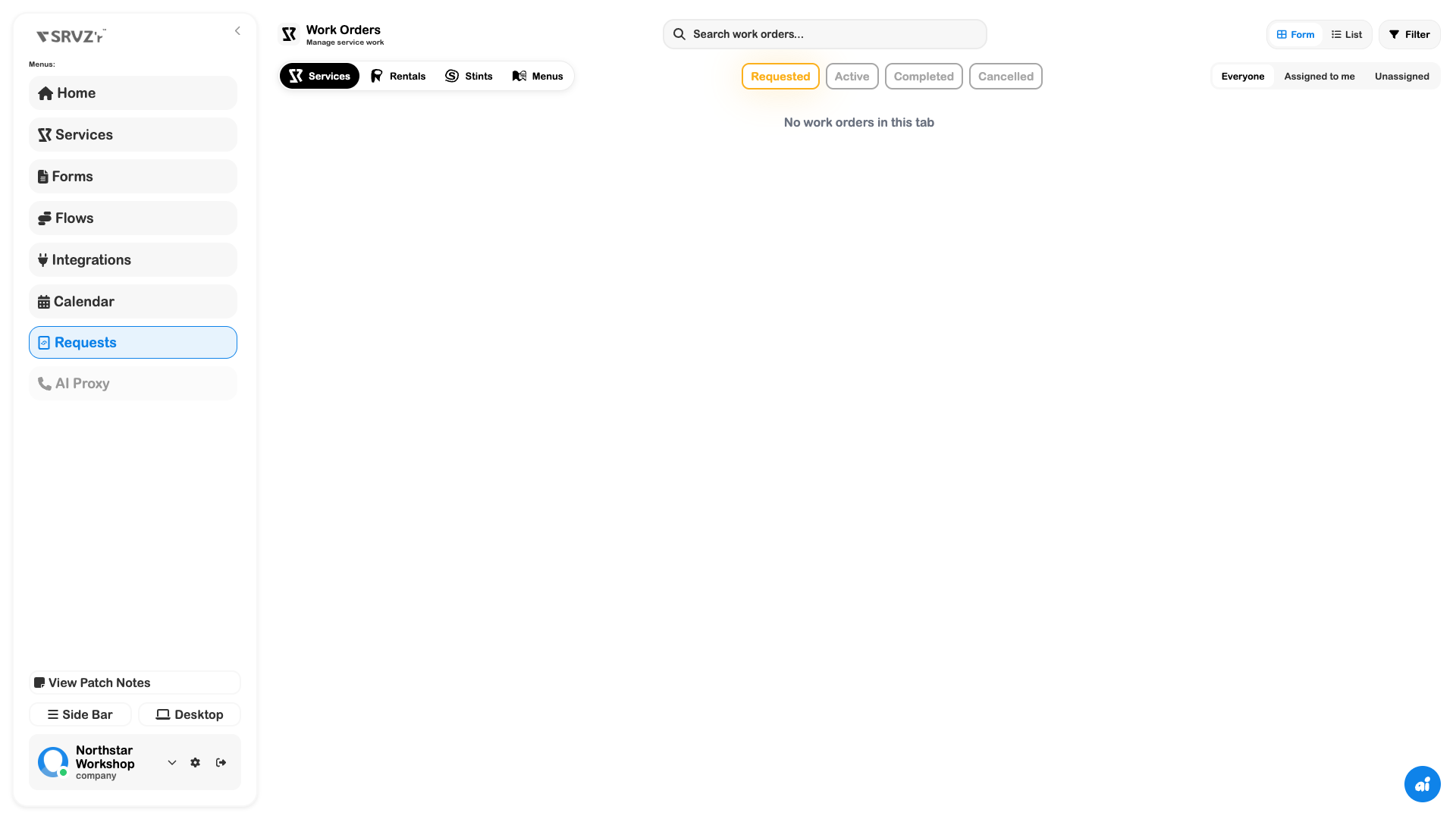
Check Calendar, Requests, and team access. Complete any payment or messaging connections required by your flow. Open the plan screen if a tool shows an access prompt.
Expected outcome
A configured business workspace with a clear first offering and an operational path for reviewing its requests.
Check your result
- The business name and branding are correct.
- The intake form and flow are connected to the intended offering.
- The people delivering the work can see the tools they need.
- You have reviewed the customer path before publication.