Take Interac e-Transfer payments
Customers who pay by e-Transfer send the money straight to your own e-Transfer email. SRVZ never holds the money. Each order gets a reference code that the customer puts in the transfer message, so SRVZ can match each payment to its order.
This walkthrough sets up Maple Plumbing Co., a test business, with a placeholder address. No real transfer is sent.
Before you start
- You need the email your bank deposits Interac e-Transfers to. For automatic deposits, register it for Autodeposit in your online banking. Without Autodeposit, you accept each transfer at your bank as usual.
- Only the business owner or an account manager can change where e-Transfers go.
- e-Transfer is for payments in Canadian dollars.
1. Open the e-Transfer integration
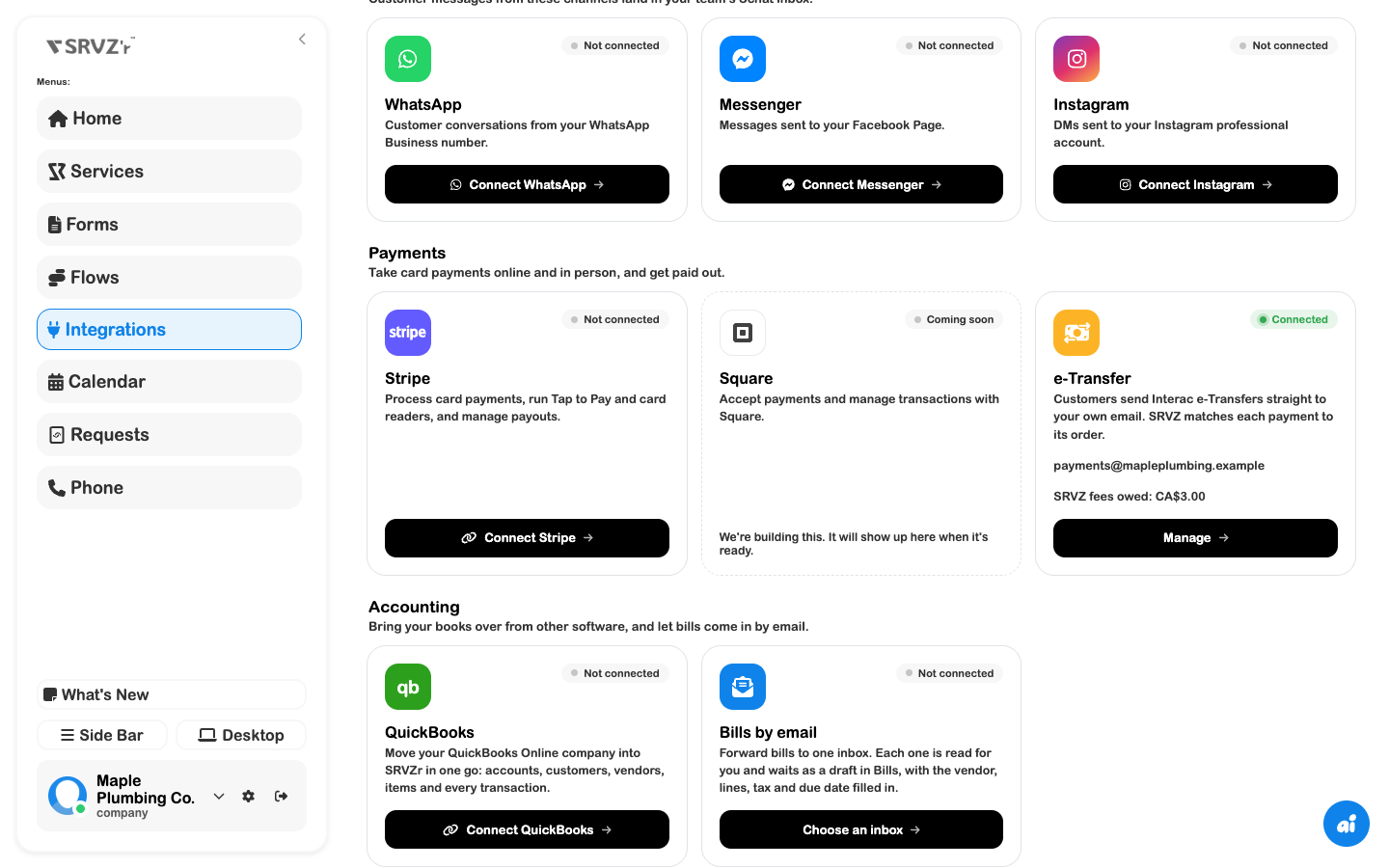
Open Integrations. Under Payments, the e-Transfer card shows Not connected until an email is set up. Choose Set up.
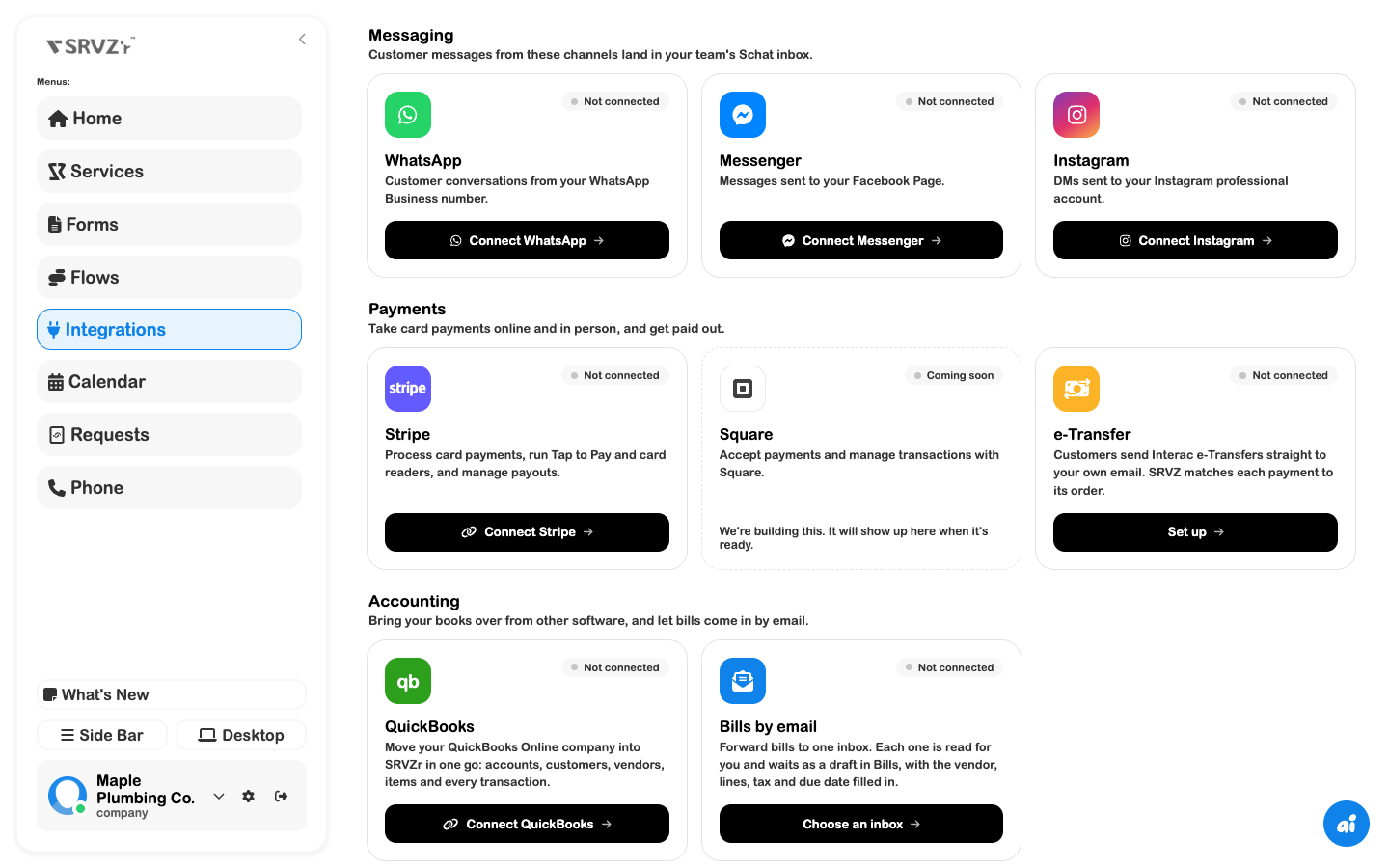
Until an email is set up, checkouts don't offer e-Transfer to your customers.
Recommended: use an inbox on your own domain
If your business has a verified domain in SRVZr Mail, setup suggests this first. Choose Create et@yourdomain (you can change the part before the @). SRVZr creates the inbox and links it, so Interac's deposit emails arrive in SRVZr directly and orders are marked paid automatically, with no code to enter and nothing to forward.
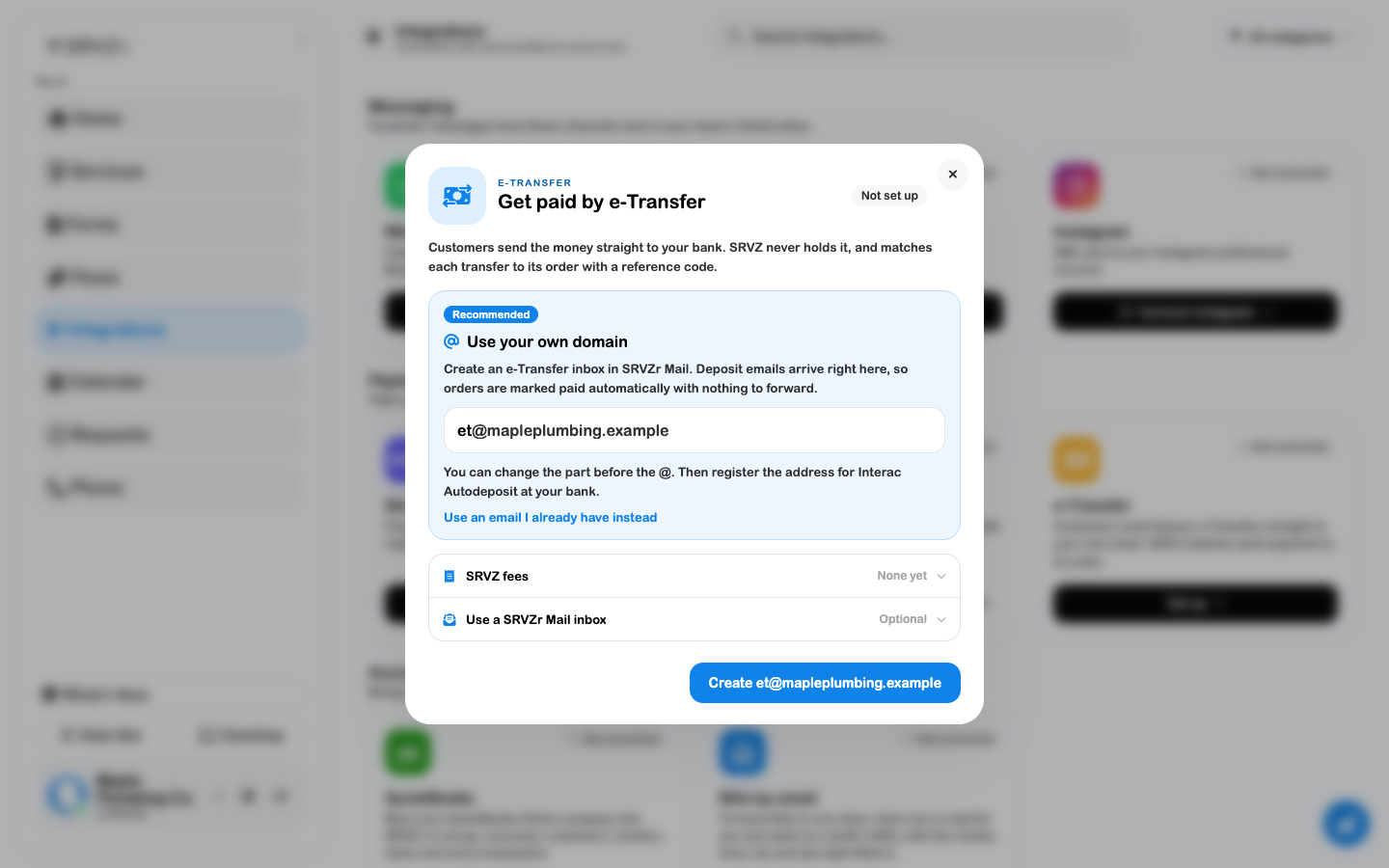
Then, in your online banking, register the new address for Interac Autodeposit. That is the only step left.
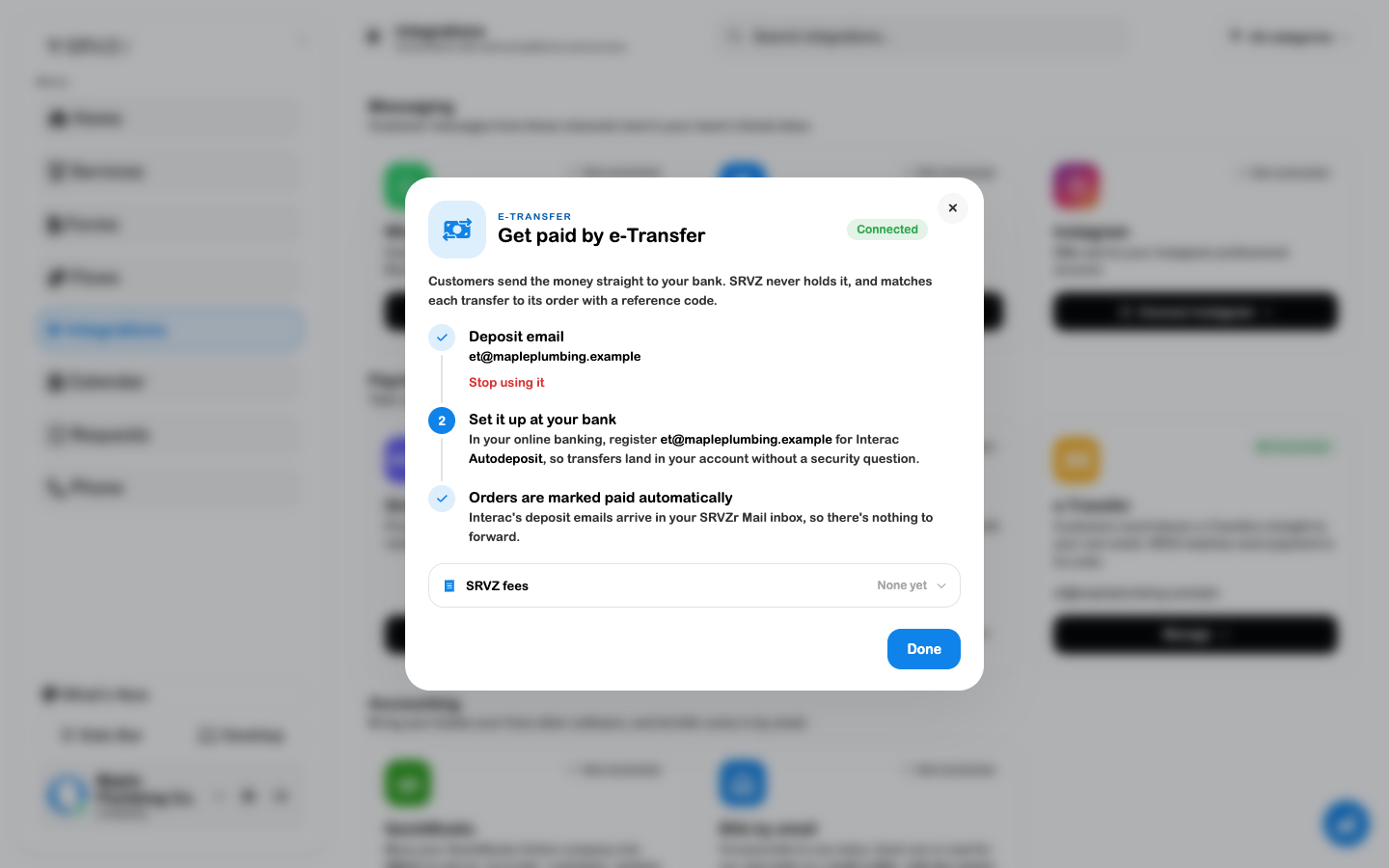
No domain yet? See Set up a domain and shared inbox, or choose Use an email I already have instead and continue below.
2. Enter your deposit email
Without a SRVZr Mail domain, the setup walks you through three numbered steps. In step 1, Add your deposit email, enter the address your bank deposits e-Transfers to and choose Send code.
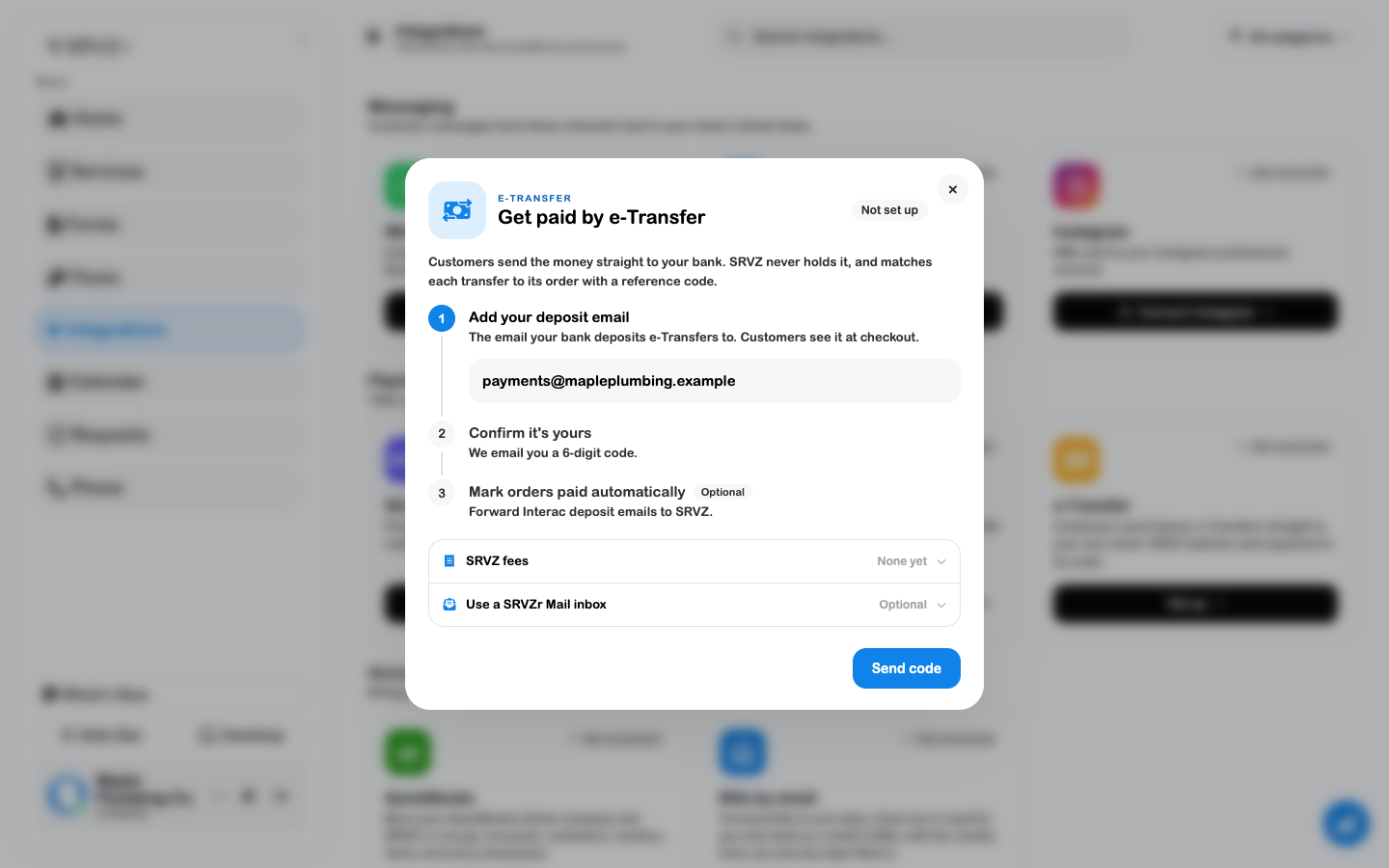
3. Confirm it with the code
Step 2, Confirm it's yours: SRVZ emails a 6-digit code to that address. Enter it and choose Verify. The code expires after 15 minutes; choose Send a new code for another, or Use a different email to go back.
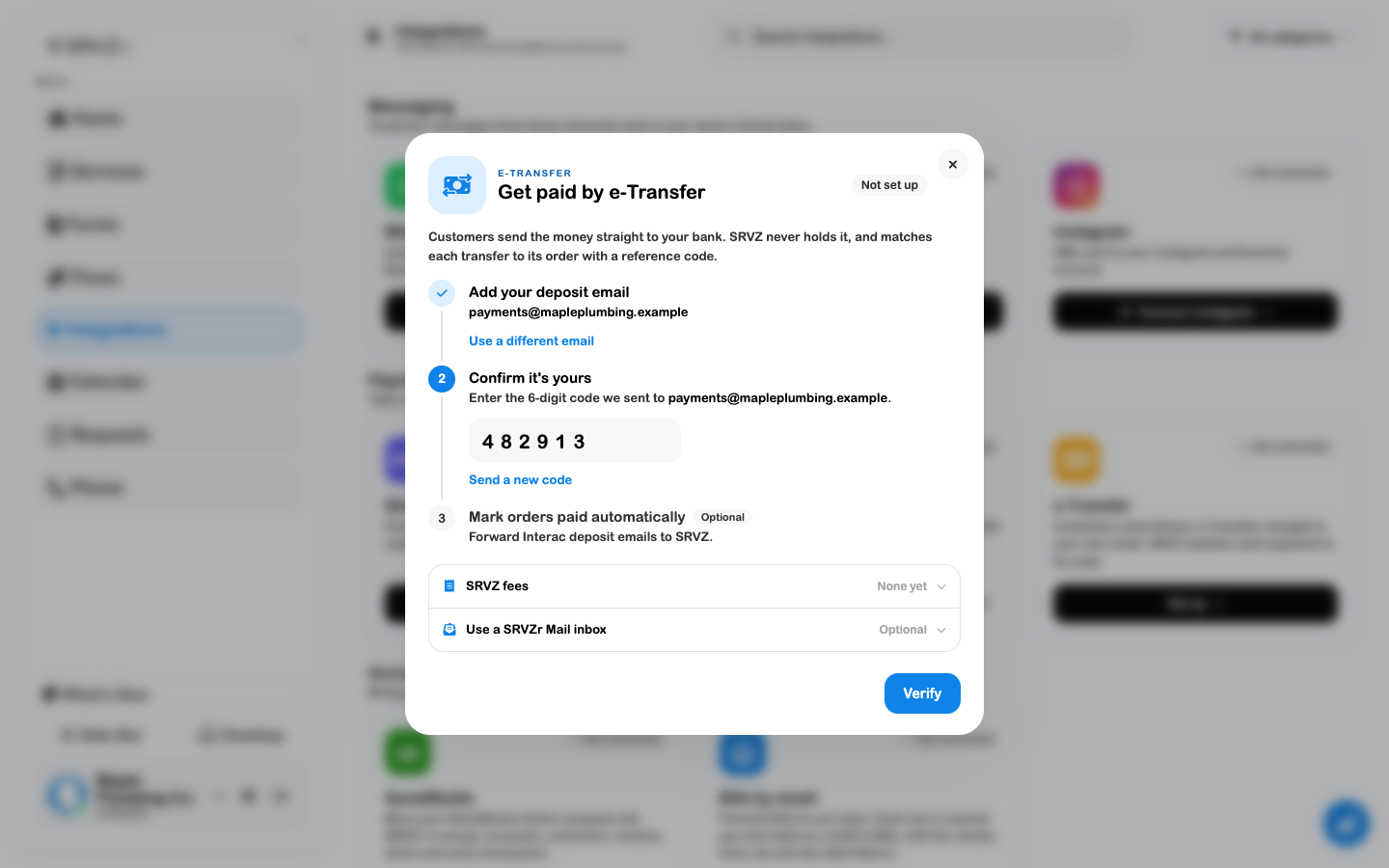
Once verified, both steps show a tick, the badge reads Connected, and customers see your address, the amount and the reference code at checkout.
4. Turn on automatic confirmation
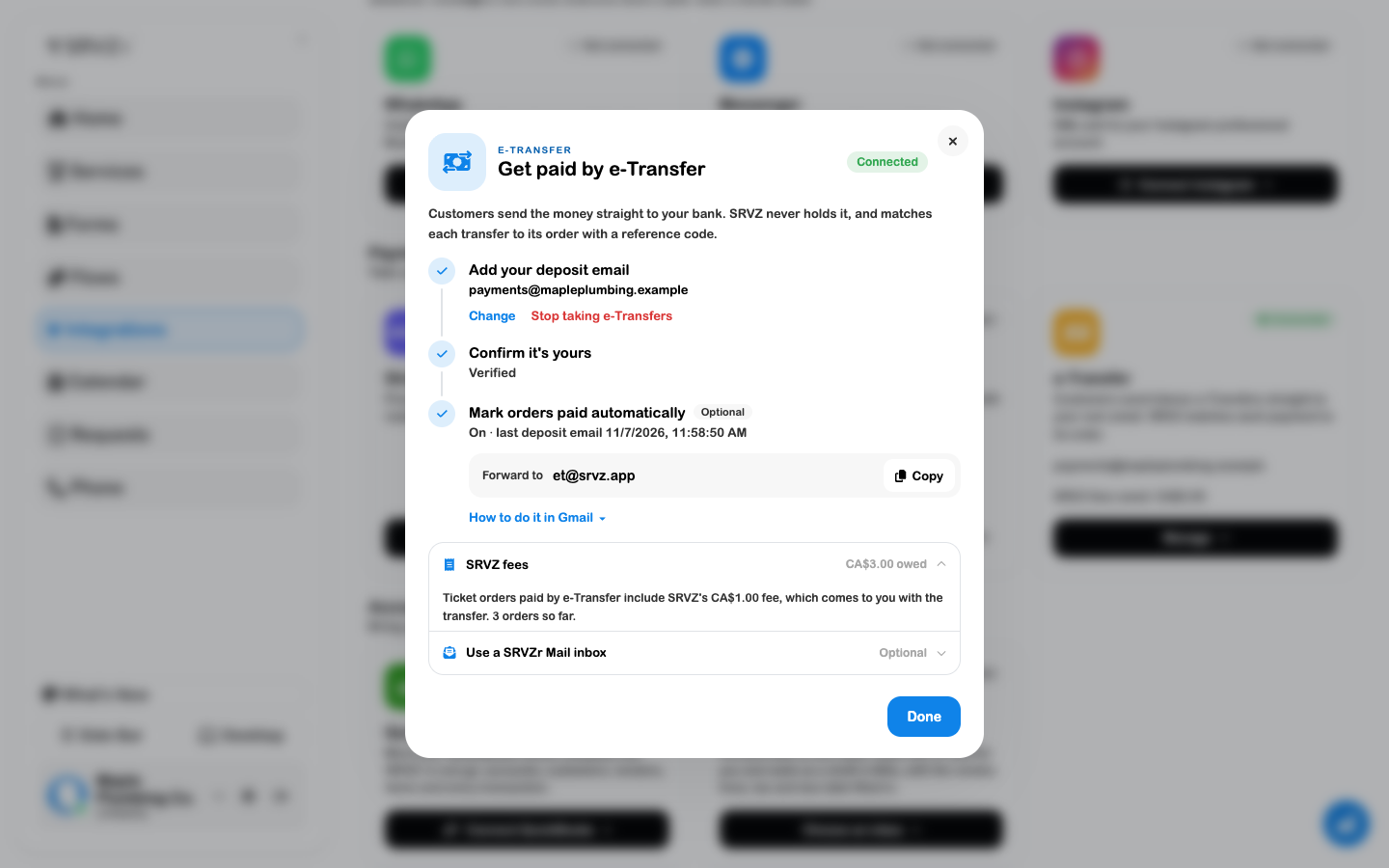
Step 3, Mark orders paid automatically, is optional. Without it, mark each e-Transfer order paid yourself once the money is in your account. To have SRVZ do it for you, forward your Interac deposit emails to et@srvz.app. Choose Copy to copy the address.
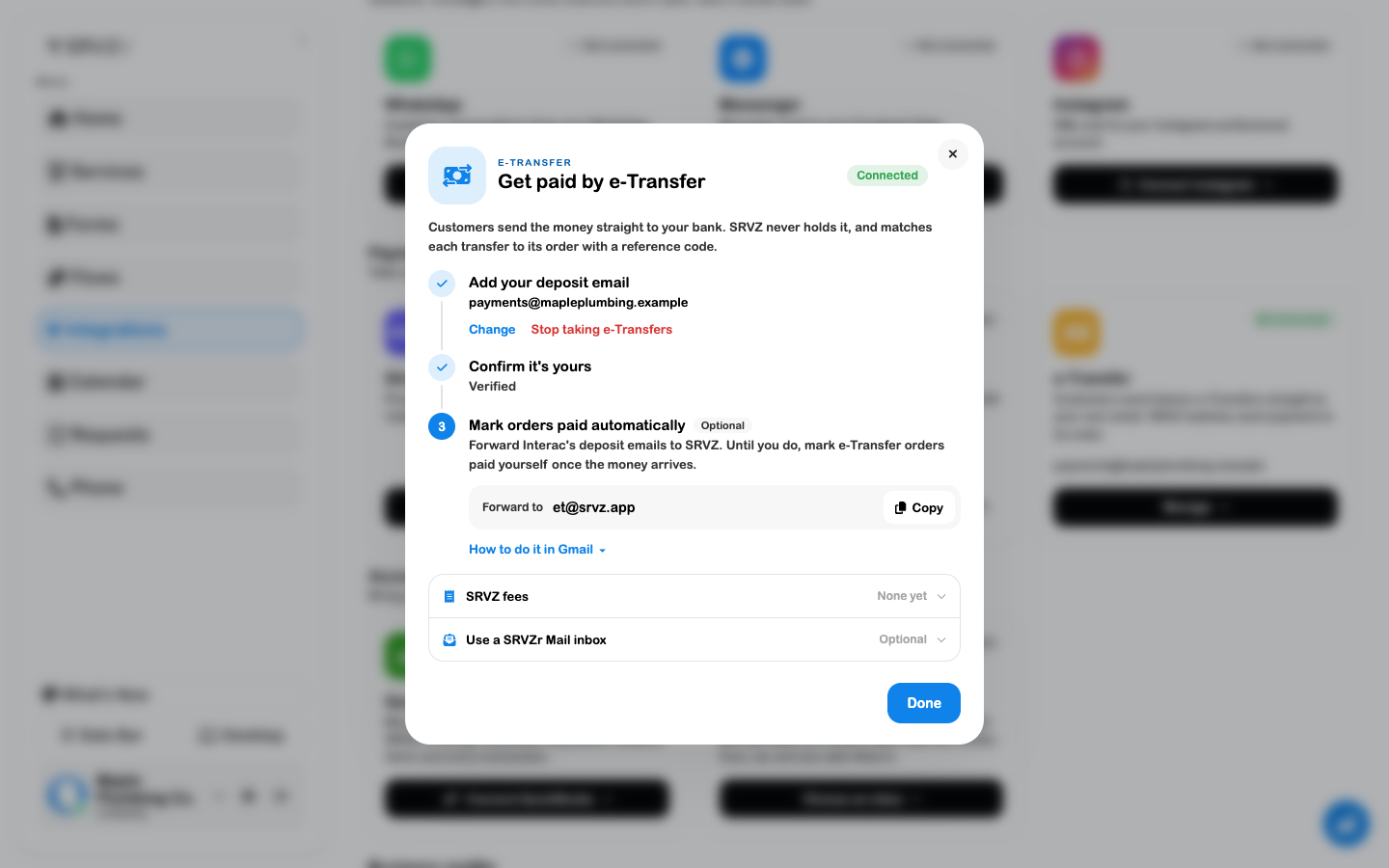
Forward Interac emails in Gmail
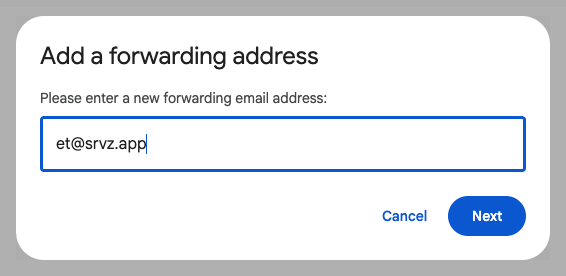
1. Add the forwarding address. In Gmail, open Settings → See all settings → Forwarding and POP/IMAP and choose Add a forwarding address.

2. Enter the SRVZ address. Type et@srvz.app and choose Next, then confirm in the window Gmail opens.
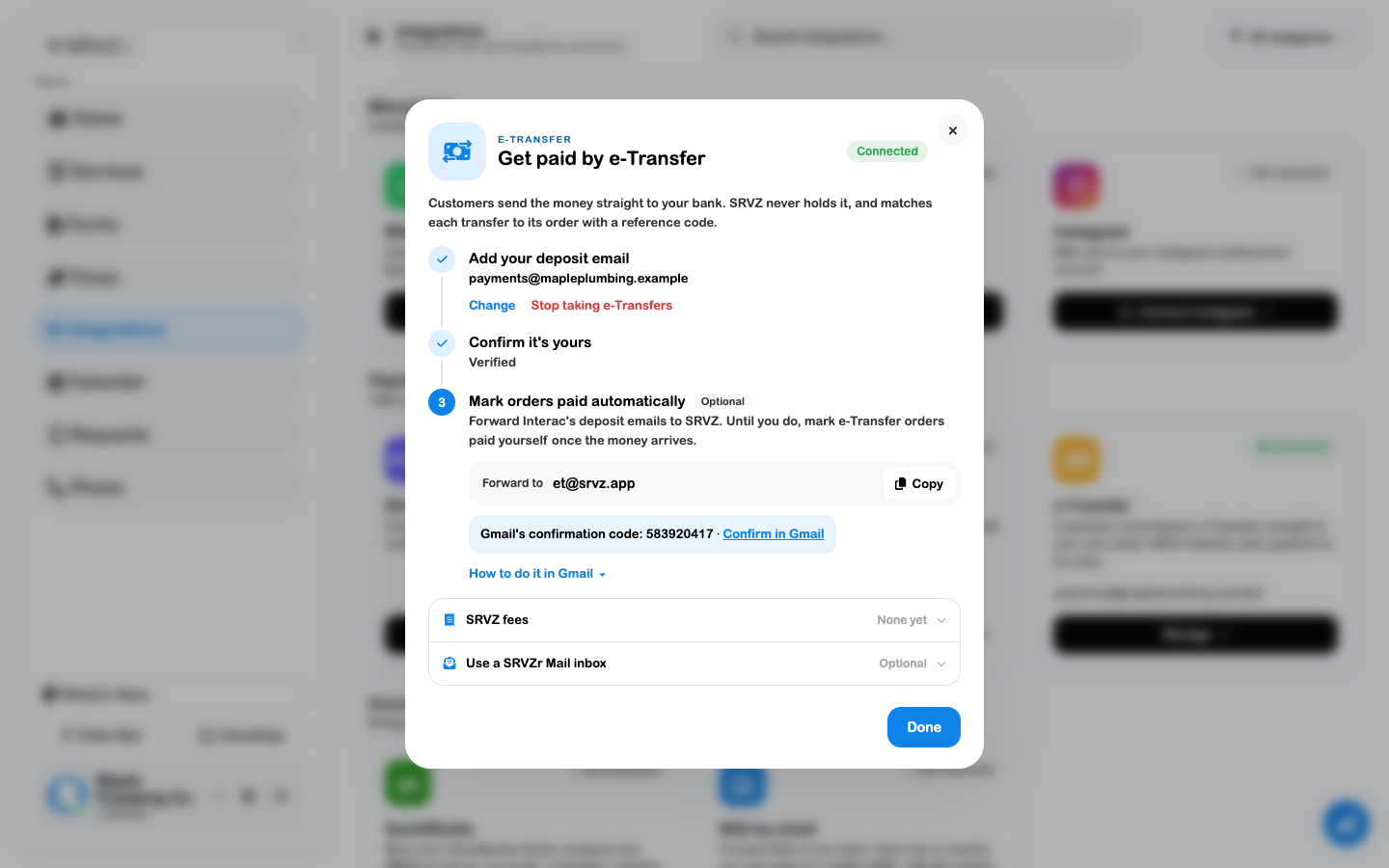
Gmail's confirmation code appears in step 3 of the SRVZr setup a moment later. Enter it in Gmail's forwarding settings, or choose Confirm in Gmail.
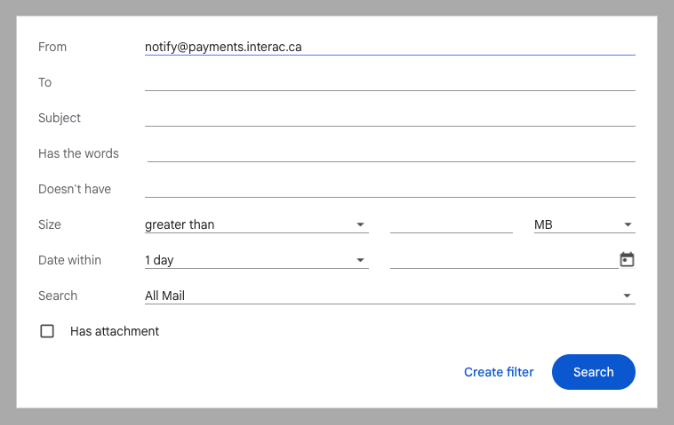
3. Filter Interac's emails. In the Gmail search bar, open the search options (the sliders icon), enter notify@payments.interac.ca in From and choose Create filter.
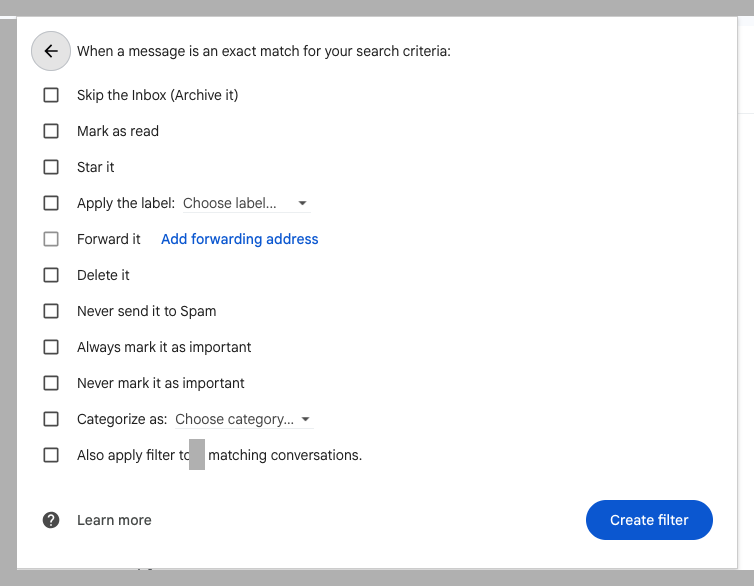
4. Forward them. Tick Forward it to, choose et@srvz.app and choose Create filter.
Only Interac deposit notices sent to your verified address count. A forwarded notice for another address, or one that fails Interac's email checks, is ignored.
5. Check the result
After the first forwarded deposit email arrives, step 3 shows a tick and On with the time of the last one. From then on, when a transfer arrives with an order's reference code, the order is marked paid. Ticket orders also send the customer their tickets.
Some transfers need checking by hand:
- No reference code in the message: SRVZ can't tell which order the transfer is for. Find the order and mark it paid.
- Less than the amount due: the order stays partly paid until the rest arrives.
- Arrives after the request expired: requests are open for 24 hours. Later transfers are kept for review rather than applied.
SRVZ fees
Event ticket orders paid by e-Transfer include a $1 SRVZ fee in the amount the customer sends. Because the whole transfer goes to you, that dollar is recorded as owed to SRVZ once the order is paid. Open the SRVZ fees row to see the total owed and how many orders it came from. The card on Integrations shows the same total.
Link an inbox you already have
To use an existing SRVZr Mail inbox instead of creating one, open Use a SRVZr Mail inbox, choose it and choose Link.
Change or remove the email
Under step 1, choose Change to verify a new address. The old one stays in use until the new code is entered. Changing the address turns automatic confirmation off until an Interac email for the new address is forwarded. Choose Stop taking e-Transfers to remove it; checkouts then hide the option.